Create and Edit Finance Templates
Build invoice and estimate layouts with template blocks, theme settings, and live preview.
Use the finance template editor to create or customize invoice and estimate layouts. The editor has a block list on the left, a live document preview in the center, and block/theme settings on the right.
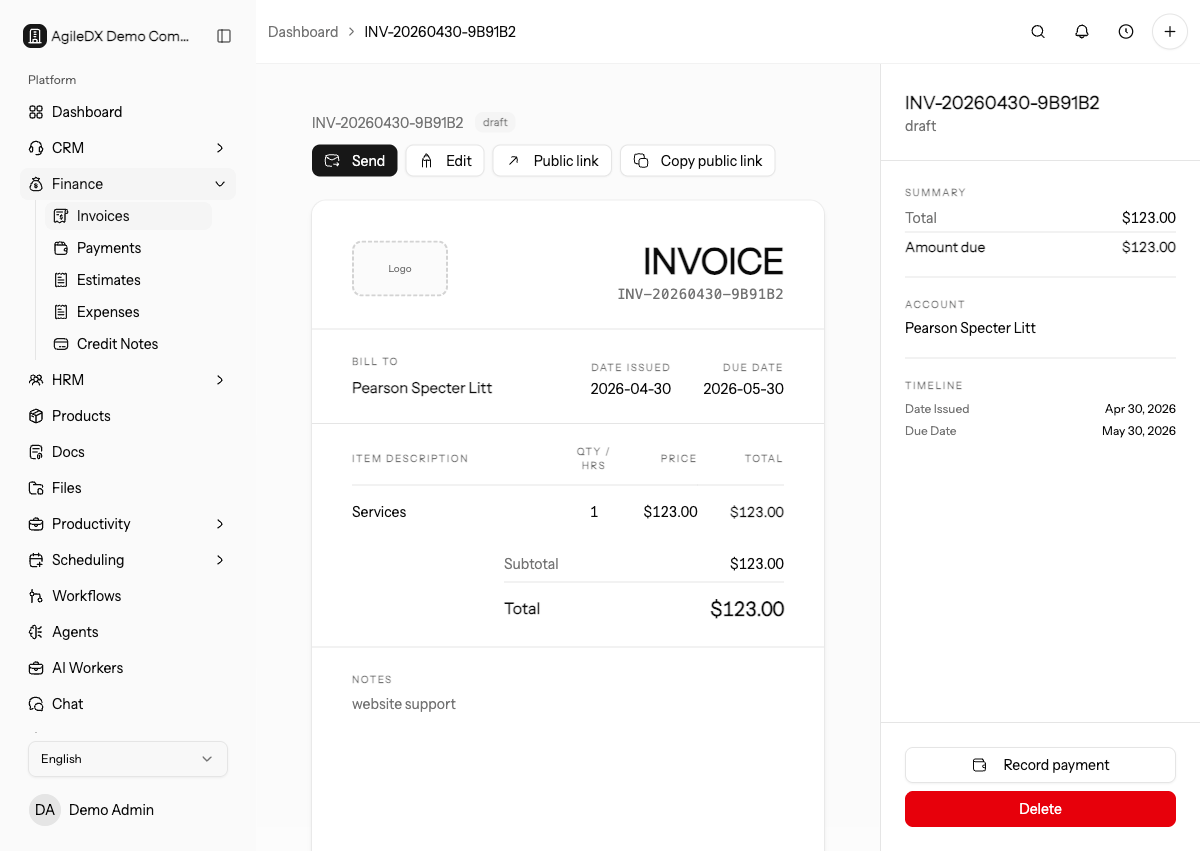
Create a Template
- Open Settings > Finance Templates.
- Select the Invoice or Estimate tab.
- Select New Template.
- Enter a template name.
- Review the default blocks.
- Adjust the layout, theme, and block settings.
- Select Save Template.
New templates start with common document blocks such as header, dividers, recipient information, line items, totals, and footer. Estimate templates can also include a signature block.
Start From a Real Use Case
Before changing blocks, decide what the template is for: short invoices, detailed service estimates, recurring retainers, deposits, or approval-heavy quotes. A template built for every possible use becomes hard to read.
Use a realistic sample document while editing. Include long customer names, multiple line items, discounts, taxes, notes, and payment instructions so layout problems appear before customers see the template.
Edit a Template
- Open Settings > Finance Templates.
- Open the template action menu.
- Select Edit Template.
- Update the template name, blocks, theme, or block settings.
- Save the template.
System templates are read-only. Clone a system template before editing it.
Manage Blocks
Use blocks to control what appears on the finance document. You can:
- Toggle blocks on or off.
- Add supported block types.
- Remove custom blocks.
- Drag blocks to reorder the document.
- Select a block to edit its settings.
Important blocks include:
- Header: Logo, document number, and top document layout.
- Recipient info: Customer, billing, shipping, reference, project, or sales agent details.
- Line items: Product or service rows, quantities, units, tax, and discount columns.
- Totals: Subtotal, discount, tax breakdown, amount paid, and balance due.
- Footer: Notes, terms, tax registration, and closing details.
- Signature: Estimate signature area when approvals are needed.
Theme Settings
Theme settings control the visual style of the document, including accent color, font family, density, and header style. Preview the document before using the template with customers.
Keep brand styling readable. High-contrast text, clear totals, and visible due dates matter more than decoration. Check the template on a downloaded PDF, not only in the editor preview.
Review Before Sending
After saving a template, create a test invoice or estimate and preview it before sending a real document. Confirm business details, logo placement, line-item columns, totals, notes, terms, taxes, and customer-facing labels.
Test Edge-Case Documents
Before making a template default, preview it with edge cases: long customer names, long addresses, many line items, discounts, multiple taxes, partial payments, long notes, and attachments. Also download the PDF so you can check page breaks, totals, and footer placement outside the editor.
If an estimate uses signatures, confirm the signature block is visible and does not crowd the acceptance terms. If an invoice uses payment instructions, confirm they remain clear on both preview and PDF.
Publish Safely
If the template should become the default, set it as default only after the test document looks correct. Changing the default affects future documents, so tell finance and sales users when a new layout is available.
Keep older custom templates until no open invoice or estimate process depends on them.