Create Invoices
Build an invoice with customer details, line items, taxes, and due dates.
Create an invoice when you need to bill a customer for products, services, tracked time, or reimbursable expenses.
Create the customer and review finance settings before starting a real invoice. Missing customer details, taxes, payment terms, or gateway settings usually show up at the worst point: right before sending.
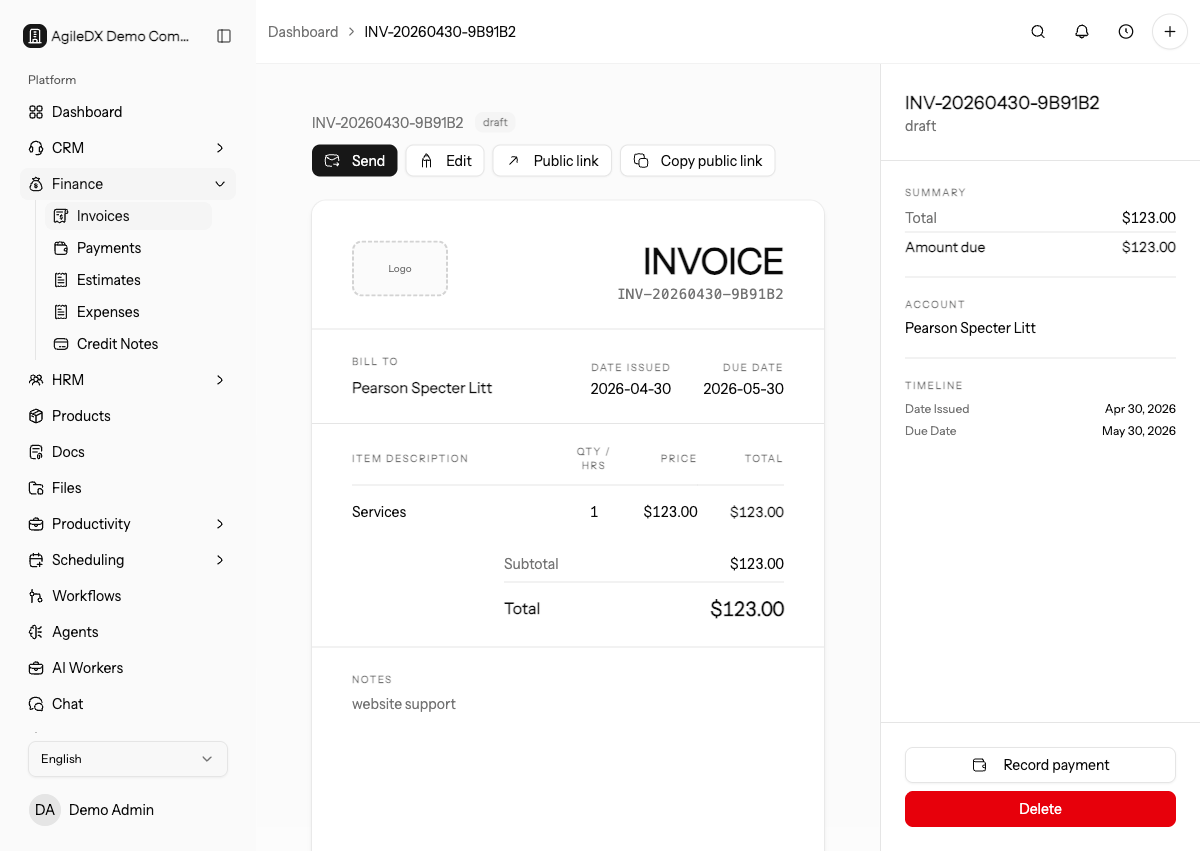
Create an Invoice
- Open Finance > Invoices.
- Select Create Invoice or New Invoice.
- Choose the customer account and contact.
- Review the invoice number, issue date, and due date.
- Add line items for the work, product, service, or charge.
- Add taxes, discounts, notes, terms, and custom fields when needed.
- Save the invoice as a draft or send it to the customer.
If another teammate owns the customer relationship, ask them to confirm the billing contact and scope before sending. Invoice corrections after delivery can delay payment and create avoidable customer questions.
What to Enter
Logo
Upload the logo you want shown on the invoice. If your workspace already has
branding configured, use the default unless this invoice needs a special logo.
Invoice Number
Use the next number in your invoice sequence. Change it only when your finance
process requires a manual number.
Issue Date
Use the date the invoice is created or officially issued.
Due Date
Choose when payment is expected. Use the quick due-date buttons when they match
your payment terms.
Customer Account and Contact
Choose the account being billed and the contact who should receive the invoice.
If the contact is missing, create or update the customer before sending.
Line Items
Add one row for each product, service, fee, time entry group, or expense you
want shown separately.
Use customer-readable descriptions. Internal shorthand may be clear to your team but confusing on the public invoice or PDF.
Quantity and Price
Use quantity for units, hours, or item counts. Use price for the rate per unit.
Tax and Discount
Apply the correct tax and discount at the line level. Confirm totals before
sending.
Notes and Terms
Use notes for helpful customer-facing context. Use terms for payment terms,
late-fee language, or instructions your customer should see.
Source Line Items
When possible, source line items from products, tracked time, billable expenses, or accepted estimates. This keeps the invoice connected to the records that explain the charge and reduces manual pricing mistakes.
If you add a manual line item, write a description that the customer can understand without asking your team for context.
For time or expense based invoices, review the source entries before importing them. Fix unclear descriptions, wrong billable flags, missing receipts, and incorrect project links before they become customer-facing invoice lines.
Save Draft or Send
Use Save Draft when the invoice still needs review. Use Send Invoice when it is ready for the customer. You can also schedule the invoice to send on a future date when that option is available.
Before sending, preview the invoice and public payment page. Confirm totals, tax, currency, due date, attachments, payment methods, and customer email.
If the invoice needs internal approval, keep it as a draft and assign a review task. Do not send and then ask finance to check it afterward.
After sending, open the sent email or public invoice page when available. Confirm the customer can reach payment methods, attachments, and terms from the link.