Finance Template Settings
Manage invoice and estimate templates from workspace settings.
Finance template settings control the invoice and estimate layouts available to your workspace. Templates affect the documents customers receive, download, and review from public links.
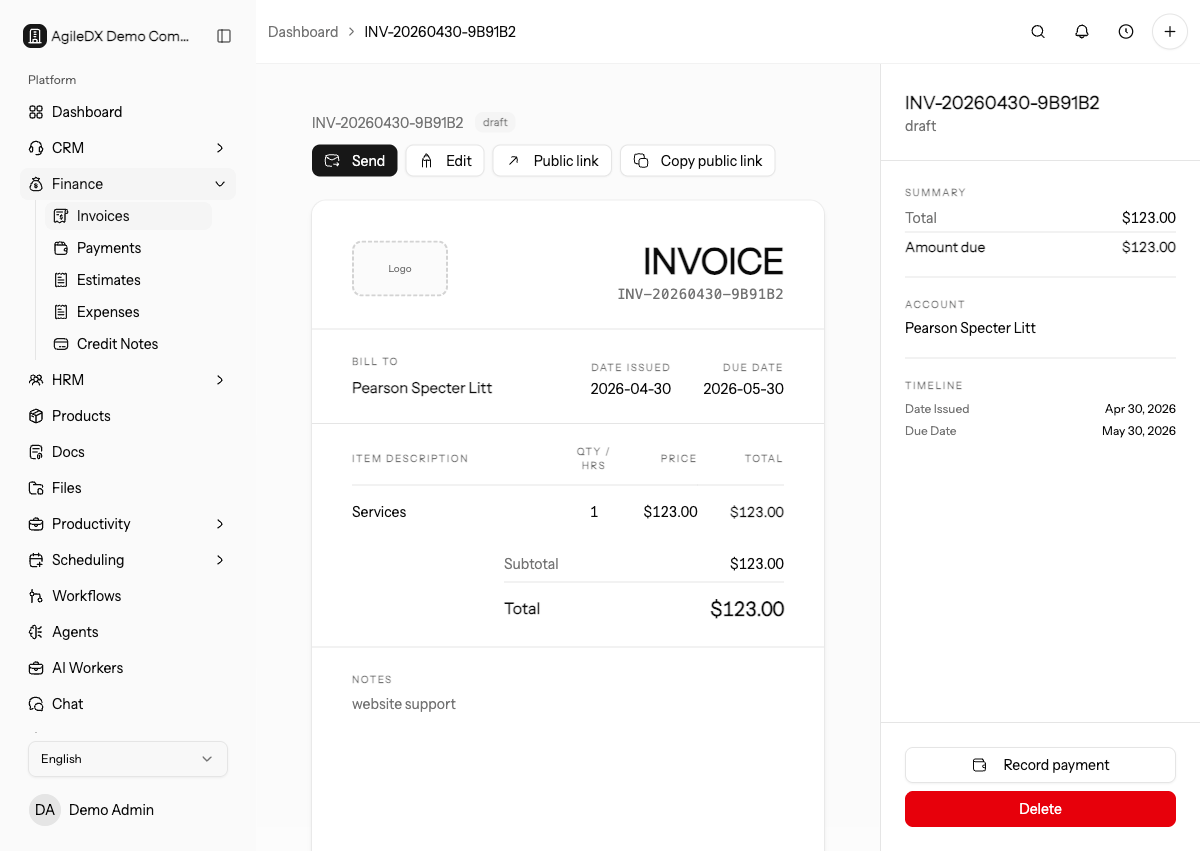
Review finance templates before sending real invoices or estimates. Template choices affect branding, payment instructions, line item readability, totals, and the public PDF.
Open Finance Templates
- Open Settings.
- Go to Finance Templates.
- Switch between Invoice and Estimate templates.
- Review system, default, inactive, and custom template labels.
System templates can be used as a starting point. Clone a system template when you need to customize it.
Do not edit template settings during an active billing run unless you have previewed the output with realistic invoice or estimate data.
Template Actions
Use the template action menu to:
- Edit custom templates.
- Clone a system or custom template.
- Set a template as the default.
- Delete custom templates that are no longer needed.
System templates are read-only and cannot be deleted. Clone them before making layout, block, or theme changes.
Seed Default Templates
If a workspace has no invoice or estimate templates, use the default-template action to create the standard starting set. After seeding, review the defaults and choose the template your team should use first.
Seed defaults only once during setup or repair. After templates exist, clone and edit intentionally instead of recreating defaults and cluttering the library.
Default Templates
The default template is used when new finance documents need a starting layout. Changing the default affects future invoices or estimates. Existing documents keep their saved content and should be reviewed before sending if you need their layout to match a new template.
If recurring invoices or saved finance workflows exist, review them separately. They may keep saved template assumptions instead of automatically following the new workspace default.
Coordinate Template Changes
Before changing a default template, tell the people who create invoices, estimates, recurring invoices, and finance documents. Template changes affect future customer-facing output, so finance should know what changed and when.
Record the template change date and reason. If a customer reports a different invoice layout later, finance can tell whether the document was created before or after the template change.
Review Before Defaulting
Create a draft invoice or estimate with long line items, tax, discounts, notes, and payment instructions. Preview and download it before setting a template as default.
Also test customer-facing public pages. A template can look acceptable in the editor but still need adjustment in the PDF or public invoice/estimate view.
Template Change Checklist
Before setting a template as default:
- preview invoice and estimate versions separately
- test long line items, discounts, tax, notes, and payment instructions
- download the PDF
- open the public invoice or estimate page
- notify finance users who create customer documents
- review recurring or saved document workflows
Troubleshooting
If a new invoice uses the wrong layout, confirm the default for the correct document type. If an old invoice uses the old layout, change that document's template manually.
If customers report confusing totals or missing payment instructions, preview a realistic invoice with the template before editing colors or layout.
If recurring invoices still use old assumptions, open the recurring template and review its saved document settings. Changing the global default may not update older templates automatically.