Preview and Download Invoices
Review invoices before sending and download invoice PDFs when you need a copy.
Previewing an invoice helps you catch customer, tax, template, and payment details before the invoice reaches the customer.
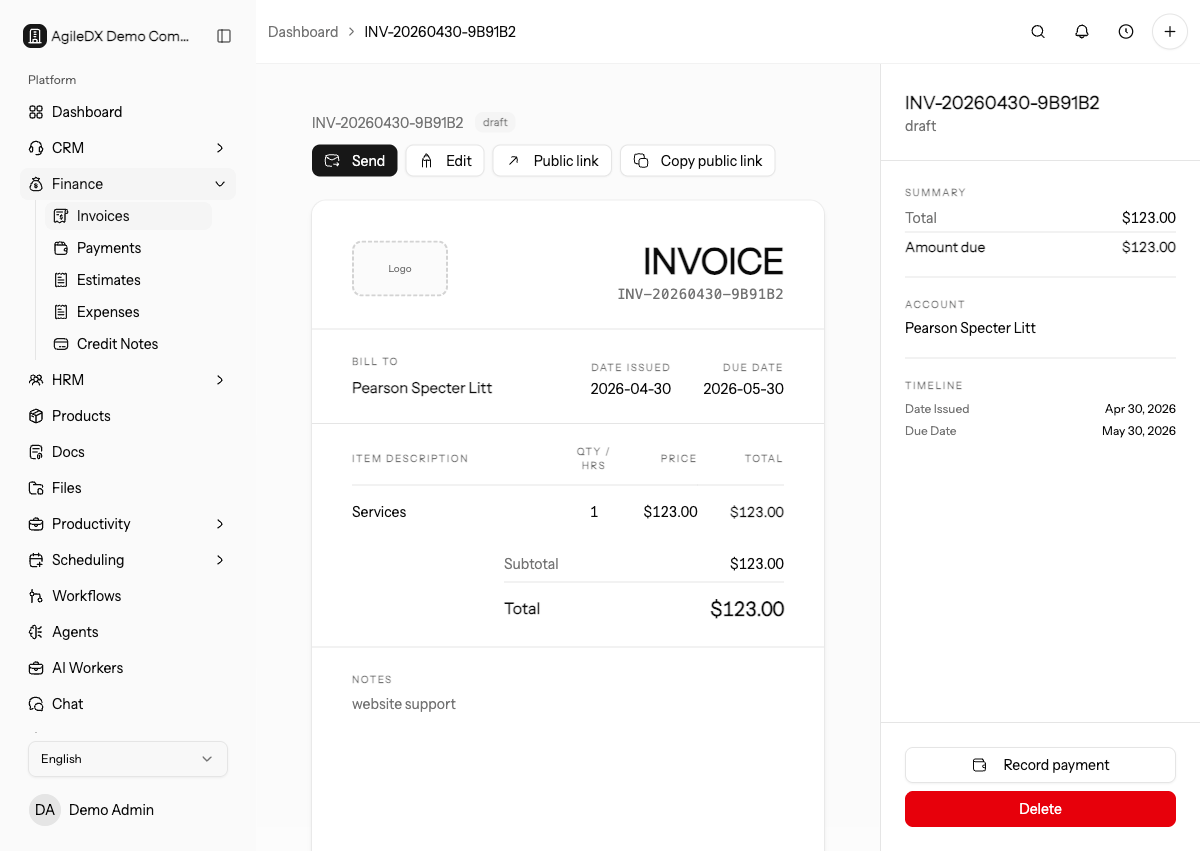
Use preview as the final review step before sending, scheduling, downloading, or sharing an invoice link.
Preview an Invoice
Open an invoice from Finance > Invoices. Use the invoice detail page to review the customer, invoice number, dates, line items, taxes, discounts, notes, attachments, and payment options.
Preview is especially important after changing templates, payment terms, tax rates, or currency settings because those choices affect what the customer sees.
Check the invoice as if you were the customer: company details, bill-to details, invoice number, dates, line items, notes, totals, payment instructions, attachments, and branding.
If the invoice was duplicated or generated from a recurring template, check for old customer-specific notes, attachments, discounts, and project references before sending or downloading.
Download the PDF
Use the download action when you need an invoice PDF for email, accounting records, or customer requests outside the normal invoice email flow.
Downloaded PDFs should match the current saved invoice. If you change line items, totals, notes, or branding, download the PDF again after saving.
Do not rely on a PDF downloaded before the final save. The file may no longer match the invoice the customer sees online.
Name downloaded copies consistently if your team stores them outside Agiled. This makes it easier to match the PDF to the invoice number and customer later.
If the invoice is revised after a PDF is sent manually, send the updated PDF or public link with a clear note. Customers may keep using the older copy unless you tell them which version is current.
Preview Checklist
Before sending or downloading, confirm:
- customer and billing address
- invoice number and dates
- line item names, quantities, rates, and taxes
- discounts, deposits, and totals
- notes and payment terms
- payment instructions and public link
- attachments and branding
Public Invoice Downloads
Customers can also use the public invoice page when an invoice is shared with them. The public page is where they can review invoice details, download the PDF, and pay through enabled payment methods.
Test the public page when a customer says they cannot download or pay. If the internal preview works but the public page does not, check invoice status, public link, payment gateway, custom domain, and attachment access.
Use a private browser window for public-page testing. Your signed-in session can hide permission, custom-domain, or public-link problems.
Before Sending A Downloaded PDF
If you manually email a PDF, make sure the public payment link or payment instructions are included when payment is still due. A standalone PDF can create confusion if the customer does not know where to pay.
If the invoice has already been paid, confirm the PDF shows the expected status or balance before sending it as a receipt or record copy.
If the PDF is for accounting or audit records, keep the invoice number and export date in the filename or storage note.
Preview Review Checklist
Before sharing:
- confirm invoice status and balance
- check customer and billing details
- review taxes, discounts, and totals
- confirm payment instructions
- open attachments
- download a fresh PDF after final changes