Apps
Connect, disconnect, and monitor app integrations.
Apps settings show available integrations and current connections.
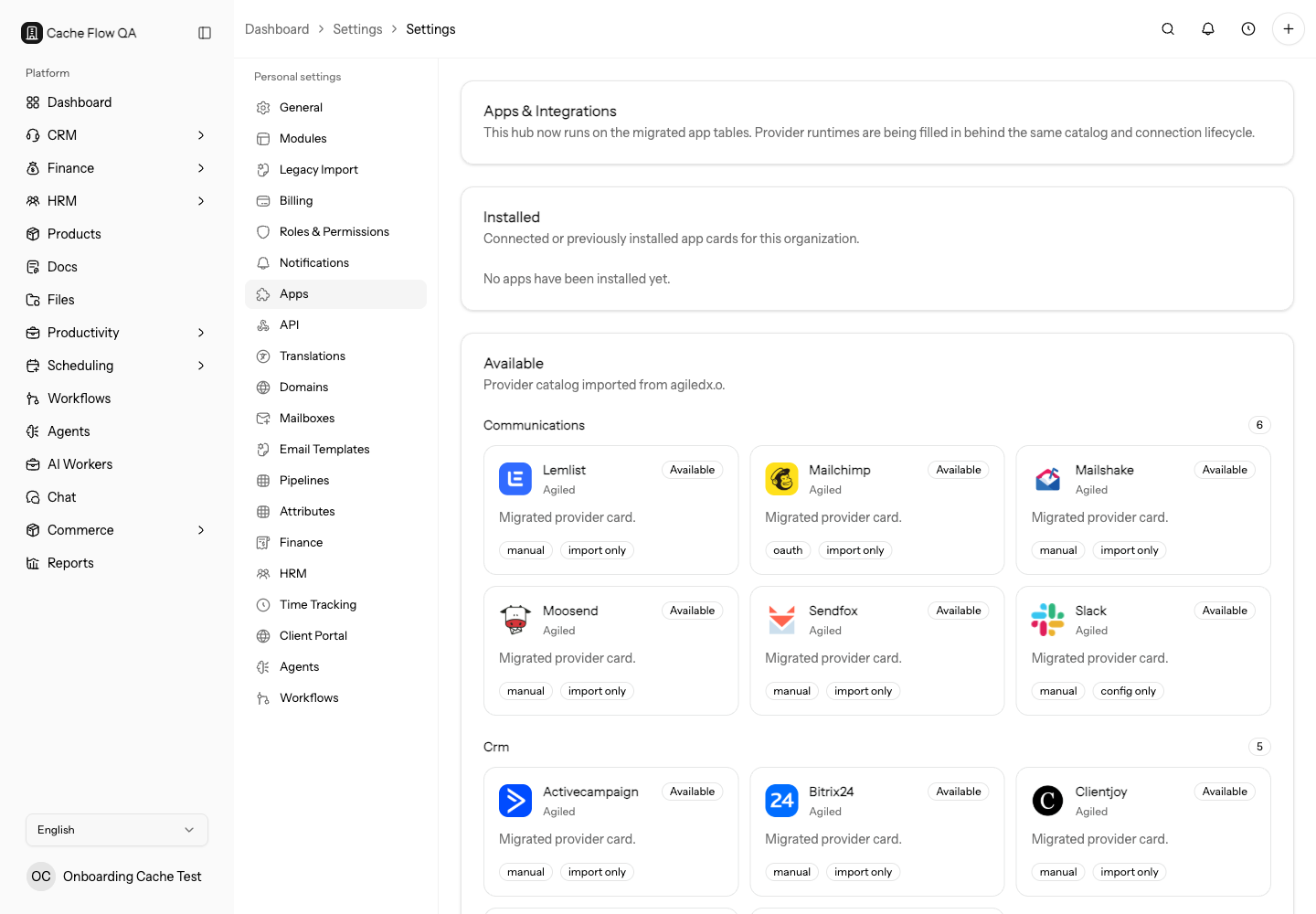
Use Apps settings as the control center for provider connections. The page separates installed apps from available apps and groups them by category so you can see what is already connected and what can still be added.
Use this page during setup, audits, and troubleshooting. It shows whether a problem is likely caused by a missing connection, expired authorization, configuration issue, or provider sync failure.
App Cards
Each app card can show:
- App name and publisher.
- Category.
- Install mode, such as OAuth or manual configuration.
- Sync mode.
- Runtime status.
- Installation status, such as available, installed, configured, running, needs attention, blocked, or uninstalled.
Open a card to review provider details, connection state, object scope, recent runs, setup guide links, and available actions.
Connect an App
Choose the app, review the permissions, complete OAuth or manual credential setup, then confirm the connection status in Agiled.
OAuth apps use Connect or Reconnect. Manual apps may use Install and configuration fields. When configuration fields are shown, fill every required field and save before running imports or syncs. Secret fields are stored as credentials, so only trusted admins should manage them.
Disconnect an App
Disconnect an app when the workspace should no longer sync or use that provider. Some provider-side access may also need to be revoked in the provider account.
After uninstalling or disconnecting, review any workflows, public pages, payment settings, mailboxes, or calendar settings that depended on that provider.
Do not disconnect a provider during business hours unless you know what depends on it. Mailbox, calendar, payment, or CRM integrations can affect customer communication immediately.
Sync Runs
When an integration imports or syncs data, review sync run status for failures, provider errors, and imported object counts.
Run Import or Sync
- Open Settings > Apps.
- Open the installed app.
- Review connected account, last synced time, last error, and object scope.
- Confirm the app is configured and ready.
- Select Sync now or Import now when available.
- Review recent runs after the action starts.
Use Import when pulling provider data into Agiled for the first time or for a bulk migration. Use Sync for ongoing updates when the provider supports it.
Object Scope
Object scope explains what the integration may work with, such as contacts, calendar events, invoices, products, files, or tasks. If a sync is missing data, check object scope before assuming the provider failed.
Integration Audit
Review connected apps regularly:
- Confirm the connected account is still owned by the right person or team.
- Check last sync time and last error.
- Confirm object scope matches the business process.
- Remove apps that are no longer used.
- Review workflows or public pages that depend on each app.
Common Issues
- Runtime pending: the app exists in the catalog but the runtime is not ready for use yet.
- Needs attention: reconnect, reconfigure, or review the last error.
- Last sync is old: run a manual sync if available and review recent runs.
- Import creates unexpected data: stop running imports and review object scope, mappings, and provider account selection.