Troubleshooting
Fix common sign-in, permissions, imports, files, finance, scheduling, integrations, and automation issues.
Use troubleshooting docs when something did not complete or a user cannot reach the record, page, or action they expected.
Start Here
- Sign-in and account access
- Missing pages and permissions
- Import failures
- Email delivery issues
- Public link issues
- Payments and billing issues
- Integration and sync issues
- Automation and AI run issues
- Support checklist
Account and Access
- If sign-in fails, confirm the email address, password, and whether the account uses Google sign-in.
- If password reset email does not arrive, check spam, the email address, and whether the account exists.
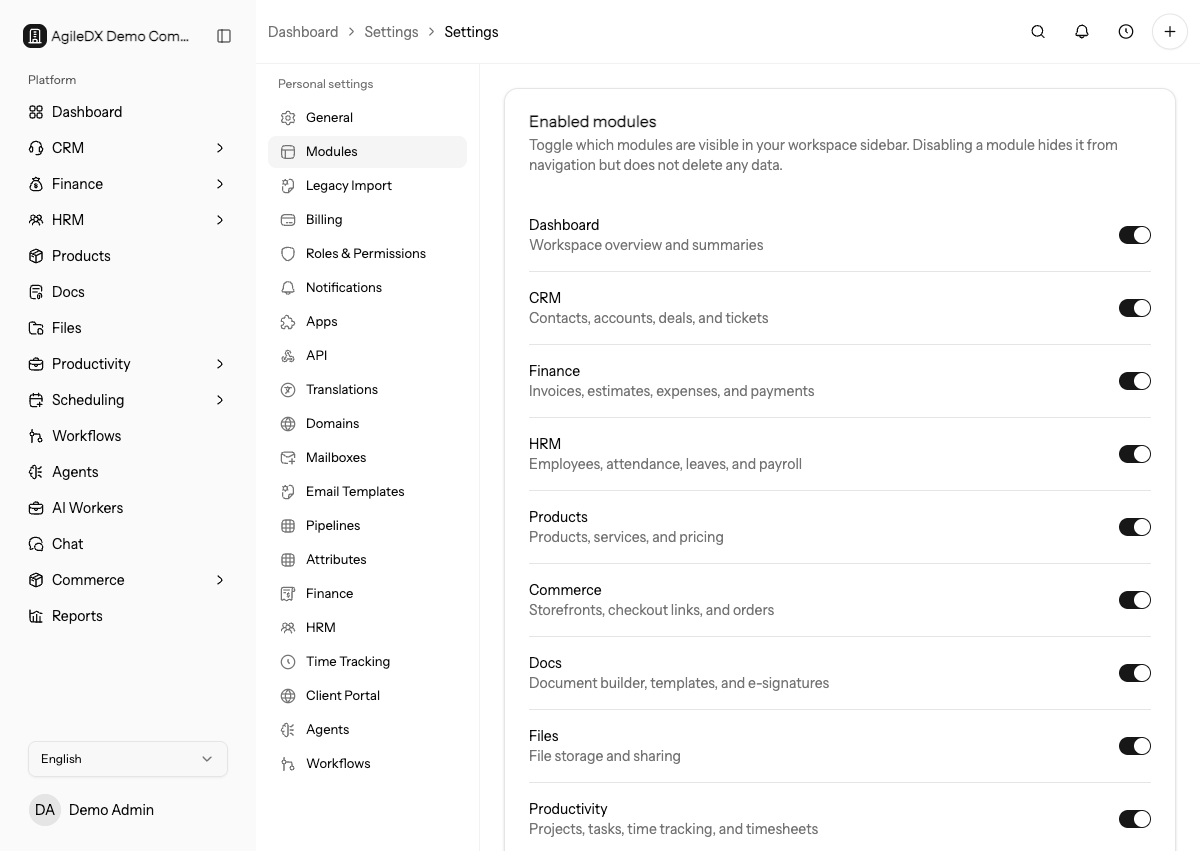
- If a page is missing, check whether the module is enabled and whether the user has permission.
Imports
If an import fails, review the import run details. Fix invalid rows in the source CSV, confirm required fields are present, and rerun only the corrected data.
Files
If upload, preview, or download fails, check the file type, file size, network, record permissions, and whether the original file is valid.
Finance
If invoice or estimate preview looks wrong, check finance templates, business details, line items, taxes, currency, and number sequences. If payment fails, check the payment gateway connection and provider dashboard.
Scheduling
If availability looks wrong, check time zone, event type availability, buffers, connected calendars, existing appointments, and booking page status.
Integrations
If an app connection fails, reconnect the provider, confirm provider-side permissions, review sync run errors, and check whether the provider account still has API access.
Workflows and AI Workers
If automation did not run, check whether the workflow or worker is active, the trigger conditions matched, permissions allow the action, and the run history shows a failure.
Feature-Specific Troubleshooting
- Troubleshoot file uploads and previews
- Troubleshoot availability
- Troubleshoot checkout
- Troubleshoot workflow runs
- Troubleshoot AI Workers
- Troubleshoot dashboard data
Support Details to Collect
When contacting support, include the workspace, page URL, record name, time of the issue, expected result, actual result, and a screenshot when possible. Do not send passwords, API keys, or payment card details.
Troubleshooting Method
Start with the smallest record or page that reproduces the issue. Check whether the module is enabled, the user has permission, the source record exists, and the related integration or workflow has a recent error.
After changing settings, retry the exact action that failed. If the issue affects customer-facing pages, test the public link in a private browser window so signed-in admin access does not hide the real problem.
Escalation Notes
When escalating an issue internally, include what you already checked and what changed recently. Recent imports, role changes, template edits, connected app reconnects, payment gateway changes, workflow publishes, and custom-domain updates often explain a problem faster than generic logs.
Avoid sending secrets in screenshots or notes. Mask API keys, webhook secrets, passwords, payment details, and private customer data before sharing context.