Create An Employee
Add an employee record for HRM, attendance, leave, salary, and compensation.
Create an employee record before tracking attendance, leave, salaries, compensation, or employee self-service for that person.
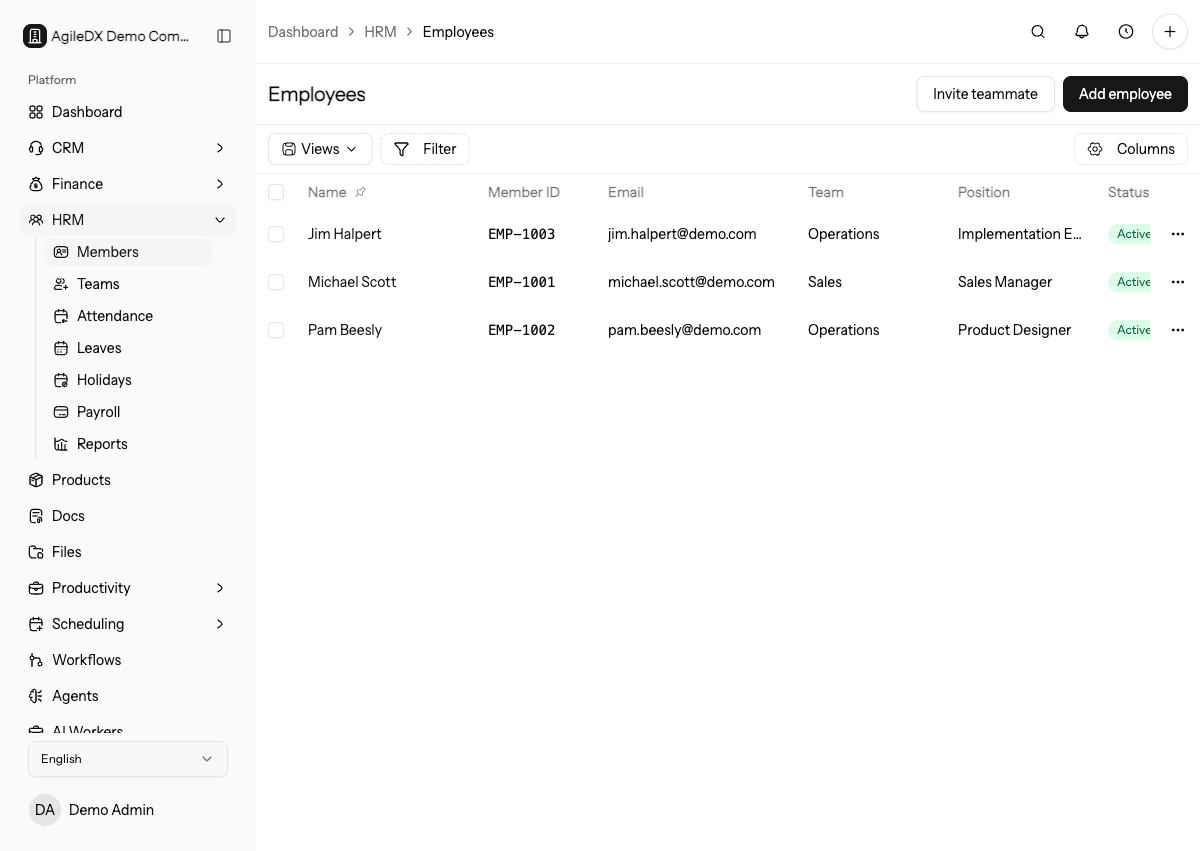
Create the workspace user first if the employee needs to sign in. Create the employee record only after you know which user account, department, and manager should own HRM activity.
Treat the employee profile as the HR source record. Attendance, leave, salary, compensation, and self-service depend on it being correct.
Avoid duplicate employee records. Duplicates split attendance, leave, compensation, documents, and self-service history.
Create The Employee
- Open HRM.
- Go to Employees.
- Select Add employee.
- Choose the linked workspace user.
- Enter first name and last name.
- Add the join date.
- Choose employment type: full-time, part-time, contract, or intern.
- Add department, position, job title, phone, and email where available.
- Save the employee.
Search the employee list before creating a new record. Duplicate employee profiles can split attendance, leave, compensation, and self-service history.
If the employee already has a workspace user, link that user instead of creating a new login. If the employee does not need to sign in yet, create the HRM record with enough information for HR and compensation, then invite the user later.
Before Saving
Confirm the email and linked user are correct if the employee will use self-service or receive HRM notifications.
Also confirm employment type, join date, department, position, and job title. These fields affect filtering, reporting, leave review, compensation setup, and manager workflows.
Check manager, team, and department ownership before saving when leave approvals, attendance review, or compensation reporting depends on those relationships.
After Saving
Open the employee profile and confirm the employee appears in HRM lists, attendance and leave workflows, team assignment, and reports. If compensation will be used, add salary information only after the profile is correct.
If the employee needs self-service, verify they can sign in and see the correct HRM pages before relying on them to submit attendance, leave, or documents. For compensation users, confirm salary components and bank or payment details through your internal review process before the first salary review.
Add salary information, leave policy, and attendance expectations only after the base employee record is correct. It is easier to fix one profile before related HRM records start accumulating.
Troubleshooting
If the employee cannot see self-service, confirm the workspace user is linked to the employee record and has the required role.
If reports miss the employee, check active status, department, team, manager, and join date.
If two employee profiles exist for one person, stop adding new attendance, leave, or compensation records until an admin decides which profile should remain the source of truth.
Onboarding Checklist
After creating an employee:
- Confirm linked user and email.
- Confirm team, department, manager, and position.
- Add salary only after the profile is correct.
- Confirm self-service access if the employee will sign in.
- Check the employee appears in HRM reports.
First Week Review
After the employee starts using HRM, review the first attendance records, leave requests, self-service access, and any compensation setup before the first pay period closes. Early review catches wrong manager links, missing departments, incorrect employment type, and duplicate employee records before they affect reports or compensation.
If the employee should not yet appear in compensation or reports, confirm status and join date match your HR process.