Event Types
Configure appointment duration, location, host, buffers, and booking rules.
Event types define what someone can book.
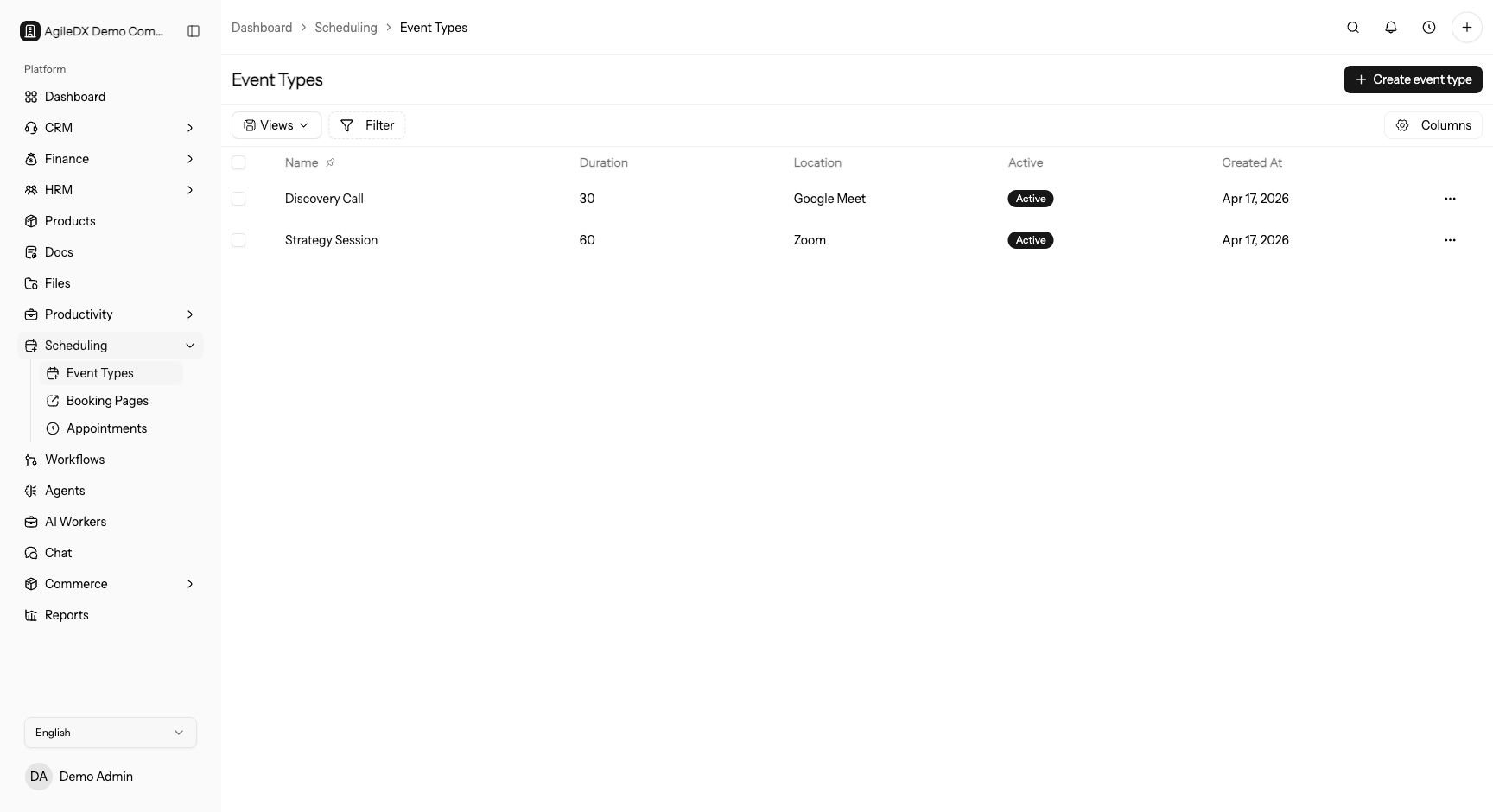
Use event types for the meeting rules: duration, location, availability, booking limits, payment, questions, reminders, confirmation, and public display behavior. Booking pages decide where those event types are shown.
Event Type Settings
Configure the event name, duration, location, host, availability, buffer time, confirmation behavior, questions, and payment requirement when needed.
The event type list shows name, duration, location type, active status, created date, and actions. Open the row to edit the event type, or use the actions menu to manage availability.
Core Fields
- Name and slug: what visitors see and what the public URL can use.
- Description: customer-facing explanation of the meeting.
- Duration: the length of the appointment.
- Timezone: the scheduling timezone.
- Active status: whether the event can be booked.
- Color: visual grouping when calendars or lists show many event types.
Booking Rules
Use booking lead time, minimum booking notice, maximum days in advance, start time increments, max bookings per day, and buffers to protect the host’s calendar. Buffer before and buffer after are especially important when meetings require preparation, travel, or follow-up.
Locations
Locations can be online meeting links, phone calls, in-person locations, or provider-generated meeting links when Zoom or Teams is connected.
Supported location-style values in the app include in-person, phone, Google Meet, Zoom, Teams, and custom. If you use generated meeting links, test the connected provider before sharing the booking page.
Questions and Forms
Add custom questions when the host needs information before the meeting. Use required questions only for details that are truly needed to book. If the event uses a CRM form, confirm the form fields are customer-safe and mapped correctly.
Payments and Confirmation
Paid event types can include price and currency. Test the public booking flow with the payment gateway before sharing the page.
Use required confirmation when the team needs to approve requests before the appointment is final. This is useful for high-value calls, limited availability, or bookings that need manual review.
Reminders, Follow-Ups, and Recurring Rules
Reminder offsets and follow-up offsets control when scheduling notifications are sent around the appointment. Recurring settings can repeat a booking pattern by day, week, or month when enabled. Keep recurring settings narrow and test the public flow so customers understand what they are booking.
Public Display Settings
Public UI settings can control the default view, enabled views, 12-hour or 24-hour time format, overlay behavior, and remaining-slot visibility. Choose the view that makes sense for the booking volume: month for sparse availability, week for recurring service hours, and column-style views for dense schedules.
Test Before Sharing
After editing an event type, test the public booking flow to confirm time slots, location, questions, payment, and confirmation behavior.
Manage Availability
Use Manage availability from the event type actions when a specific event needs its own hours. If the event type has no available slots, check event-type availability, host availability, calendar conflicts, buffers, and booking notice rules in that order.
First Booking Review
After creating or changing an event type, book one internal appointment through the public page. Confirm the event name, duration, host, location, questions, payment state, reminders, confirmation email, appointment record, and connected calendar event.
If any part is wrong, fix the event type before adding it to more booking pages or sharing campaign links.