Booking Pages
Create public pages where people can book appointments.
Booking pages are public scheduling pages. They can show one or more event types and let visitors choose a time.
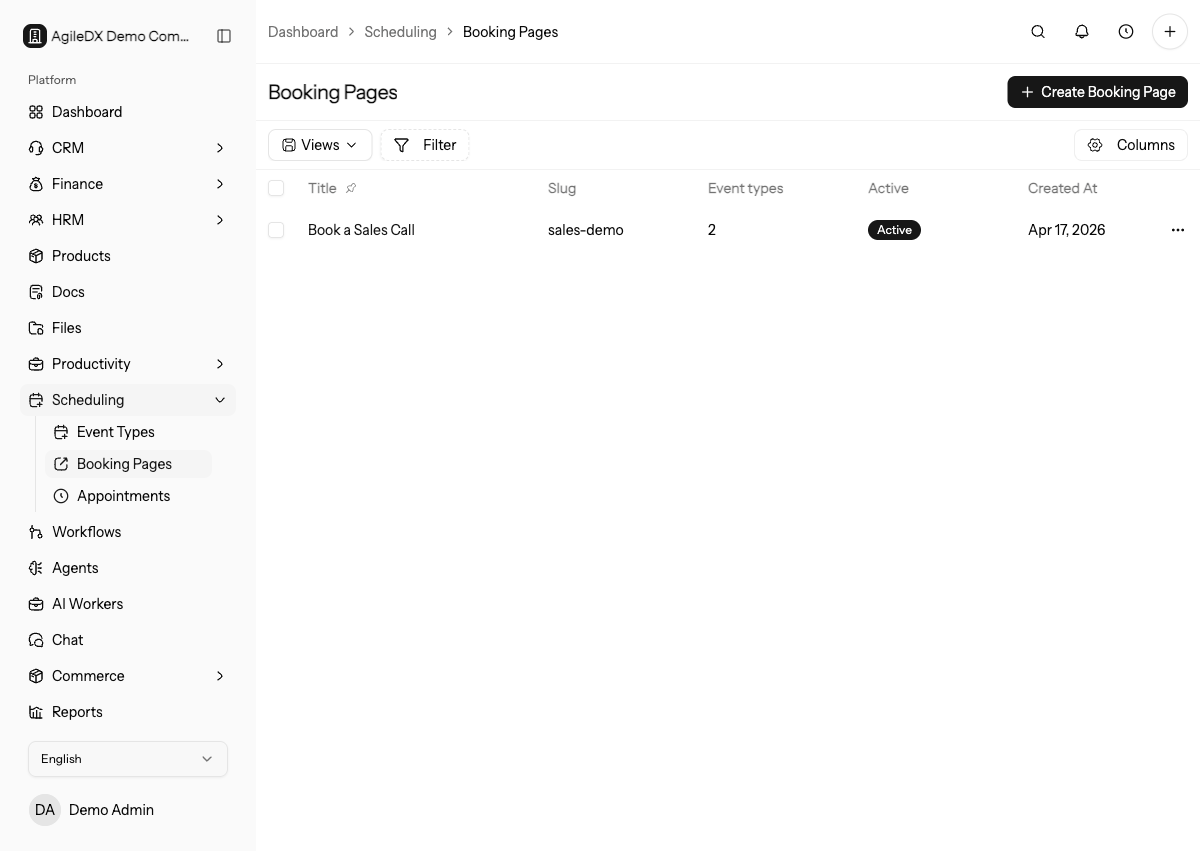
Use booking pages for the public destination you share with customers. Use event types for the booking rules. A booking page can group multiple event types when one public link should offer several meeting options.
Do not use one broad booking page for every audience if the copy, meeting length, payment requirement, or host is different. Separate pages make public links easier to understand and safer to change later.
Create a Booking Page
Open Scheduling > Booking Pages, create a page, choose a clear name and slug, add event types, and test the public page before sharing it.
The booking page list shows title, slug, event type count, active status, created date, and actions. Use the title to edit a page. Use the row actions menu to edit or open the public booking page when a URL exists.
Booking Page Fields
- Title: the customer-facing page name.
- Slug: the public URL segment.
- Description or welcome message: what visitors read before choosing a time.
- Event types: the services or meetings available from this page.
- Active status: whether visitors can use the page.
- Theme color or logo: public branding when configured.
- Thank-you message: what visitors see after booking.
- Redirect URL: where visitors go after completing the booking when used.
- SEO title and description: public metadata when the page is indexed or shared.
Public Link
The public link should be easy to recognize and safe to share. If you change the slug, update any links on your website, email templates, or social profiles.
Before sharing the link:
- Confirm the page is active.
- Confirm at least one active event type is attached.
- Open the public page from the actions menu.
- Complete a test booking.
- Confirm the appointment appears in Agiled.
- Confirm connected calendars and notifications behave as expected.
Use a stable slug for links you publish widely. Changing a slug can break website buttons, email signatures, ads, QR codes, and saved customer links.
When to Use Multiple Booking Pages
Create separate booking pages when different audiences need different choices. For example, sales calls, support calls, paid consulting, and partner onboarding may each need their own public copy, event types, or redirect behavior.
Create one shared page when the audience should choose between several related meeting types, such as a discovery call, implementation call, or follow-up call. Create separate pages when the audience, wording, routing, or payment behavior is different.
Troubleshoot Empty Booking Pages
If a public page opens but shows no usable times or event types:
- Check the booking page is active.
- Check the attached event types are active.
- Check host and event-type availability.
- Check calendar conflicts.
- Check minimum notice, maximum days in advance, and buffers.
- Check payment gateway setup if the event is paid.
Before Publishing On A Website
Before placing a booking page on a public website:
- Test the direct booking page link.
- Complete a booking as a visitor.
- Confirm confirmation messages and emails.
- Confirm the appointment appears in Agiled.
- Confirm connected calendars receive or block the right times.
- Confirm the website button or embed uses the final slug.