Create Booking Pages
Build a public scheduling page with event types, branding, and follow-up behavior.
Booking pages are public pages where customers, leads, or teammates can choose from the event types you make available.
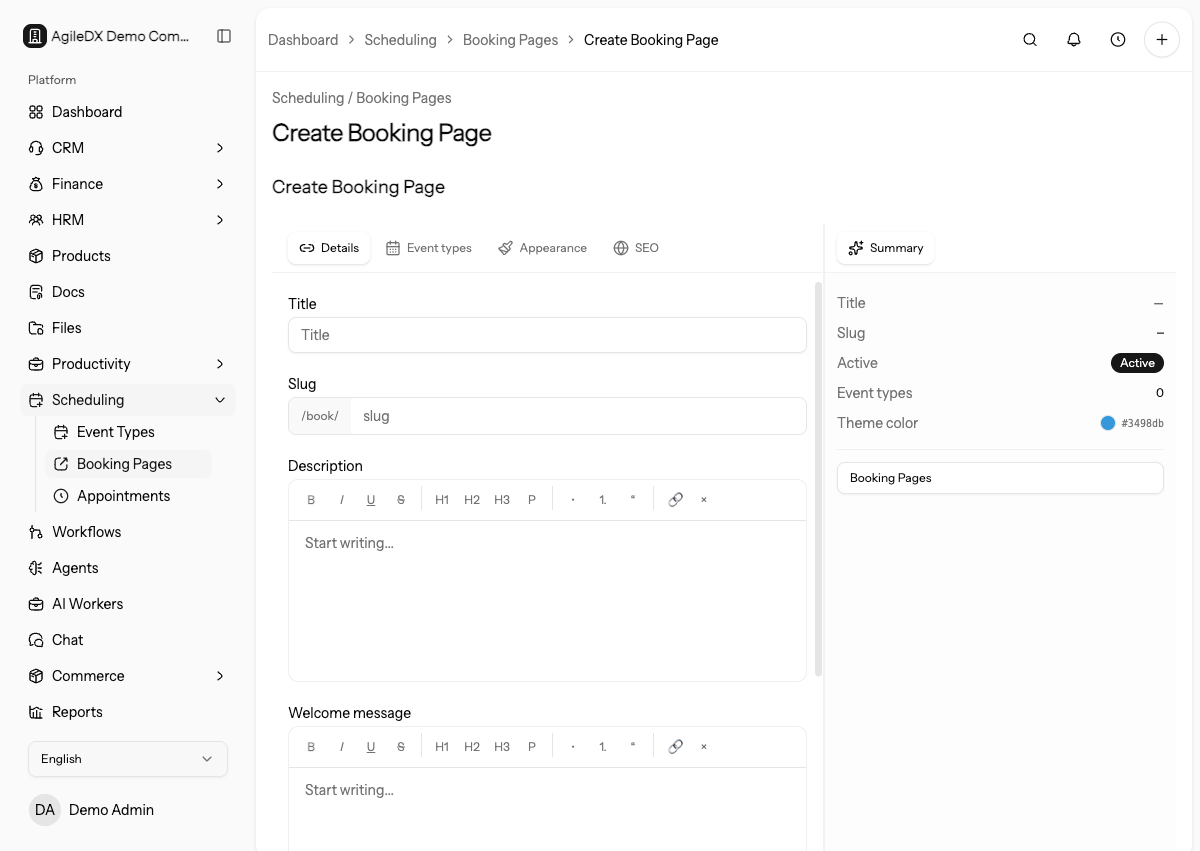
Create a Booking Page
- Open Scheduling > Booking Pages.
- Select Create Booking Page.
- Enter the title.
- Review or edit the slug shown after
/book/. - Add a description, welcome message, and thank-you message.
- Choose the event types that should appear on the page.
- Set the logo, theme color, active status, SEO title, and SEO description.
- Save the booking page.
After saving, open the page from the public link before sending it to anyone. Check that the slug, title, welcome copy, available event types, branding, and thank-you behavior match the campaign or team that will use the link.
What to Enter
Title
Use the name visitors should see, such as “Book a Consultation” or “Schedule a
Demo”.
Slug
The slug creates the public page URL. Keep it short, readable, and stable after
sharing the link.
Description
Explain what the visitor can book and who the page is for.
Welcome Message
Use this to set context before the visitor chooses a meeting time.
Thank You Message
Use this when visitors should see a confirmation message after booking. If you
use a redirect URL, visitors go there instead.
Redirect URL
Use this only when visitors should leave Agiled after booking, such as going to
a custom confirmation page.
Event Types
Select the meetings shown on the booking page. A booking page can show one or
more event types.
Logo and Theme Color
Use branding that matches the business or campaign connected to the booking
page.
Active
Turn the page off when the link should no longer accept bookings.
Choose Event Types
Only add event types that belong on the same public page. A general sales page may include demo, discovery, and consultation calls. A support escalation page should usually show only the support-specific event type.
If event types have different owners, availability, payment requirements, or custom questions, test each one from the public page. The page can look correct while one event type still has no bookable slots.
Use Public Copy Carefully
Visitors see the booking page without workspace context. Make the title, description, welcome message, and event type names clear enough for someone who only has the link.
Avoid internal labels such as Round 2 AE call unless the page is only shared
with people who understand that label.
Before Sharing
Before publishing the link:
- confirm every selected event type is active
- check availability and connected calendars for each host
- open the public page in a private browser window
- book one internal test appointment
- confirm the thank-you message or redirect
- review confirmation email and calendar behavior
If the page is campaign-specific, use a slug, title, and description that will still make sense when customers share the link internally.
Maintain Booking Pages
Review active booking pages when event types, team ownership, payment providers, or connected calendars change. Disable old campaign pages instead of leaving stale public links active.