Public Booking
Let people book appointments from a public scheduling page.
Public booking pages show available event types and time slots.
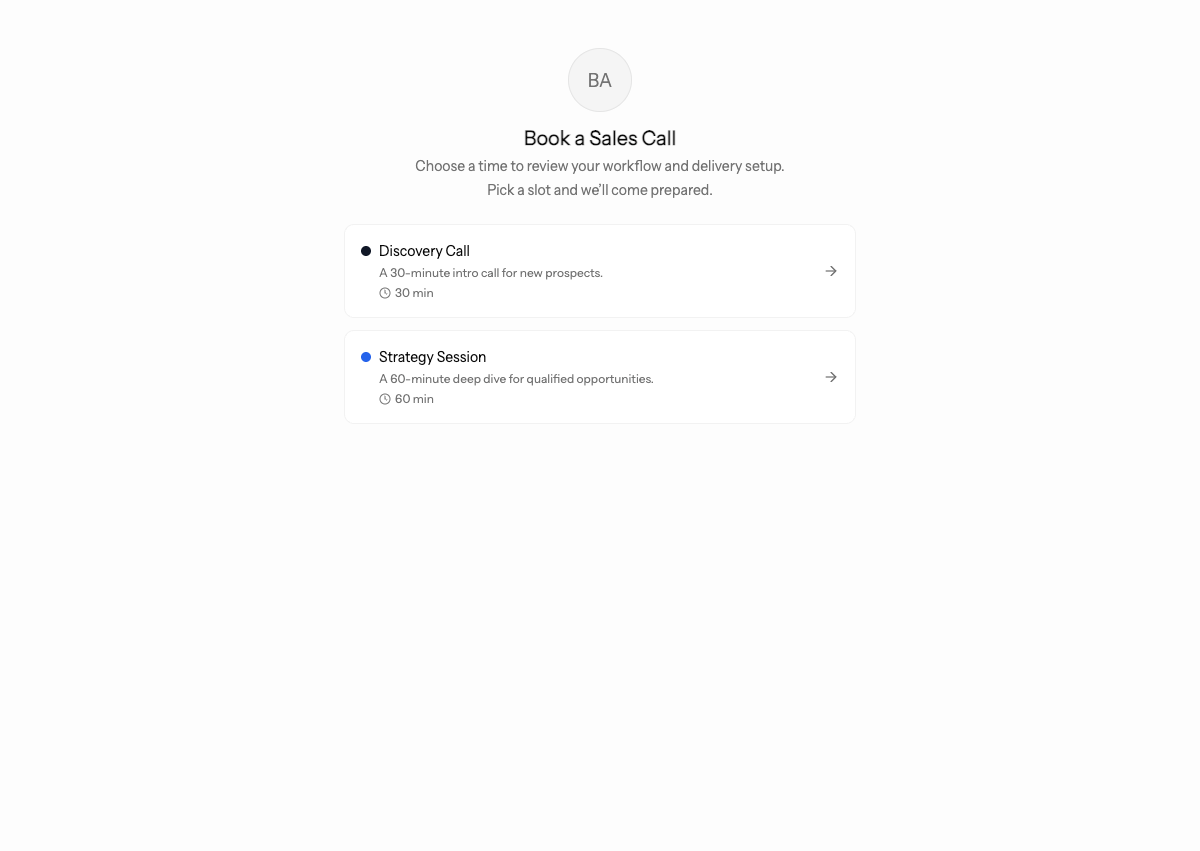
Open a Public Booking Page
Public booking links use the booking page slug and event type slug. A visitor can start from the booking page, choose an event type, then choose a date and time.
Booking pages can also be embedded with query options such as embed mode, layout, calendar overlay, hidden event details, and time format.
Share the exact public link customers should use. If the booking page has a custom domain or updated slug, test that final URL rather than relying on an old internal preview.
Test the Booking Flow
Open the public booking link, choose an event type, select a time, complete the booking, and confirm the appointment appears in Agiled and any connected calendar.
Test as a customer would:
- Open the public booking page in a private browser.
- Select the event type.
- Switch between available layouts if enabled.
- Select a date.
- Choose a time slot.
- Enter name and email.
- Add notes or custom-question answers.
- Choose a location option if more than one is offered.
- Enable recurring booking if the event supports it.
- Confirm the booking.
After confirming, open the appointment in Agiled. Check attendee details, answers, payment status when required, location, calendar writeback, and confirmation email.
Availability
Available times depend on event type settings, user availability, buffers, connected calendars, time zone, and existing appointments.
Visitors can switch between 12-hour and 24-hour time display. The booking flow uses the timezone returned with the availability window.
Test Time Zones And Buffers
Before sharing a booking page widely, test it from the time zone your customers are likely to use. Confirm that:
- Available slots appear on the expected days.
- Buffer time blocks back-to-back bookings correctly.
- Connected calendar events hide busy periods.
- The confirmation email shows the same time the visitor selected.
- The Agiled appointment uses the correct owner and location.
If customers see no availability, check the event type schedule, host availability, calendar connection, minimum notice, date range, and existing appointments before editing the public page copy.
Share The Right Link
Use the final public URL from the booking page or event type settings. If your workspace uses a custom domain, share that branded URL instead of an internal preview link.
After changing a slug, domain, layout, payment requirement, or event type name, open the public link in a private browser. This catches stale browser sessions and permission-only links before customers use them.
After Confirmation
The confirmation page shows:
- booking confirmed message
- event type name
- booking page name
- appointment date and time
- location or join link when available
- recurring series count when multiple sessions were booked
- booking page thank-you message when configured
- add-to-Google Calendar link
- add-to-Outlook link
- Apple Calendar / ICS download
- link back to view more events
If the event requires payment, the booking submission can redirect the visitor to checkout before the normal confirmation page.
If a customer reports missing confirmation, compare the appointment record, payment status, connected calendar, and email delivery before creating another booking manually.