Public Forms
Share forms with people outside the workspace.
Public forms collect responses from leads, customers, applicants, or internal stakeholders without requiring workspace access.
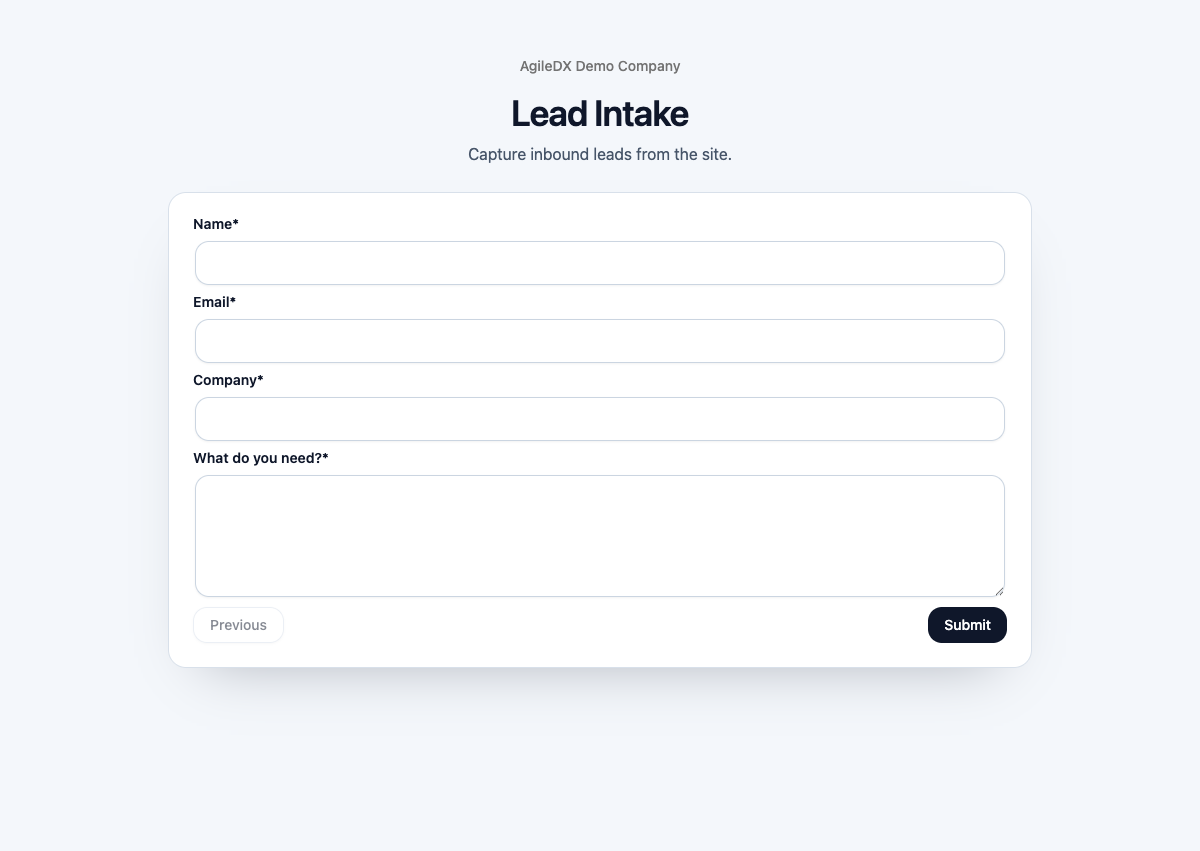
Use public forms when the person submitting information should not need a workspace account. Common examples include lead intake, contact updates, support requests, onboarding questionnaires, feedback, and project requests.
The public form should ask only for information the team will actually use. Shorter forms usually get more complete submissions and create cleaner CRM records.
What Public Forms Can Collect
Public forms can include common field types such as text, email, number, textarea, select, radio, checkbox, date, file, and phone fields. Required fields are validated before submission. Email fields must use a valid email format, and select or radio answers must match the available options.
Field descriptions and placeholders appear on the public form when configured, so write them for the person filling out the form, not for internal admins.
Avoid internal field names such as lead_source_detail or custom_notes.
Rewrite labels in plain language, then map the answers to the correct CRM or
custom fields behind the scenes.
Test the Form
Submit a test response before sharing the form. Confirm the submission appears under the form and any expected workflow runs.
Use realistic test values:
- Open the public form link.
- Fill every required field.
- Try one invalid value, such as a bad email, so you see the validation behavior.
- Submit the form.
- Open the form submissions list in CRM.
- Confirm the response is recorded.
- Confirm mapped contact fields, processed records, notifications, and workflows behave as expected.
Submission Processing
Forms can map submitted values into CRM contact fields or custom fields when configured. Forms can also trigger workflow automation after submission. If a submission creates or updates a contact, review the processed entity link from the submission list or detail page.
Conditional logic can show or require different fields based on earlier answers. Test every condition path before sharing the form publicly.
If a workflow starts from the submission, test both the form result and the workflow result. A submission can save correctly while the follow-up task, ticket, notification, or record update fails.
Embed and Styling
Public forms can be embedded with a minimal layout and optional theme or brand color settings. Test the embedded page after adding it to your website.
When embedding:
- Test the direct Agiled public link first.
- Copy the embed code from the form actions.
- Add it to the website page.
- Submit a test response from the embedded version.
- Confirm the embedded form still has enough width for long labels, required messages, and file fields.
Before Sharing
- The form is active and public.
- Labels and descriptions are customer-safe.
- Required fields are truly required.
- Select and radio options are final.
- Contact mappings are correct.
- Redirect URL or confirmation copy is correct.
- Notifications and workflows have been tested.
After Sharing
Review the first real submissions quickly. Confirm records are not duplicated, owners are correct, notification recipients are useful, uploaded files are accessible, and workflow follow-up happened once.
If submissions contain poor data, adjust labels, required fields, options, or help text rather than fixing every response manually.