October 2026
Agiled AI beside every page with AI workers that take jobs off your plate, a redesigned client portal with its own place in the sidebar, an Inbox for everything waiting on you, deposits and payment schedules, client sharing and approvals, a rebuilt Scheduling and Workflows, and much more.
October was our biggest month yet. Here's everything that changed, newest first. Dates use Pakistan Standard Time (UTC+5).
Numbers that look different on your dashboard
From October 22, revenue is counted as money you actually received, on the day it was paid, minus refunds. Partial payments now count too. Some revenue totals may look different from before. Nothing has been lost; the same money is just counted the same way everywhere.
October 31, 2026
Agiled AI, beside every page
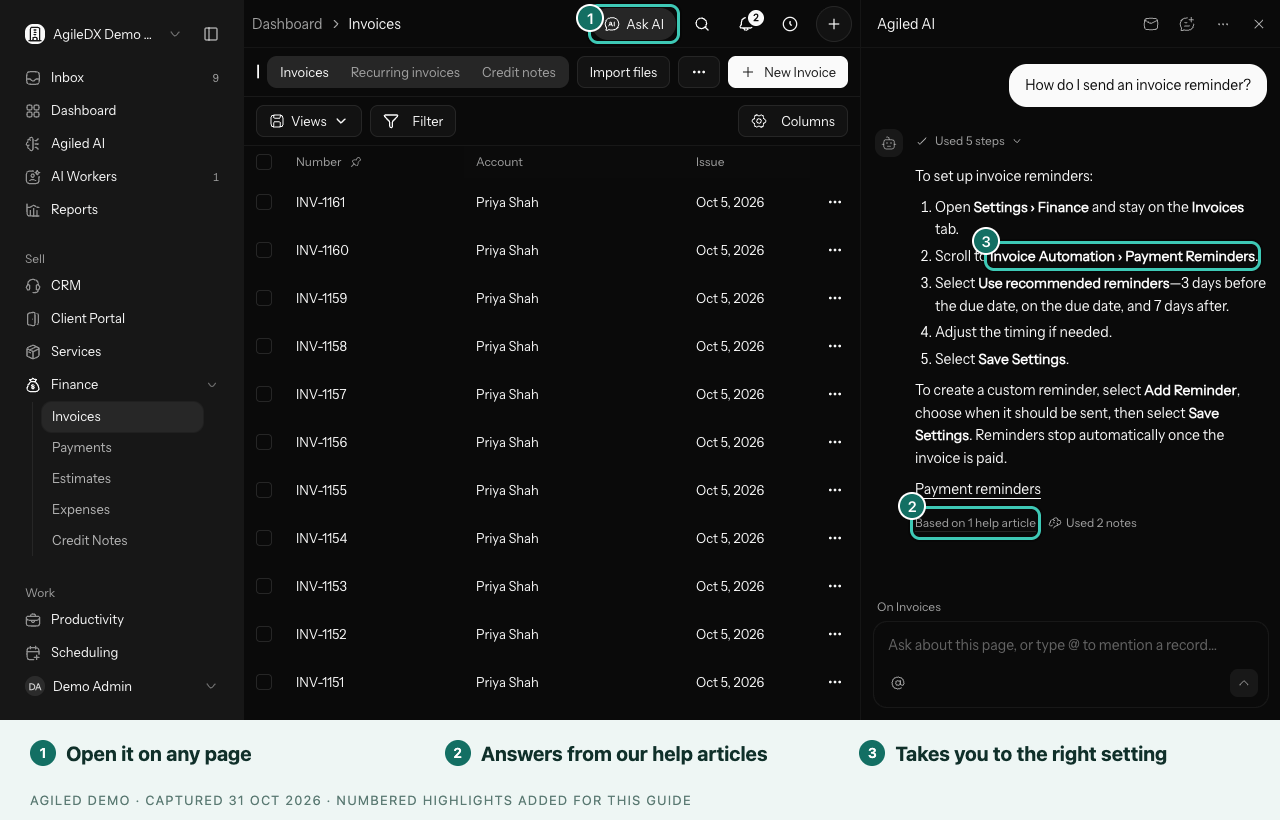
- Open it anywhere. Select Ask AI at the top of any page, or press ⌘J, and Agiled AI opens beside what you're working on. It knows which page you're on.
- Answers you can trust. Questions about how Agiled works are answered from our help articles, and each answer shows the article it used. If the articles don't cover something, it says so instead of guessing, and offers to pass your question to our team.
- Takes you there. Ask where a setting is and it can open the right page and point to it.
One home for Agiled AI
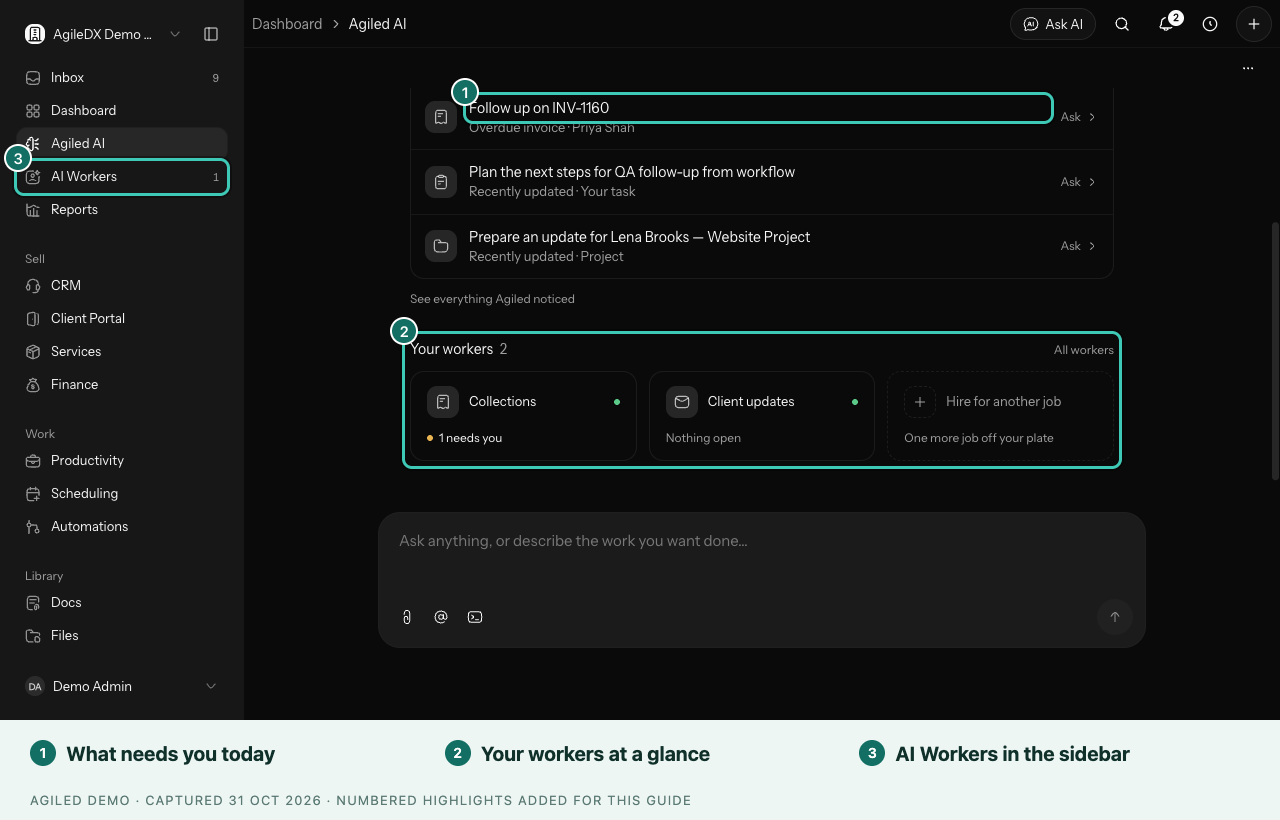
- Start the day in one place. Agiled AI opens on today's briefing: what needs you, overdue invoices, quiet projects and anything your AI workers are waiting on. The chat box sits right below.
- Your workers at a glance. Each AI worker shows whether it needs you.
- AI Workers has its own place in the sidebar, with a count when something is waiting on you. Work there lists everything your workers and chats are working on.
AI workers that take a job off your plate
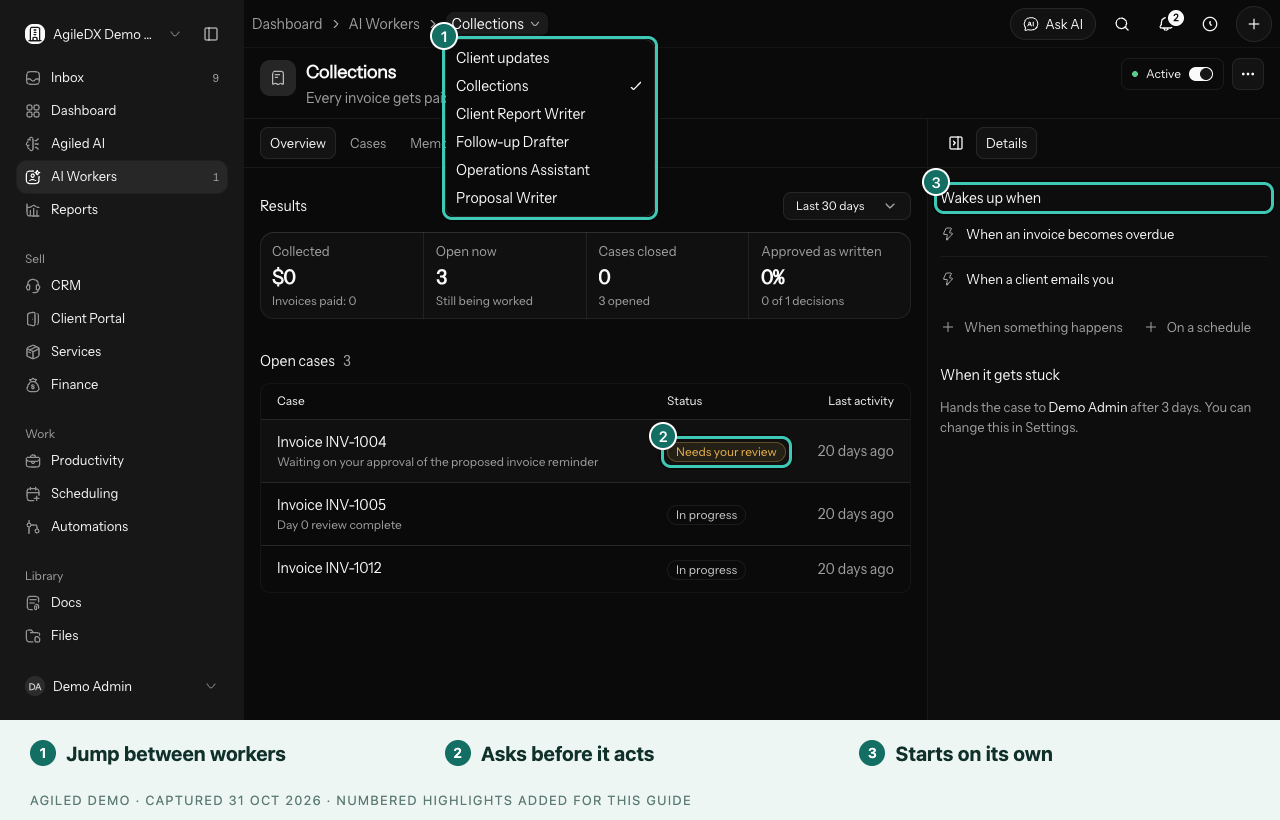
- Ready-made jobs. Hire a worker for collections, lead follow-up, client kickoff, weekly client updates, a monthly client report or tidying your books. Each one starts on its own when something happens, like an invoice becoming overdue.
- It asks before it acts. Anything that reaches a client waits for your approval. When you've approved the same kind of action many times without changes, Agiled offers to let the worker do it on its own. You can change that any time.
- Jump between workers from the worker's name at the top of the page.
Agiled AI remembers how you work
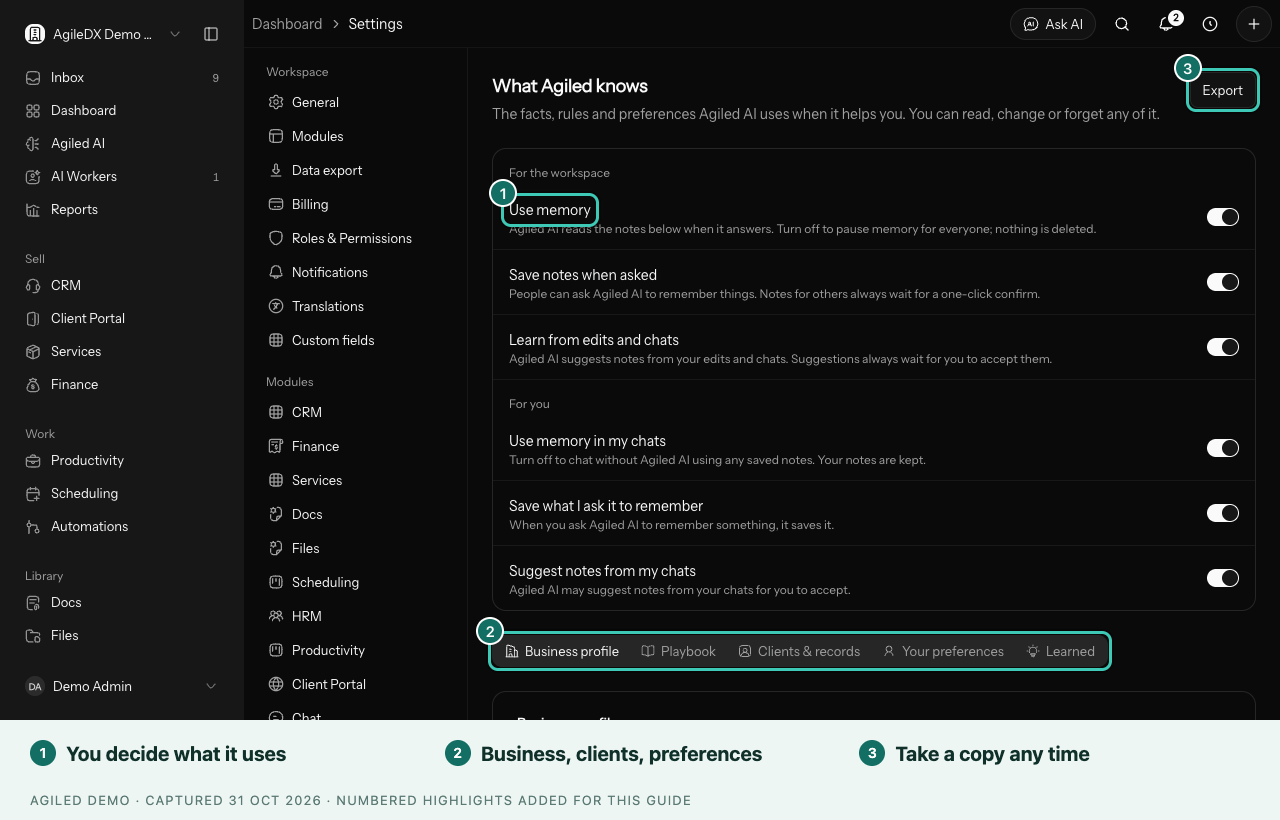
- Tell it once. Ask Agiled AI to remember something, like "we invoice on the 1st", and it uses that from then on. Your own preferences save straight away, with Undo. Notes your whole team will see show you the exact wording and who sees it first, and wait for one click.
- See and change everything it knows in Settings › What Agiled knows: your business profile, how you like things done, notes about clients and your own preferences. Change or forget any of it, or export a copy.
- See what shaped an answer. Used 2 notes under a reply shows which notes it used, so you can fix or forget one on the spot.
- You're in control. Pause memory for the whole workspace, for yourself or for a single chat. Notes follow the same access as the records they're about, so nobody sees a note about something they can't open.
Let clients ask questions in their portal
Turn on Let clients ask questions about their projects in Client Portal › Settings, and clients get an Ask a question page in their portal. They can ask where a project stands, what you need from them or which invoices are open. Answers only use what's already in their portal, never internal notes, costs or other clients. When it can't answer, it offers to pass the question to your team in Chat. It's off until you turn it on.
Type what you want, and it's ready to create
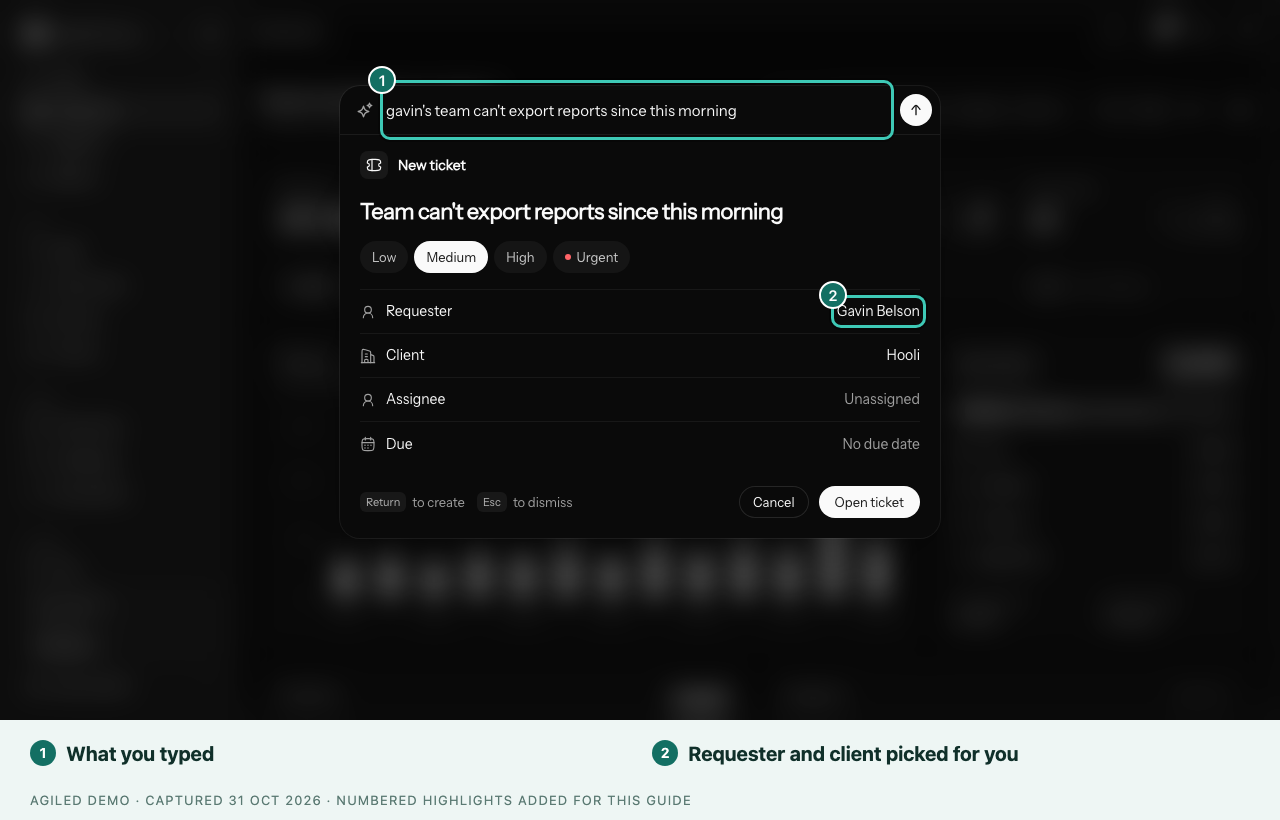
Press ⌘K (or Ctrl+K) and type what you want to do in your own words. Agiled works out what you mean and opens it already filled in, so you only check it and press Return.
- Nine things from one box: invoices, estimates, expenses, time, tasks, contacts, projects, meetings and support tickets.
- Say it your way. "uber to the airport 38 dollars" becomes an expense. "customer can't log in to the portal" becomes a ticket. "the hooli guys want a quote for the api migration, around 8k" becomes an estimate for Hooli.
- Your clients, projects and people are picked for you, along with the amount, dates, a clean title and, for tickets, how urgent it is.
- See it before you save it. Invoices show the amount front and centre, time shows your day with the new block in place, and meetings show the times you're free.
- Nothing goes out by surprise. Invoices and estimates are saved as drafts. Anything that isn't an action searches your workspace or goes to Agiled AI.
Learn how to create anything by typing a sentence
Recurring invoices you can rely on
- No pile of catch-up invoices. A schedule that starts in the past, or one you resume after a long pause, creates one invoice and then carries on from the next date.
- Every invoice matches its template, including its language, branding, sales agent and shipping address.
- Clearer settings. Choose Repeat every 2 weeks or 1 month, when it Ends (on a date or after a number of invoices) and How your client pays. Mistakes, like an end date before the next invoice, are caught when you save.
- A schedule page that answers your questions: next and last invoice, when it ends, how many invoices it has created, and how your client pays.
- Create next invoice asks before it moves your schedule on, then tells you whether the invoice was emailed or saved as a draft, with a link to open it.
- You hear about problems. If an invoice can't be emailed, you get a notification saying why. Finished schedules stay finished when you edit them.
- Your clients can open their subscriptions in the client portal again. Cancelling there stops new invoices, keeps the ones already sent, and tells you.
October 30, 2026
A client portal your clients will enjoy using
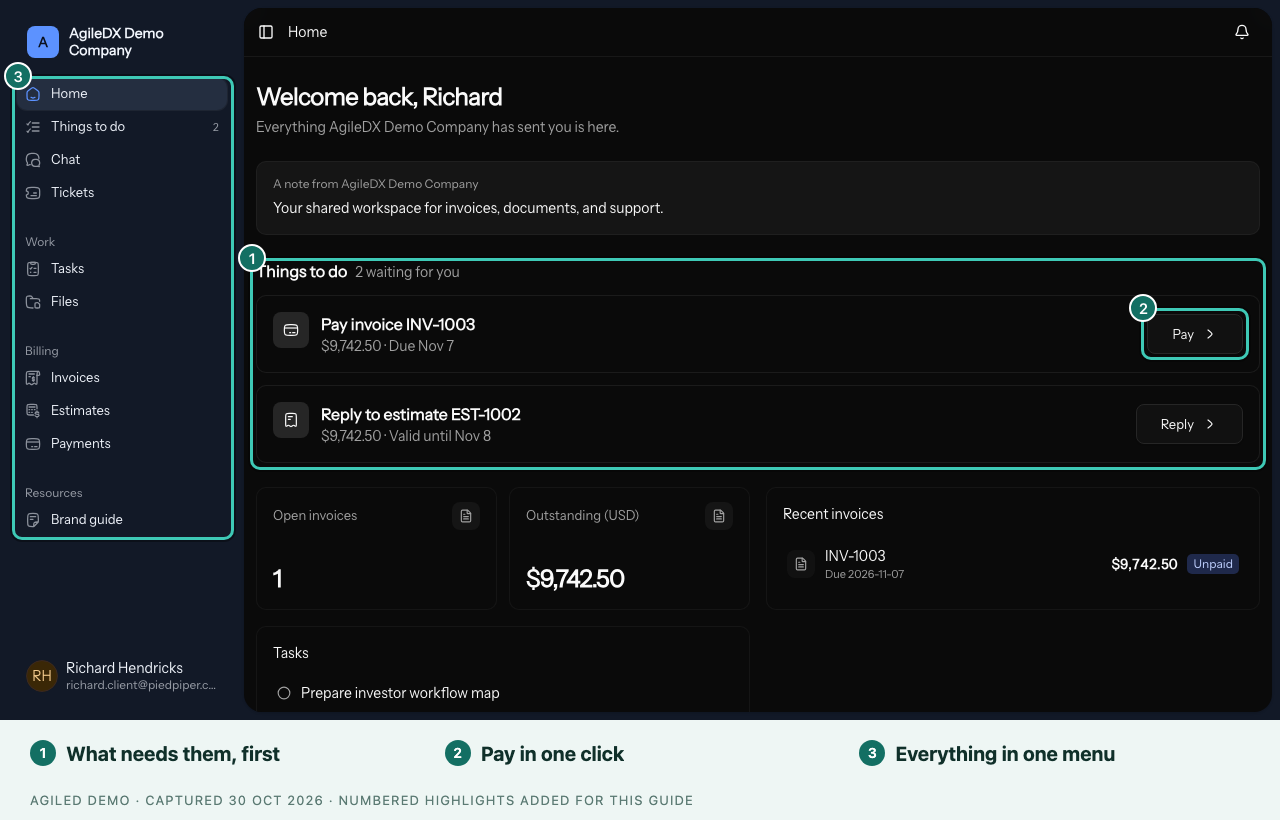
Your client portal is where your clients pay you, reply to estimates, sign documents, chat with you and find their files. We redesigned it so it's clearer for your clients and easier for you to run.
- Their home shows what needs them. Things to do lists invoices to pay, estimates to reply to and documents to sign, each one click away.
- A tidy menu. Sections are grouped under Work, Billing and Resources. On a phone, a bar along the bottom holds the places clients use most.
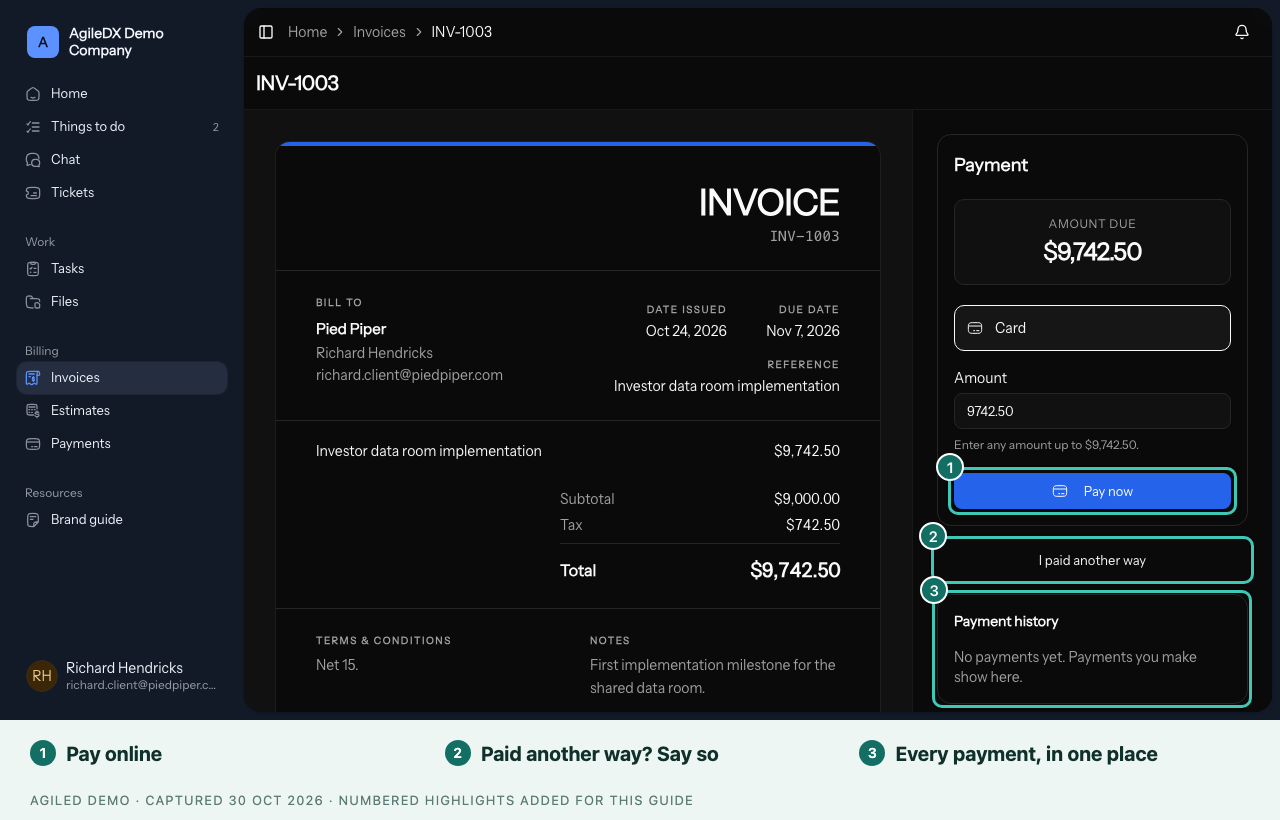
- Paying is simple. Clients pay an invoice by card right from the invoice, or tell you they paid another way. Payments shows what's due and everything they've paid so far.
- Files in one list, with folders right in it and a download button on every file.
- Chat that gets out of the way. A client with one conversation sees just that conversation, filling the page.
- Clearer tickets and tasks. The status sits at the top, and every page shows the way back to where they came from.
- The emails they expect. Clients now get payment receipts and reminders, and a note when a late fee is added, an estimate is accepted or a subscription starts. Updates and reminders include a link where clients choose which ones they get. Invoices, sign-in codes and documents to sign always arrive.
Your clients sign in on a page that's yours
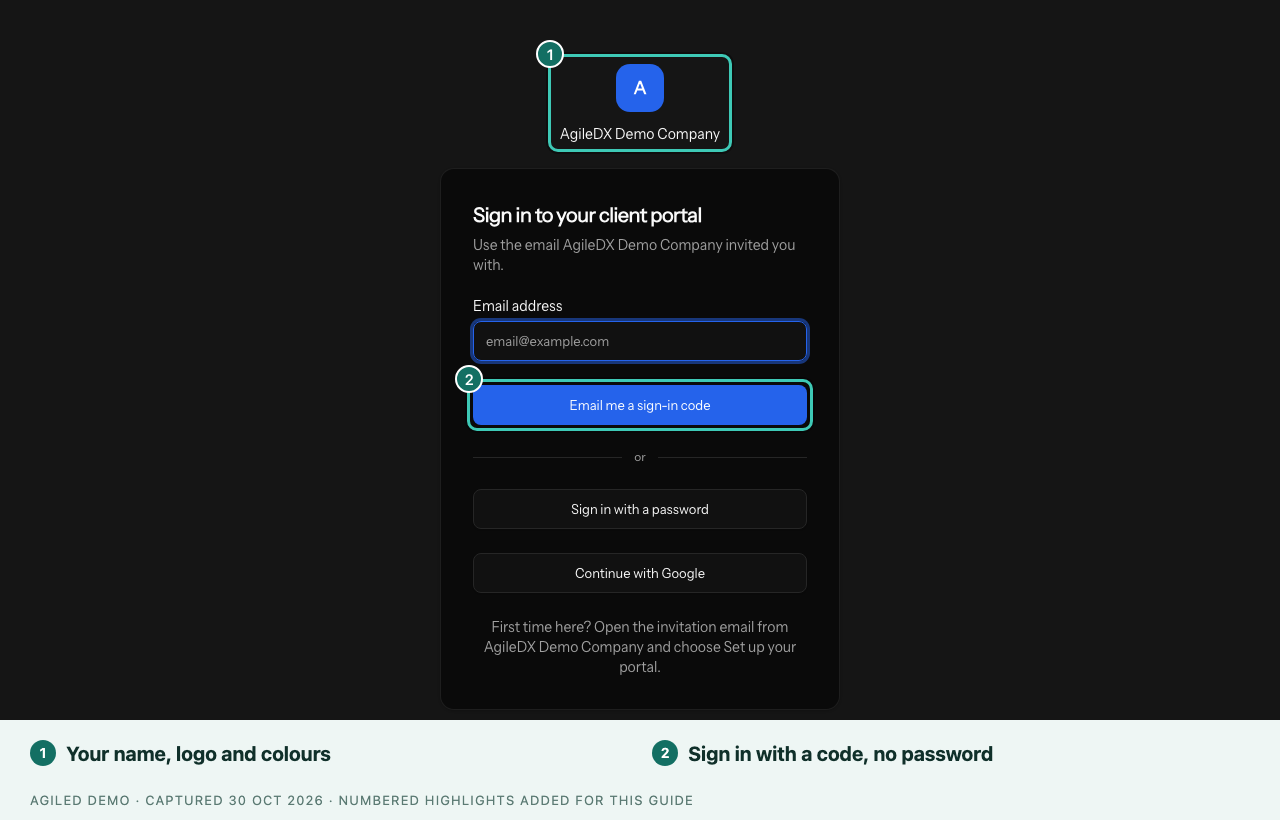
- Your name, logo and colours on the sign-in page, so clients know they're in the right place.
- No password needed. Clients sign in with a code we email them. You can also let them use Google or a password in Client Portal › Settings.
- Setting up is quicker. From the invitation, clients type their name and open their portal. A password is optional. If an invitation has expired, they can ask for a new link themselves.
Run your portal from one place
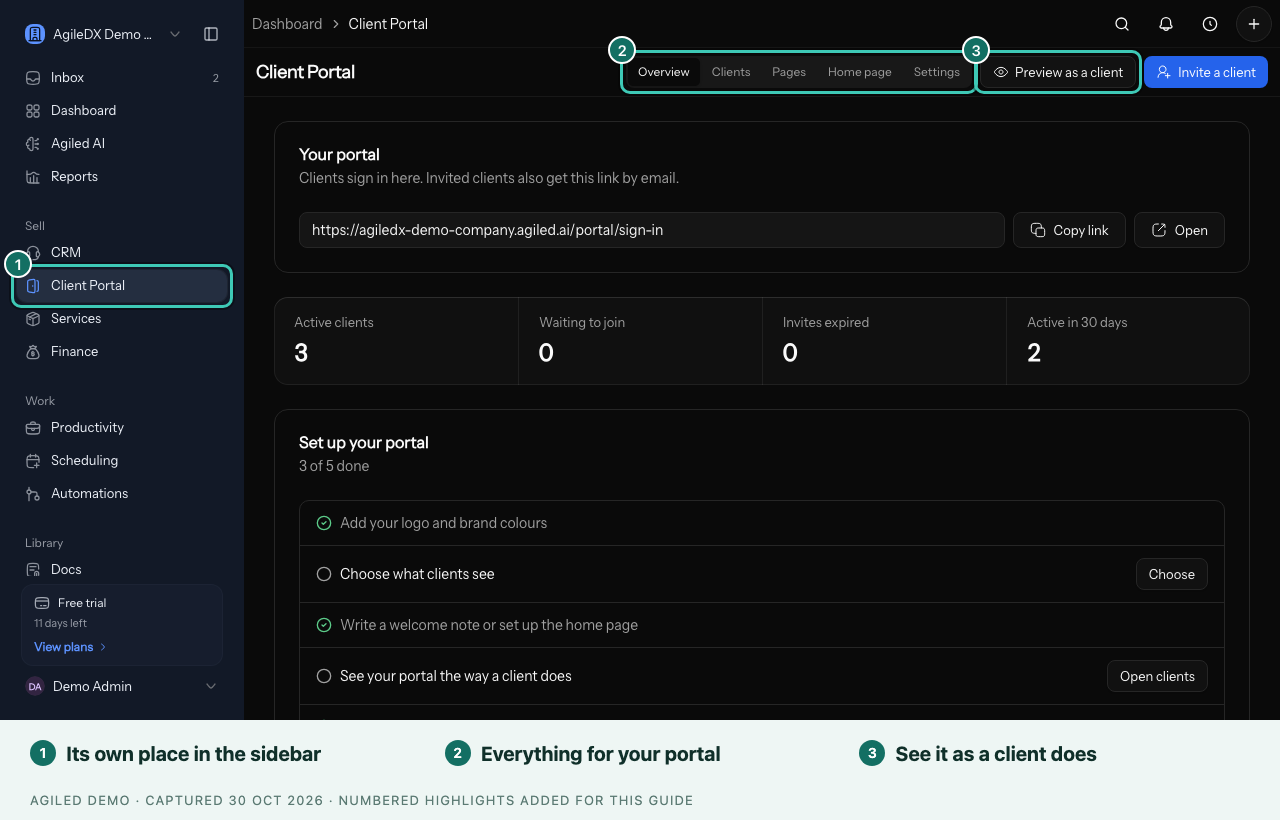
Client Portal now has its own place in the sidebar, under Sell. Everything that was spread across Settings and Dashboards is together here:
- Overview: your portal's address to copy or open, how many clients have joined and been active, and a short setup checklist.
- Clients: each client's status and when they last visited. Invite someone, resend or copy an invitation, copy a sign-in link, or end access.
- Pages: add pages such as a welcome guide or FAQ, with headings, text, images, videos, links and files. Add up to 6 quick links to the portal menu.
- Home page: write a welcome note and choose what clients see on their home page, for everyone or for chosen accounts and tags.
- Settings: your logo, business name and look, how clients sign in, which sections clients see, and your own domain.
Old links to the client portal settings still work and bring you here.
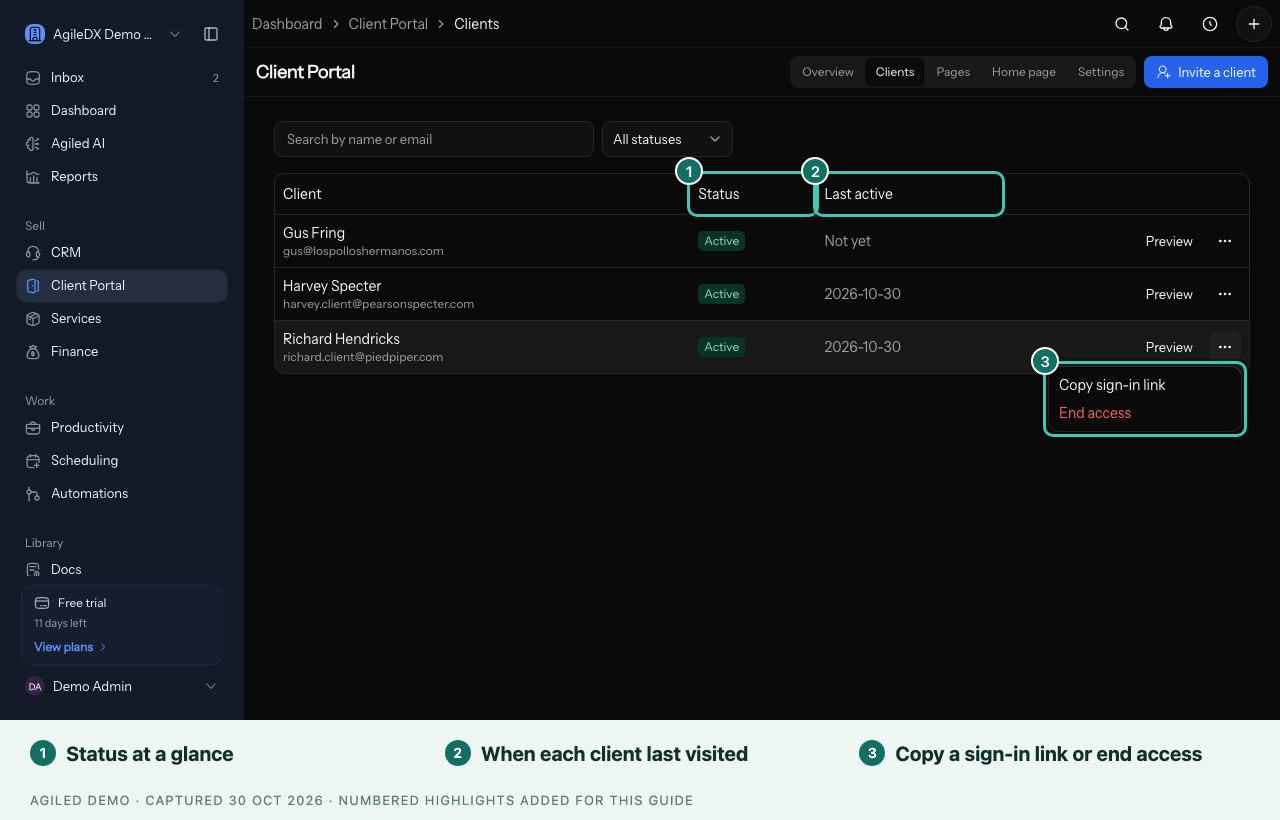
See exactly what a client sees
Select Preview as a client and choose a client to open their portal just as they see it. Nothing you do in a preview is saved or sent, so you can click around freely. Select Exit preview when you're done.
A project's task list works like Tasks
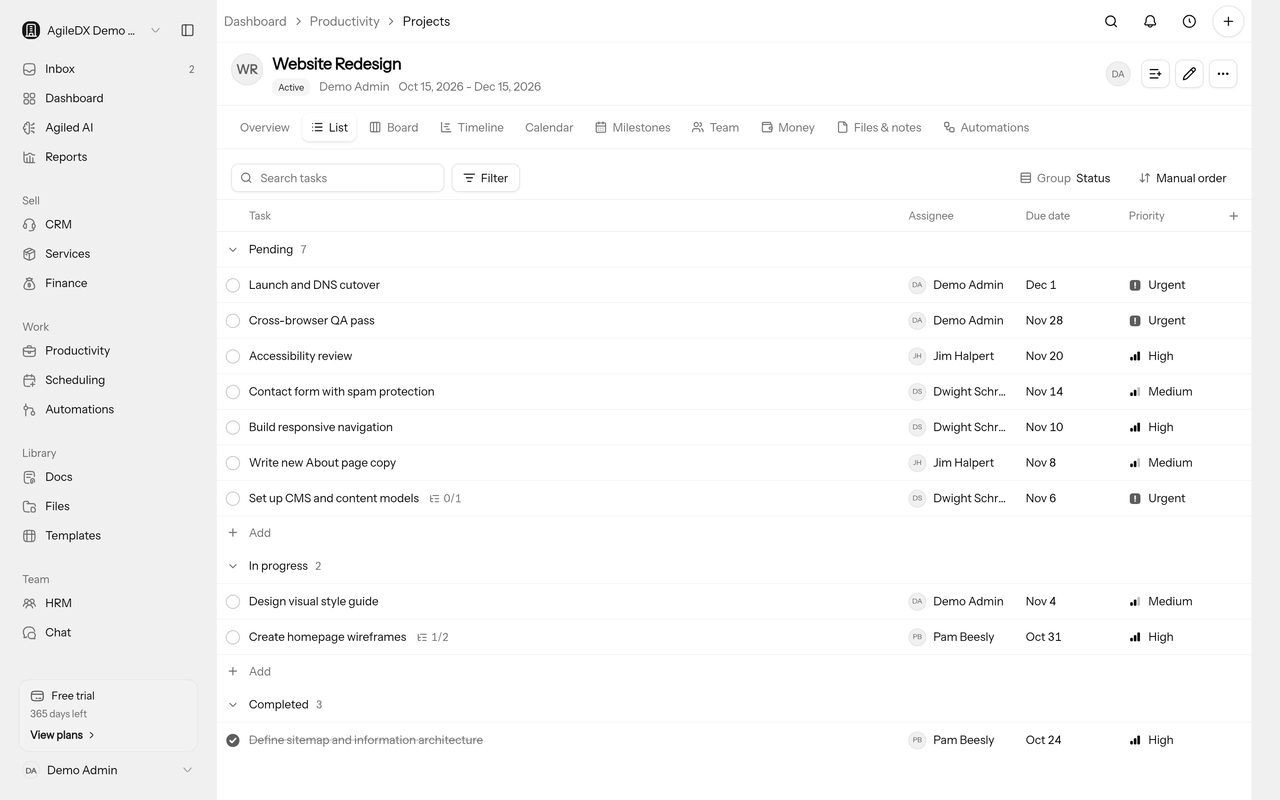
The List tab on a project now looks and works the same as Productivity → Tasks. The list fills the page instead of sitting in a box, and it has the same bar above it:
- Search the project's tasks by name.
- Filter by status, assignee, priority or due date, or show only tasks assigned to you or hide done tasks. Each filter shows as a chip you can remove with one click.
- Group by status, assignee, priority, due date or one of your own fields.
- Sort by due date, priority, newest first or name, or keep your own order.
Your search, filters, grouping and sort stay as you set them while you switch between the project's tabs.
October 23, 2026
One Inbox for everything waiting on you
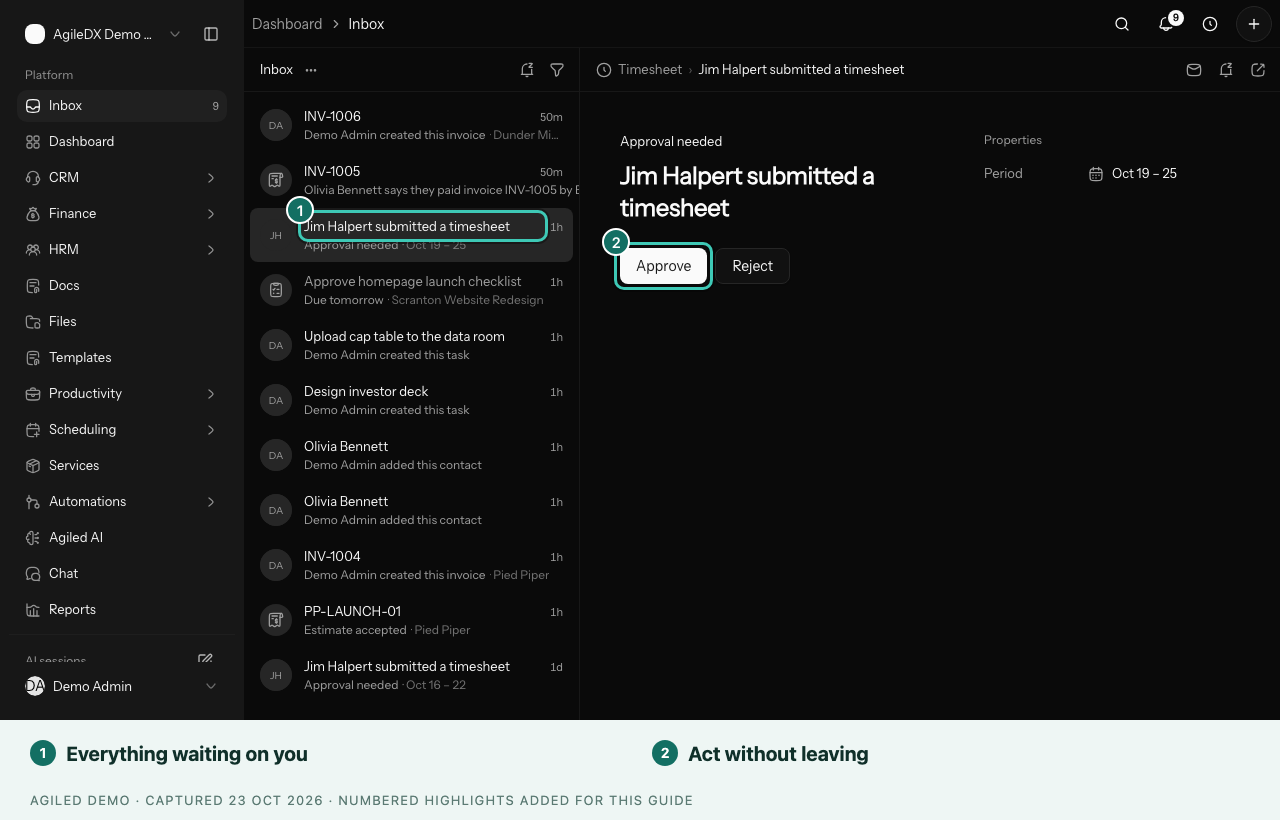
The new Inbox, first in the sidebar, gathers everything that needs you:
- approvals for workflows, AI, expenses, leave, attendance and timesheets
- tasks that are overdue or due soon
- documents waiting for your signature
- AI work ready for review
- your notifications
Approve, reject, complete or open each item without leaving the page.
- See the whole record. Click an item to open its details beside the list, with the right actions, its activity and its key properties.
- One row per thing. A task, its assignment and its mentions share one row that says why it's there, such as "Michael Scott assigned you this task".
- Stay on top of it. Snooze items until later, archive what's done, and filter by Needs my action, Updates or Unread. Keyboard shortcuts move fast: J/K to move, E to archive and H to snooze until tomorrow.
- Your unread count is in the sidebar, and the bell has an Open Inbox link.
Take deposits and get paid in instalments
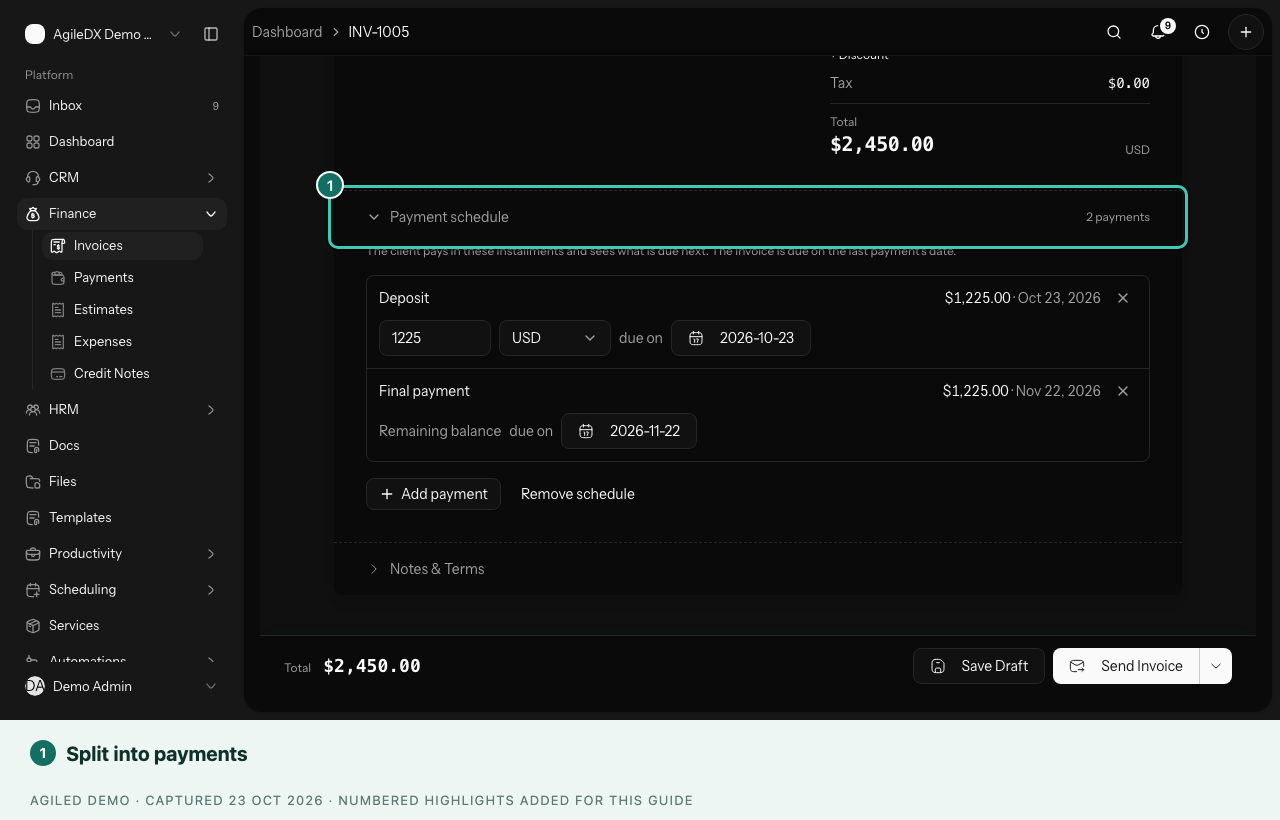
- Deposits and payment schedules on estimates and invoices. Split the total into a deposit and later payments. Your client sees the schedule on the estimate, and accepting it creates an invoice with the same schedule. The last payment is always the remaining balance, so it always adds up.
- Invoice an accepted estimate one milestone at a time. Each milestone invoice carries its share of the tax.
- Time payments around your client's event. In Smart Flows, payments can be due before or after the client's event date. For example, the wedding starter asks for 30% now and 70% 30 days before the wedding.
Clients are never stuck at "can't pay"
If you haven't set up online payment, your invoices and Smart Flows now tell clients how to pay you instead of leaving them at a dead end.
- Add bank transfer details in one click.
- You'll be warned before sending when clients can't pay online yet.
- Your team is notified when a client says they've paid.
Client-facing documents that look like you
- Your business on every estimate and invoice. Public pages show your business name, and the document prints your details.
- A clearer estimate page. Your client sees one total, can Accept by typing their name (and is told what happens next), or Decline with an optional note. You see who accepted, or their note.
- Bill people, not just companies. Send estimates and invoices to a person without creating a company first, add a New contact right from the form, and edit the recipient email.
- Number estimates and credit notes your own way. Type any number you like. Automatic numbering still counts up for your workspace, starting at EST-0001.
Your clients see your language, everywhere
Invoices, estimates, signing pages, Smart Flows and the client portal are now available in German, Spanish, French and Portuguese, with local money and date formats. Choose the language in the new Client language setting under Settings > General > Regional. A document's own language comes first, then your Client language, then English. Your client's browser no longer changes it.
Billing details for each client
- Tax ID, currency and payment terms per client. New documents for that client start from these, and the tax ID prints under Bill To.
- Client statements. Print a statement for any client, showing invoices, payments and credits, from Finance > Statements or the client's account.
- Markup on billable expenses. Set a default markup in Settings > Finance > Expenses.
- Recommended reminders. Click Use recommended for a sensible set of payment reminders.
Documents and Smart Flows you can trust
- Templates load. Use template creates a document with the template's content. If you've already written something, Agiled asks before replacing it.
- Checks before you send. The send dialog tells you what's missing. Signer problems stop the send; other issues are warnings you can override.
- Accepted documents are locked. Use Duplicate as new version to make changes.
- Proposals hand off to Smart Flows. For contract and payment steps after a client accepts, use Make it a Smart Flow. Existing proposals keep working.
- Client answers fill in your contracts, so a wedding contract shows the real date and venue.
- Packages know what's included. Add-ons a package already covers read "Included" and can't be paid for twice.
- No sample content goes out by mistake. A Smart Flow can't be published while it still has the sample testimonial, and the checklist reminds you about stock photos.
- Your CRM follows the journey. Signing the contract makes the contact a customer, and their timeline shows each Smart Flow step they complete.
Share exactly what your clients should see
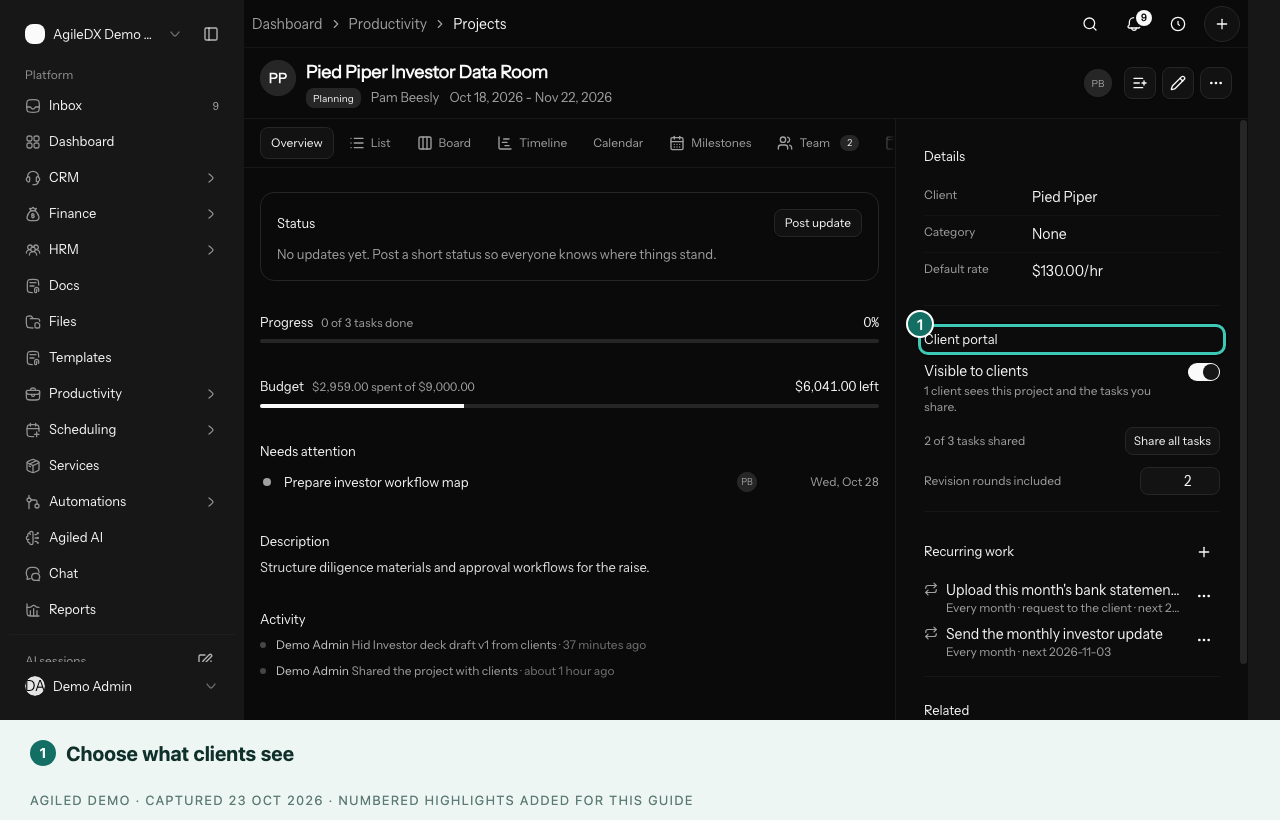
- Choose what clients see. Projects and tasks have a Client portal switch, and you can mark comments Visible to client or keep them internal. Each project file can be Clients see this or Team only. Anything your clients could see before is still shared, so nothing changes until you decide.
- Client approvals. Clients can approve a deliverable or ask for changes from their portal, and your team is told.
- Clients stay separate from your team. Client contacts no longer appear in assignee, timesheet or chat pickers. Budgets and rates are shown only to people with finance access.
Run your services business in one place
- Change orders. Mark a request or task as out of scope, price it, and send it. When the client accepts, the tasks and a draft invoice are created for you.
- Retainers, hour banks and session packs. Track them on the client's account. Billable time and bookings count against them, your team is alerted at 80% and 100%, and you can show clients their usage in the portal.
- Recurring tasks and requests. Have tasks, and requests to your client (such as "send this month's bank statements"), created automatically every period.
- Profit and capacity. Give each person a cost rate and weekly hours, see each project's profit, use the new Utilization and Project profitability reports, and see who has room for more work in the Capacity view.
- Devices and logins. Keep each client's computers, phones and website logins on their account. Passwords are stored encrypted, and every reveal is recorded.
A help desk that keeps everyone in the loop
- Plain-language tickets. New workspaces get service-style ticket types and a Source picker, and the ticket form explains who can see each ticket.
- Reply and resolve targets. Set business hours and targets for each priority. Tickets show "Reply by" or "Resolve by", and the assignee is told when a target is missed.
- Auto-assign. New tickets go to whoever in your chosen group has the fewest open tickets.
- Billable ticket time. Track time on a ticket with a timer, and bill it like any other time.
Client portal
- Make the portal yours, even on a trial. Write a welcome message and choose which sections clients see in Settings > Client portal.
- Account access. Clients can share logins with you safely from a new Account access page, and your team marks each one as working or asks the client to fix it.
- A clear goodbye. A client whose access was removed sees "Your access has ended" instead of a dead end. A new Offboarding Smart Flow wraps up with a final invoice, a file handover and a checklist.
Move from Dubsado or HoneyBook
Upload your exports in Settings > Apps > Dubsado or HoneyBook, preview what will come across, then import your clients, projects and invoices. Anything already in Agiled is skipped, never overwritten.
Import from Dubsado · Import from HoneyBook
October 22, 2026
Get told when clients act, with a new notification bell
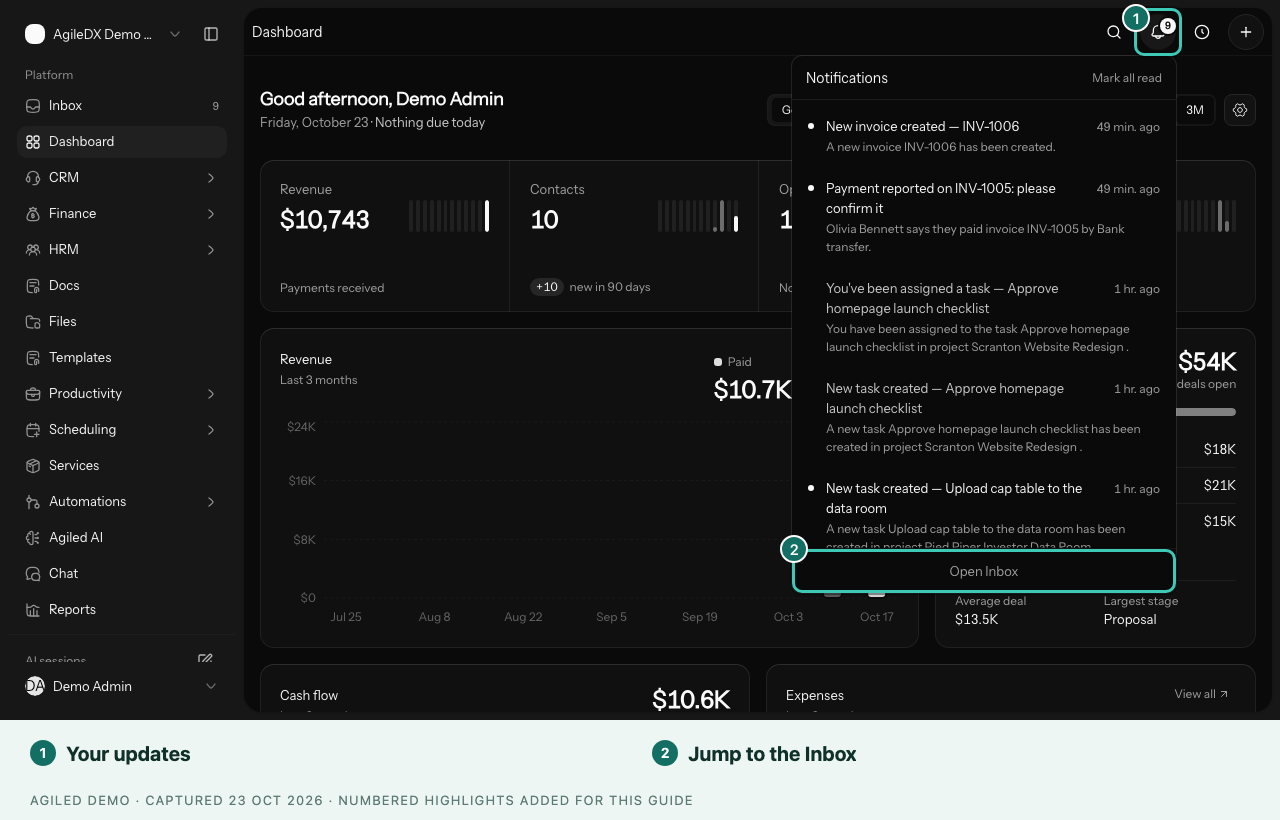
- A bell in the top bar. It shows an unread badge and your latest updates. Click one to open it.
- Know when clients act. You're notified when a client signs a document, accepts an estimate, books a time or comments on a portal task.
- Tickets keep everyone in the loop. Your team hears about new tickets and client replies, and your client gets an email when you reply.
Recurring invoices really send
Recurring invoices set to Auto Send are now emailed to your client with the invoice PDF. They're marked as sent only once the email goes out. If an email can't be sent, the invoice stays a draft and Agiled tells you why.
Revenue you can rely on
Revenue now means money you actually received, on the day it was paid, minus refunds. The dashboard, profit and loss, and revenue reports all agree, and the revenue card reads Payments received.
A second organization, set up properly
Add another organization and it starts its own 14-day trial and opens in guided setup, just like signing up. If an organization ever needs a plan, you can switch back to your others from that screen.
Work with several organizations
Guided setup that fits your business
- Guided setup now understands the services you list and your sales style.
- It no longer suggests Slack to solo owners.
- It prepares the right modules for you, including Scheduling and Products for consultation-led businesses.
- Booking pages created during setup can take bookings straight away, falling back to a phone call when no video app is connected.
Scheduling for teams and clients
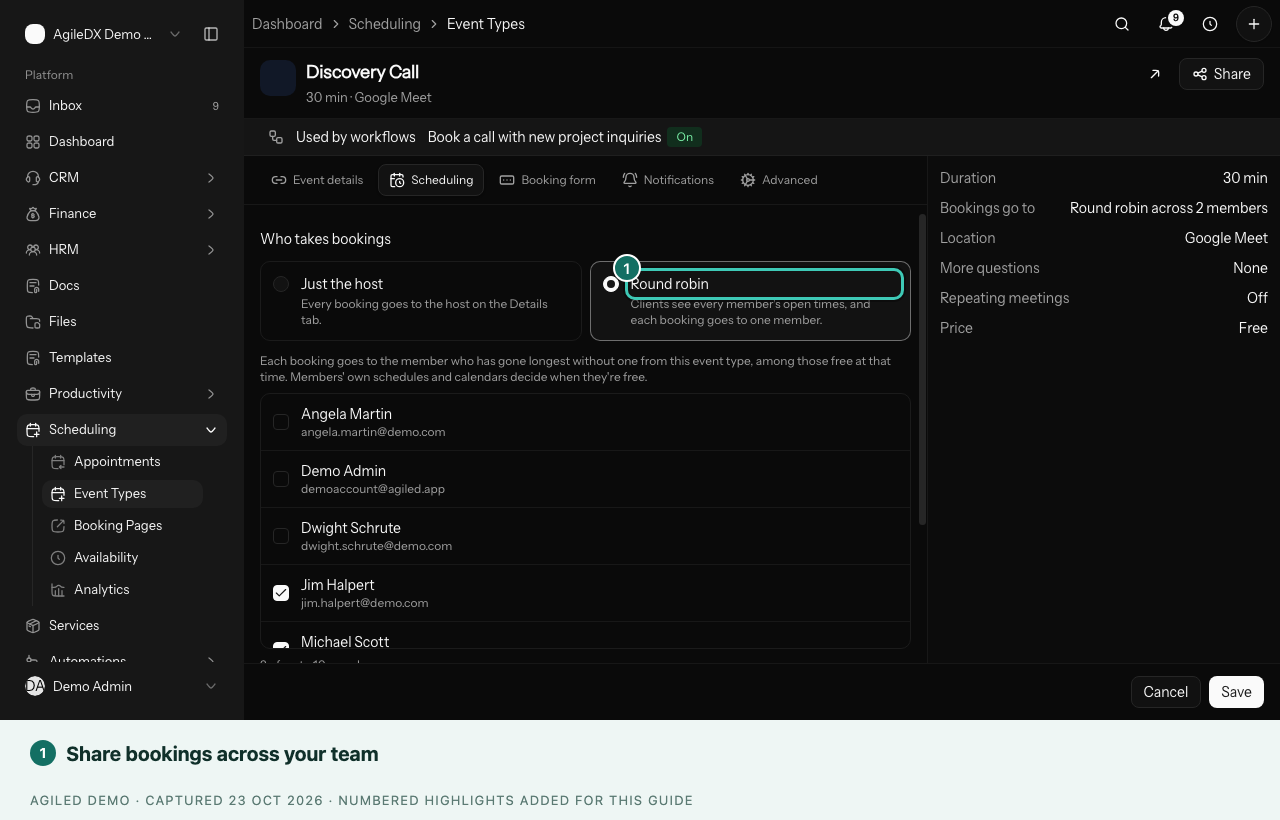
- Round robin. Let up to 10 teammates share an event type. Each booking goes to whoever has been waiting longest, and the confirmation says who they're meeting.
- Clients reschedule or cancel themselves from their confirmation link, and you're told when they do. Your own reschedule screen is now a slot picker.
- Bookings land on the right deal. A booking links to the contact's open deal with their intake answers, and can move the deal to a stage you choose.
Close deals properly
Mark a deal Won or Lost with a reason, and reopen it if things change. Dragging a deal onto a Won or Lost stage closes it, and the deals page remembers the pipeline you last used.
Take your data with you
- Export CSV from contacts, accounts, invoices, payments and time entries, using the filters on your screen.
- Owners can download everything as a zip from Settings > Data export.
Dates in your time zone
Your workspace now has a time zone. Dates, times and week starts follow it across scheduling, time tracking, timesheets and the dashboard. If yours isn't set yet, you'll see a one-time prompt such as Use your time zone?.
Stronger protection for your workspace
We made a round of security improvements across Agiled this month, to help keep your workspace, your team and your clients' information safe. There's nothing you need to do. Everything keeps working as before.
AI assistants can prepare drafts for you
AI assistants like ChatGPT and Claude can now save invoices and estimates as drafts and give you a link to review them. Sending stays with you. Settings > API shows your connection address and three steps to connect.
Smaller improvements
- Contact CSV imports are better:
- They keep Job Title and Lead Source.
- They merge tags instead of replacing them.
- They flag problem rows before you import.
- Shared file pages show your business name and logo.
- Articles open in the editor and stay articles.
- List actions confirm what happened, such as "3 contacts deleted".
- Deleting a record names it, and one click opens a row.
- If a client's portal access is paused, they see a calm "temporarily unavailable" message, and payment links still work.
- Workflow email steps on a trial tell you right away when no mailbox is connected.
- Opening a record that was removed shows a clear "unavailable" page.
October 21, 2026
Long task titles keep what you typed
If a task title is too long, you now see a clear message and your text stays in place, so you can shorten it instead of losing it.
October 19, 2026
Scheduling, rebuilt
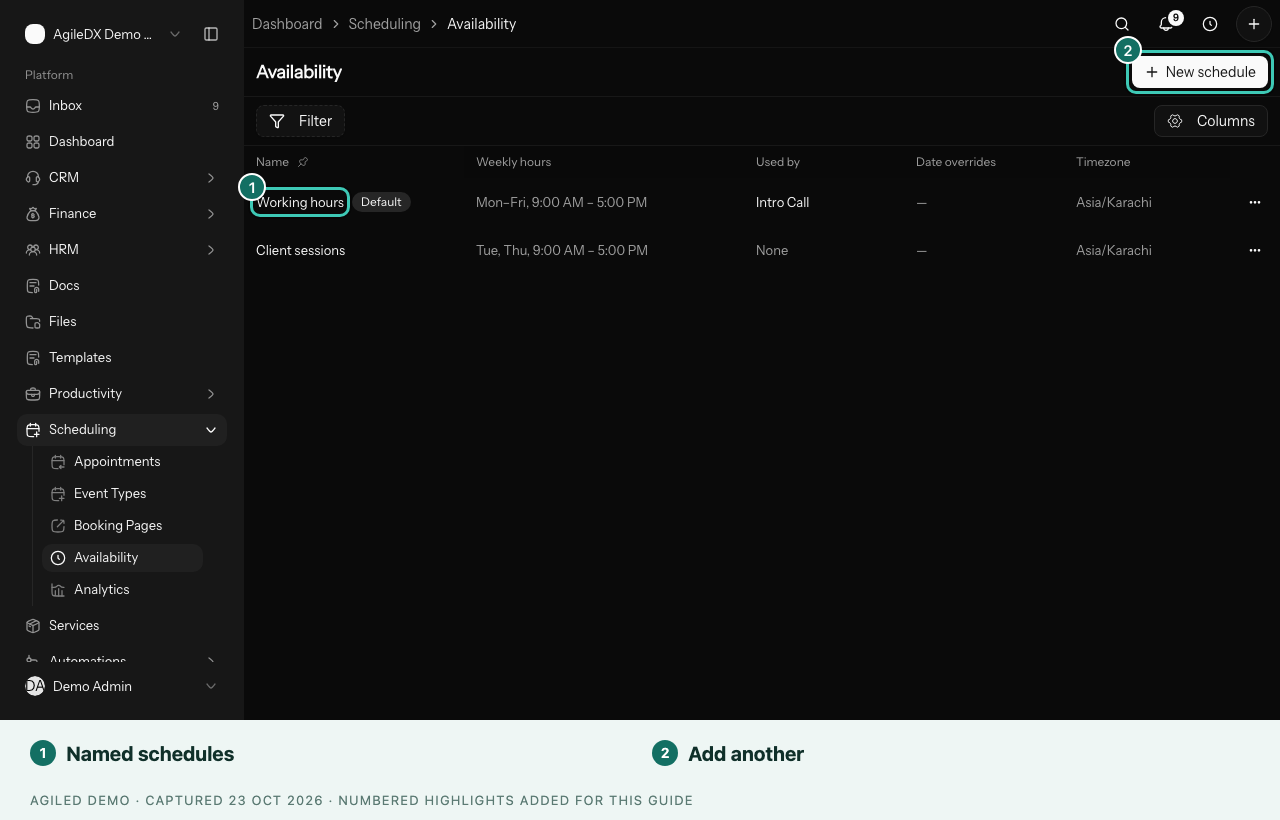
- Named availability schedules. Create schedules such as "Office hours" or "Weekends", and choose one for each event type.
- Appointments in a list or calendar. Mark appointments as completed or a no-show, and track show-up and cancellation rates.
- One Share dialog for booking links and embedding your booking page on your website.
- Your own calendar. Each teammate connects their own calendar in Settings > Apps. Your existing availability was turned into schedules for you.
Workflows that are easier to start and safe to run
- Start from a goal, such as booking calls, getting paid or onboarding clients, with 20 ready-made templates that ask only for what they need.
- An easier builder, with a tidy layout, undo and redo, and draft recovery.
- Test with a real record before you switch a workflow on.
- Clear run screens that say plainly what happened.
- No duplicates. Steps no longer repeat when retried, so clients don't get duplicate emails or invoices.
Start a workflow from a template
October 18, 2026
Add team seats yourself
Paid and lifetime workspaces can buy extra seats from Settings > Billing without contacting support. Choose how many, review the price and check out.
New signups finish setup smoothly
Fixed an issue that could stop new accounts finishing guided setup with the message "This plan allows 0 members."
October 15, 2026
Bookings you can count on
- Your booking pages read your calendars more accurately:
- Events marked Free no longer block bookings.
- Recurring Apple Calendar events block every occurrence.
- Outlook's "Working elsewhere" isn't treated as busy.
- Before confirming, Agiled checks your calendar directly when its copy may be out of date, so double bookings are less likely.
- Calendar syncs that get stuck now recover on their own.
- A new booking holds its time while the meeting link and calendar event are being set up.
Smoother signup, bookings and forms
- The name field no longer disappears while you type during signup.
- Booking pages show the chosen time on the right date.
- Forms reject impossible dates such as February 30.
- Expired invitations no longer take up a seat.
October 14, 2026
Tasks, projects and time tracking, redesigned
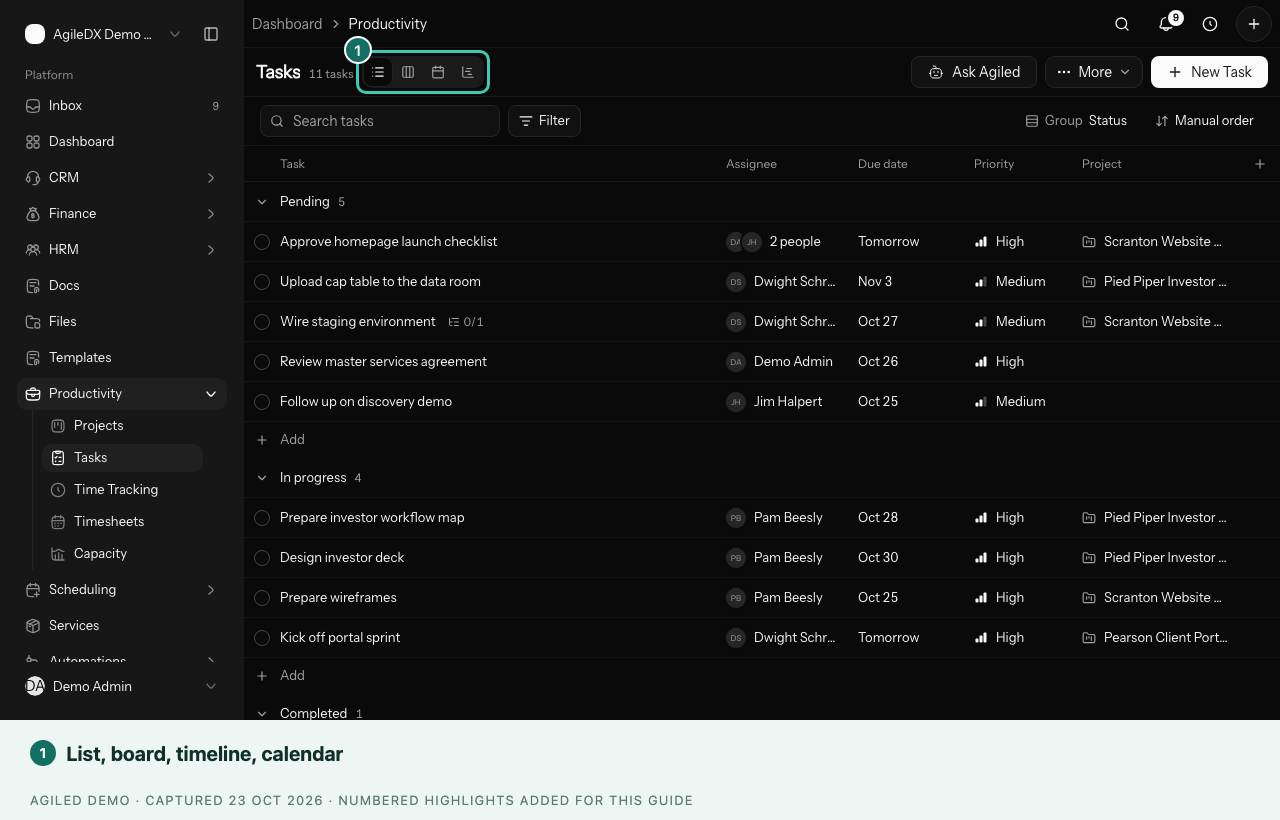
- Tasks:
- List, board, timeline and calendar views share one task drawer.
- Tasks can have several assignees.
- Projects: each has a status, status updates and a Money tab.
- Time tracking is built around your week.
- Timesheets have a clean grid and a review queue.
- Billing time: time is billed through invoice lines, so removing a line makes its time billable again.
- Desktop app: it uses the same weekly time view.
Calendar events stay in sync
Rescheduling or cancelling a booking now updates the matching event in your Google or Outlook calendar, and meeting links are kept.
October 13, 2026
Team chat is instant and reliable
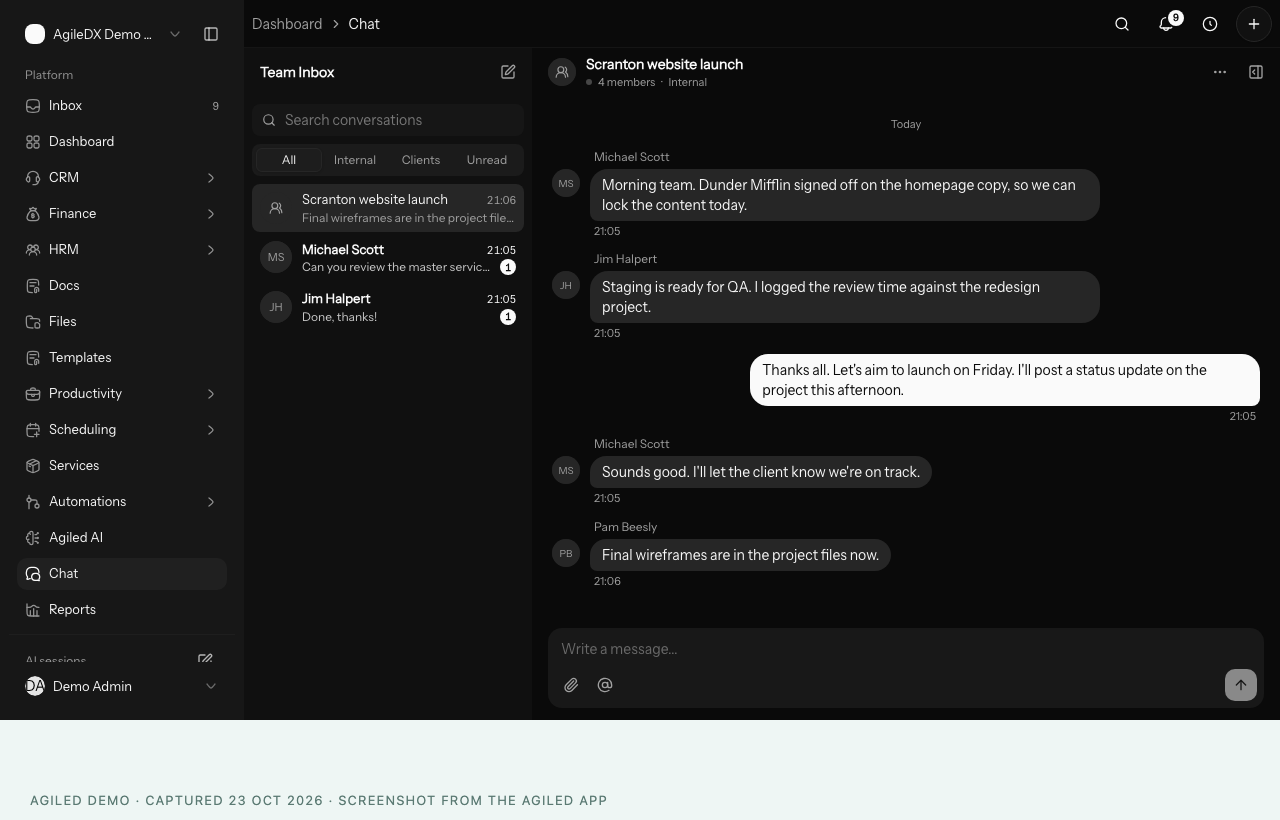
- Chat now updates instantly across all your conversations.
- Messages that fail to send stay, so you can retry, and chat catches up after a dropped connection.
- It has a cleaner layout with a collapsible conversation list.
- Use @ mentions for projects, tasks, contacts, deals, tickets, invoices and files.
October 12, 2026
Agiled opens faster
Pages open faster after you sign in, the sidebar no longer flashes before your menu appears, and documents and Smart Flow steps your clients open load more quickly.
October 9, 2026
Fixes and polish across Agiled
- Tasks:
- Tasks can have several assignees, and the Assignee filter matches any of them.
- The order you put tasks in is kept.
- Bookings: paid bookings recover from expired checkouts, and confirmation pages are clearer.
- Desktop app: adds chat, the dashboard, HR documents and scheduling.
- Mobile app: adds an availability editor, attendance corrections and form submissions with attachments.
October 7, 2026
Save your own Smart Flow templates
Save any Smart Flow as a template and reuse it from Your templates, which now appear above Agiled's starters. Each package can have its own photo.
Calendar connections that need attention stop retrying
If a connected calendar can no longer sync, for example because access was removed, Agiled stops retrying it until you reconnect. Subtasks can't be edited while they're still saving.
October 6, 2026
Smart Flows and Onboarding Flows are now one
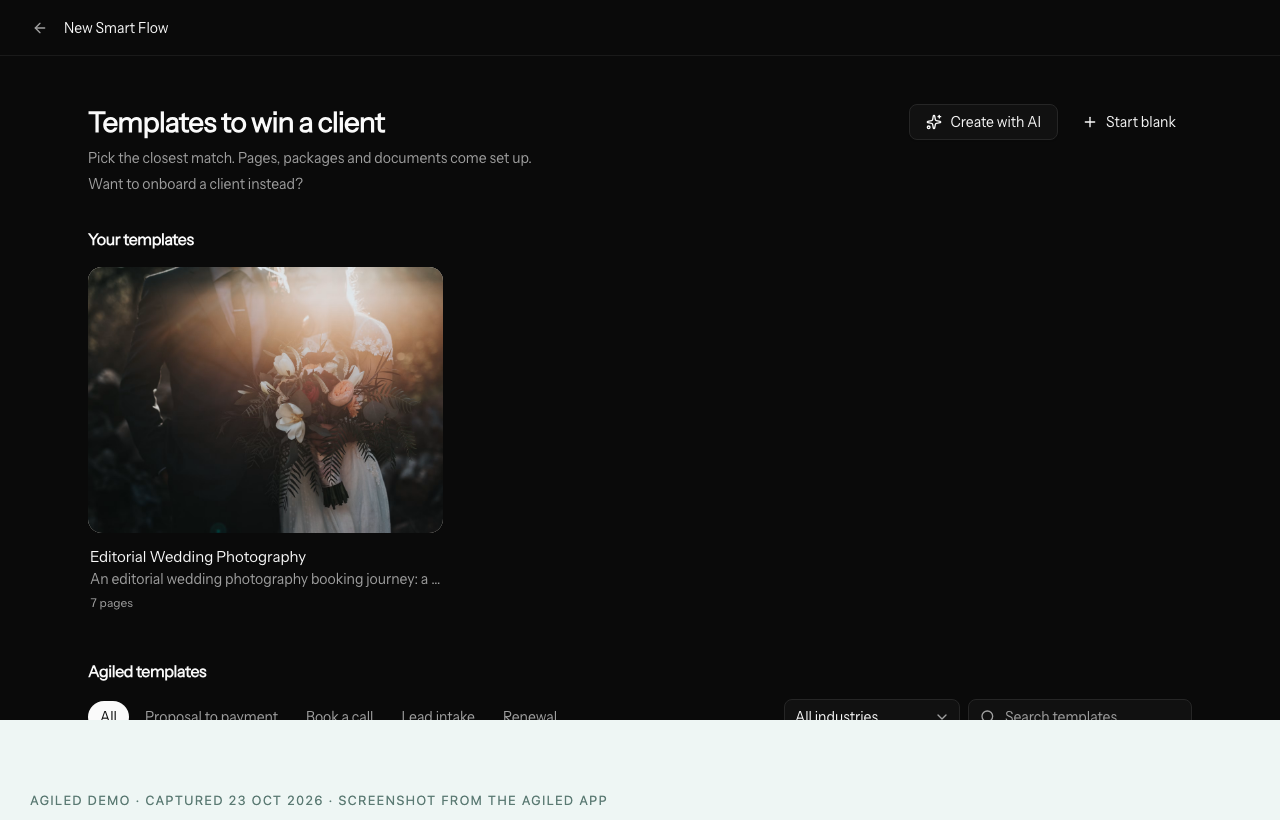
- One Smart Flows area. Choose whether you want to win a client or onboard a client.
- New designed templates. Start from a gallery of templates.
- Two ways to send. Use an email link or the client portal.
- Clearer pricing. Packages and pricing look like clear tier cards.
- One portal home. Your clients see everything you've sent them in one place.
October 2, 2026
Tickets, invitations and AI-built workflows
- Creating a ticket no longer asks for a Subject you've already filled in.
- Files uploaded through a support form are attached to the ticket.
- Invitation emails show the role and when they expire. An invitation that no longer works explains why and what to do next.
- When Agiled AI proposes a workflow, you can review its steps before approving.
- Reorder tasks in a project's List view. The order is saved and you stay on the List.
November 2026
Agiled AI that builds forms, proposals, Smart Flows and workflows in front of you, reviews form submissions and prepares meeting briefs, a calmer chat, clearer AI Workers, floating side panels, safer workspace deletion, voiding invoices, ticket forms that file under the company, tax after discounts, removing a teammate with a proper handover, fixes across the app, time tracking you can trust, account hierarchies, project file previews, recurring invoices that charge your client's saved card, more reliable email sequences, refunds and signatures, timers that stop on their own, estimates that expire properly, a way to take credit off an invoice, and pages that open faster.
September 2026
Richer task templates, saved table layouts, project timelines, a clearer trial ending, and smoother bookings and forms.