Workflows
Automate business processes with triggers, actions, runs, and logs.
Workflows automate repeatable business processes across CRM, productivity, finance, files, products, and notifications.
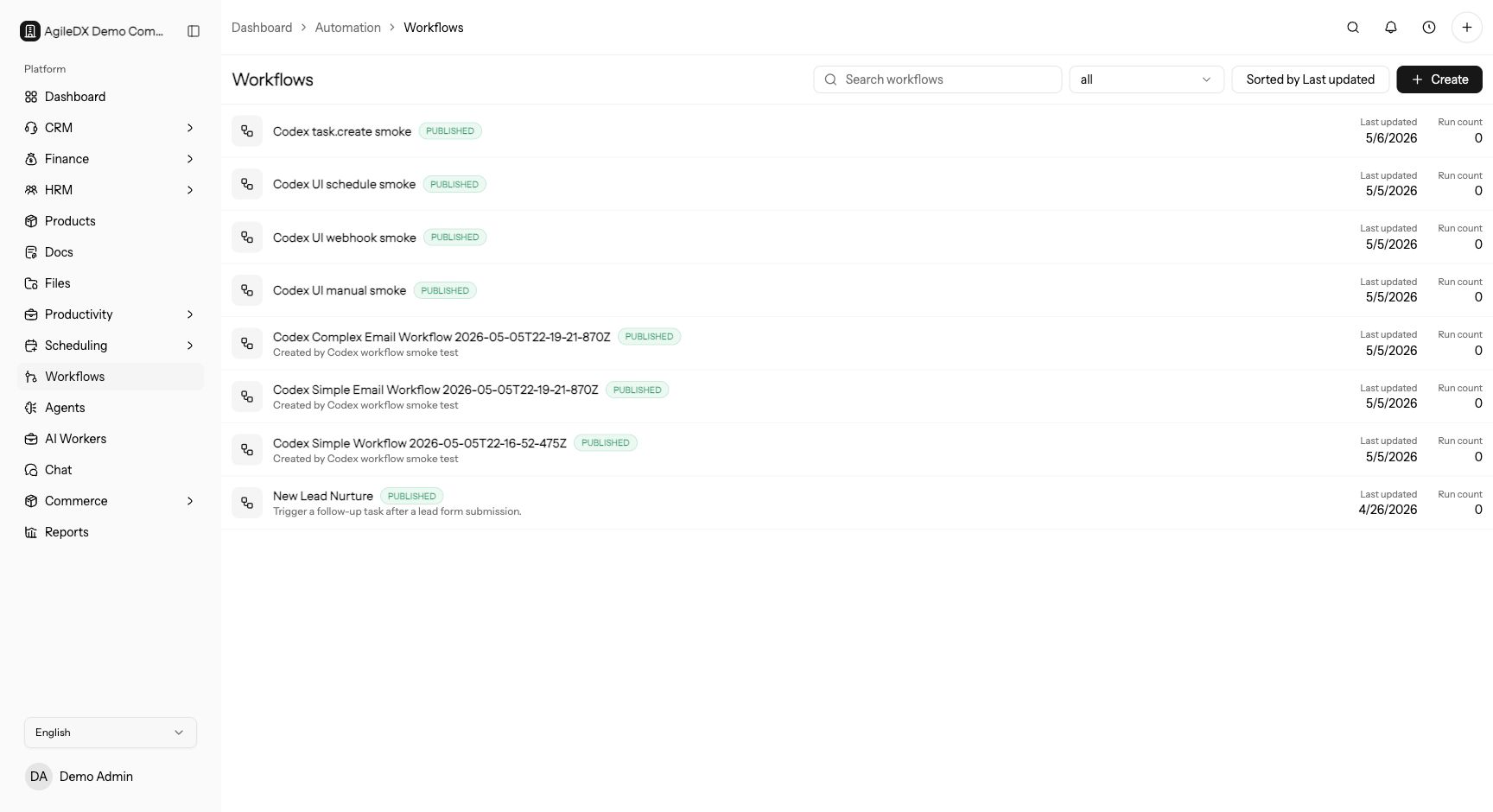
Use workflows for rules your team can describe clearly. If a process still needs case-by-case judgment, document it first and automate only the repeatable part.
How Workflows Work
A workflow starts with a trigger, then runs one or more actions. Triggers define when automation begins. Actions define what Agiled should do next. Run history shows what happened after a workflow started.
Build workflows around one clear business outcome. A workflow that tries to do sales handoff, customer email, task creation, and finance follow-up all at once is harder to test and harder to repair after a failed run.
Triggers
Triggers should match meaningful business events, such as a form submission, ticket creation, deal update, project event, invoice event, or scheduled run.
Choose the narrowest trigger that matches the real process. A broad trigger can create duplicate tasks, noisy notifications, or finance actions on the wrong records.
Actions
Actions perform the work. Common actions include creating tasks, updating CRM records, sending notifications, creating finance records, moving work forward, or connecting files and products to other records.
Start with low-risk actions such as internal tasks or notifications. Add customer-facing emails, finance changes, or provider actions only after the trigger and conditions have been proven with safe records.
Builder
Use the workflow builder to configure the flow, review each step, and save the workflow. Test a workflow with safe demo data before relying on it for real customer or finance operations.
Runs and Logs
The runs page shows workflow execution history. Use run detail pages to review inputs, actions, failures, and retry decisions.
Safe Rollout
Build a small workflow first, simulate it, run it on safe test data, then publish it. Review the first live runs before adding more actions or delays.
For important workflows, name an owner. The owner should know what the workflow does, what records it touches, when it should run, and how to pause it if a process changes.
Maintenance
Review workflows after changing pipelines, statuses, forms, templates, payment settings, mailbox settings, or connected apps. A workflow can keep running even when the process around it has changed, so old assumptions should be checked before they create noisy tasks or customer-facing messages.
Troubleshooting
If a workflow does not run, check status, trigger conditions, module visibility, and whether the source event actually happened. If it runs incorrectly, inspect the run detail before changing the builder.
If several runs fail at the same step, fix the workflow configuration before retrying more runs. If only one run fails, inspect the source record because the data on that record may be the real issue.
Recommended Guides
- Create a workflow from a form submission.
- Notify Slack when a ticket is created.
- Create a task when a deal changes stage.
- Automate invoice follow-up reminders.