November 2026
Agiled AI that builds forms, proposals, Smart Flows and workflows in front of you, reviews form submissions and prepares meeting briefs, a calmer chat, clearer AI Workers, floating side panels, safer workspace deletion, voiding invoices, ticket forms that file under the company, tax after discounts, removing a teammate with a proper handover, fixes across the app, time tracking you can trust, account hierarchies, project file previews, recurring invoices that charge your client's saved card, more reliable email sequences, refunds and signatures, timers that stop on their own, estimates that expire properly, a way to take credit off an invoice, and pages that open faster.
Here's everything that changed in November, newest first. Dates use Pakistan Standard Time (UTC+5).
November 10, 2026
Agiled AI builds with you
- Watch it build. Select Build with AI in a form, Smart Flow or workflow, or Write with AI in a proposal or contract, and describe what you need. It appears piece by piece in the builder. Keep it, or undo it. Learn more
- Start from a file. Attach an old questionnaire, price list or proposal as a PDF or photo, and Agiled AI rebuilds it in Agiled.
- Ask in chat, build in place. Ask Agiled AI in chat to build something and it opens the right builder and builds it there.
- Receipts and bills from chat. Upload several in chat and select Import into Finance. You check what Agiled found before anything is saved. Learn more
Form submissions reviewed, meetings briefed
- Review form submissions with AI. Turn on Review submissions with AI in a form's settings and write what makes a good fit. Each new submission gets a fit label, a score and the reasons. Learn more
- Meeting briefs. Turn on Prepare a meeting brief for an event type. Before each meeting you get a printable brief: key numbers, an agenda, questions to ask and the next step to agree. Learn more
A calmer chat
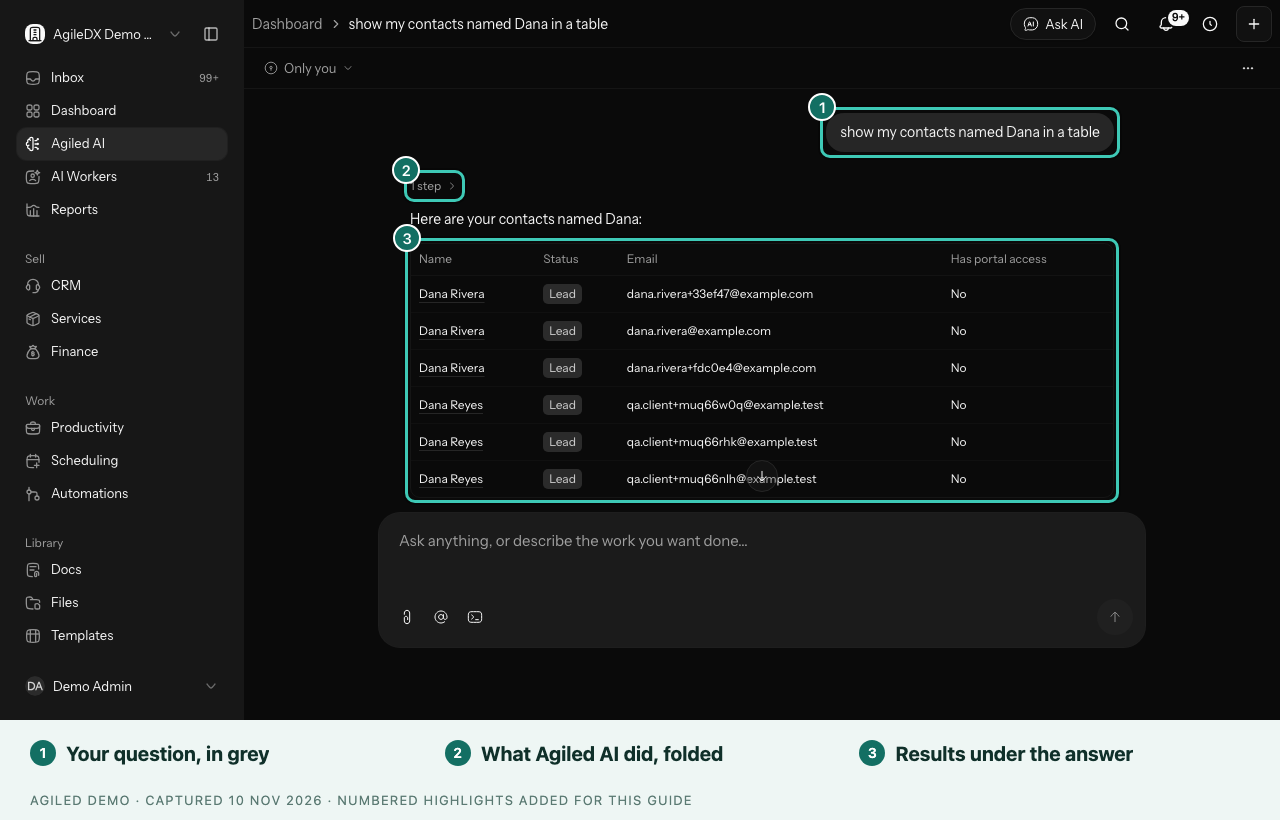
- Your messages are grey everywhere you chat: Agiled AI, support, team chat, the client portal and the mobile app.
- See what Agiled AI is doing. Its steps show above the answer while it works and fold into one line when it's done.
- Answers read top to bottom. Your question stays near the top and the answer grows below it without the page jumping. Results appear under the finished answer, once, and tables fit the side panel.
- Charts always show their bars.
Agiled AI can do more for you
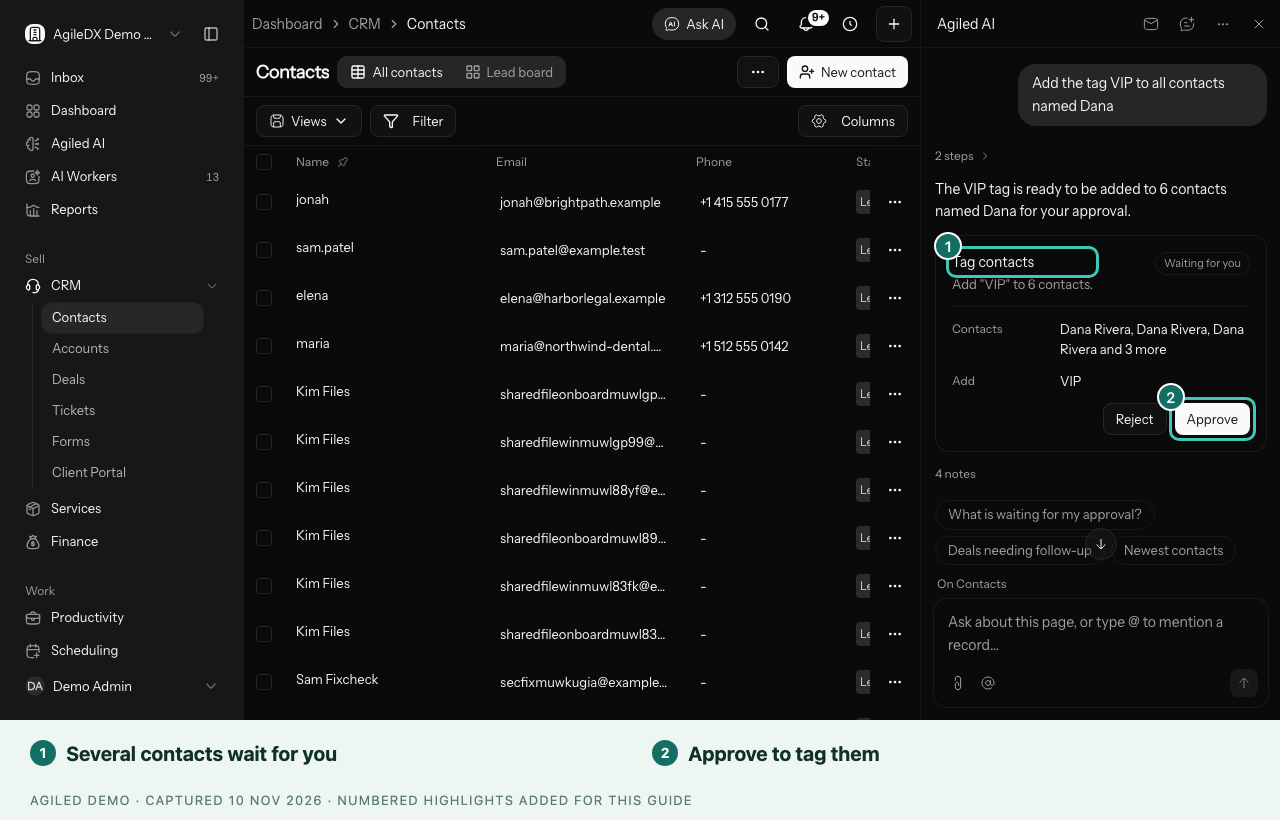
- Tag contacts. Ask it to add or remove a tag. One contact changes straight away; several wait for your approval.
- Update your company details. Ask it to change your company name, phone, website or address. Clients see these, so it always asks first.
- The page keeps up. After you approve a change, the page beside Agiled AI shows it, and your chat stays open.
AI Workers, easier to find your way around
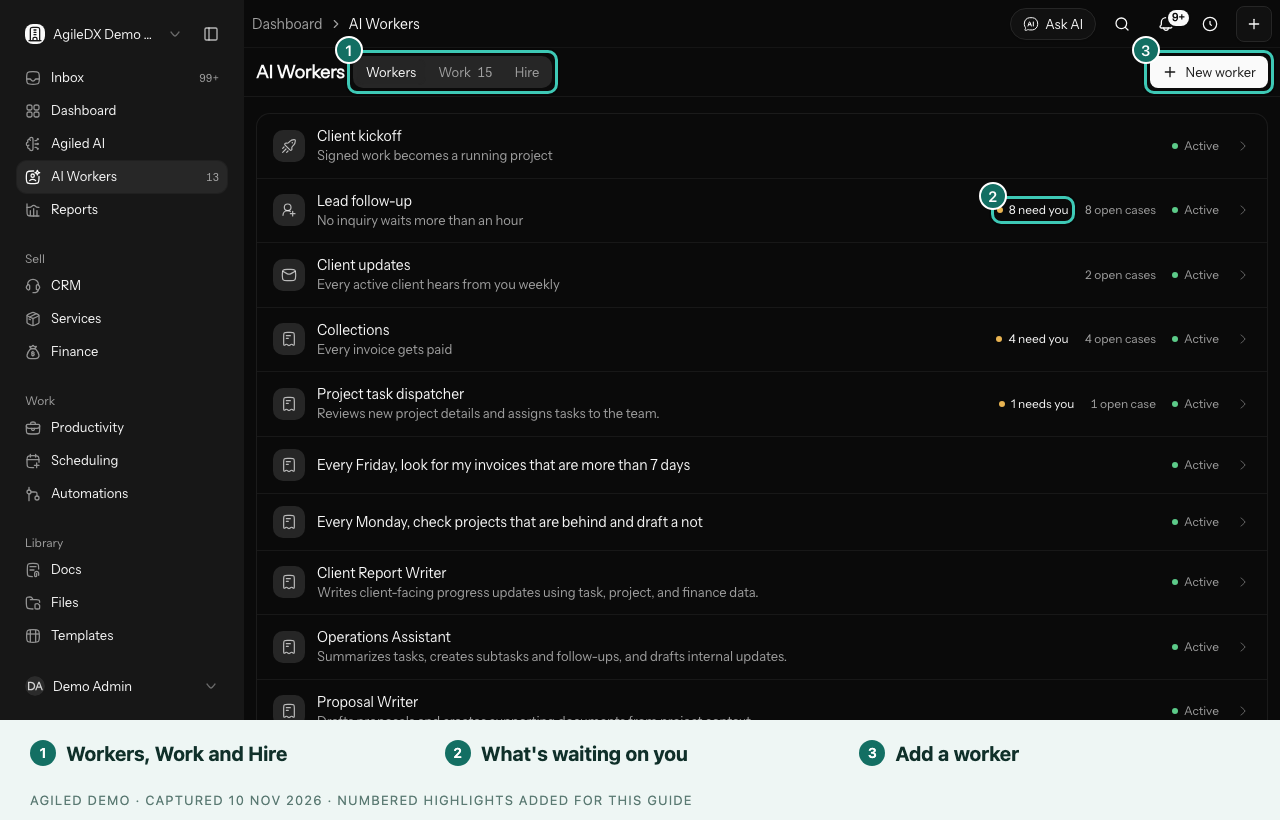
- Workers, Work and Hire. All your workers are in one list. What they did and what needs you is under Work, with a count. Jobs to hire for are under Hire, and New worker adds your own.
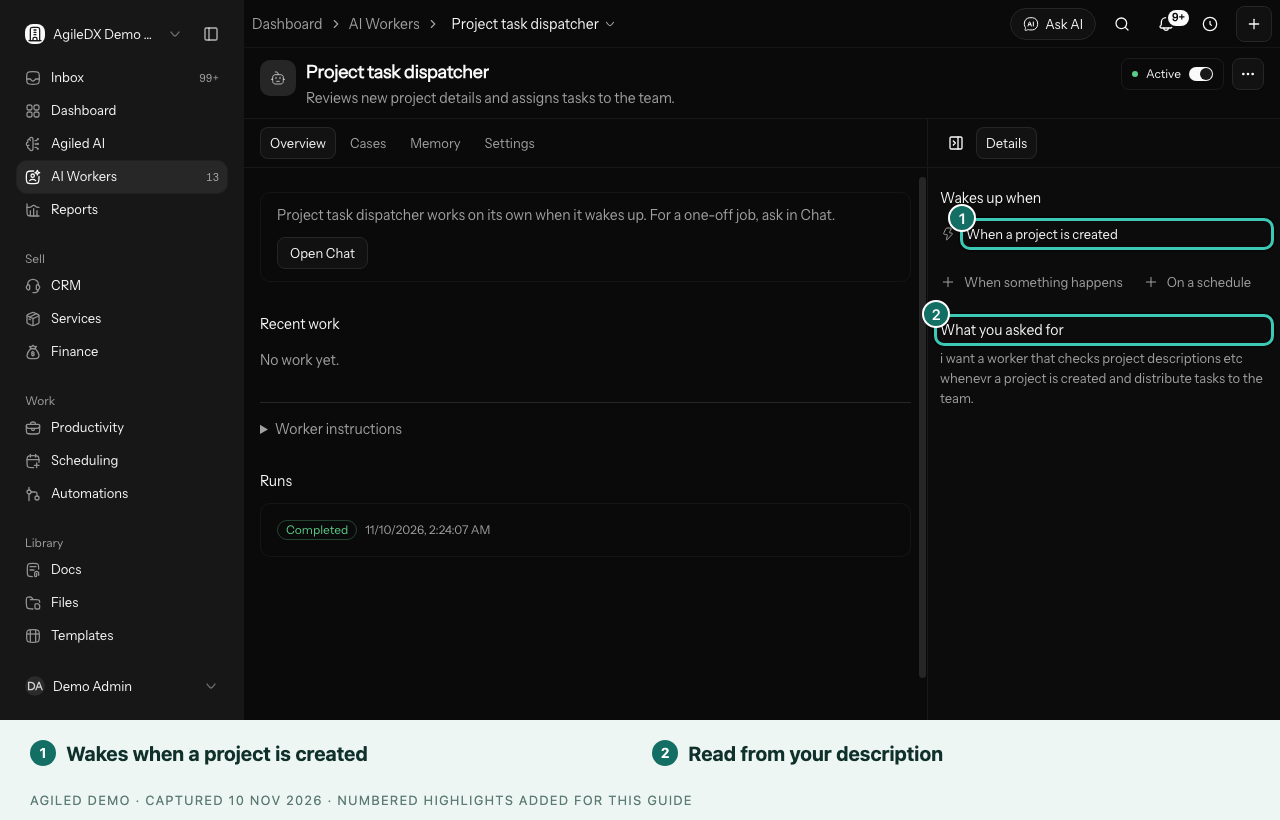
- Workers wake up when you say. Describe a worker with "whenever a project is created" or "when a new contact is added" and it wakes up on that, just as "every Monday" already set a schedule. A new A project is created trigger lets a worker split new projects into tasks for your team. Learn more
- Less to read on a worker's page.
Pages open faster
- Pages appear sooner. Agiled sends less to your browser before a page is ready and makes fewer trips to fetch your workspace details, so pages open faster, especially if you're far from the US.
- Your menu is there straight away. The sidebar shows your full menu, with only the areas you have access to, as soon as the page appears.
- Pages open as you select them. Agiled starts getting a page ready when you point at its link, and prepares the pages you visit most while you work. Most pages now appear the moment you select them.
- Coming back is instant. Agiled shows what you last saw on a page straight away, then quietly checks for changes.
- Lists feel instant. Going back to a list, such as contacts, invoices or projects, shows it right away and quietly checks for changes. Anything you add, change or delete shows up at once, without the whole list reloading.
- Saves show at once. Changes such as editing a task, approving leave, pausing a recurring invoice, turning a workflow on or off, or switching a notification show immediately. If a change can't be saved, Agiled puts it back and tells you why.
- Fewer pauses inside pages. Billing, discount codes, client statements, finance imports, approvals and workflow runs now arrive with the page instead of a moment after it.
- Clearer messages. When a page can't load or is only for workspace admins, Agiled says what happened and what to do next.
- Records open quicker. On Contacts, Accounts and Tickets, a record starts loading as soon as you point at its row.
- Long tables scroll smoothly. Scrolling or pointing at rows no longer redraws the whole table.
- Pages on your own domain load faster. If your client portal or pages use a custom domain, Agiled's files now come from a server close to your visitor.
- Invitations open without a pause. The security check on the invitation page no longer freezes the page while it loads.
Client Portal moves under CRM
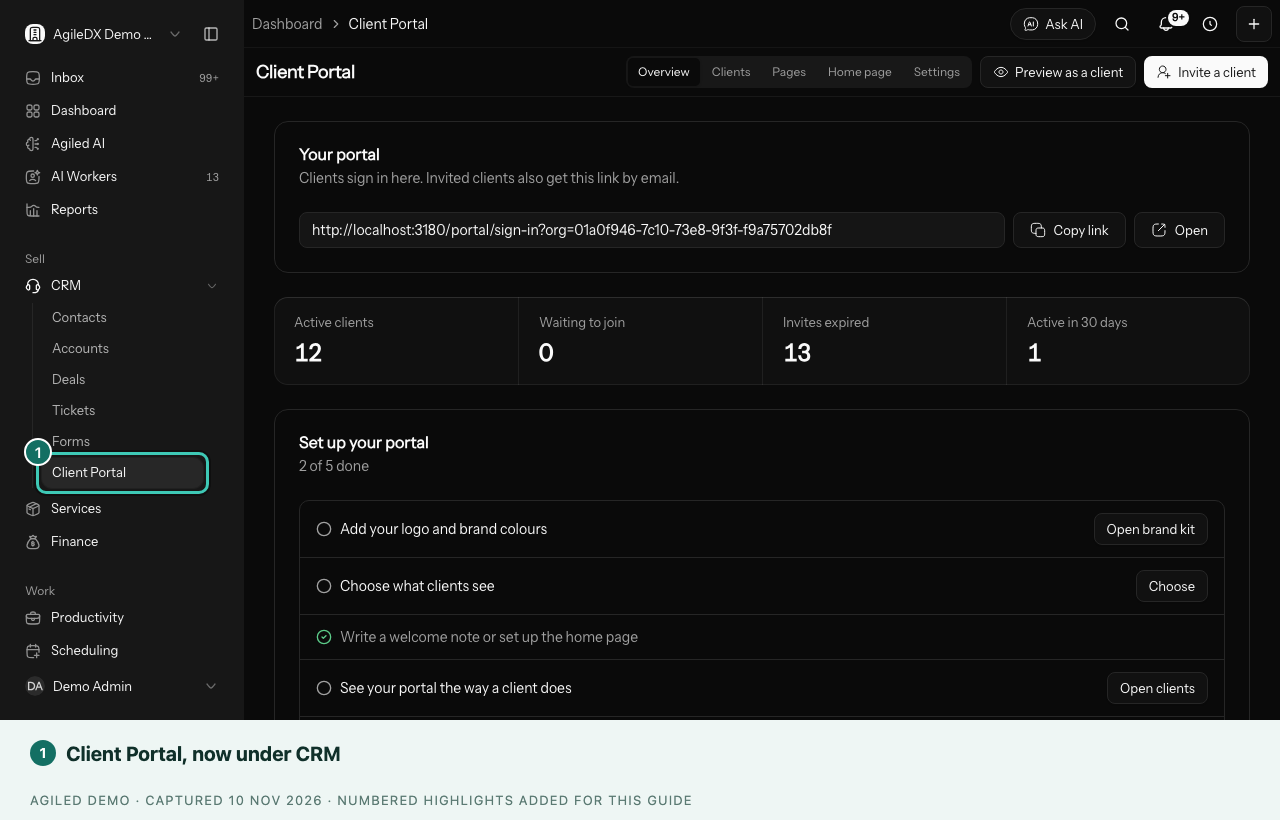
Client Portal is now in the sidebar under CRM, next to your contacts and accounts.
Stronger protection for your workspace
We keep making security improvements across Agiled, to help keep your workspace, your team and your clients' information safe. There's nothing you need to do. Everything keeps working as before.
November 9, 2026
Timers, payments and credit behave the way you'd expect
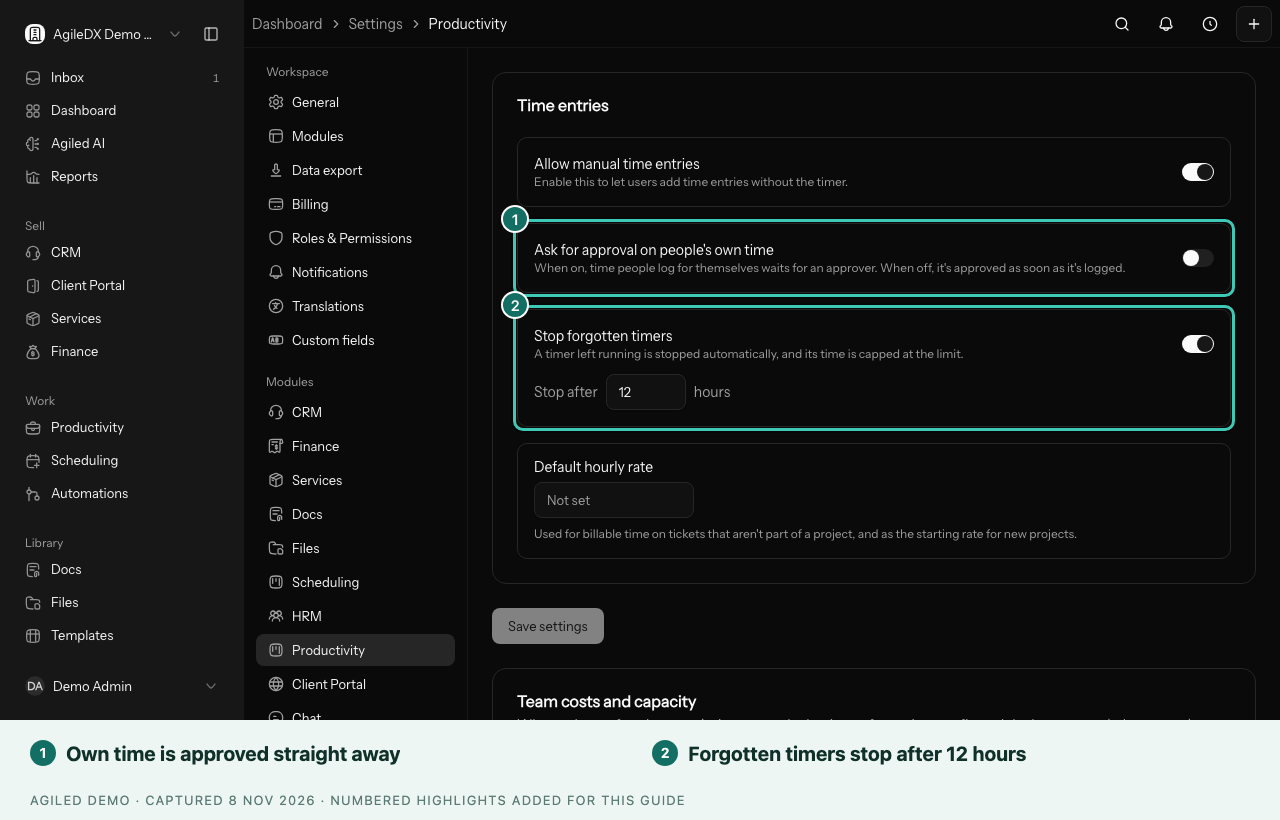
- Forgotten timers stop on their own. A timer left running stops after 12 hours, and its time ends at that limit, so a night isn't added to anyone's hours. Change the limit or turn it off in Settings › Productivity. Learn more
- Your team's own time doesn't wait for approval. Time people log for themselves is approved straight away. Turn on Ask for approval on people's own time if you'd rather have it checked.
- Approved weeks stay approved. A timer can't start in a week that's already submitted or approved, and you're asked to stop a running timer before submitting its week.
- Mark paid records the payment. Marking a sent invoice as paid, including from the mobile app, records what was left to pay as a payment, so your reports and the client's statement match.
- Edit a sent invoice without losing its status. Saving a sent or part-paid invoice keeps it sent, and the button now says Save changes.
- Overdue starts the day after the due date, so an invoice due today isn't marked overdue while your client still has the day to pay.
- Payment reminders go out on the day you chose. Reminders set for days before the due date, or for the due date itself, used to arrive the day after it. They now go out when you set them. Learn more
- Refunds made in Stripe show up in Agiled. Refund a payment in your Stripe dashboard and Agiled records it on the payment and its invoice.
- Take credit off an invoice. Remove credit in the invoice's … menu sends applied credit back to its credit note, ready to use again. Deleting an invoice gives its credit back too.
- Pause a recurring expense. Pause and resume it from the expense, and extend a finished one to start it again.
Estimates, proposals and deals
- Expired estimates say so. Your estimate list shows Expired once the expiry date passes. Clients can't accept or sign it after that, and they're told to ask you for an updated one.
- Proposals and contracts expire too. After its expiry date a document can't be signed. Change the date and send it again to give your client more time.
- Drafts can't be signed. Copying a draft estimate's signing link marks it sent, so links you share yourself keep working.
- Accepted proposals win their deal, and winning a deal turns its leads into customers.
- Withdrawn, not declined. A document that a stopped Smart Flow took back shows as Withdrawn, so it isn't mistaken for your client saying no.
Clients, tickets and the rest
- Changing a client's email now asks you to send a portal invite to the new address. The old address can no longer sign in.
- Client replies reopen tickets. A reply in the client portal reopens a resolved ticket, the same as an email reply, and the reopened ticket gets a fresh resolution target.
- Retainers count late hours. Time logged late against last month still counts towards this month's carry-over while this month is open.
- Smart Flows hold their reminders while your client has declined a page, and pick up again once you send it back.
- Custom domains ride out a bad check. A domain stays online if its record goes missing once, so you have a day to fix it, and a failed domain comes back on its own once the record is right.
- Booking reminders are never sent twice.
- Offboarding clocks out a member who's still clocked in.
- If your Agiled plan's payment fails, Settings › Billing says so and shows how to update your payment method. Your data stays safe.
- Dozens of smaller fixes keep invoices, estimates, documents, tasks, bookings and Smart Flows in the right state when two things happen at once.
Emails, refunds and signatures stay on track
- Email sequences send every step. Steps from running sequences now go out on schedule, and a paused sequence no longer holds up your other sequences. Anyone who was waiting gets their next email, then the sequence carries on as normal.
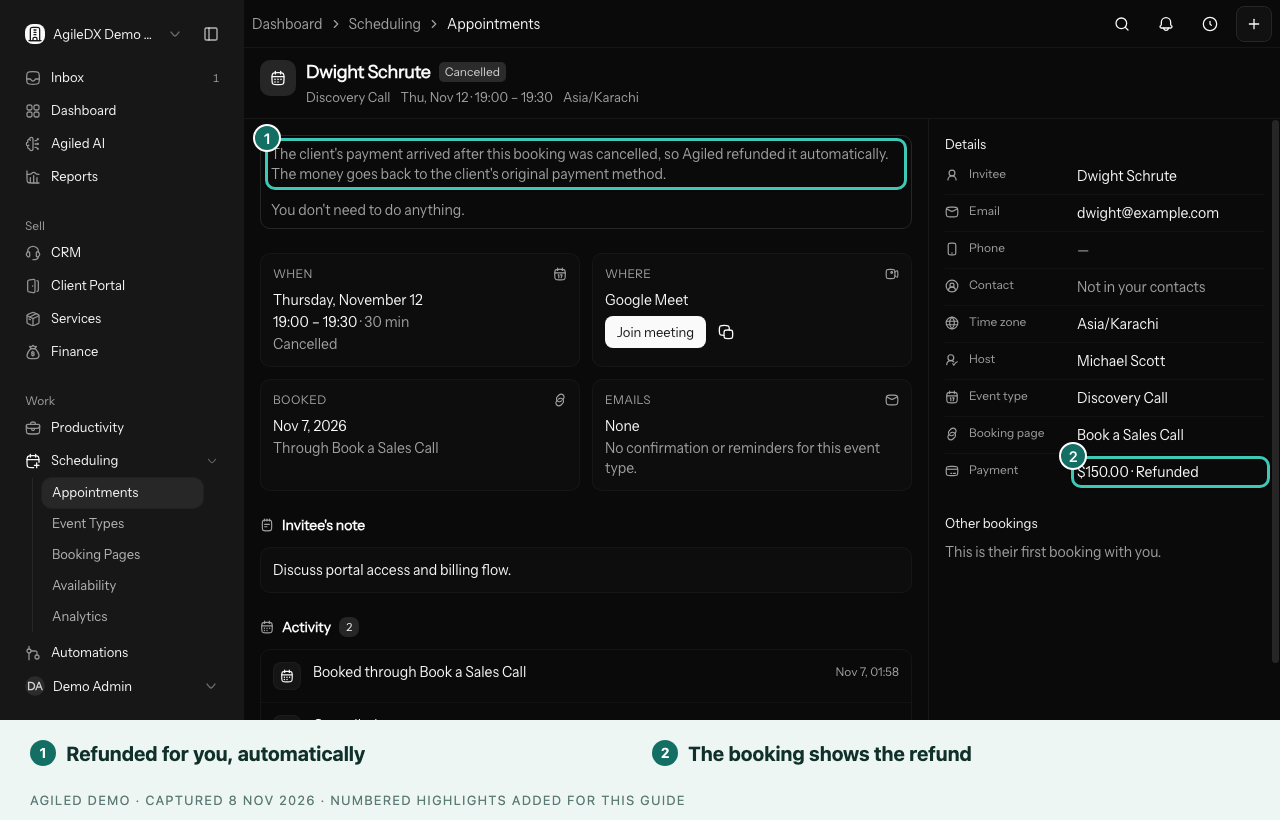
- Late payments on cancelled bookings are refunded. If a client's payment comes through after their booking was cancelled, for example because checkout timed out, Agiled refunds it automatically and the booking shows the refund. If Stripe can't complete it, the booking tells you why so you can refund the client yourself.
- Signed documents stay signed. Resending a document no longer asks people who already signed or declined to do it again, and an answer can't be changed once it's given.
- Accepted estimates stay accepted. Once a client accepts an estimate, it can't be declined from the client portal or the estimate link.
- PayPal refunds update the invoice. Refunding a PayPal payment records the refund and shows the invoice as unpaid again.
- Paid invoices keep their status. Connected apps and AI assistants can't change the status of an invoice that has payments recorded.
- Custom domains only go live once the exact domain you added has been checked.
- Task boards: moving a task into a done column marks it complete, and moving it out marks it not complete.
- Workflows: making quick changes to a new workflow no longer creates a second copy of it.
- Templates and Smart Flows: if saving fails, Agiled tries again a few times, waiting a little longer each time, and shows one message instead of many.
- Imports and AI workers that stop partway are marked as failed, with what to do next, instead of showing as running forever.
November 4, 2026
Side panels float, and the task panel is easier to read
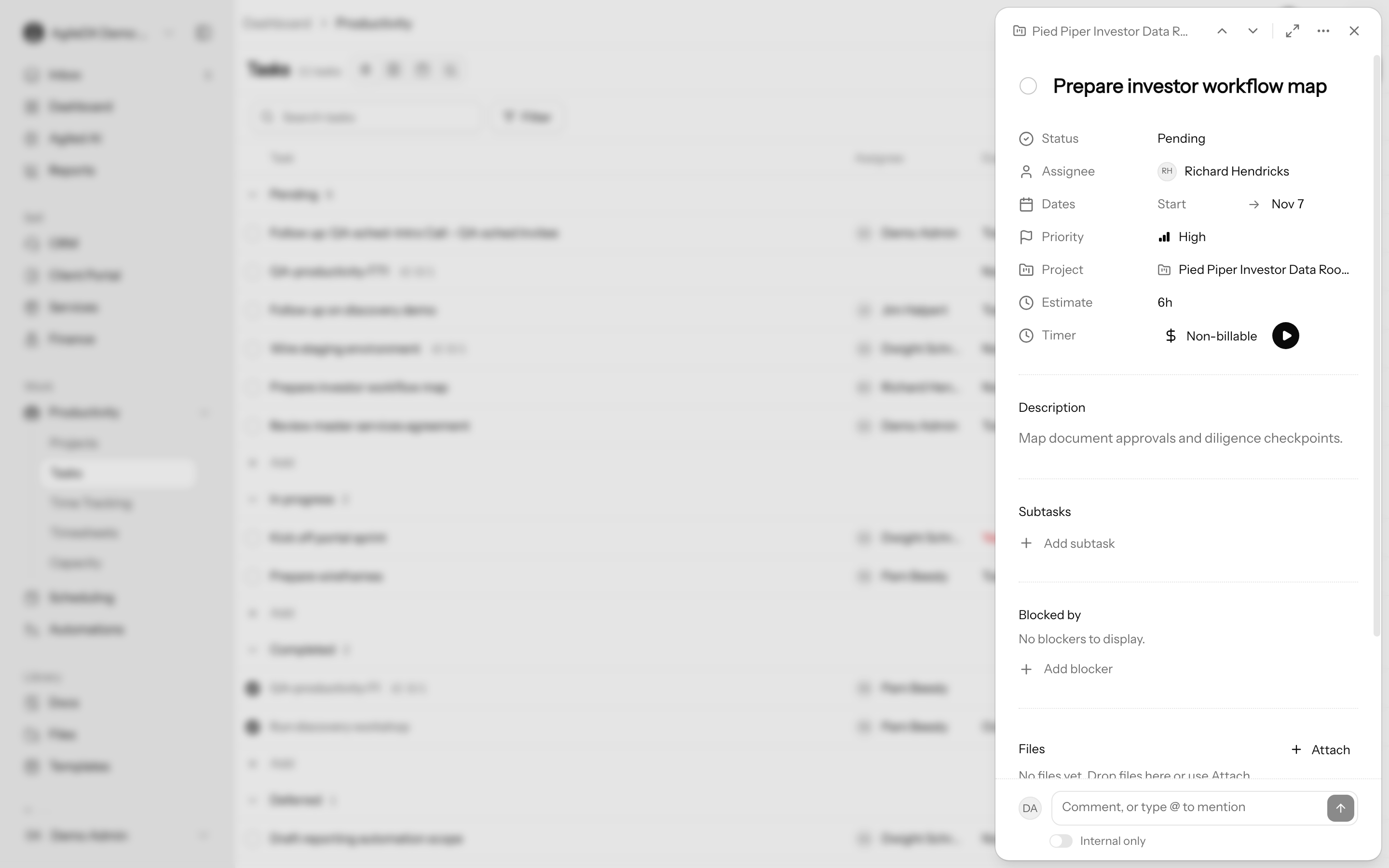
- Side panels float. Panels that slide in from the side, such as a task, invoice settings or a file preview, now sit just inside the edge of the window with rounded corners, instead of being stuck to it.
- The task panel reads in sections. Details, description, subtasks, blockers, files and activity are clearly separated, and the panel is a little narrower, so more of your list stays in view.
Safer workspace deletion, voiding invoices and smoother deals
- Deleting a workspace has a safety net. It moved from your profile to Settings › General, only the owner can do it, and it's confirmed by typing the workspace name. Nothing is deleted for 7 days, and you can cancel until then. Learn more
- Void an invoice. An issued invoice you no longer want can be voided. It stays on record, its link shows it as cancelled, and payments already recorded stay attached.
- Record a payment from the invoice. It's now a button at the top of the invoice. If an invoice has no recipient yet, you can add the email address right in the Send window.
- Refund from the payments list. Refund a payment straight from its row.
- Move deals your way. In the deals Kanban, move a deal with the keyboard or by touch, or use Move to stage. Moving a deal to Won or Lost asks you to confirm.
- New records ask before losing a draft. Closing a half-filled new contact, account, deal or ticket asks whether to discard it.
- Workflows show when they won't run. A workflow that's on but still has steps to set up says so in the toolbar, and can't be turned on until it's ready.
- Form builder: a clear Save button, a warning before you leave with unsaved changes, and fields you can reorder with the keyboard.
- Timesheets check the hours you enter and confirm before you submit.
- Meeting types and booking pages say Hidden from clients when the meeting app they need isn't connected.
- Locked workspaces can still export their data.
- Easier to read and use: clearer focus outlines, stronger text contrast, and less motion when your device asks for reduced motion.
Ticket forms, tax after discounts, and smaller fixes
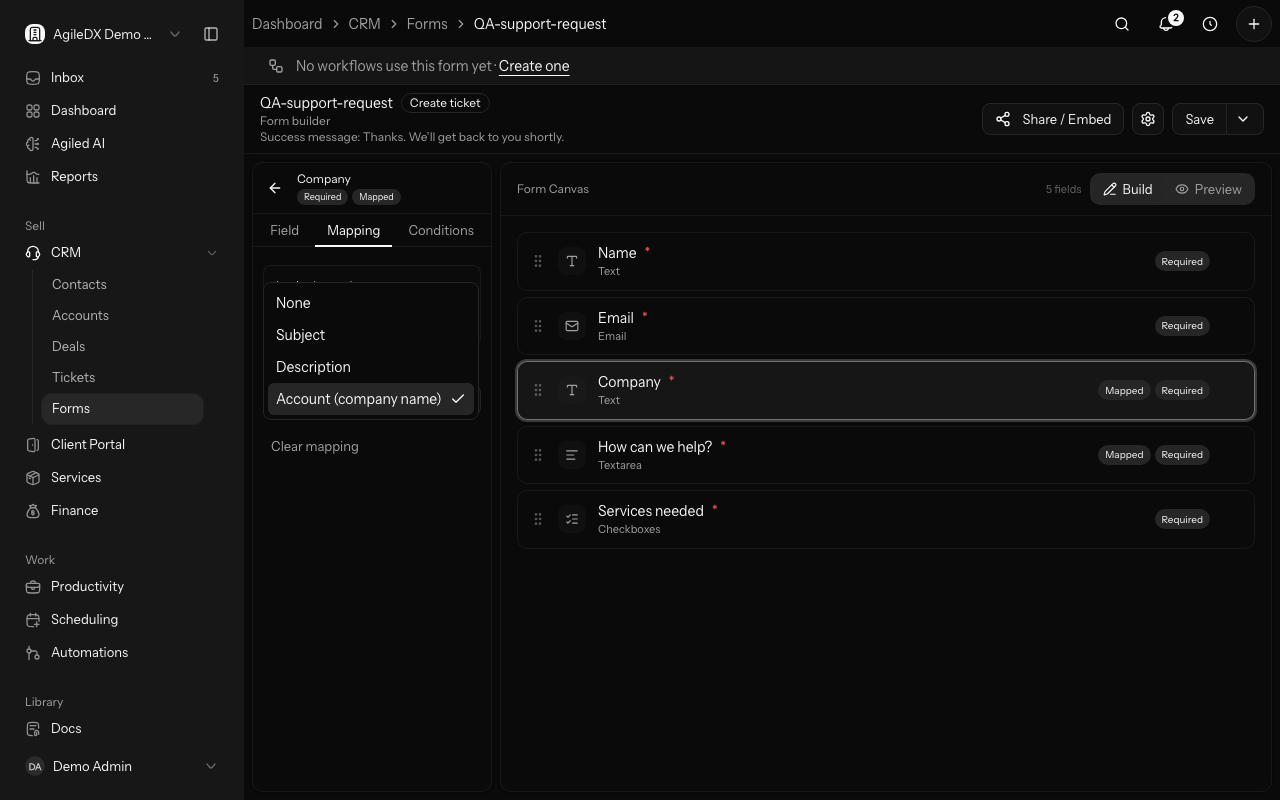
- Ticket forms file tickets under the company. A ticket from a support form is linked to the account named in the company answer, or to the client's own account. Map a question to Account (company name) or to any of your ticket fields in the form builder. A returning client keeps every account they're already linked to.
- Discounts come off before tax. On new invoices, estimates and recurring invoices, an invoice discount now lowers the amount that's taxed. A $100 invoice with 10% off and 20% tax comes to $108, not $110. Documents you already have keep their totals.
- Hide empty Kanban columns. In the projects Kanban, open Group and turn on Hide empty columns.
- The + button creates things. Each item in the top bar's + menu, including deals and tickets, opens its create form straight away, instead of the list.
- Scheduling: search finds appointments, meeting types and booking pages. Cancelling a booking closes its follow-up task, and rescheduling moves it. Times follow your workspace's 12- or 24-hour setting, and analytics show whole numbers.
- Reports: weekly reports label weeks by their dates, like "Nov 2 – 8".
- Teams no longer ask for a code, so adding a team can't fail because another workspace used the same code.
November 3, 2026
Remove a teammate and hand over their work
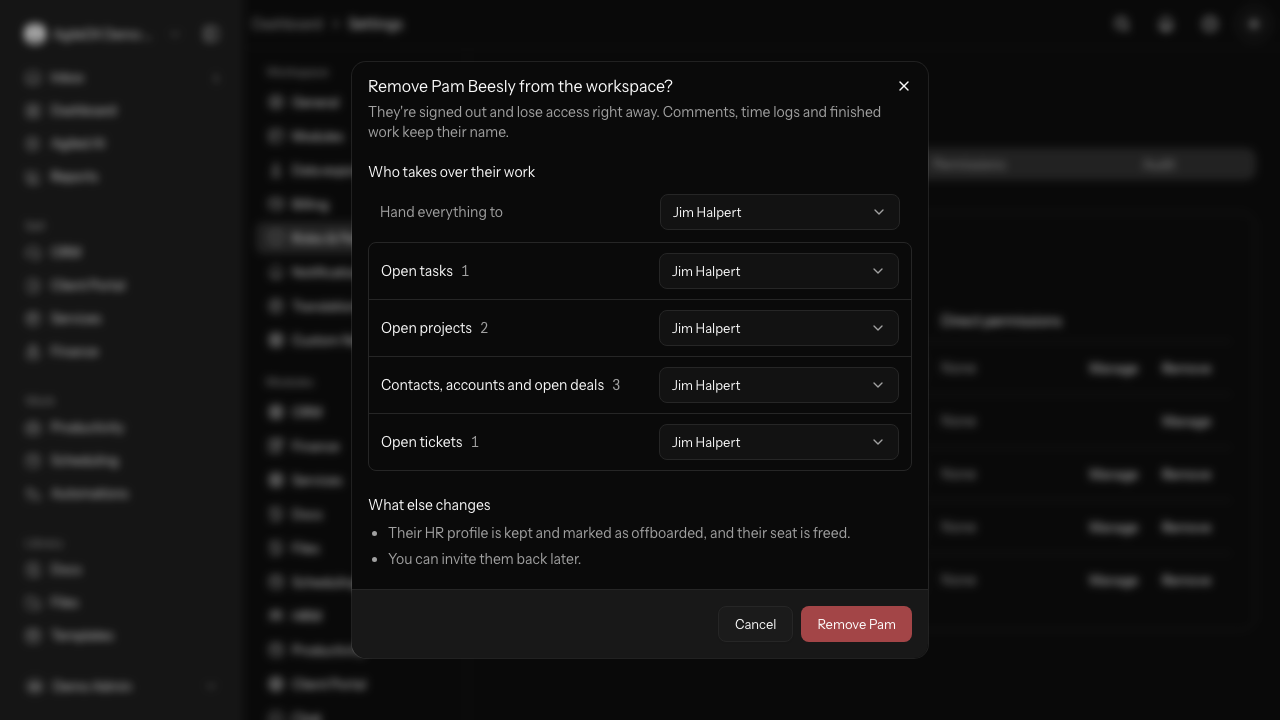
When someone leaves, select Remove next to them in Settings › Roles & Permissions › Members, or Remove from workspace on their HR record.
- Choose who takes over. Hand all their open work to one teammate, or pick someone for each kind: tasks, projects, contacts and deals, tickets, proposals, booking links and the people they managed.
- Their history stays theirs. Finished work, comments and time logs keep their name, and their HR record is kept as offboarded.
- Access ends right away. They're signed out of your workspace, and keys and apps they connected to it stop working. You see exactly what will stop before you confirm.
- Their seat is freed for someone new.
- HR deletions stick. A deleted HR profile no longer comes back when that person opens Attendance.
Learn how to remove a teammate
Fixes across the app
We went through every screen and option looking for small things that didn't work the way they should. Here's what's fixed.
- Client chats: a chat you start with a client now reaches their portal, and shows under Clients instead of Internal. Searching chats says when nothing matches.
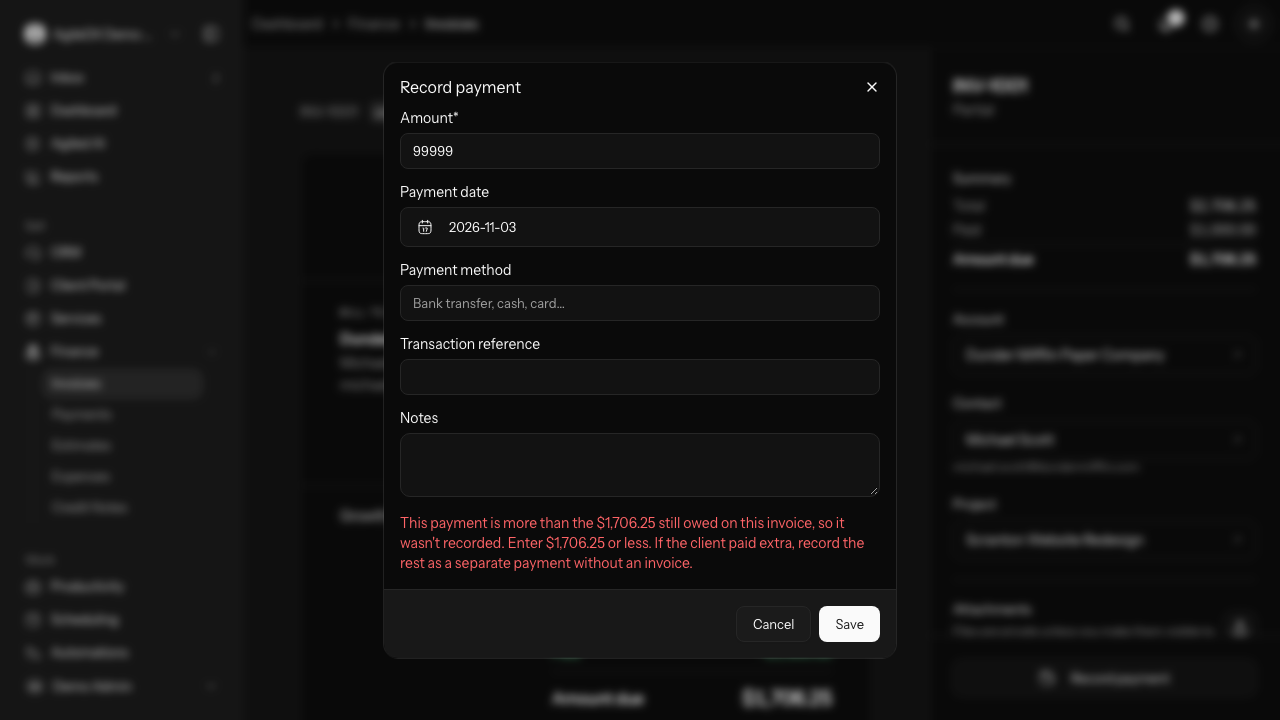
- Invoices: recording a payment larger than what's owed is refused with the balance shown. Reusing an invoice number explains which number is taken. Record payment, Apply credit and Send reminder from the invoice list open straight away. New lines start with your default tax, and the tax line always shows on the invoice so the total adds up.
- Projects and tasks: each project gets its own row on timesheets, an empty project list lets you add the first task, and projects started from a template take the template's name.
- Workflows: message and details boxes take typing wherever you click, template previews show every path without repeating steps, and unfinished steps tell you what to fill in plainly.
- Documents and forms: a proposal for a contact is filed under their company, form submissions show the person's name, Yes/No and real dates, and renamed files download with their new name.
- HR and settings: leave shows working days, matching your balance. The leave list loads faster. Custom roles stay reachable in the permission grid, dropdown fields always keep at least one option, and settings explain mistakes in plain words.
- Scheduling and reports: follow-up tasks show the booking time in the booking's time zone, and report breakdowns keep every label.
- Dashboard: the Done button stays on screen while you arrange your dashboard.
November 2, 2026
Time tracking you can trust
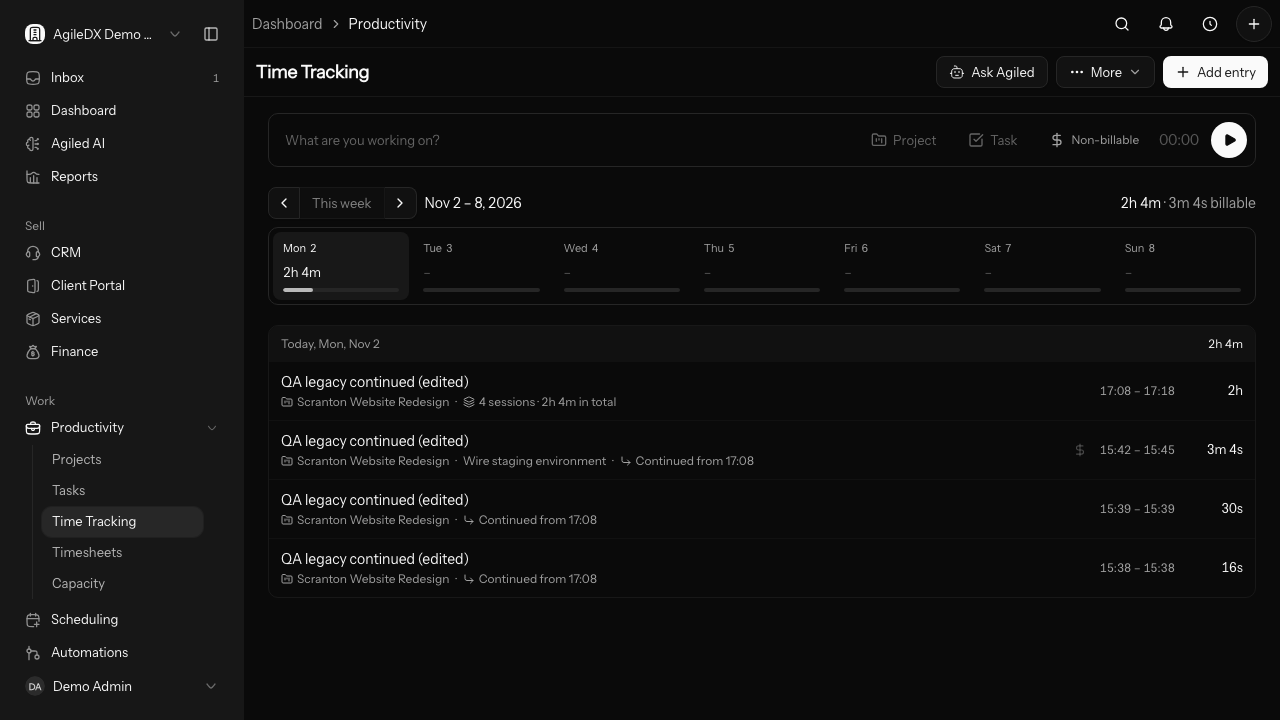
- Continue keeps your history. Pressing play on a finished entry starts a new log linked to the first, so you can see every day and time you worked on it. The first log shows the total across all sessions.
- Editing never changes your hours by itself. Hours are only recalculated when you change a start time, end time or duration.
- Find any project. Project and task pickers search everything you can see as you type. Choose Whole project to log time without a task.
- Adjust a running timer. Change its project or task, or switch Billable on, while it runs. If billing needs a rate, you can enter one right there.
Accounts and contacts you can keep up to date
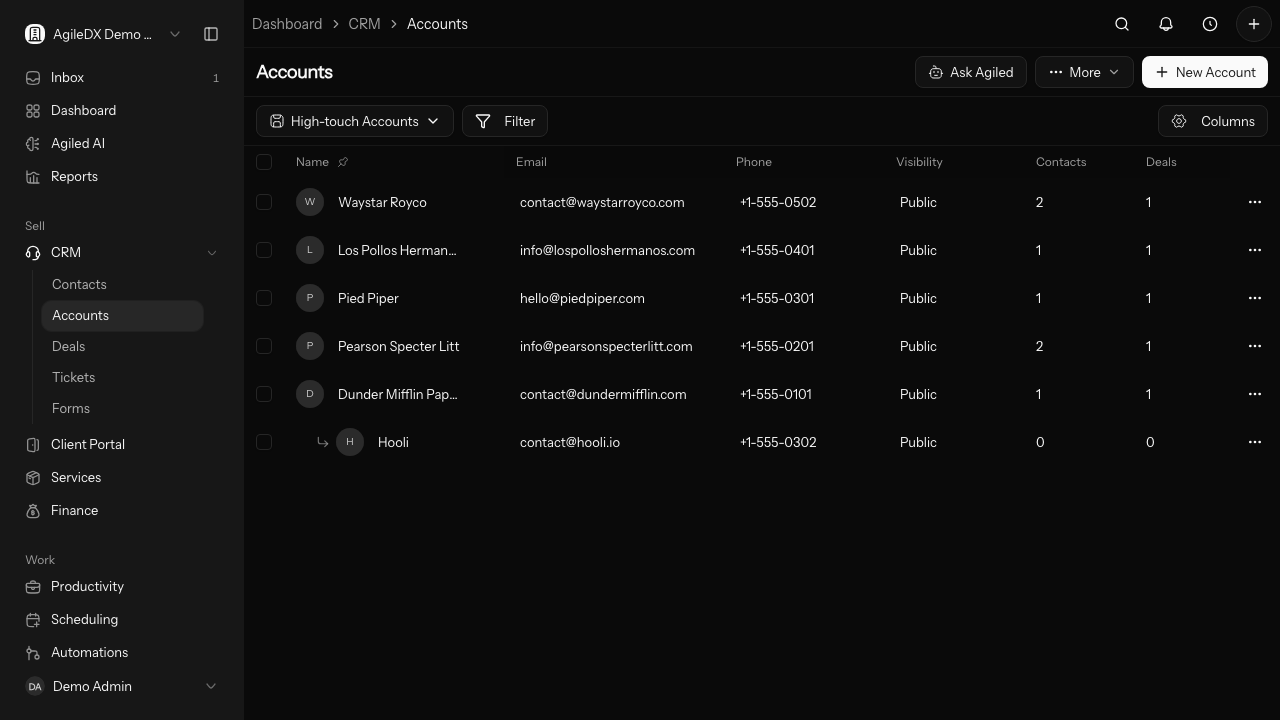
- Parent accounts are picked from your accounts, and child accounts sit under their parent in the accounts list.
- Every field edits the right way. Industry, account type, status and other list, date, number and checkbox fields open the right control on account, contact and deal details.
- Tags, status and owner can be changed on a contact or account at any time, and you can pick tags you've used before.
- Deleted contacts are gone everywhere. They don't show up when you add people to a project, and their client portal access ends.
- Pickers search everything. Account, contact, project and service pickers across CRM, tasks and invoices search as you type, however many records you have.
Project files without the hunting
- Preview files in the project. Images, PDFs and text files open beside the page, with no download. Clients get the same preview in their portal.
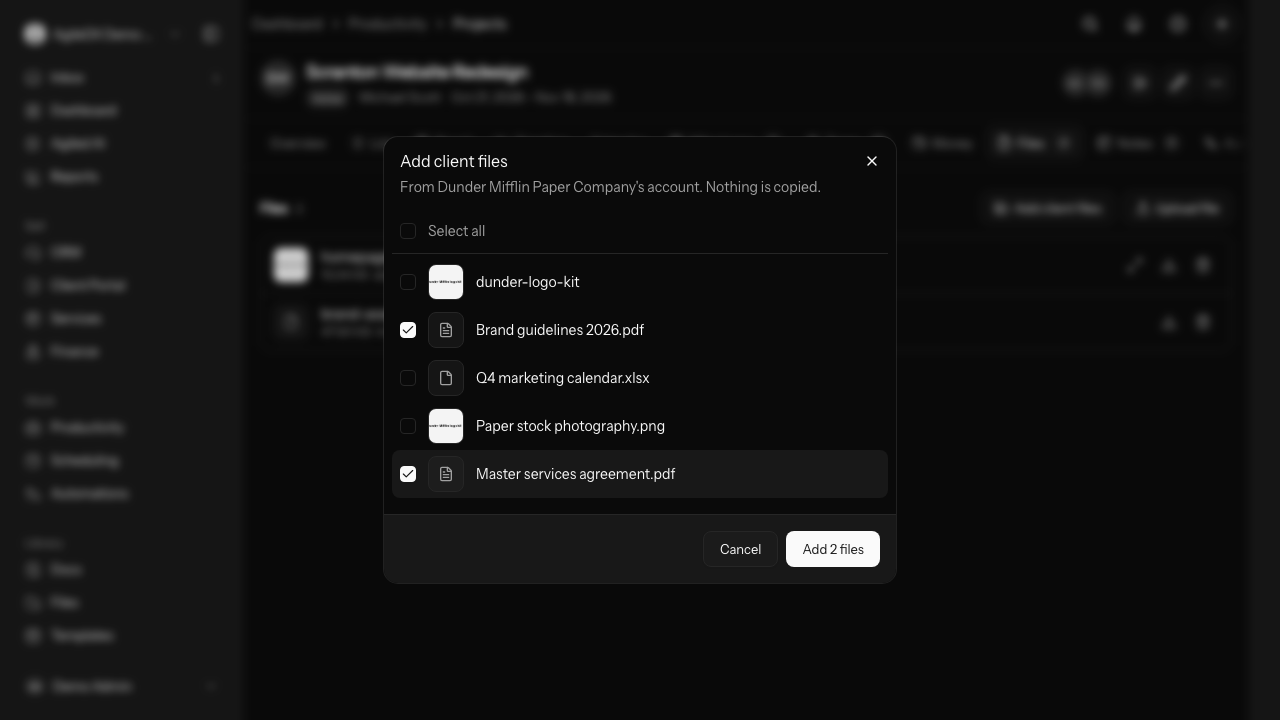
- Bring client files into a project. Select Add client files and tick the ones the project needs, such as a brand guide or a signed agreement. They stay on the client's account, so you never upload them twice, and other projects for the same client stay uncluttered.
- Files and notes have their own tabs, and project files show as a tidy list with size, date and where each came from.
- Group the projects board by category as well as by status.
More fixes
- Tasks: the assignee and project lists in Productivity › Tasks show your team and projects again, so new tasks can be assigned from that page.
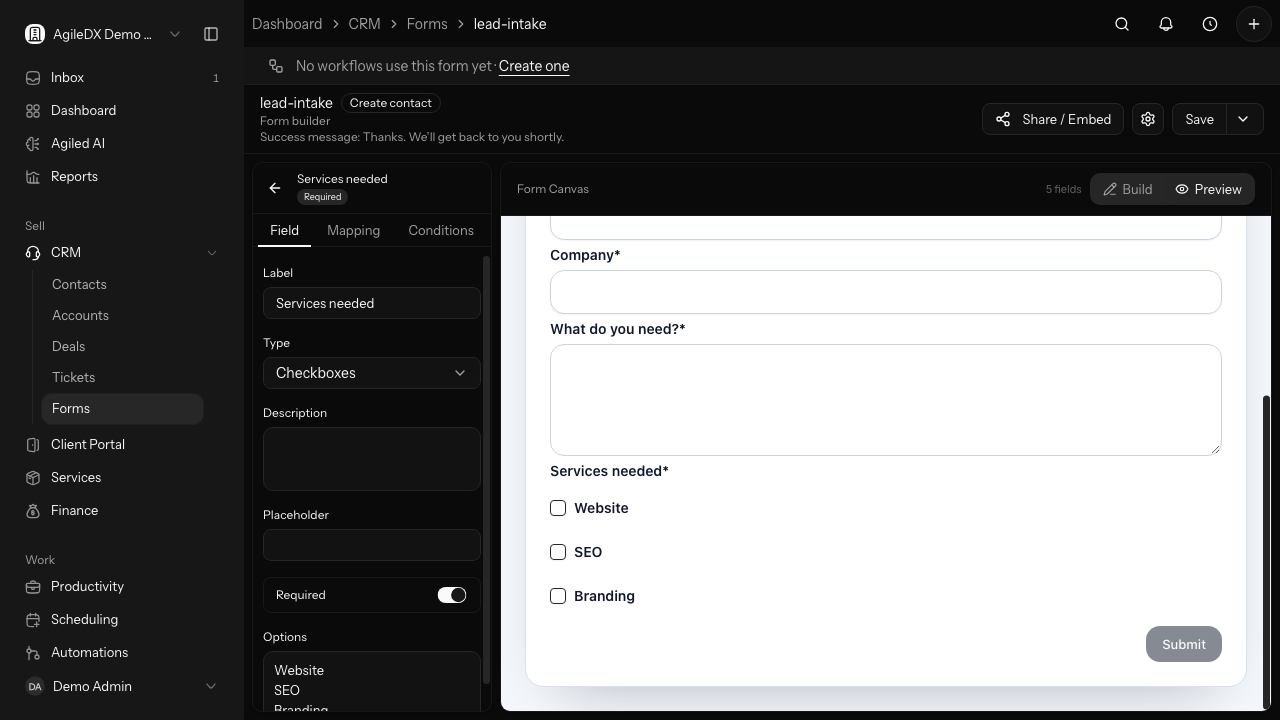
- Forms: a new Checkboxes question lets people pick several answers, pressing Enter adds the next option, and long forms scroll in the builder.
- Tickets: your client gets an email when you resolve, close or reopen their ticket. People who emailed in without being a contact get your replies too.
- Team: add and rename positions in Settings › HRM, or create one while editing a member.
- Comments: edit your own task comments.
- Phones and tablets: the ⋯ menus on cards and lists always show.
- Editing an expense keeps its payment method, and inactive taxes aren't offered on new invoices.
Recurring invoices can charge your client's card
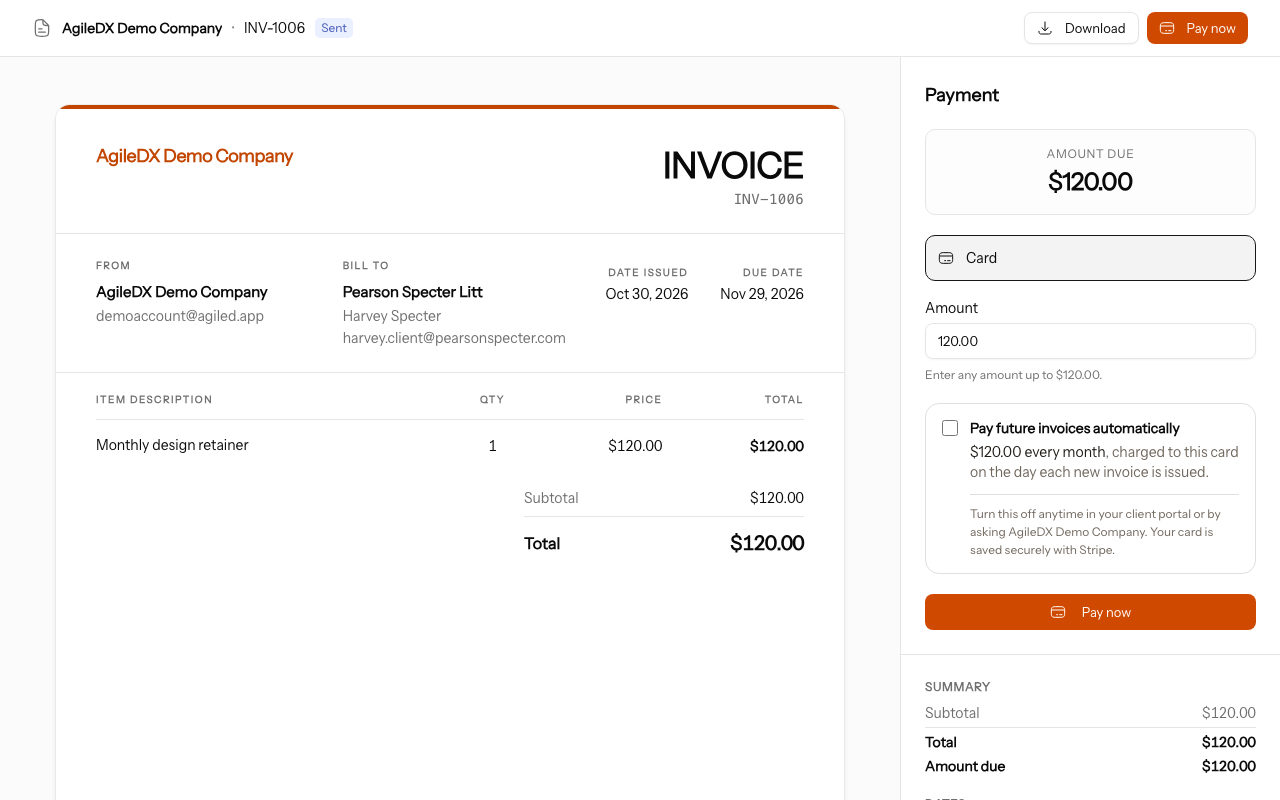
Choose Charge their card automatically on a recurring invoice. The first time your client pays one of its invoices by card, they can tick Pay future invoices automatically. From then on, each new invoice is charged to their saved card on the day it's created, and they get a receipt.
- Nothing is charged without your client's say-so. They agree on the payment page, see exactly what they're agreeing to, and can turn it off in their client portal.
- Declined cards are retried 1, 3 and 5 days later. Your client gets a link to pay another way, and you're told if the last try fails.
- You always know where things stand. The template shows the saved card, or that you're waiting for your client.
Changelog
New features, useful improvements, and fixes in Agiled, starting July 2026.
October 2026
Agiled AI beside every page with AI workers that take jobs off your plate, a redesigned client portal with its own place in the sidebar, an Inbox for everything waiting on you, deposits and payment schedules, client sharing and approvals, a rebuilt Scheduling and Workflows, and much more.