Integration and Sync Issues
Fix disconnected apps, failed syncs, expired credentials, and provider permission problems.
Integration issues usually come from expired credentials, changed provider permissions, disconnected accounts, or provider-side limits.
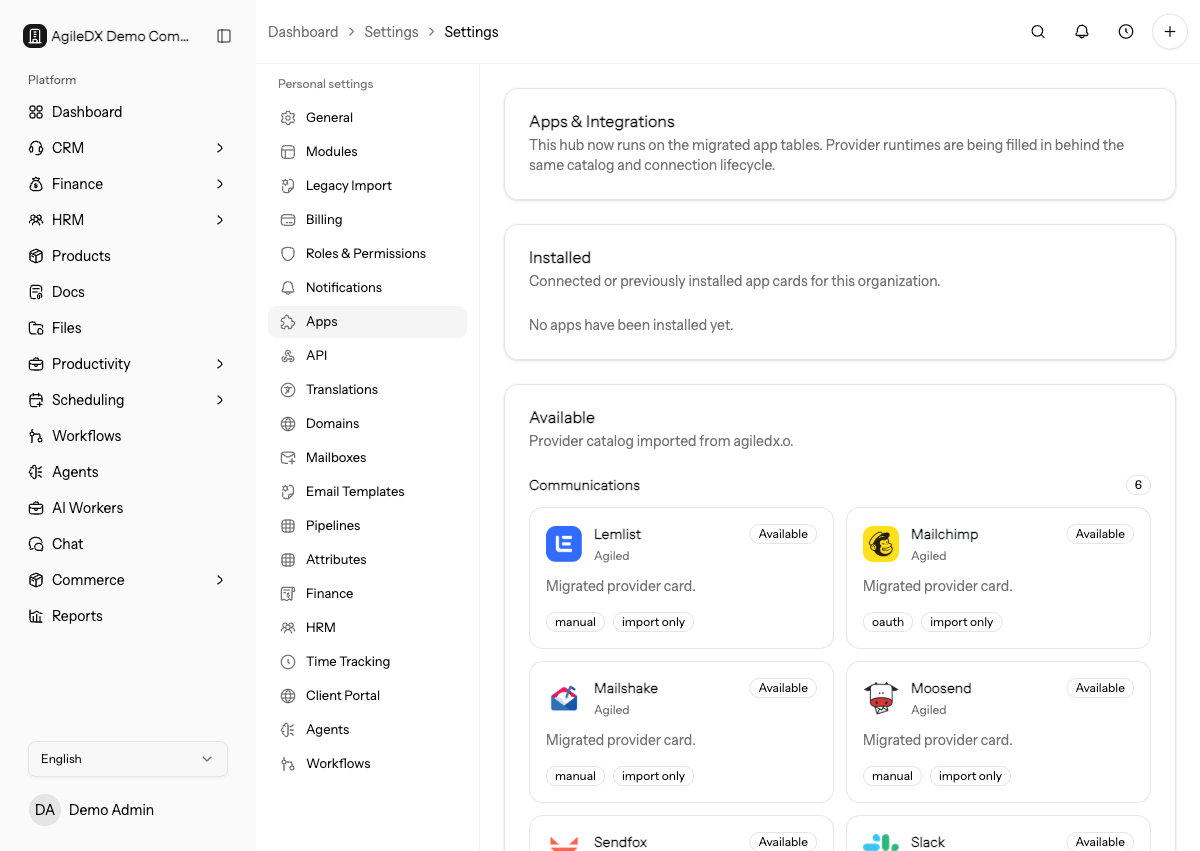
App Connection Fails
Start the connection again from Agiled, sign in to the correct provider account, approve required permissions, and confirm the app appears connected.
If the provider shows multiple accounts, choose the account that owns the data you want to sync. Many connection issues come from signing in with a personal account when the data belongs to a company workspace.
Confirm The Source Of Truth
Before reconnecting or importing, decide which system should own the data. For example, contacts may be mastered in Agiled, HubSpot, or Google Contacts, while orders, invoices, or tasks may come from another app.
If two systems can update the same fields, document the source of truth before retrying sync. This reduces duplicate records and unexpected overwrites.
Sync Does Not Import Data
Check that the app is connected, the sync was started, the provider account has records to import, filters include those records, and the sync run does not show errors.
Open the most recent sync or import run and check status, processed count, skipped count, and error messages. A successful connection does not guarantee there are eligible records to import.
If the run imported fewer records than expected, compare provider filters, object scope, date range, archived/deleted status, and permissions for the connected provider user.
Credentials Expired
Reconnect the app when a token expires, a password changes, an admin revokes access, or the provider changes security settings.
For manual credential apps, verify host, port, username, password or app password, encryption mode, and provider security settings. For OAuth apps, reconnect through the provider consent screen instead of editing the token by hand.
After reconnecting, run the smallest safe sync or import and inspect one record before starting a larger backfill. This confirms the new credential is connected to the right account and object scope.
Provider Limits And Permissions
Some providers restrict access by plan, admin policy, object permission, API quota, or workspace membership. If Agiled can connect but cannot read or write specific data, compare the connected provider user's permissions with the records you expect to sync.
Read The Sync Result Before Retrying
Do not treat every failed sync as a credential problem. Read the latest run result first and separate connection errors, permission errors, validation errors, skipped rows, duplicate detection, and provider rate limits. Each cause needs a different fix.
If one record fails, inspect that record in the provider before restarting a large sync. Missing email addresses, archived records, unsupported field values, or deleted owners often explain a small set of failures.
Duplicate Cleanup
If a sync creates duplicates, stop broad retries. Identify whether duplicates came from missing email addresses, changed external IDs, provider filters, or multiple connected accounts. Clean one sample set first, then retry with a small sync window.
Before Retrying A Sync
- Fix the connection or permission issue.
- Confirm the object type and date range.
- Retry with a small sync when possible.
- Review skipped and failed rows.
- Spot-check imported records in Agiled before starting a larger backfill.
Do not retry large imports repeatedly while the cause is unknown. Partial imports can create duplicates or stale records that are harder to clean up than the original provider error.