Missing Pages and Permissions
Fix missing navigation items, view-only pages, and permission errors.
When a user cannot see a page or action, check module visibility first, then role permissions.
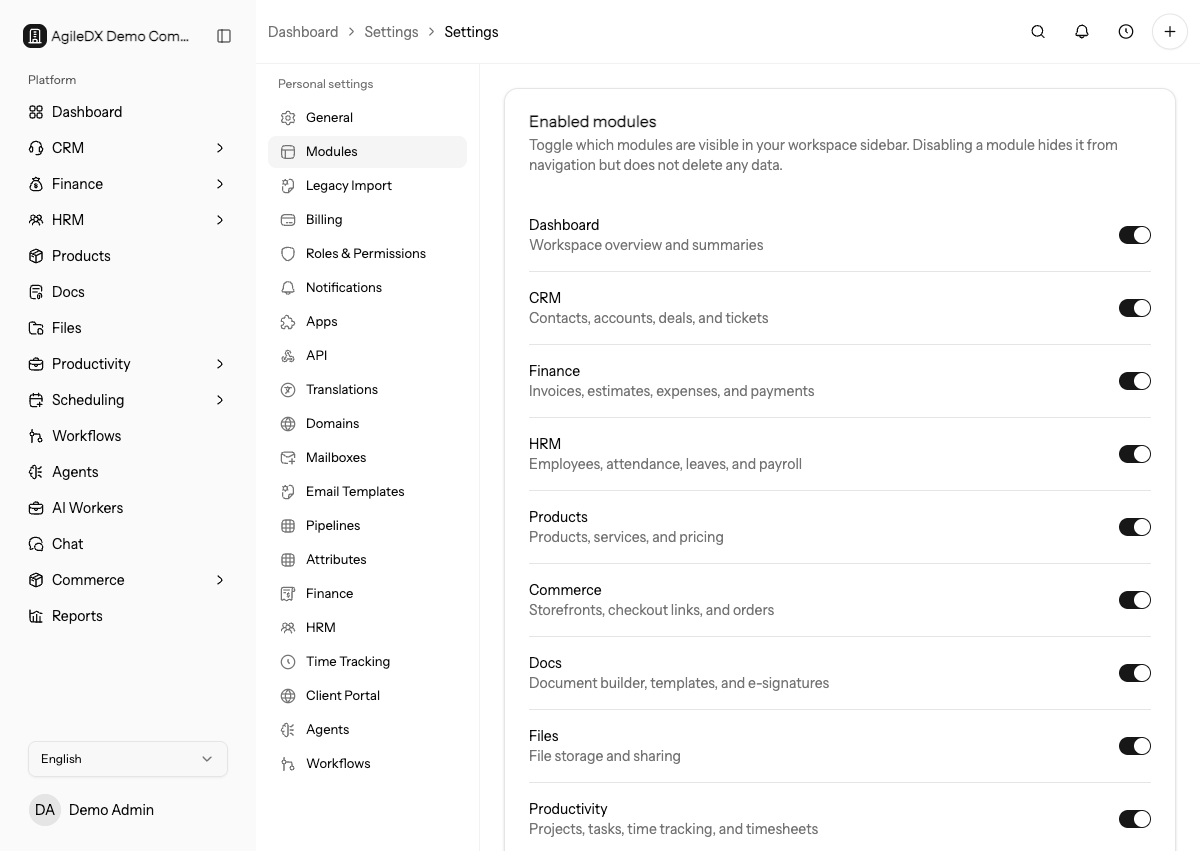
This issue is usually caused by one of four things: the module is disabled, the user is in the wrong workspace, the role does not include the permission, or the record state does not allow the action.
Page Missing From Navigation
- Open Settings.
- Open Modules.
- Confirm the module is enabled.
- Confirm the user has access to the module.
- Refresh the page or sign out and back in.
If the page still does not appear, ask the user to confirm the active workspace from the workspace switcher. A user can belong to multiple workspaces with different module and role settings.
Ask the user for the exact URL or page name they expected. Similar features can live under different modules, such as Files, Docs, CRM, Finance, or Settings.
Check the Workspace First
Before changing permissions, confirm the user is in the correct workspace and using the email that belongs to the member record. Permission changes in one workspace do not affect another workspace.
If the user recently accepted an invitation, ask them to sign out and back in so the session reloads the latest workspace access.
User Can View but Not Edit
The role may allow view access without manage access. Review the role permissions for that module. Some shared or system records can also be view-only because another user owns them.
Check both role permissions and direct permissions. Direct permissions can grant or restrict access outside the normal role, so they should be reviewed when one user behaves differently from other users with the same role.
Also check record status. Paid invoices, completed workflow runs, accepted estimates, archived records, and public pages often expose fewer actions even to users with broad permissions.
Compare With a Similar User
When one teammate can perform an action and another cannot, compare their role, direct permissions, module access, and record ownership. This is faster than changing broad permissions without knowing which setting is responsible.
Action Button Is Missing
Missing buttons usually mean the user lacks permission, the module is disabled, the record state does not allow the action, or the user is viewing a public or read-only page.
Examples:
- A paid invoice may not show the same edit actions as a draft invoice.
- A public page does not show internal workspace actions.
- A completed workflow run may not show actions for steps that already ended.
- A user without manage permission may see records but not create or delete.
Fast Admin Checklist
- Confirm the user is in the correct workspace.
- Confirm the module is enabled.
- Check the user's role.
- Check direct permissions.
- Open the same page as an admin and compare the visible actions.
- Ask the user to refresh or sign in again after permissions change.
After Fixing Access
Ask the user to open the exact page and perform the exact action that failed. Seeing the page is not enough if the original issue was a missing create, edit, delete, export, send, or approve action.
Record what changed: module setting, role permission, direct permission, workspace membership, or record state. This makes future access issues easier to diagnose.