Smart Flows
Track sent Smart Flows
Follow each client's progress, nudge them, and fix a client who is stuck.
See where every client is, from "Now: Sign the agreement" to paid, and nudge the ones who stopped, without asking them by email.
Check a client's progress
- Open Automations › Smart Flows and select the Sent tab.
- Filter by status (In progress, Paused, Link expired, Completed, Cancelled), by client or by purpose.
- Select a row to open its details: each step, what the client sent you, and Activity.
- If they've stopped, select Send reminder now, or Copy client link to send it in a message.
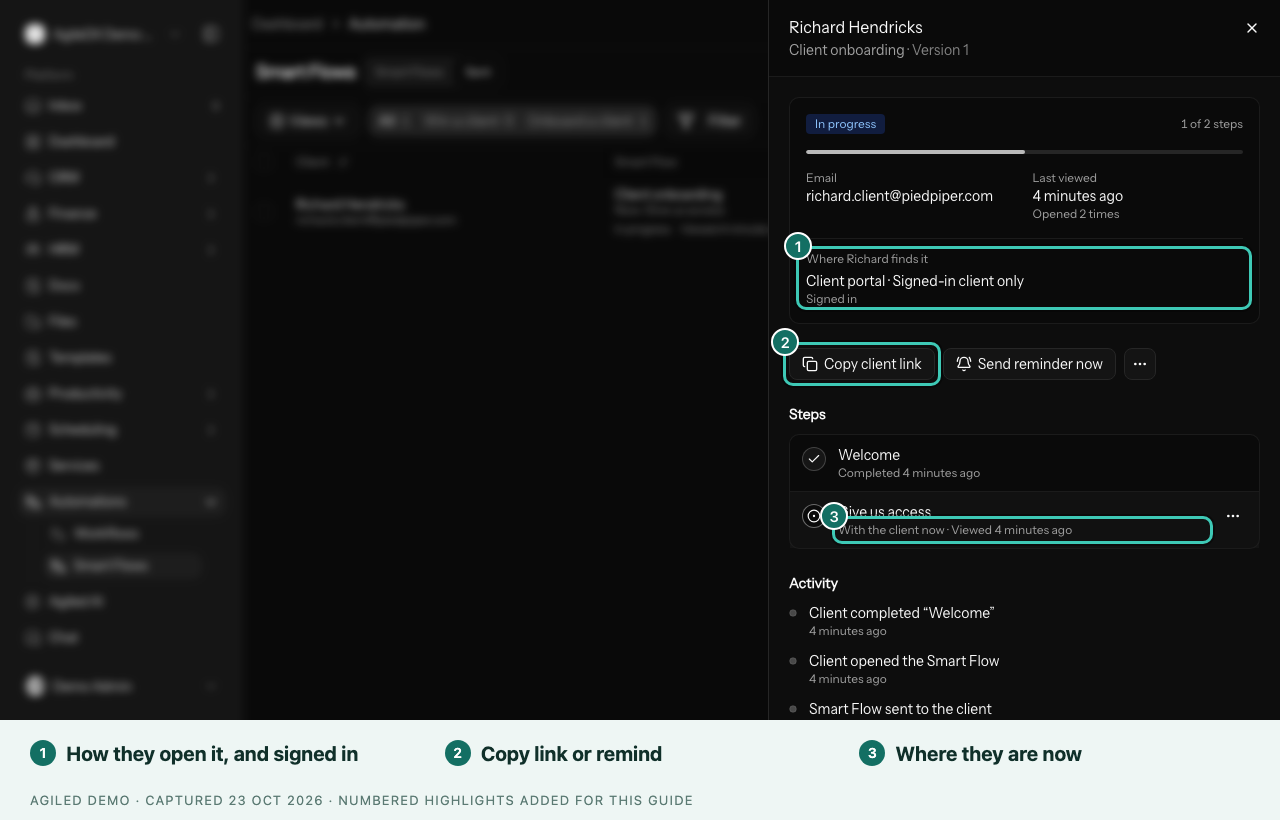
You're done when you can see the step the client is on, and the records behind finished steps, such as the signed agreement or paid invoice.
The Where your client finds it row shows how they open it, and for Signed-in client only, whether they have Signed in yet. A contact's Smart Flows tab lists the same rows for one client.
Other actions
- Extend link: more time after the deadline passes.
- Pause and Resume.
- Make available: release a step that waits for your team.
- Show in your client's portal: for a copy started from your public link, once you're sure it's them.
- Cancel closes it, but doesn't undo a payment, signature or booking.
If a client is stuck
| Problem | What to do |
|---|---|
| The link doesn't open | Check for Link expired, Paused or Cancelled, then use Extend link or Resume. |
| The client is asked to sign in | It's set to Signed-in client only. They can use the email button or Email me a code. |
| It isn't in their portal | Check they have portal access and Things to do is on in Client Portal › Settings. |
| A page is missing | They started from your public link, or a Show this step only if… condition hid it. Check Activity. |
| The next step won't open | It waits for your team. Select Make available. |
| They declined a page | Automatic reminders and "hasn't continued" alerts pause while it's declined. Change the document and send it again; the Smart Flow picks up within 15 minutes. |
| A form, booking or payment didn't move them on | Open the linked record. Opening a page doesn't complete it. |
| A shared login doesn't work | On their contact's Smart Flows tab, select Ask the client to fix it. |
| Your edits don't show | Clients keep the version they started. Edits reach new sends after Publish changes. |
Good to know
- Sending again starts a new copy, so check for an open one first.
- When a client signs the contract, their contact becomes a customer, and the contact's timeline shows each milestone.
- For results over time, choose Analytics in a Smart Flow's row menu on the Smart Flows tab.