Smart Flows
Get it ready and publish
Finish the checklist, set up emails and access, preview it as your client, and publish.
A quick check before you publish means your client sees your real name, logo, prices and contract, and every step works the first time.
Get it ready and publish
- Open the Smart Flow in Automations › Smart Flows.
- Work through the Get it ready to send checklist. Each item links to the page or setting it needs, such as your packages, contract or booking page.
- Open Smart Flow settings (at the bottom of the right panel, or in the ⋯ menu) and check General and Client emails & reminders.
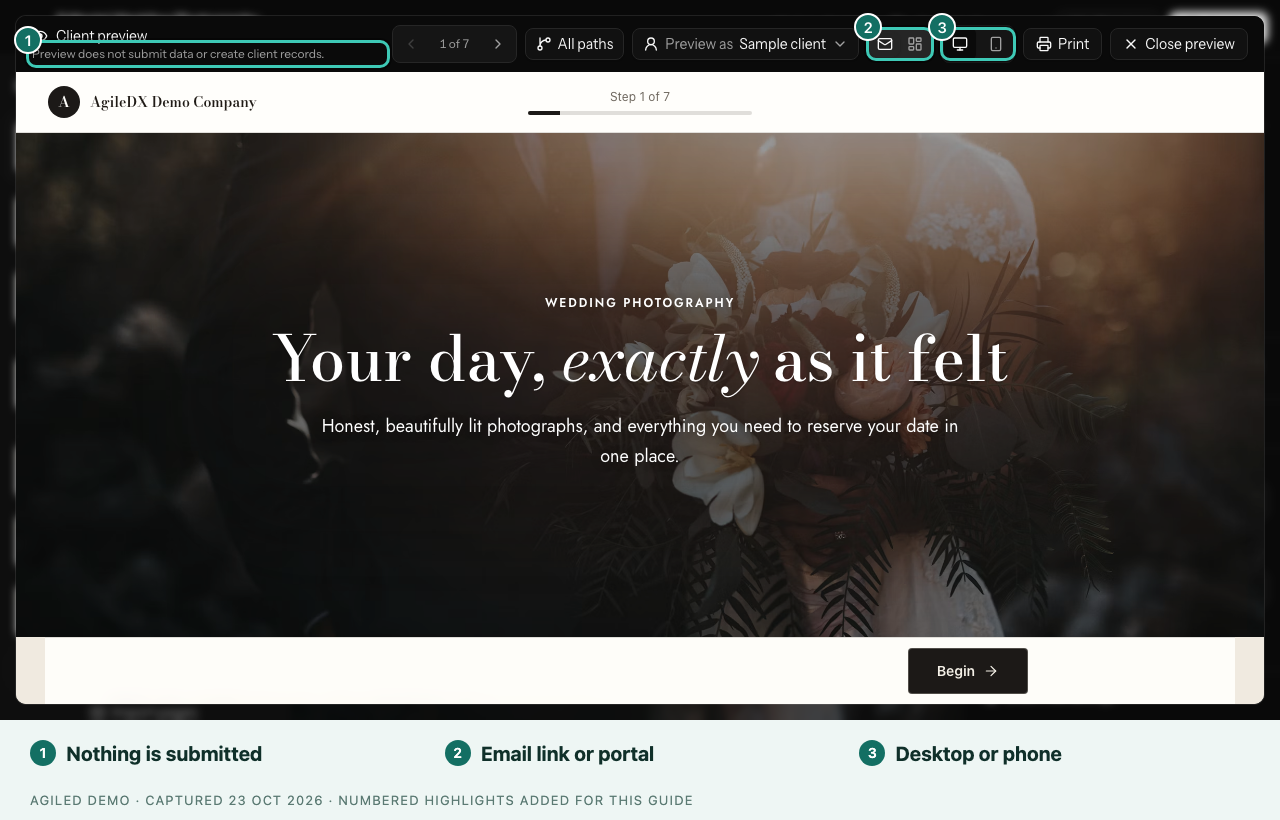
- Select Preview to see it as your client, on a computer and a phone.
- Select Send yourself a test in the settings and complete it as a client would.
- Select Publish.
You're done when a window offers Send to a client. Publishing makes it ready to send; it doesn't send anything to clients.
If something must be fixed first
A Finish 1 thing before publishing window lists each page with what to fix and a Go to step button. Your changes are kept. Common reasons:
- a linked form, document or booking page is missing
- a page still has the sample testimonial: replace it with a real quote or remove it
- a payment counts from an event date, but no date question is chosen
- a required task belongs to your team instead of the client
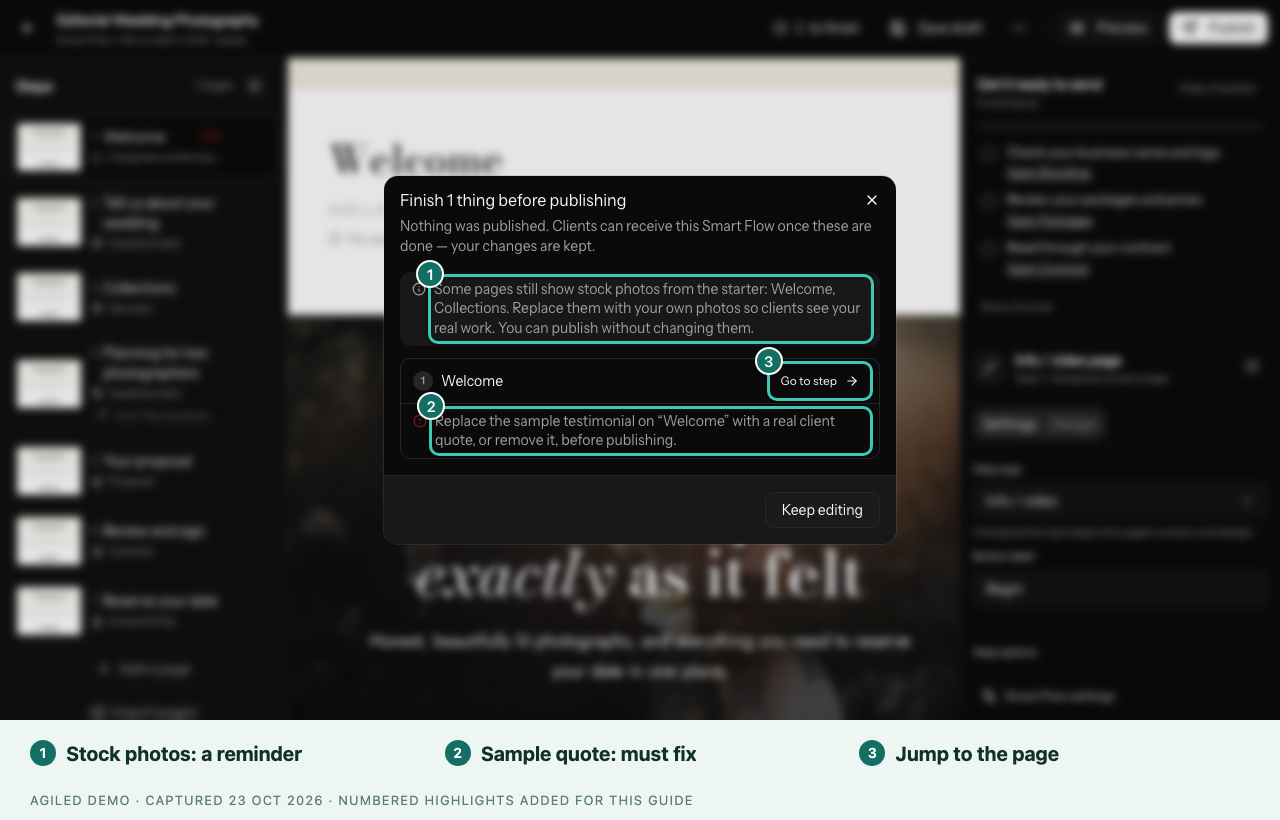
A reminder about stock photos doesn't stop you publishing.
Settings to check
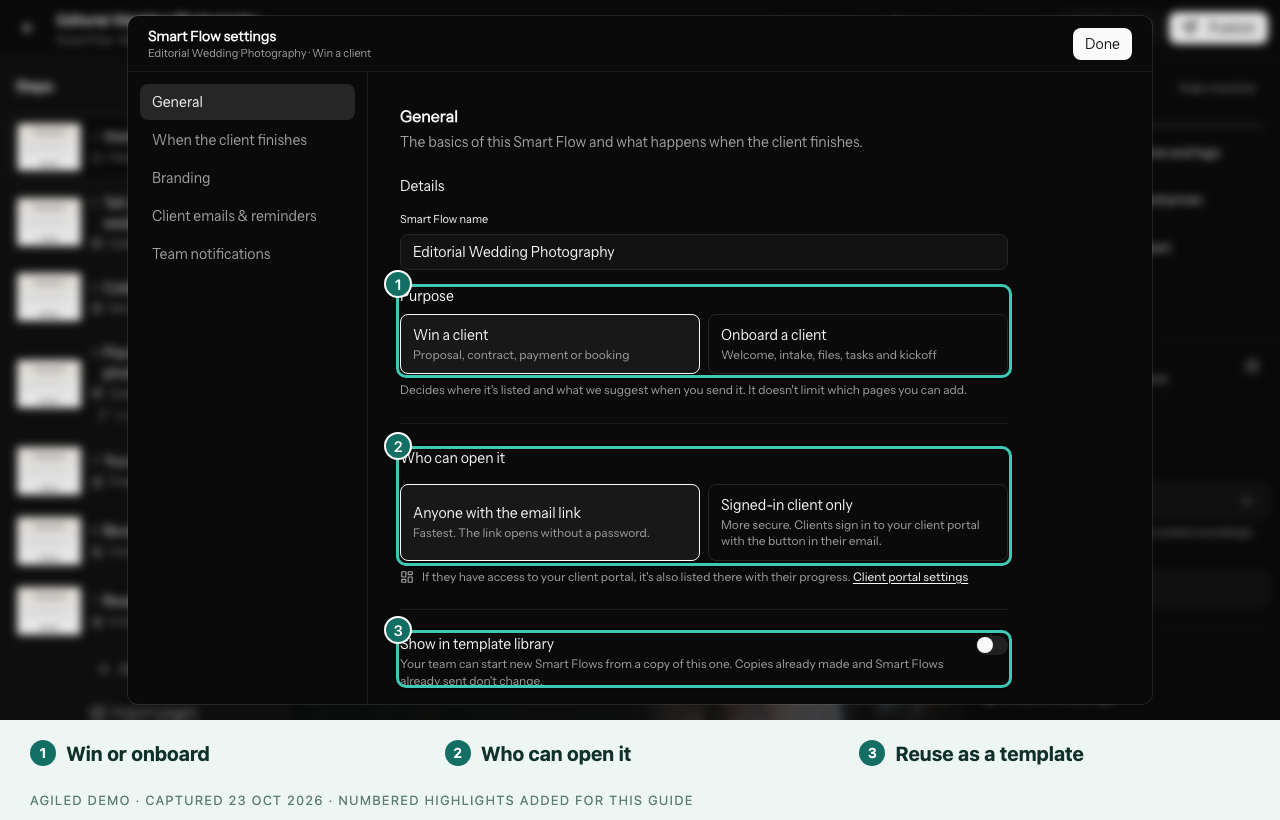
- General: name, Purpose, Who can open it, and the final page.
- When the client finishes: for example, give portal access or Send the next Smart Flow.
- Branding: background, width and header.
- Client emails & reminders: invitation, reminders, completion email and an optional Deadline.
- Team notifications: when your team hears about progress.
Who can open it
- Anyone with the email link opens straight away, without a password. It starts this way for Win a client.
- Signed-in client only asks the client to sign in to your client portal first. It starts this way for Onboard a client, and needs Things to do turned on in Client Portal › Settings.
Good to know
- After publishing, edits reach clients only when you select Publish changes. Clients who already started keep their version.
- Preview as fills in a sample client, and All paths shows pages only some clients see.
- Turn Smart Flows on or off in Settings › Modules.