Onboard clients
Welcome new clients with intake questions, file uploads, tasks, logins and a kickoff call.
An onboarding Smart Flow welcomes a client who has signed and collects what you need to start: their answers, files, logins and a kickoff call. Set it to start on its own when they pay, and onboarding happens without a single chasing email.
Start onboarding when they sign and pay
- Create a Smart Flow with Onboard a client, then publish it.
- Open the Win a client Smart Flow that ends with the contract and payment.
- Open Smart Flow settings › When the client finishes and turn on Send the next Smart Flow.
- Choose your onboarding Smart Flow.
- Turn on Give the client portal access, so they find everything in one place.
- Select Publish changes.
You're done when the settings summary reads, for example, "Then: Brand Design Onboarding starts automatically."
To send onboarding yourself, open a contact's Portal tab and select Send onboarding. See Send and share.
What onboarding usually includes
| Page | What the client does |
|---|---|
| Welcome | Reads what to expect |
| Questionnaire | Answers questions about their business or project |
| File upload | Uploads the files you need |
| Task checklist | Ticks off preparation tasks |
| Account access | Invites you to their tools, or shares a login |
| Resource library | Opens files and links you share |
| Scheduler | Books the kickoff call |
Onboarding templates exist for agencies, studios, consultants, coaches, bookkeepers, builders and more. They start as Signed-in client only, so clients open them in your client portal.
Collect logins with Account access
- Select Add a page › Account access.
- For each account, enter its name, such as Google Analytics.
- Choose They invite you as a user (safest) or They share a login (stored encrypted).
- Add Instructions, so the client knows where to click.
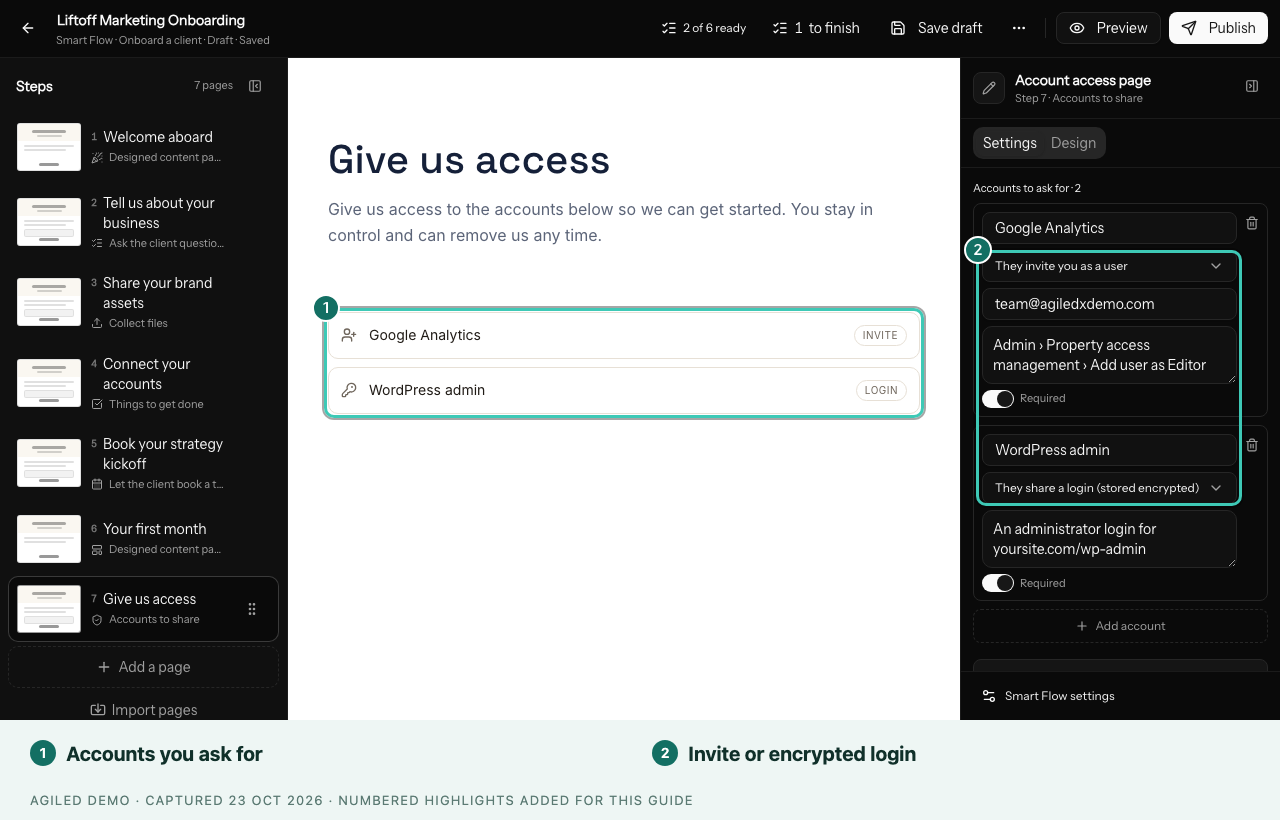
To check what clients shared, open the contact's Smart Flows tab. For each account, use Show login, It works, or Ask the client to fix it. Only people with Reveal logins clients share in a Smart Flow in Settings › Roles & Permissions can see logins.
Wrap up with offboarding
When the work is done, send the Client Offboarding template, listed with the onboarding templates. It takes the final payment, hands over files, and asks the client to confirm a few last details. Set the final invoice amount before sending.
Good to know
- To hold a step until your team is ready, set When this step opens to When you or an automation releases it.
- Files a client already sent in an earlier Smart Flow show as Already received.
- When you remove a client's portal access, they see a clear page saying their access has ended.