Smart Flows
Send and share a Smart Flow
Send a Smart Flow to a client, or share a public link anyone can start from your website.
Send a Smart Flow to a client you know, and they get their own copy by email and in your client portal. Or share a public link, such as a "Book a call" page on your website, and each person who opens it gets their own copy.
Before you start
- Publish the Smart Flow.
Send to a client
- Open Automations › Smart Flows and select Send a Smart Flow on the Sent tab, or Send to a client in a Smart Flow's row menu.
- Choose the client, or select + New client. If they have no email, select Add email.
- Choose the Smart Flow. Agiled may suggest one under Suggested for your client.
- Add a personal note if you like, and select Preview email to check it.
- Read the box at the bottom. It says exactly where your client will find it.
- Select Send to your client.
You're done when the dialog says Sent to your client and the Smart Flow shows on the Sent tab. Test with your own email first; see Before you share anything.
You can also send from a contact's header, their Smart Flows or Portal tab, or a project's header.
Where the client finds it
- By email: a link that opens without a password, or a sign-in link if the Smart Flow is set to Signed-in client only.
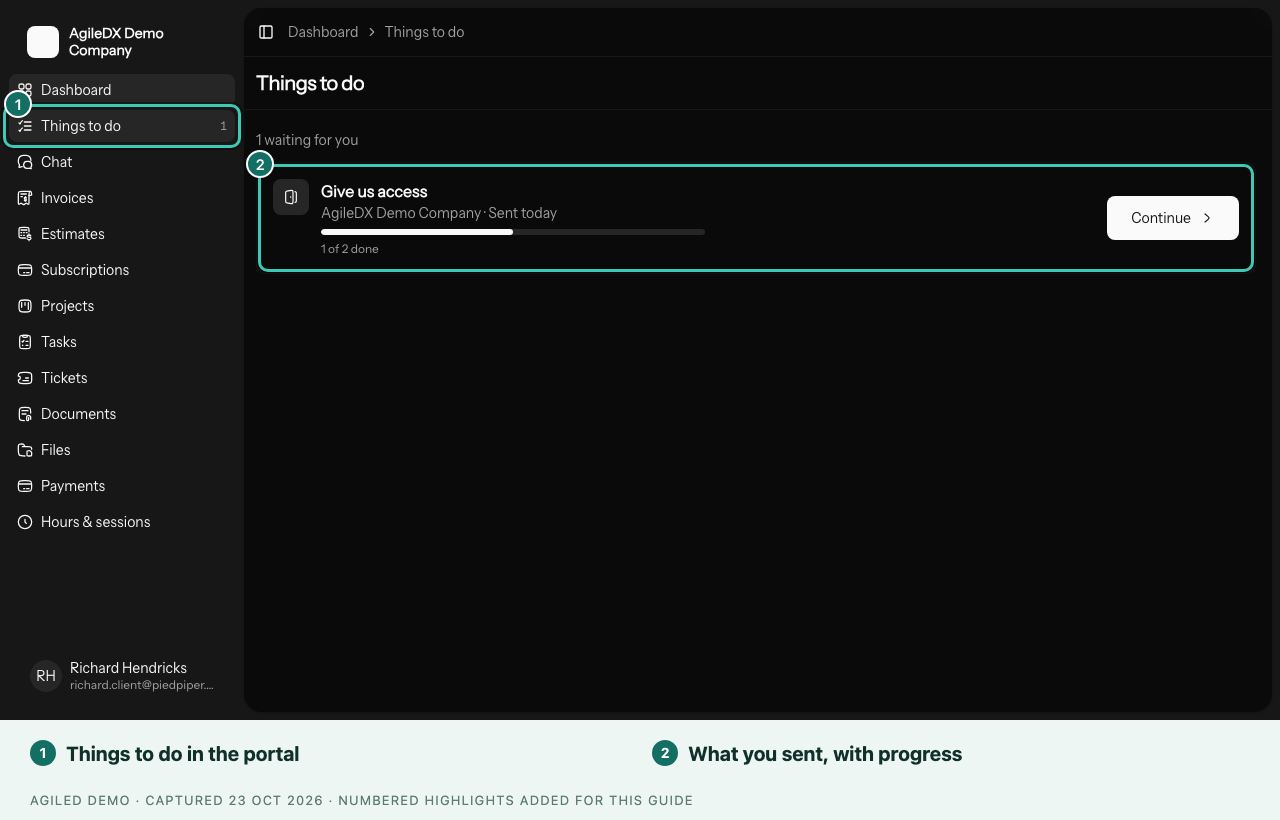
- In your client portal: under Things to do, with their progress, when they have portal access. To give access, tick Also give your client access to your client portal. They get one email with a Set up your portal button.
Share a public link
- Open the Smart Flow and select Share in the header.
- In Share a link anyone can use, select Create link.
- Select Copy, or Embed on your website for code your web person can add to your site.
You're done when the link opens the first page in a private browser window. People who start appear on the Sent tab.
Good to know
- Sending again starts a new copy. The dialog tells you if the client already has one open.
- People who start from a public link skip pages that need a known client, such as Task checklist. If it's your client, open their copy on the Sent tab and select Show in their portal.
- With Signed-in client only, there's no public link. Clients can sign in from the email or ask for a 6-digit code with Email me a code.
- If the email couldn't be sent, the client's link still works. Copy it and send it yourself.