Create a Smart Flow
Start from a ready-made template for your business, with AI, or from a blank page.
Start from a template and you get a complete client page in minutes: the proposal, contract, packages, questions and payment are already set up for your type of business.
Create from a template
- Open Automations › Smart Flows and select New Smart Flow.
- Under What do you want your client to do?, choose Win a client or Onboard a client. Not sure? Most businesses start with Win a client.
- Search, or filter by industry, such as wedding photography, web design, coaching or bookkeeping.
- Select a template to see What your client sees and what it sets up. Select Preview to page through it.
- Select Use this template.
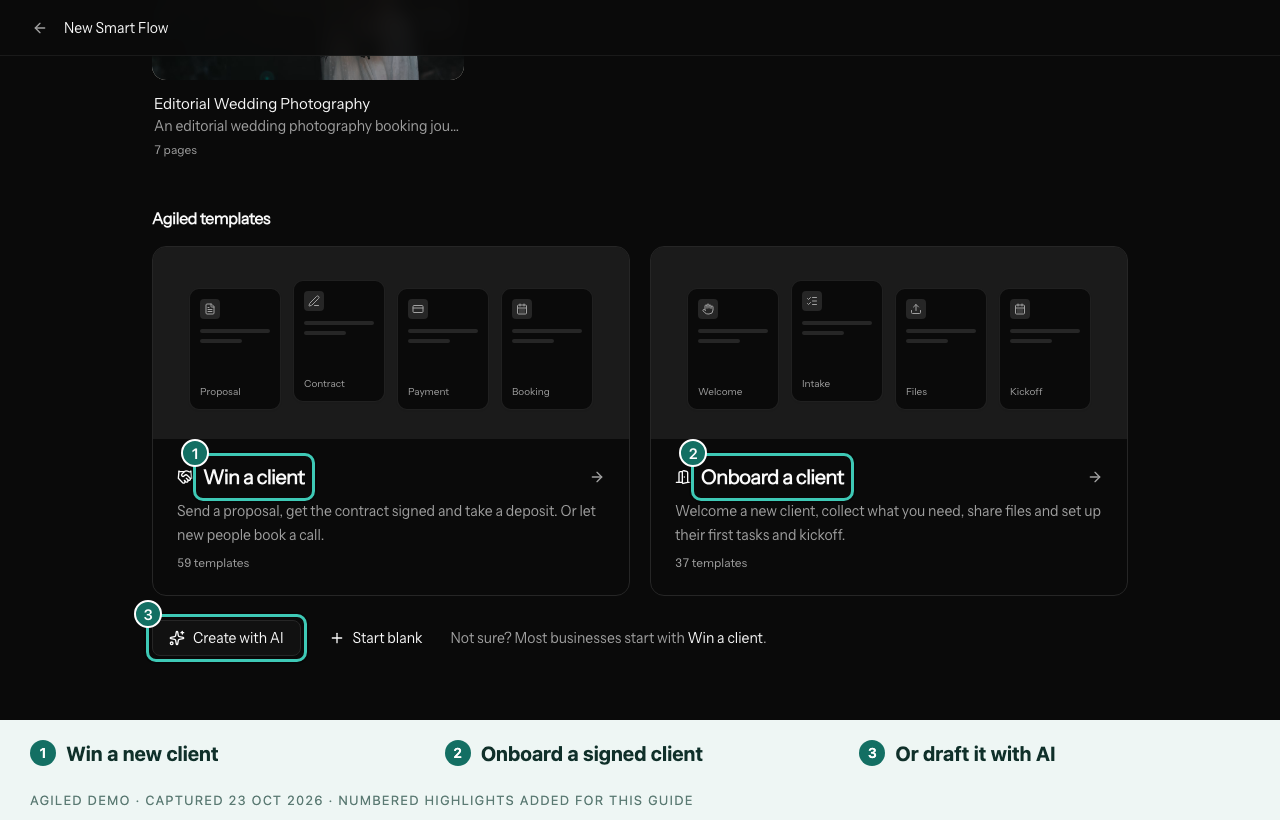
You're done when the draft opens in the builder with the Get it ready to send checklist. Nothing reaches clients until you publish and send it. Next, get it ready and publish.
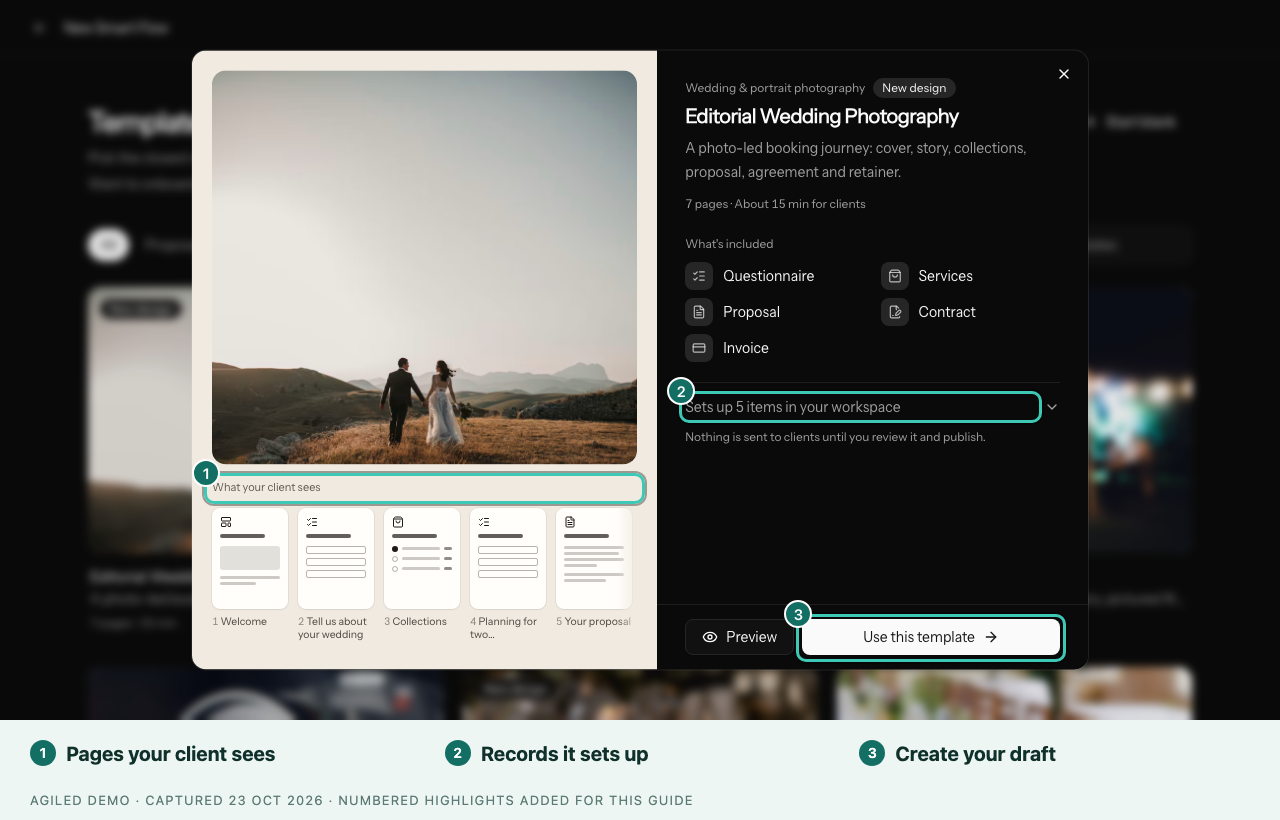
What a template sets up
Using a template also creates what it needs, named after the template so you can find it later:
- packages in your Services catalog, in your workspace currency
- proposal and agreement templates in Docs
- a questionnaire in CRM › Forms
- an upload folder in Files
It also links your first active booking page. Using the same template again reuses these instead of making copies. The agreements are plain-English starting points; review them with your own lawyer before sending.
Other ways to start
- Create with AI: describe what you want your client to do. Agiled AI picks the purpose and drafts the pages, using what you told Agiled about your business at sign-up.
- Start blank: choose what it's for, and you get a simple first page to build on.
- Your templates: Smart Flows your team saved as templates are listed first, above Agiled templates.
- From a proposal: in a proposal's Document settings, choose Make it a Smart Flow.
Save your own Smart Flow as a template
Once a Smart Flow works well, open the ⋯ menu in the builder and choose Save as template. It gets a Template tag, and your team sees it under Your templates and in Templates › Smart Flows.
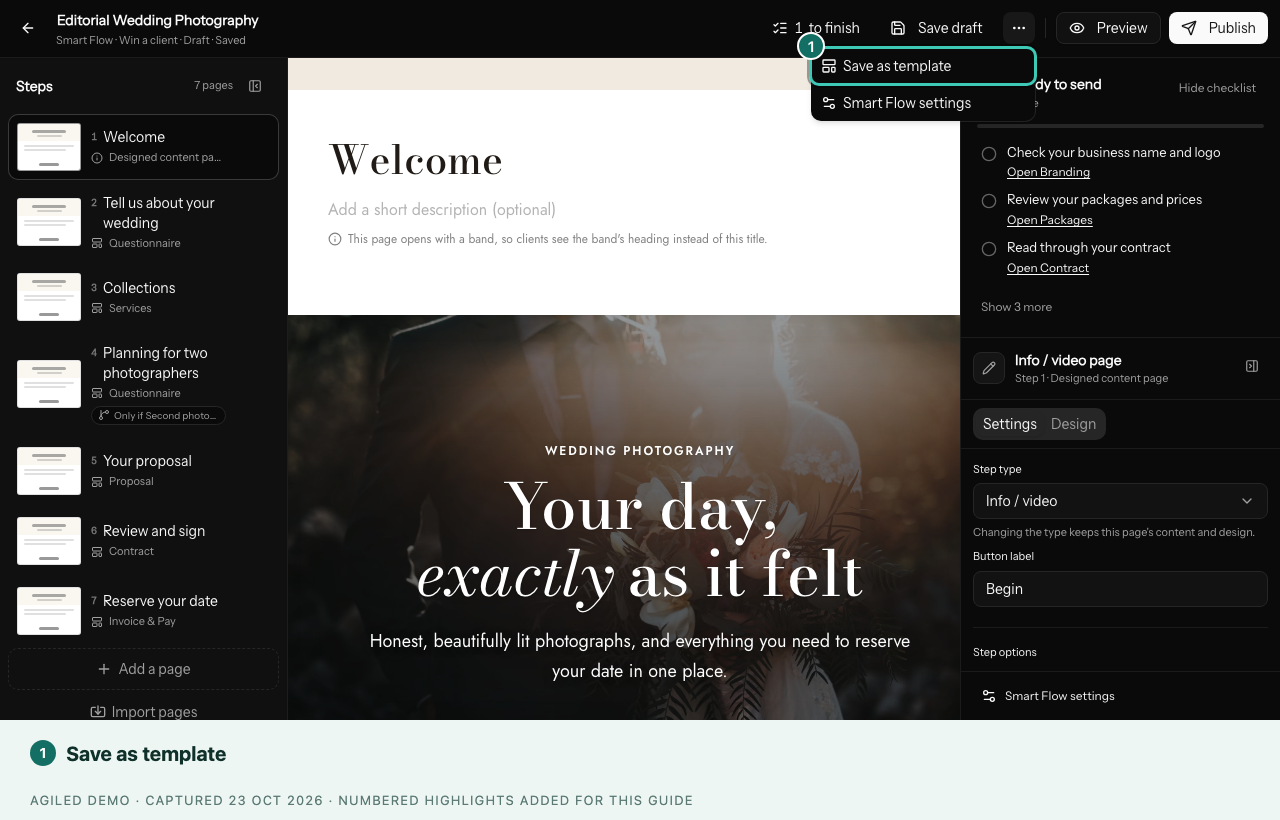
Starting from it makes a fresh draft copy. The original and everything already sent stay as they are. To stop, choose Remove from templates.
Build with Agiled AI
- Open a Smart Flow and select Build with AI.
- Describe what the client should go through, such as "choose a package, sign the contract, pay a deposit".
- Pages appear one by one. Select Keep when it's done, or Undo. Agiled AI tells you which pages still need a proposal, contract or invoice linked.
Good to know
- For Win a client, chips narrow the list: Proposal to payment, Book a call, Lead intake and Renewal.
- Editing a service, document template or form changes it everywhere it's used.
- Remove client names, one-off prices and dates before saving a template.