Pages and blocks
Add the pages your client moves through, and know what completes each one.
A Smart Flow is a series of pages. Each page can hold text and an action, such as a contract to sign or an invoice to pay, so the client always knows what to do next.
Add a page
- Open the Smart Flow in the builder and select Add a page.
- Choose a page from the menu, grouped by what you want from the client.
- Select the page or a block to edit its content, button label and settings.
- Connect the form, booking page or document template it needs.
- Use the Steps list to put the pages in order.
- Select Save draft.
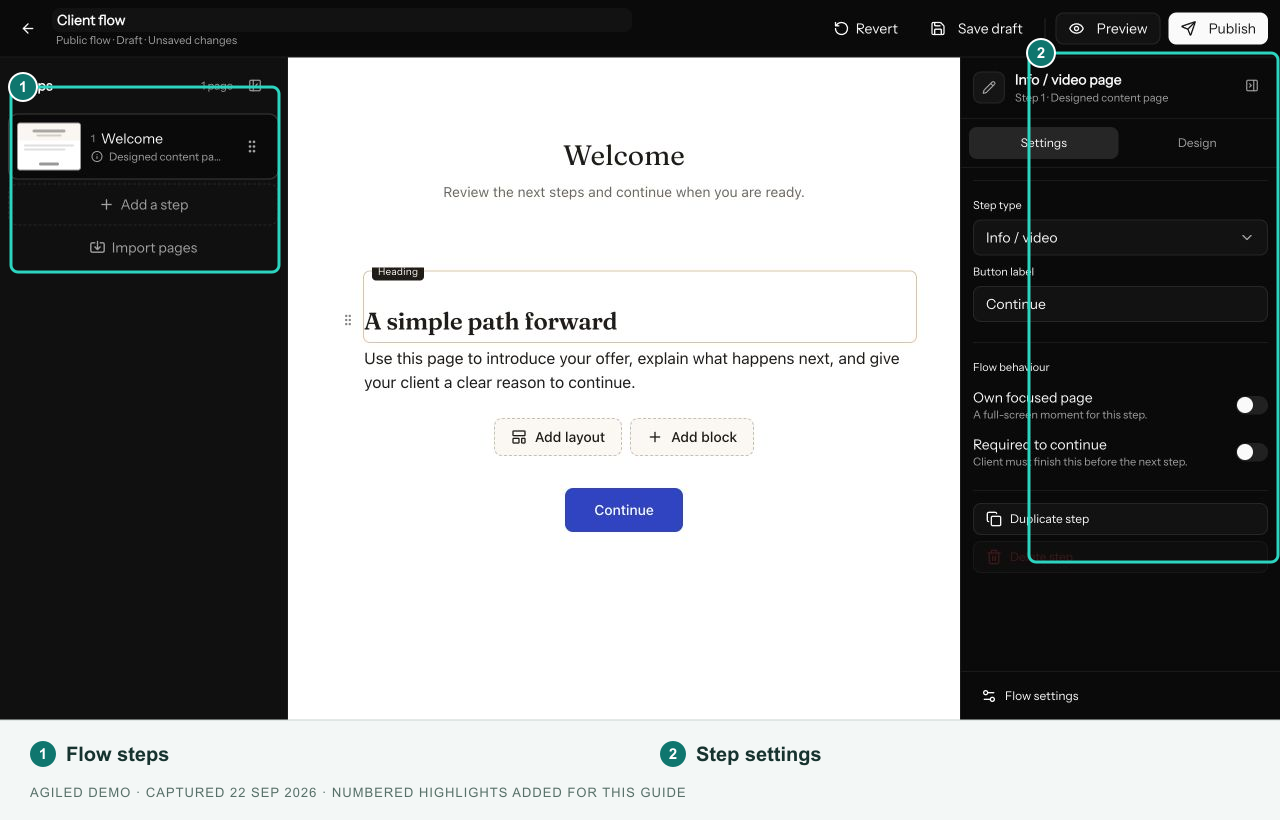
You're done when the page shows in the Steps list and in Preview.
Services, Proposal, Contract, Invoice & Pay, Questionnaire and Scheduler are also blocks. Add them to any page with Add block or the slash menu, so one page can hold a proposal and its contract.
Client answers fill in your documents
Proposals and contracts can show what the client told you earlier, such as their wedding date and venue. In the document template, insert a merge field from Client's answers, such as Event date, or from Client's choices, such as Chosen package. Put the questionnaire before the document; until it's answered, clients see "To be confirmed".
Payment schedules
In Invoice & Pay, choose Pay in full, Preset installments, or turn on Client chooses how to pay. Each installment is a percentage or fixed amount, due After flow completion, After previous installment, or Before the event date / After the event date.
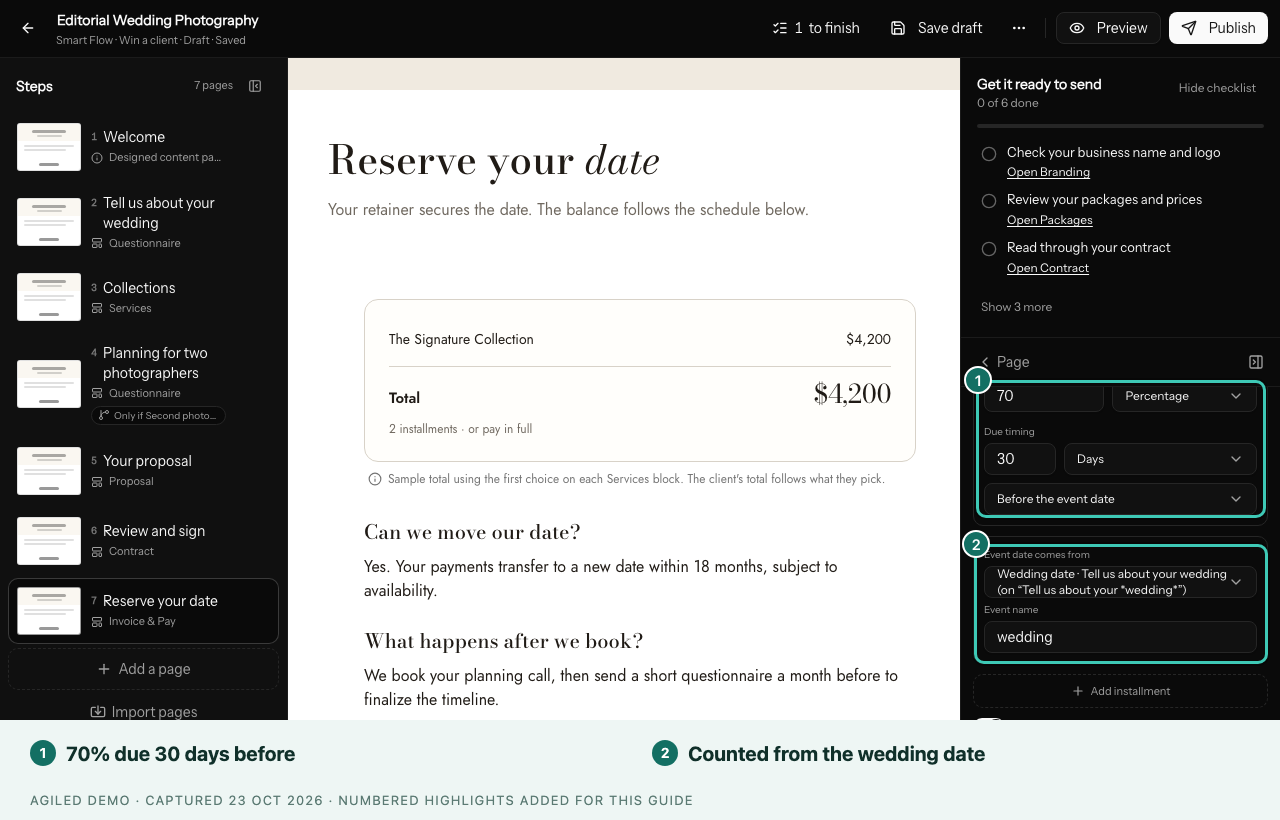
For event dates, choose the question under Event date comes from. It must be required and on an earlier page. Percentages must add up to 100%.
Step settings
- Required decides whether the client must finish the step.
- Distraction-free page hides your header and progress bar.
- When this step opens: Right after the previous step, or When you or an automation releases it, for when your team has work to do first.
- Show this step only if…: see Show steps only to some clients.
Good to know
- Task checklist, Resource library, Grant access and Account access need a known client, so people who start from a public link skip them.
- A file upload completes when the required files are uploaded, not when the page is opened. Files a client sent before show as Already received.
- Required tasks in a checklist must belong to the client.
- Use files uploaded to Agiled for anything private.
What completes each page
| Page or block | Done when |
|---|---|
| Welcome, Info / video, Blank page | The client continues |
| Services | The client chooses |
| Proposal | The client accepts |
| Contract | The required signatures are in |
| Invoice & Pay | The client pays |
| Questionnaire | The form is submitted |
| Scheduler | The client books a time |
| File upload | The required files are uploaded |
| Task checklist | The client's required tasks are ticked |
| Resource library | The client opens the page |
| Grant access | The client continues |
| Account access | The client invites you or shares each required login |