Settings
Remove a teammate
End someone's access to your workspace and hand their open work to the right people.
When someone leaves, remove them so they can't sign in to your workspace any more, and choose who takes over their open work so nothing is dropped. Only the workspace owner can remove a teammate.
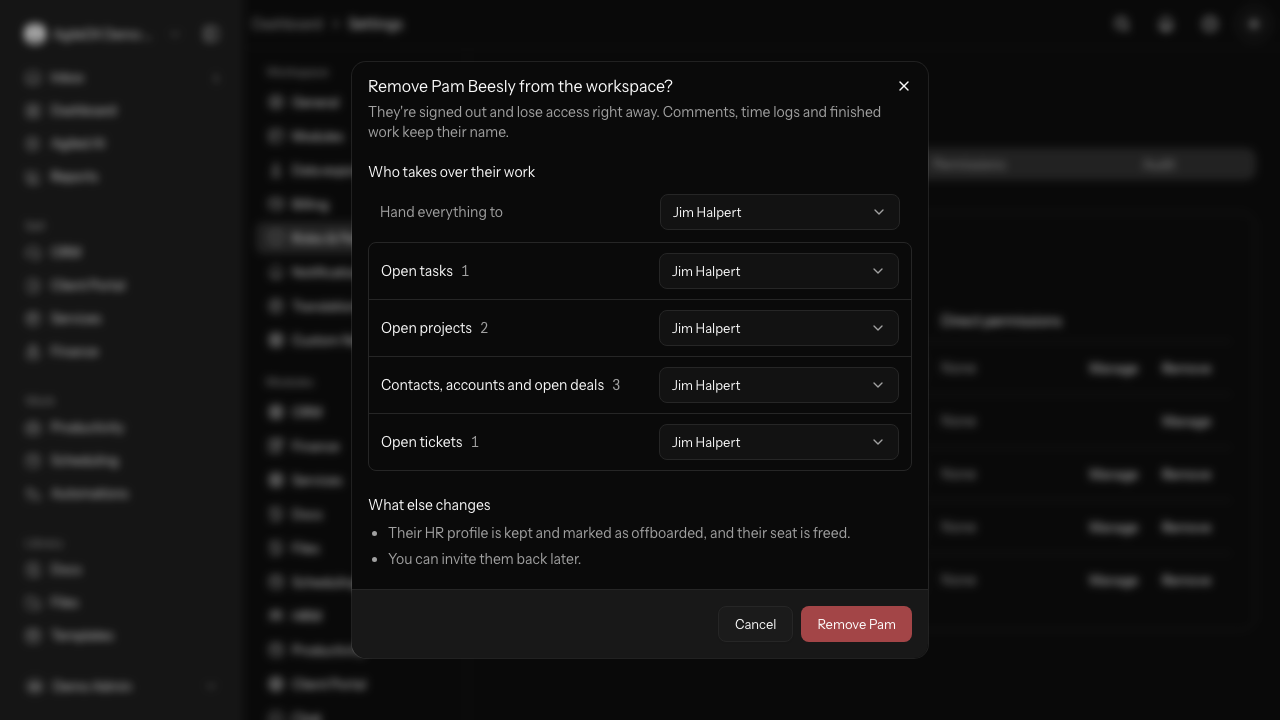
Remove someone
- Open Settings › Roles & Permissions and select the Members tab. You can also open their record in HRM › Members and select Remove from workspace.
- Select Remove next to the person.
- Under Hand everything to, choose who takes over their work. To send one kind of work to someone else, change the person next to it, such as Open tasks or Contacts, accounts and open deals. Choose Leave unassigned if nobody should take it yet.
- Read What else changes, then select Remove.
You're done when they're gone from the Members list and their open tasks, projects, clients and tickets show the teammates you chose.
What happens to their work
- Open work moves to the teammates you chose. That covers open tasks and repeating tasks, projects that aren't finished, contacts, accounts, open deals, open tickets, unsigned proposals and contracts, booking links and upcoming meetings, and the departments and people they managed.
- History stays theirs. Finished tasks, won and lost deals, closed tickets, comments, time logs and activity keep their name.
- Unassigned records you own stay visible. If you leave clients, projects or tickets unassigned, you become their owner, so no record disappears from view.
- Booking links pause if you leave scheduling unassigned.
Good to know
- They're signed out of this workspace right away. Any API keys they created and apps they connected for this workspace stop working, and their calendars and mailboxes are disconnected. Other workspaces they belong to aren't affected.
- Their seat is freed for someone new. Their HR record stays as offboarded, with past leave and attendance intact.
- Workflows that assign work to them are listed before you confirm. Update those steps afterwards so they assign someone else.
- Changed your mind? Invite them again from HRM › Members. Their HR record becomes active again when they accept.