Projects
Organize client and internal work.
Projects group tasks, files, members, activity, and time entries around a piece of work.
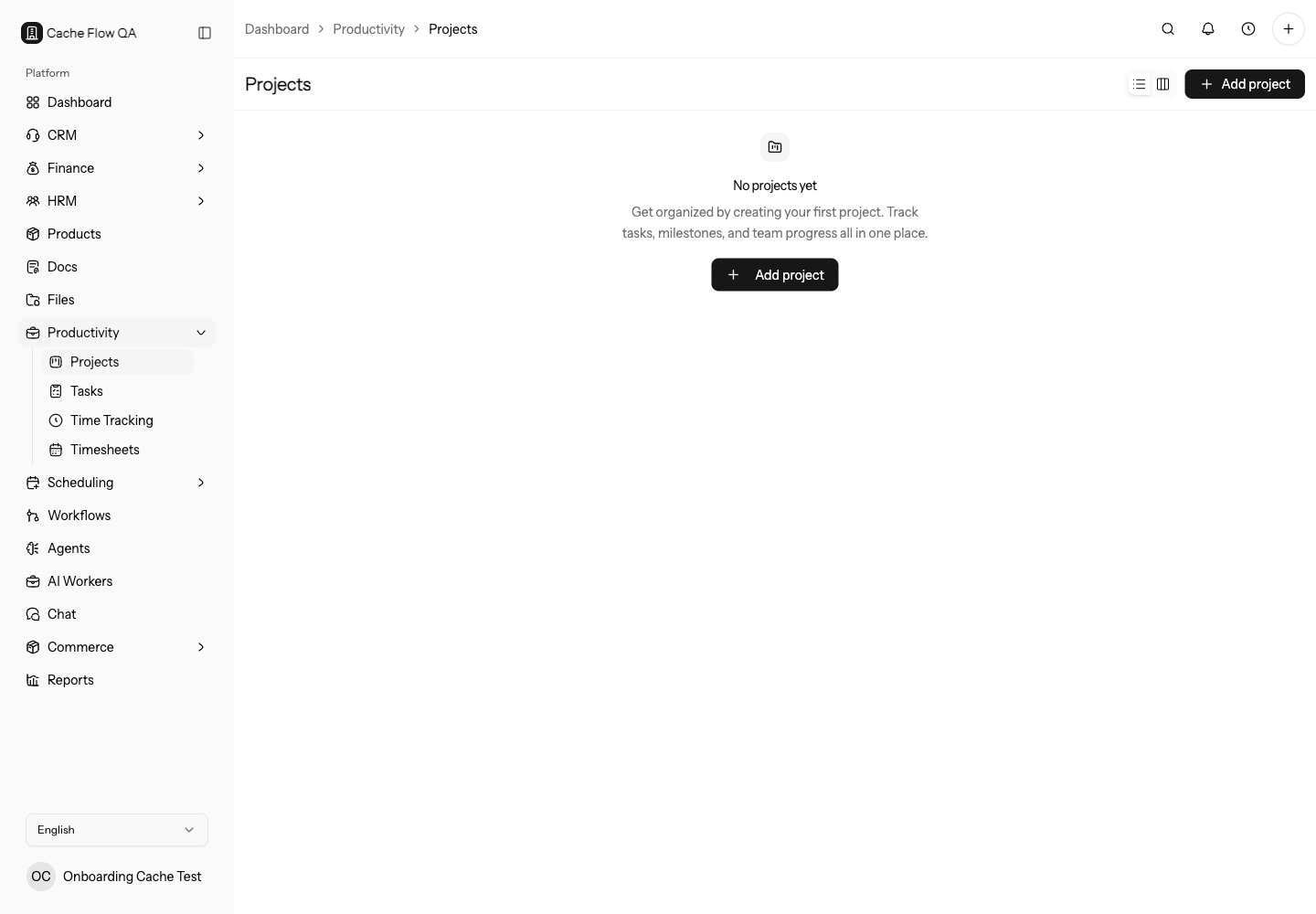
When To Use Projects
Create a project when work needs its own task list, team, files, milestones, or time tracking context. Use projects for client delivery, internal initiatives, retainers, implementation plans, and recurring operational work that should not live only as loose tasks.
If the work is a one-off reminder, create a task instead. If the work is a sales opportunity, create a CRM deal first and then create the project when delivery starts.
Create a Project
Open Productivity > Projects, create the project, add members, define the work, and create the first tasks. Use clear project names so records are easy to find in search, reports, and time tracking.
Before saving, confirm:
- Name clearly identifies the client, campaign, or internal effort.
- Account or contact is selected when the project belongs to a customer.
- Members include the people who need task, file, and time entry access.
- Dates match the delivery window you want to report against.
- Status reflects the real state of work, such as planned, active, on hold, or completed.
Project Detail
Use project detail pages to review progress, tasks, files, activity, and team context. Keep files and tasks attached to the project when they belong to the same delivery effort.
The project detail page is the best place to answer operational questions:
- Which tasks are open, blocked, or overdue?
- Which files belong to this project?
- Which teammates are responsible for the work?
- Has time been tracked against the correct project?
- Which milestones are still upcoming?
Add The First Work Items
After creating a project, add enough structure for the team to start work:
- Add the first tasks or import a project template.
- Assign owners and due dates for the first visible actions.
- Attach kickoff files, briefs, contracts, or delivery assets.
- Confirm time tracking should be billable or non-billable for the project.
- Add the customer account or contact if the work is client-facing.
Avoid creating empty projects without at least one next action. Empty projects are hard to distinguish from abandoned setup work.
Keep Project Data Clean
Review projects regularly so reports and timesheets stay useful. Archive or complete old projects, move unrelated tasks to the correct project, remove members who no longer need access, and keep project names consistent across customers.
If a project is missing from a task, timesheet, or file picker, check that the project is active, your role can access it, and the required Productivity module is enabled for the workspace.
Close Out A Project
Before marking a project complete or archiving it:
- Close or move remaining tasks.
- Confirm time entries are submitted and approved.
- Save final files in the project or related customer record.
- Check whether final invoices, estimates, or documents still need the project context.
- Remove members who no longer need access.
Closeout keeps reports clean and makes it easier to find final delivery history later.