Finance Reports
Review invoices, revenue, payments, estimates, and expenses.
Finance reports help you understand money moving through the business.
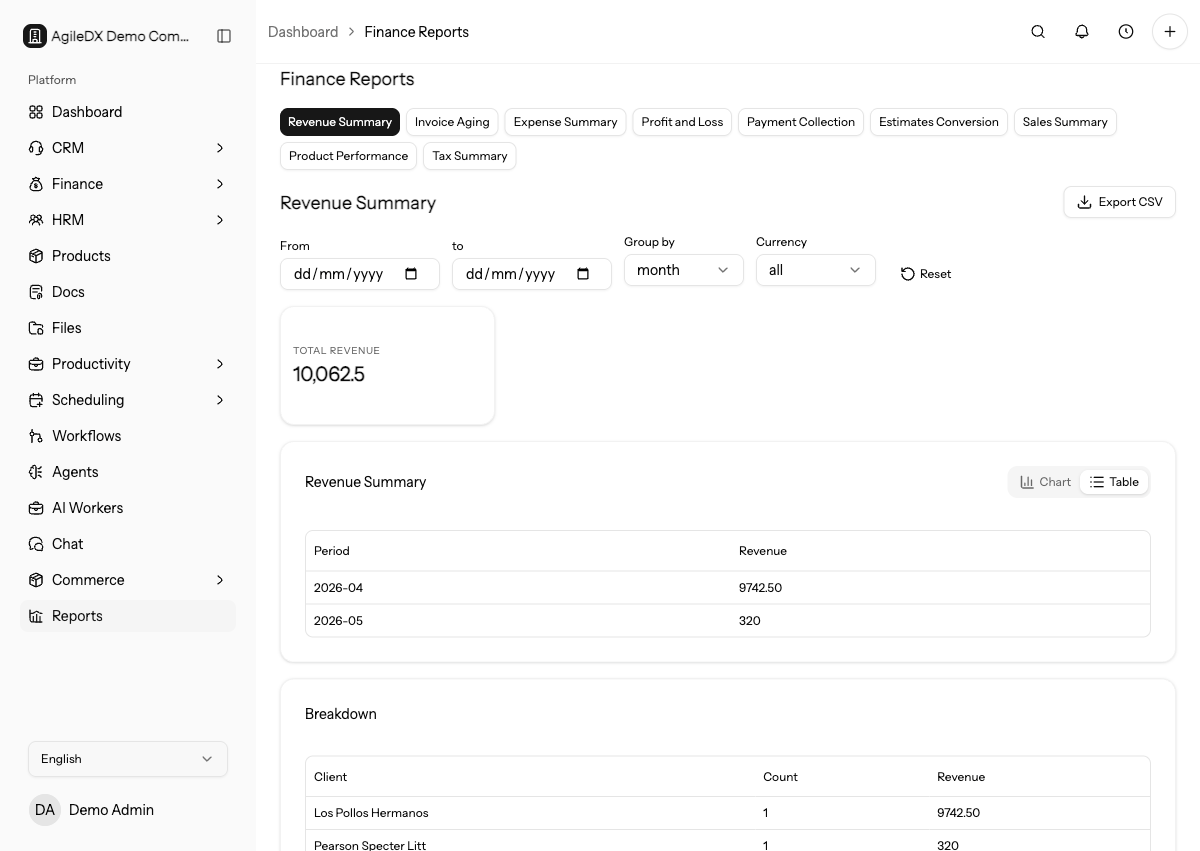
Open Finance Reports
- Open Reports.
- Choose Finance.
- Select a finance report card.
- Use the report buttons to switch between finance reports.
Finance reports can include date range, group-by, and currency filters depending on the report.
Available Finance Reports
- Revenue summary.
- Invoice aging.
- Expense summary.
- Profit and loss.
- Payment collection.
- Estimates conversion.
- Sales summary.
- Product performance.
- Tax summary.
Use Finance Reports For
- Revenue review
- Invoice status
- Payment history
- Estimate pipeline
- Expense totals
- Overdue balances
Pick the report based on the business question:
- Use Revenue summary to review billed revenue over a period.
- Use Invoice aging before collections work or customer follow-up.
- Use Payment collection to compare collected money with open balances.
- Use Expense summary and Profit and loss before monthly review.
- Use Estimates conversion to understand quote acceptance and lost work.
- Use Sales, Product performance, and Tax summary when product, service, or tax reporting needs detail.
Read the Data
Use summary cards for totals, chart view for trends, and table view for exact rows. Some reports include a breakdown section below the main table for secondary detail such as product, tax, method, or category mix.
Start with the summary cards, then use the table to explain why the number changed. If a total looks wrong, open the related invoice, estimate, payment, or expense record before editing the report filters.
Filter by Currency
Use the currency filter when your workspace has multi-currency finance records. Leave currency set to All when you want to review the full workspace view, then filter to a single currency before exporting or sharing numbers externally.
Do not combine currencies in an external finance summary unless the audience expects a multi-currency view. Export one currency at a time for accounting handoffs when exchange-rate treatment matters.
Before Sharing Finance Numbers
Before exporting or sharing a finance report:
- Confirm the date range matches the reporting period.
- Confirm the currency filter is intentional.
- Check whether draft, void, refunded, failed, or unpaid records are included in the selected report.
- Reconcile payment totals with the payment provider or accounting system when the report is used for finance close.
- Export the report only after the source records look correct.
Finance reports are only as reliable as the underlying record statuses. A sent invoice, partially paid invoice, failed payment, or unapproved expense can change the meaning of a total.
Before monthly close, compare reports with payment gateway exports, offline payment records, and any accounting sync destination. Agiled reports should explain workspace activity, while external finance systems may be the final ledger.
If A Report Looks Wrong
Check these areas first:
- invoice and estimate status filters
- payment dates versus invoice dates
- expense categories and currencies
- deleted, archived, or test records
- tax labels and product assignments
- payment-provider records that have not synced back yet
Use the finance module to fix source records. Avoid adjusting exported reports manually unless the export is clearly labeled as an offline analysis copy.
If you do create an offline analysis copy, keep the original export unchanged and document every manual adjustment. This prevents the exported report from being mistaken for the source-of-truth data.