Invoices
Create, send, preview, download, and track invoices.
Invoices request payment from a customer.
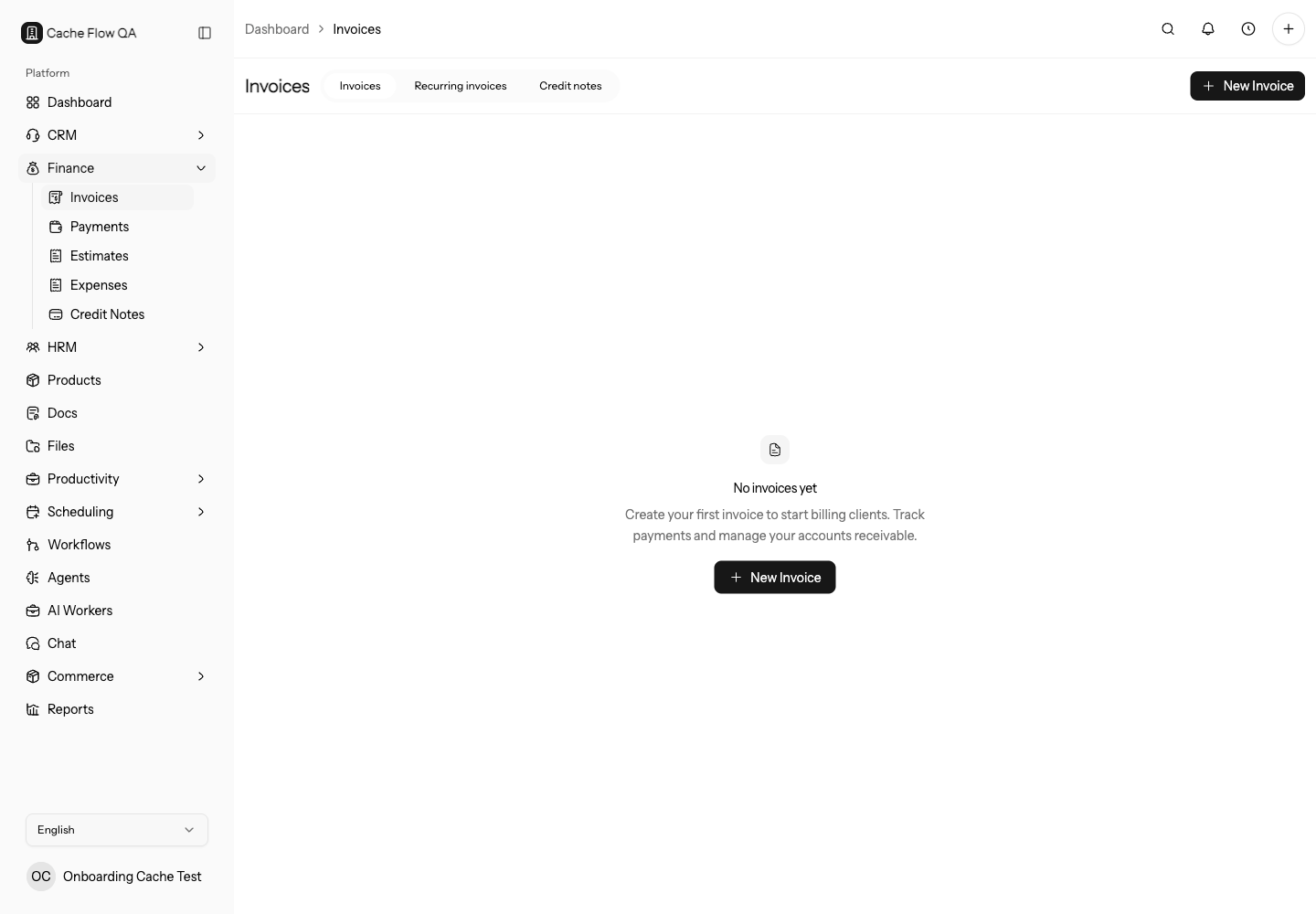
Use invoices when the customer should pay for delivered work, a deposit, a subscription period, or products and services from your catalog.
Create an Invoice
Open Finance > Invoices and create an invoice. Choose the customer, invoice date, due date, line items, taxes, discounts, payment terms, and template. Add attachments when the client needs supporting files.
For a clean invoice, confirm the customer record is correct before adding line items. If you use products or services, choose catalog items so names, pricing, tax behavior, and reporting stay consistent.
If the invoice comes from an estimate, project, recurring template, order, or timesheet, open that source before sending. The invoice should match the source scope, dates, customer, and price.
Invoice Creation Checklist
Before saving or sending, confirm:
- customer account and billing contact
- invoice date and due date
- currency and payment terms
- line item names, quantities, rates, and tax
- discount or deposit behavior
- payment methods and offline instructions
- attachments and customer-facing notes
If the invoice is tied to a project, estimate, recurring template, or checkout order, check that the source record and invoice tell the same story.
Work From The Invoice List
Use the invoice list to search and review records by customer, number, status, amount, due date, and payment state. Check this list daily when your team collects payments or follows up on overdue balances.
Use filters for daily collections: overdue, unpaid, sent, viewed, and high balance invoices. Open the invoice detail before contacting a customer so you can check payment history, notes, and recent delivery status.
Preview Before Sending
Always preview the invoice before sending. Check the customer details, totals, taxes, branding, payment options, notes, and PDF layout.
Preview is especially important after changing templates, taxes, payment gateways, custom domains, or email templates. The invoice page and PDF should match what the customer is expected to pay.
Send and Track
Send the invoice by email or share the public invoice link. Track whether the invoice is draft, sent, viewed, paid, overdue, voided, or otherwise completed.
Do not send a draft invoice as a final bill. If the customer needs changes, edit or duplicate the invoice while it is still safe to revise, then preview again before sending.
After sending, check that the email was delivered or that the public link opens in a private browser window. A sent invoice is not useful if the customer cannot reach the payment page.
Record Payment
Payments can come from connected gateways or be recorded manually. Match the payment amount, date, method, and reference to the invoice.
After recording a manual payment, review the remaining balance and invoice status. If the invoice was paid outside Agiled, keep the reference clear enough for your finance team to reconcile later.
Follow Up On Overdue Invoices
Before sending reminders, check whether the payment arrived through another method, whether the customer used an offline payment option, and whether the invoice link still works. This avoids chasing customers who already paid.
When following up, include the invoice number, amount due, due date, and current payment link. If the customer disputes the invoice, record the context before voiding, crediting, or replacing it.
If a customer asks for a corrected invoice, decide whether to edit, void, duplicate, or issue a credit note based on your finance process. Keep the audit trail clear rather than overwriting history without explanation.