Reports
Review CRM, finance, productivity, and HRM performance.
Reports help you understand performance across the workspace.
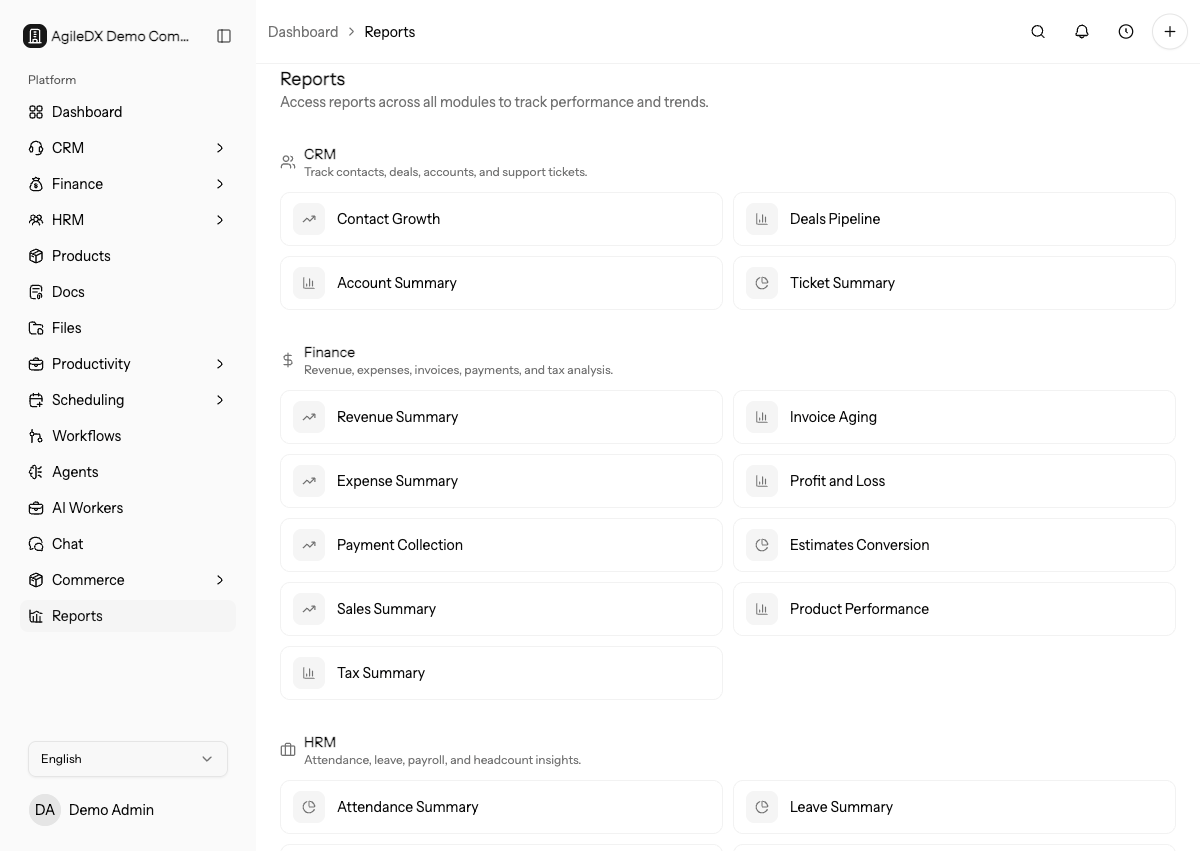
Open Reports
- Open Reports from the workspace navigation.
- Choose a category: CRM, Finance, Productivity, or HRM.
- Select a report card.
- Use the report buttons at the top of the category page to switch between reports in the same category.
- Apply filters.
- Review summary cards, chart view, table view, and breakdowns.
- Export CSV when you need a spreadsheet copy.
Reports require an active workspace session and the permissions needed to view the underlying module data.
Report Areas
- CRM reports show pipeline, sales, contacts, deals, and customer activity.
- Finance reports show revenue, payments, invoices, estimates, expenses, and related metrics.
- Productivity reports show projects, tasks, time, timesheets, and delivery activity.
- HRM reports show people, attendance, leave, compensation, and employee trends.
Report Controls
Most report pages share the same controls:
- Report buttons switch between reports inside the selected category.
- From and To limit reports to a date range when the report supports dates.
- Group by changes time-based reports between day, week, and month.
- Currency appears on finance reports.
- Reset clears the active filters.
- Export CSV downloads the current table rows.
- Chart / Table switches between visual and row-level views.
Filters
Most reports depend on filters such as date range, status, owner, module, or record type. If a report looks empty, check the filter first, then confirm that the records exist and the current user has permission to view them.
Reading Reports
Use reports for decisions, not just totals. Compare time periods, find bottlenecks, review overdue work, and check whether revenue, sales, or delivery trends match what your team expects.
Report Review Routine
When a report drives a business decision, open a few source records behind the number before acting. For example, inspect invoices behind aging totals, deals behind pipeline value, tasks behind overdue counts, or employees behind leave and attendance totals.
If the report number is wrong, fix source records first. Reports should reflect clean CRM, finance, productivity, and HRM data rather than compensate for stale records.
Empty Reports
If a report shows no data:
- Reset filters.
- Expand the date range.
- Check the category records exist, such as invoices, tasks, tickets, employees, or time entries.
- Confirm the records belong to the active workspace.
- Confirm your role can view that module.
- Check whether a finance currency filter is hiding records in another currency.
Recommended Guides
- Review monthly revenue.
- Review sales pipeline performance.
- Review team productivity.
- Review employee attendance.