Navigate the Web Workspace
Find modules, workspaces, notifications, and quick actions in the web app.
The web workspace is organized around the left sidebar, the top bar, and the current page content. This layout is the same foundation used throughout the main product docs.
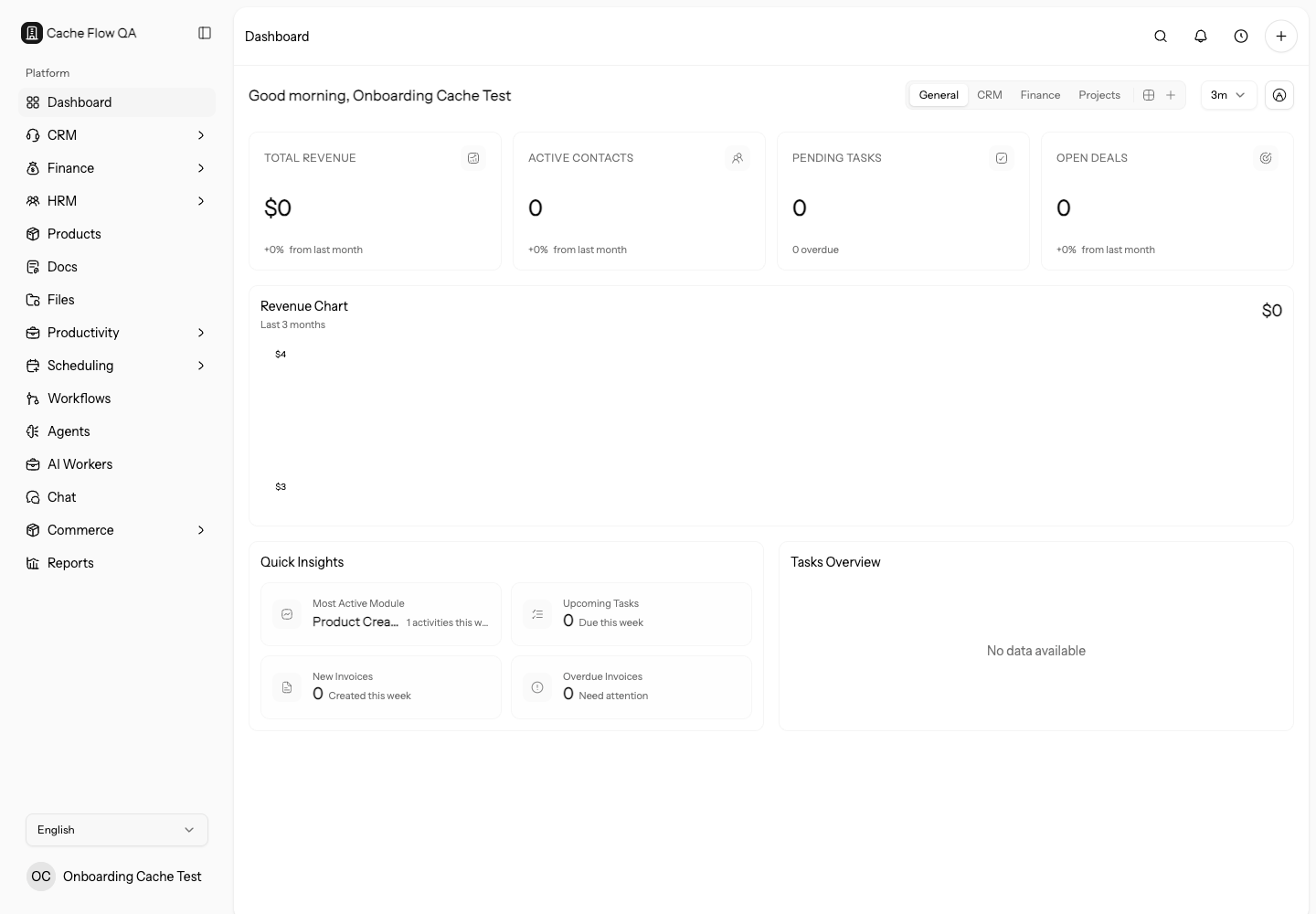
Left Sidebar
Use the left sidebar to move between enabled modules. The available items depend on your workspace modules and your permissions.
Common sidebar areas include:
- Dashboard
- CRM
- Finance
- HRM
- Products
- Docs
- Files
- Productivity
- Scheduling
- Workflows
- AI Workers
- Chat
- Reports
- Commerce
Some modules expand to show their own subpages.
Workspace Switcher
The workspace switcher appears at the top of the sidebar. Use it to:
- See the active workspace.
- Switch to another organization you can access.
- Open organization management.
- Add an organization when your account is allowed to create one.
Check the switcher first when records appear to be missing. Many access issues are actually wrong-workspace issues, especially for users who belong to several organizations or accepted multiple invitations.
Before importing records, sending invoices, connecting integrations, changing settings, or creating API keys, confirm the workspace name in the switcher and the browser URL. These actions can affect customers and external systems.
Top Bar
The top bar includes:
- Breadcrumbs for the current page.
- A sidebar button on narrow screens.
- Notifications.
- Time tracking.
- Quick create actions for common records such as invoices, contacts, accounts, projects, and tasks.
Use quick create for simple records. For records with many required fields, attachments, custom fields, or approval steps, open the full module so the record is created with enough context.
Open The Full Page When Context Matters
Quick create is useful for fast capture, but use the full module page when you need to review existing records, add files, complete custom fields, choose visibility, or link related records. This is especially important for contacts, accounts, invoices, projects, and tasks that affect reporting or automation.
Collapsed and Mobile Sidebar
On wider screens, the sidebar can be collapsed to icon mode. On narrow screens, open it from the top bar when you need to move to another section.
The sidebar state is remembered on the device where you changed it.
Search Before Creating
If a page appears empty, check filters, workspace, and permissions before creating a new record. Empty lists can be caused by a saved view, disabled module, missing permission, or the wrong organization.
Searching first prevents duplicate contacts, accounts, products, projects, and finance records.
If a Section Is Missing
A missing module usually means one of these is true:
- The module is disabled for the workspace.
- Your role does not include permission for that module.
- You are in the wrong workspace.
- The page is available in the web workspace but not in the mobile or desktop app surface.
After an admin changes modules or permissions, refresh the workspace and check the active organization again. If the module is still missing, review access control before assuming the navigation is broken.