Mobile and Desktop
Understand platform availability across web, mobile, and desktop.
Agiled can be used from the full web workspace, the mobile app, and the desktop app. The web workspace is the main product surface for CRM, finance, projects, files, docs, scheduling, reports, workflows, commerce, and settings.
The mobile and desktop apps currently focus on account access and session connection. Use this section to understand what each platform is best for, how sign-in works, and when to switch back to the web workspace for complete module work.
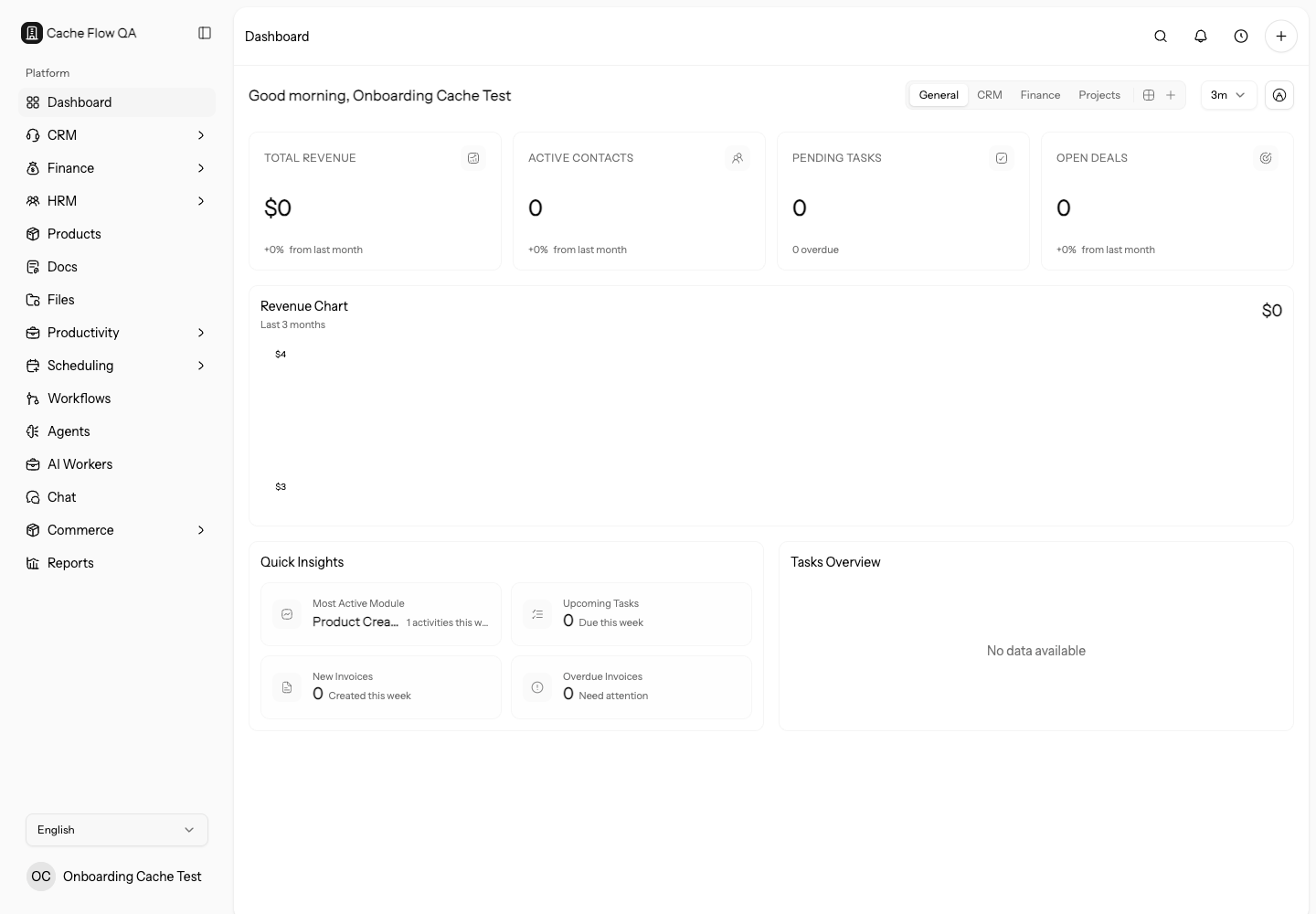
Which Platform To Use
Use the web app for full workspace administration, finance, CRM, projects, reports, templates, workflows, integrations, and settings. Use mobile or desktop when you need the platform-specific access or session experience described in this section.
If a feature is missing on mobile or desktop, open the web workspace before assuming your role or plan is missing access.
Use the web app to set up workflows, billing, integrations, imports, public pages, templates, roles, and module configuration. Use mobile or desktop as a companion access point only after the workspace is already configured.
Platform Decision Guide
Use the web workspace when you need to create or manage records, configure the workspace, review reports, send finance documents, build forms, or connect integrations. Use mobile when you need quick access on a phone. Use desktop when your workflow requires a desktop session separate from the browser.
If you are training a teammate, start them in the web workspace first. Once they understand the modules they need, add mobile or desktop access only where it helps their routine.
Troubleshoot Platform Differences
When something looks different between platforms, first confirm the account and active workspace. Then check the same record in the web app. If the web app shows the expected data, the issue is likely platform availability or session state. If the web app also looks wrong, troubleshoot the underlying role, module, record, or workspace configuration.
Check Session and Workspace
If a user says data is missing on mobile or desktop:
- Confirm the signed-in email.
- Confirm the active workspace.
- Open the same record in the web app.
- Check whether the module is available on that platform.
- Sign out and back in after role or workspace changes.
Do not create duplicate records from mobile or desktop just because the expected record is not visible. Verify the web workspace first.
Rollout Advice
Introduce mobile and desktop after the core workspace is set up in the web app. Train users on where the source records live, which platform supports their daily workflow, and when they should return to the web workspace for complete module actions.
When a role, module, or workspace membership changes, ask the user to refresh or sign in again before troubleshooting missing data.
Start Here
- Use the Web App
- Use the Mobile App
- Use the Desktop App
- Sign In on Mobile
- Sign In on Desktop
- Navigate the Web Workspace
- Platform Feature Availability
- Security and Sessions
- Troubleshoot Mobile and Desktop Access