Use the Web App
Use the full Agiled workspace from a browser.
The Agiled web app is the primary place to run your business workspace. Use it when you need full access to CRM, finance, projects, tasks, files, docs, scheduling, workflows, reports, commerce, account settings, and workspace settings.
Use the web app for setup and review work that needs a full table, editor, builder, report, or admin screen. Mobile and desktop are useful companions, but the browser is the safest place for complex changes.
When to Use the Web App
Use the web app when you need to:
- Configure workspace settings, billing, modules, roles, and permissions.
- Create and manage records across CRM, finance, HRM, products, productivity, scheduling, files, docs, reports, workflows, commerce, and AI Workers.
- Import data, bulk edit records, review tables, and work through setup flows.
- Use wide-screen layouts such as dashboards, boards, calendars, editors, reports, and detail panels.
Sign In
- Open your Agiled workspace URL in a browser.
- Enter your account email and password.
- Complete any email verification or workspace selection step shown after sign in.
- Land on the dashboard or the last valid workspace entry point for your account.
If your account belongs to more than one organization, use the organization switcher in the sidebar brand area or open Organizations to switch workspaces.
Before creating records, confirm the active workspace in the sidebar. Creating a contact, invoice, project, or employee in the wrong workspace can split business history and create cleanup work.
Browser Layout
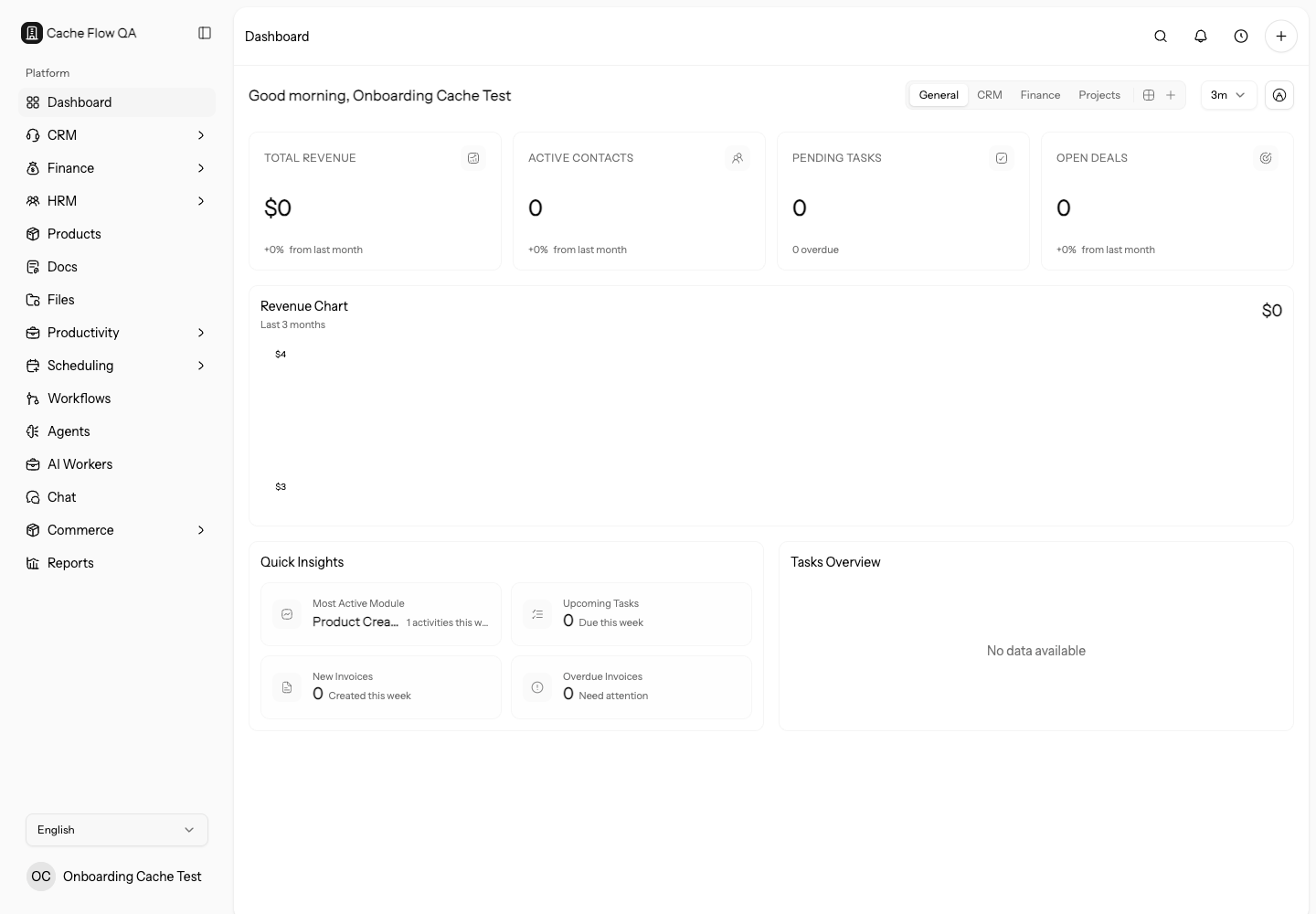
The web workspace includes:
- A left sidebar for module navigation.
- A workspace switcher at the top of the sidebar.
- A top bar with breadcrumbs, notifications, time tracking, and quick create actions.
- Page headers with primary actions for the current section.
- Tables, boards, detail panels, editors, and reports inside the page content area.
On narrow screens, the sidebar is opened from the top bar instead of staying fully visible.
If a page feels cramped, switch to a wider browser window before doing bulk actions, document editing, workflow building, or report review.
Best Practices
- Use a desktop or laptop browser for setup, imports, reporting, workflow building, document editing, and bulk actions.
- Use mobile web only for quick checks when a page layout is comfortable on your screen.
- Keep your browser up to date so file previews, downloads, editors, and authentication handoffs work reliably.
- Use private windows for testing public links so your logged-in workspace session does not hide customer-facing issues.
When Something Looks Missing
If a module, button, or record is missing, check the active workspace, role permissions, enabled modules, filters, and plan usage before assuming the record was deleted.
Browser Troubleshooting
If the web app behaves unexpectedly:
- Refresh the page.
- Confirm the active workspace.
- Clear filters or reset the table view.
- Try a private window to rule out stale session state.
- Check role permissions and enabled modules.
- Try another supported browser before reporting a workspace-wide issue.
For public links, always test in a private window so your signed-in session does not hide customer-facing errors.