Account and Login
Manage sign-in, email verification, password reset, invitations, and organizations.
Account pages help users enter Agiled, recover access, join workspaces, and move between organizations.
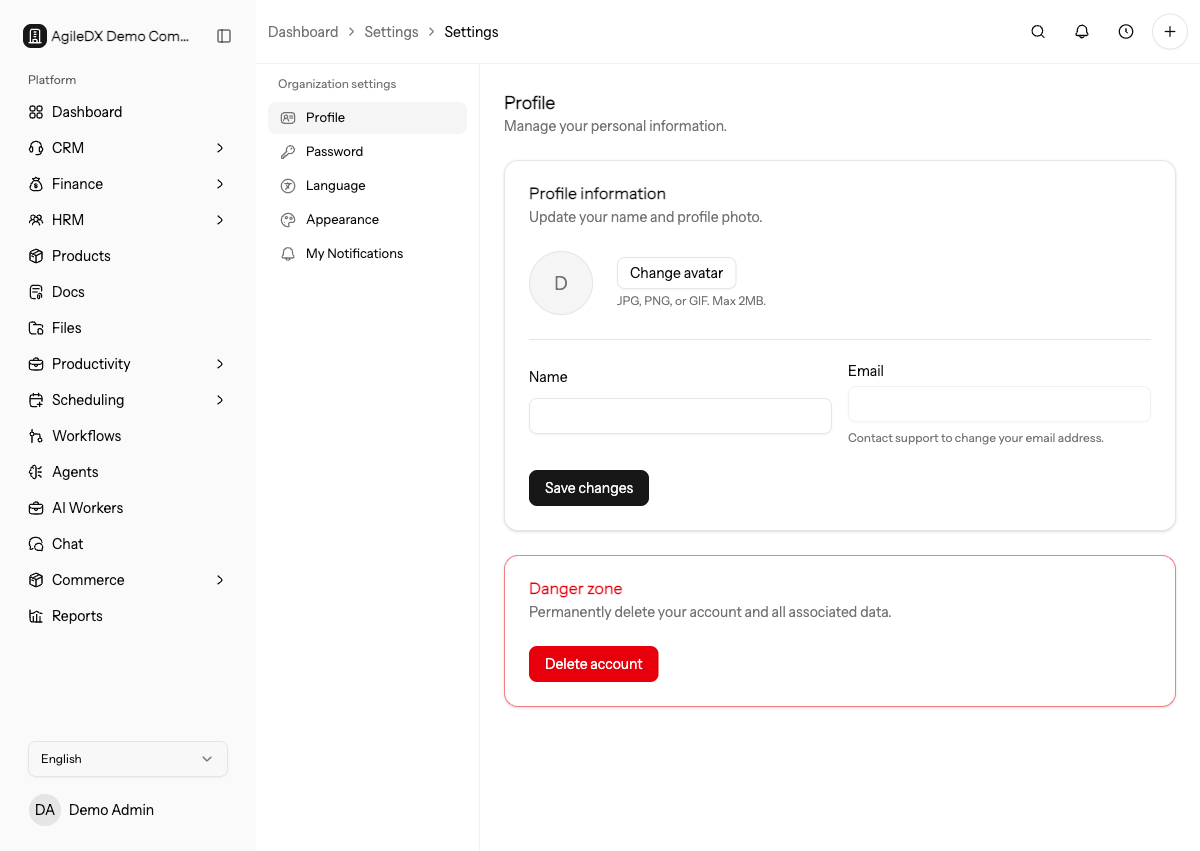
What Account Docs Cover
Use this section when a user needs help getting into Agiled or managing the workspace connected to their login.
Account docs cover:
- account creation;
- sign-in and Google sign-in;
- email verification;
- password reset and password changes;
- profile updates;
- organization creation and switching;
- invitations;
- OAuth consent;
- access troubleshooting.
Choose The Right Article
- Use Create an Account when the user is new and is not joining through an invitation link.
- Use Accept an Invitation when the user received a workspace invite.
- Use Reset Password when the user cannot sign in.
- Use Change Password when the user is already signed in and knows the current password.
- Use Organizations when the user needs to switch workspaces or create a new workspace.
- Use Troubleshoot Account Access when sign-in, invite, or workspace access does not behave as expected.
Main Account Flows
- Create an Account
- Sign In
- Sign In with Google
- Verify Email
- Reset Password
- Change Password
- Update Profile
- Organizations
- Create an Organization
- Switch Organizations
- Invitations
- Accept an Invitation
- OAuth Consent
- Troubleshoot Account Access
Account And Workspace Are Separate
Your user account is the identity you sign in with. Organizations are the workspaces that account can access. One user can belong to multiple organizations, and each organization has its own data, billing, settings, modules, integrations, and team permissions.
If a user can sign in but cannot see expected records, check the active organization before troubleshooting missing data.
When helping a teammate, separate account identity from workspace access. First confirm the email they used to sign in, then confirm the organization selected in the workspace switcher, then review their role or invitation state.
If the user has both Google sign-in and password sign-in available, make sure they are using the same email address for both. Signing in with a different Google account can make it look like records or invitations disappeared.
Support Flow For Access Issues
When helping a user with access, collect the email address, sign-in method, workspace or organization name, invite status, and the exact page they expected to open. Confirm those facts before resetting passwords or sending a new invite.
If the user can sign in but cannot see a module, move from account troubleshooting to workspace permissions and module settings.