Files
Upload, organize, preview, download, share, and attach files.
Files stores the documents and assets your team uses across CRM, finance, projects, documents, and public sharing.
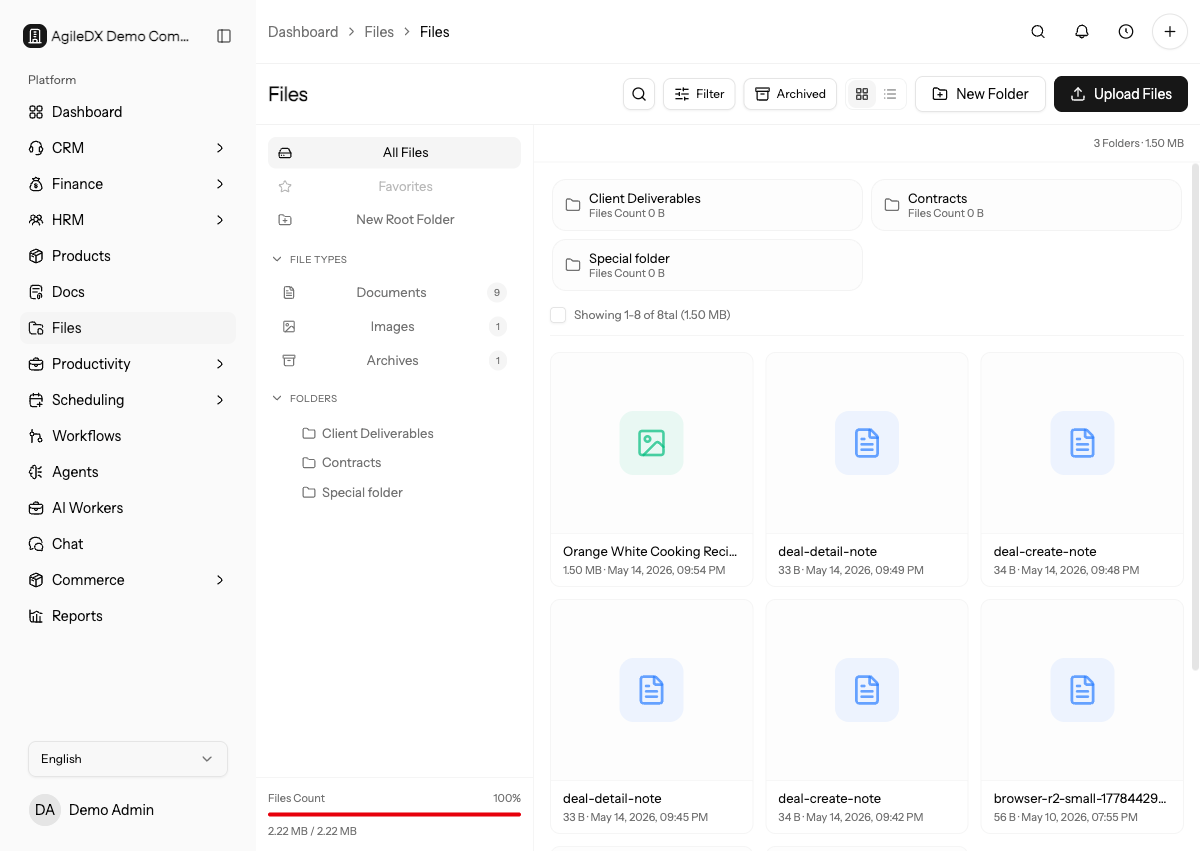
What You Can Do
- Upload files.
- Create folders.
- Preview supported files.
- Download files.
- Share files through public or controlled links.
- Attach files to projects, documents, invoices, estimates, expenses, and other records.
- Use file records in AI worker context where allowed.
Organizing Files
Use folders for workspace-level organization and attach files directly to the record where the file is most useful. For example, store a contract attachment on the document, a receipt on the expense, and delivery files on the project.
Choose one primary home for important files. If a file supports a specific invoice, expense, project, document, or ticket, attach it there so teammates can find it from the workflow where they need it.
Use folder organization for general reference files and record attachments for work-specific files. Uploading the same file to several places makes version control harder.
Naming And Version Control
Use filenames that describe the customer, project, document type, and date when
that context matters. Avoid generic names such as final.pdf or scan.png
because they become impossible to search later.
When a file changes over time, keep one clear current version and archive or rename older versions. If the file belongs to a contract, invoice, estimate, or signed document, check the related record before replacing it.
Sharing Files
Before sharing, confirm whether the recipient should receive a public link, workspace-only access, or access through a related record. Public links should only be used for files that are safe to share outside the workspace.
Review expiry, password, download limits, and recipient expectations before sharing. If the file is part of a customer process, test the shared link in a private window and then check whether the related record still gives the team enough context.
Review active shares periodically, especially after projects close, documents are signed, invoices are paid, or collaborators leave. Revoke links that are no longer needed.
Attach Files Where Work Happens
Attach receipts to expenses, contract files to documents, source files to projects, and evidence files to tickets or tasks. A file in the general manager is useful for storage, but a file attached to the workflow is easier for the next person to find.
Troubleshooting
If a file upload fails, check the file size, file type, network connection, and whether you still have permission to manage files. If a preview does not load, try downloading the file and confirm the original file is valid.
If a teammate cannot find a file, search by filename, check the related record, and review folder filters before uploading another copy. Duplicate files make it harder to know which version is current.
If a file is missing from a customer workflow, check whether it was uploaded to Files only instead of attached to the invoice, document, expense, project, or task where users expected it.