Choose Modules
Turn workspace modules on or off during setup or from settings.
Modules control which major Agiled areas appear in the workspace sidebar. Turn on the modules your team uses now, and leave unused modules hidden until they are needed.
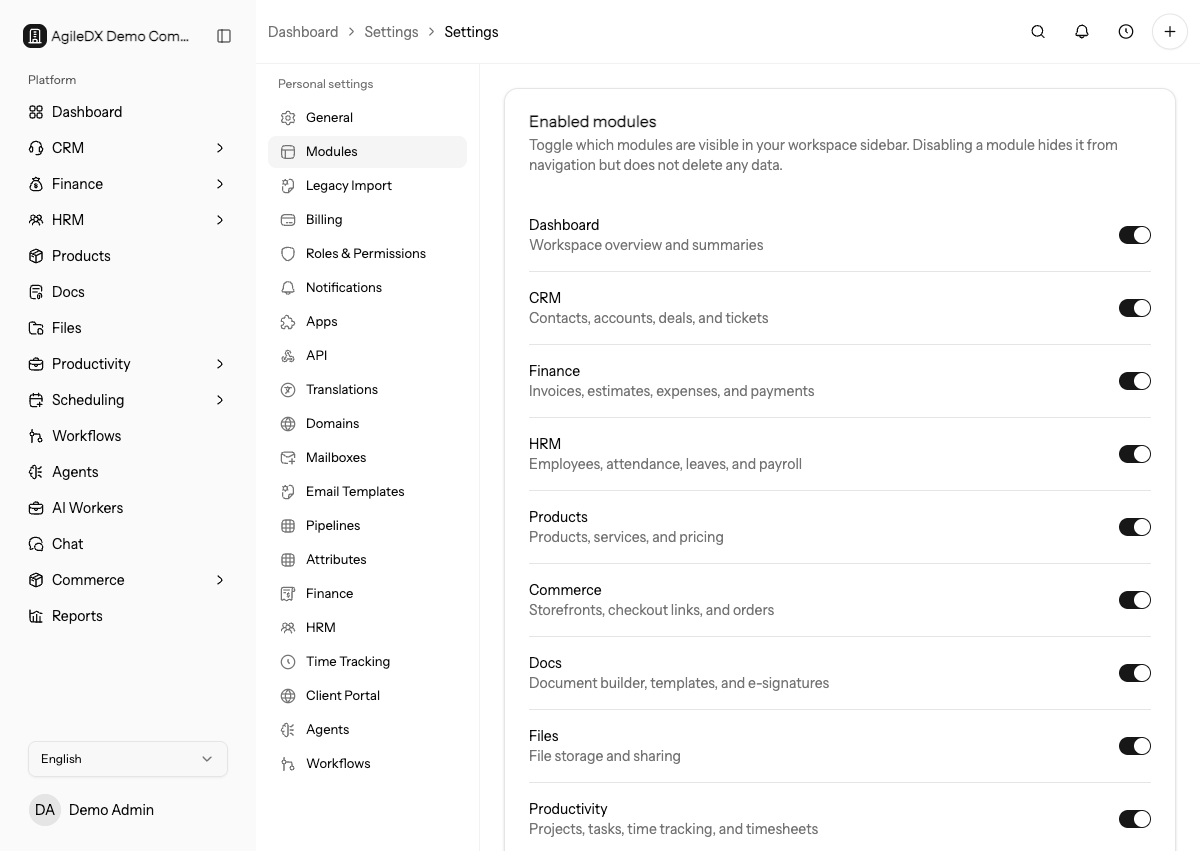
Modules You Can Show
Agiled supports these workspace modules:
- Dashboard
- CRM
- Finance
- HRM
- Products
- Commerce
- Docs
- Files
- Productivity
- Scheduling
- Workflows
- Agents
- Chat
- Reports
Your visible module list can depend on your role and workspace access.
Choose Modules During Onboarding
During onboarding, Agiled can suggest modules from the business profile and selected use case. Review the module list before finishing setup.
Choose the modules that match the work your team will perform in the first few weeks. Turning on every module during setup can make the sidebar harder to learn, especially for teammates who only need CRM, finance, or project work.
Use this quick decision guide:
- Turn on CRM when you manage contacts, accounts, deals, forms, or tickets.
- Turn on Finance when you create invoices, estimates, payments, expenses, credit notes, or recurring invoices.
- Turn on Productivity when projects, tasks, milestones, or time tracking are part of daily work.
- Turn on Scheduling when customers or teammates book appointments from a public booking page.
- Turn on Commerce when you sell products or services through storefronts or checkout links.
- Turn on HRM when employees need attendance, leave, compensation, or employee documents.
- Turn on Docs when proposals, contracts, signatures, or reusable documents are part of your process.
- Turn on Workflows or Agents only after the records they act on are configured and tested.
Update Modules Later
- Open Settings.
- Open Modules.
- Turn modules on or off.
- Select Save changes.
Agiled updates the workspace sidebar after the settings are saved.
Before Hiding A Module
Hiding a module removes it from normal navigation, but it does not replace a cleanup review. Before hiding an active module:
- Finish or reassign open work in that module.
- Confirm related workflows, reports, templates, public links, and integrations will not depend on that module being visible.
- Tell affected teammates where the replacement workflow lives.
- Test a non-admin user after saving so you know the sidebar and direct links behave as expected.
If a module contains customer-facing links, such as forms, booking pages, checkout links, storefronts, invoices, estimates, or documents, test those links after the change instead of assuming the internal sidebar setting is enough.
If a Module Is Missing
If you cannot see a module:
- Confirm the module is enabled in settings.
- Confirm your role has permission to view it.
- Ask an owner or admin to update your role if needed.
- Refresh the workspace after the permission change.
- Check that you are in the correct workspace if your account belongs to more than one organization.
Review After Setup
After the first week, revisit Settings > Modules and remove anything that was enabled only for exploration. Keep the first workspace focused around the records the team actually maintains. You can turn modules back on later without recreating the workspace.