Upload and Organize Files
Upload files and keep workspace assets organized.
Use the file manager for general workspace files and attach files directly to records when the file belongs to a specific project, document, expense, invoice, or estimate.
Decide whether the file is a general asset or record evidence before uploading. General assets belong in folders; evidence and deliverables should be attached to the record where people will need them.
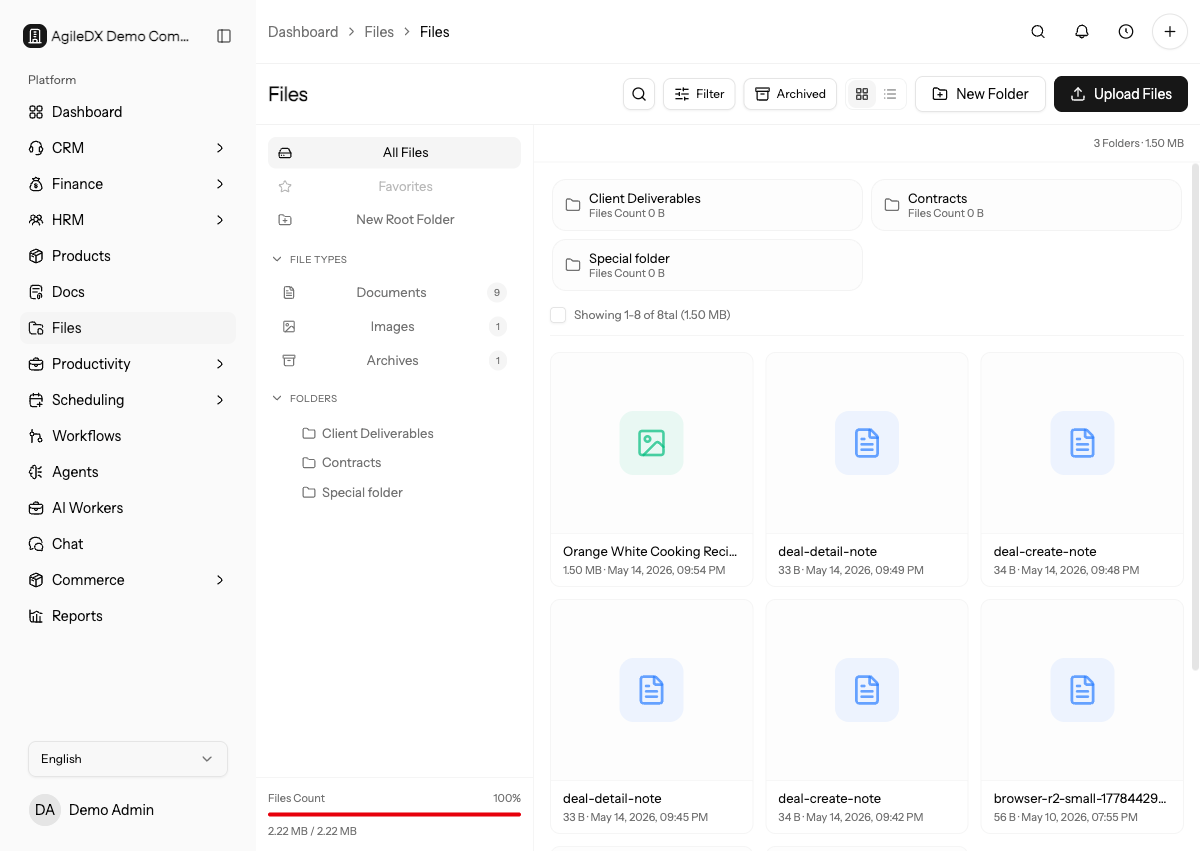
Open Files
Open Files from the workspace navigation. The file manager has a folder sidebar, main file area, grid/table view controls, search and filters, and file actions.
Upload Files
Open Files, choose upload, and select the files. Use clear file names so teammates can find them later through search or record attachments.
You can also drag files into the main file area. During drag-and-drop, Agiled shows a drop zone. Dropped files upload into the current folder or virtual upload context.
Large uploads can use multipart upload behind the scenes. If an upload fails, retry from the file manager rather than reusing an old upload URL.
Folders
Folders are useful for broad organization. Avoid using folders as the only way to show context; attach files to the record where they matter.
Use Create folder from the sidebar or top-level action. Give folders clear business names, such as a client, project, year, or department.
Avoid deep folder structures that only one person understands. If a file belongs to a specific customer, project, or finance record, attaching it to that record is often more useful than burying it in folders.
Use breadcrumbs to move back through nested folders. Use the root action to return to the main file area.
Virtual File-Type Folders
The sidebar can also show virtual folders such as documents, images, videos, audio, archives, and other files. These are generated from file type and do not replace real folders.
Use virtual folders when you need to quickly find all images, documents, or archives across the workspace.
Search, Filter, and View Modes
Use search when you know part of the filename. Use filters for:
- file type
- uploader
- minimum size
- maximum size
- updated-from date
- updated-to date
- include trashed files
Switch between grid and table view depending on the task. Grid view is better for images and visual scanning. Table view is better for size, type, and updated date comparisons.
Rename, Move, Delete, and Restore
Open the file action menu or right-click menu to:
- preview
- download
- rename
- move
- replace version
- share
- delete
- restore a trashed file
Deleted files are shown as trashed when included in filters. Restore is available from the same action menus when permissions allow it.
Bulk Select Files
Use checkboxes to select multiple visible files. The selection bar lets you clear selection and delete selected files. Bulk actions apply only to selected visible files.
Cleanup Routine
Review shared file areas regularly:
- Rename vague files.
- Move files into the right folder.
- Attach important files to source records.
- Delete or restore trashed files intentionally.
- Check public shares before removing customer-facing files.
Do cleanup before large customer handoffs, finance export, project closure, or template updates so stale files are not reused.