Upload Files
Add one or more files to the workspace file manager.
Upload files when your team needs shared access to contracts, creative assets, receipts, project deliverables, or supporting documents.
Before You Upload
Choose where the file should live:
- Use Files for general workspace files.
- Open a folder first if the file belongs in that folder.
- Open the related record when the file belongs to a project, contact, invoice, estimate, expense, document, or task.
Also decide whether the file is internal-only or customer-facing. Sensitive drafts, HR files, finance records, and customer deliverables should be uploaded to the place where the right team can find them and the wrong audience will not use them accidentally.
If a file belongs to a business record, upload it from that record or attach it after upload. Files that stay only in a general folder can be hard to find from the project, contact, invoice, or task where people need them.
Upload From The File Manager
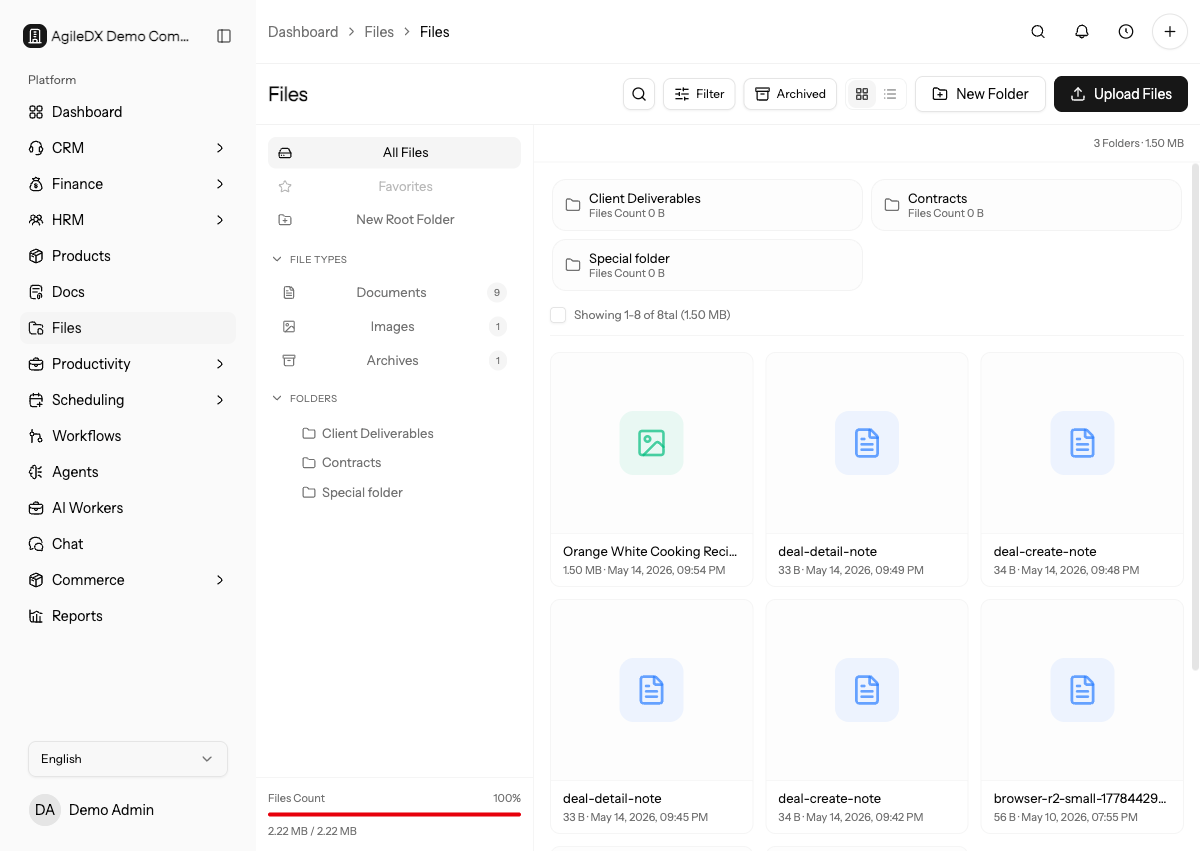
- Open Files.
- Open the folder where the files should be stored.
- Choose Upload files from the file manager actions.
- Select one or more files from your computer.
- Wait for the upload to finish before closing the page.
The new files appear in the current folder. If the folder is empty, the upload also clears the empty-state message.
After uploading important files, open one file preview or download to confirm the upload completed and the file is readable. Do this before sending a share link or attaching the file to a customer-facing document.
Drag And Drop Files
You can drag files from your computer into the main file area. When the drop zone appears, release the files to start the upload.
Drag and drop is useful when you are adding several files at once. Keep the page open until the upload completes.
If a multi-file upload partially fails, retry only the missing files. Compare the file list before uploading again so you do not create duplicates.
Upload Review
After uploading important files:
- Confirm the file appears in the intended folder or record.
- Open preview or download.
- Check the file name and version.
- Confirm visibility before sharing.
- Add notes or attach it to a record if the context is not obvious.
Upload Into Smart File Views
Some file views group files by business context, such as project files or record attachments. If upload is available in that view, the uploaded files are saved with that context instead of only being placed in a folder.
Good File Names
Use names that make sense later, especially for files that will be shared:
- Include the customer, project, or invoice name when helpful.
- Keep version numbers clear, such as
proposal-v2.pdf. - Avoid temporary names such as
final-final.pdfwhen the file may be shared.
For receipts, invoices, contracts, and deliverables, include enough context that someone can identify the file from search results without opening it.
Common Upload Problems
If upload stalls, keep the page open and wait before retrying. If it fails, check file size, network connection, file name, file type, and whether the file is still open in another application. For large or sensitive files, upload one file first, confirm it works, then continue with the rest.