Contact Notes and Tasks
Add internal notes, comments, and follow-up tasks from a contact record.
Notes and tasks help your team turn contact context into follow-up work. Use notes for history and tasks for actions that need to be completed.
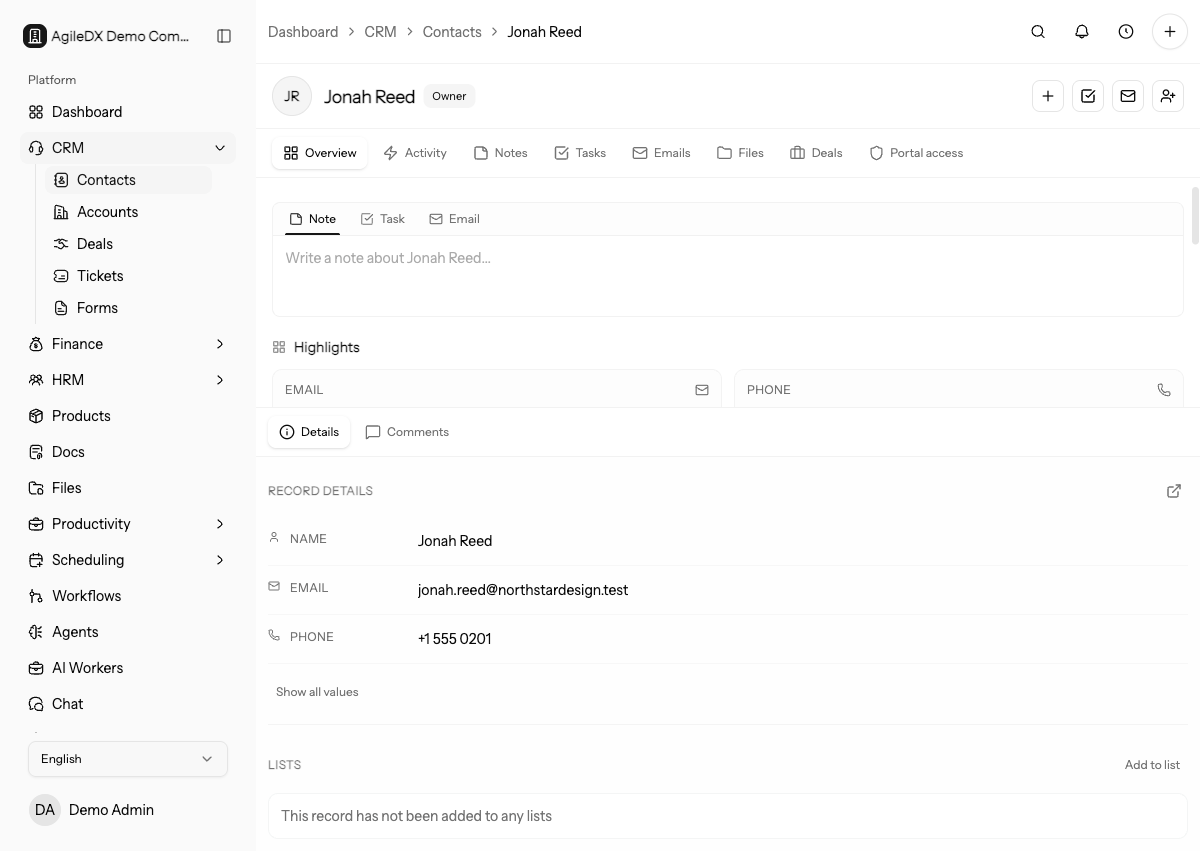
Use notes to preserve context and tasks to assign action. Mixing the two makes follow-up harder to track.
Add a Note
Open a contact from CRM > Contacts, then use the Notes tab or the overview quick action to add a note.
Good notes explain what happened and why it matters. Examples include call summaries, buying preferences, renewal context, objections, meeting outcomes, or account background.
Add notes soon after the conversation while the context is still accurate. Short notes written immediately are usually more useful than long notes reconstructed days later.
Note vs Task
Use a note when the information should be remembered. Use a task when someone needs to do something. If a note includes a next step, create a task before you leave the contact page.
This keeps the relationship history useful while making follow-up visible in the team's work queue.
Edit or Delete Notes
Edit a note when the content is incomplete or has a typo. Delete a note only when it was added to the wrong contact or should not stay in the CRM record.
Avoid deleting useful relationship history just because the next step has changed. Add a new note instead so the timeline stays clear.
What Good Notes Include
Good notes include the date context, what was discussed, decisions made, concerns, and the next expected action. Keep private opinions or sensitive data out of notes unless your team has a clear reason to store them.
Create a Follow-Up Task
Use the Tasks tab or overview quick action when the contact needs a next step. Enter a clear title, due date, and priority so the assignee understands what to do.
Examples:
- Call the contact after a proposal is sent.
- Confirm billing details before creating an invoice.
- Follow up after a public form submission.
- Send onboarding documents after the deal is accepted.
Assign the task to the person responsible for the next action, not necessarily the person who wrote the note. Add a due date that matches the commitment made to the contact.
If the follow-up relates to a deal, invoice, project, or document, mention that record in the task description or link it where available. The assignee should not have to search the whole workspace to understand the next step.
Update Task Status
Complete a task when the action is done. Edit the task when the due date, priority, or description changes. Delete a task only when it was created by mistake.
Troubleshooting
If follow-ups are missed, use tasks with due dates instead of leaving action items only in notes.
If notes are on the wrong contact, move the context to the correct record and delete the mistaken note only when it should not remain in history.
Review Routine
During contact review, check recent notes for unassigned follow-up. If the note mentions a promise, date, document, invoice, or meeting, confirm there is a task, deal update, or linked record for it.
Use this review before sales meetings and renewal checks. Contact notes explain history, but tasks prove the next action is owned.