Add Contacts
Create contacts manually and connect them to accounts, assignees, tags, statuses, and custom fields.
Contacts are the people your team sells to, supports, schedules with, and bills. Create a contact when you need a person-level CRM record that can be connected to accounts, deals, tickets, projects, tasks, emails, notes, and custom fields.
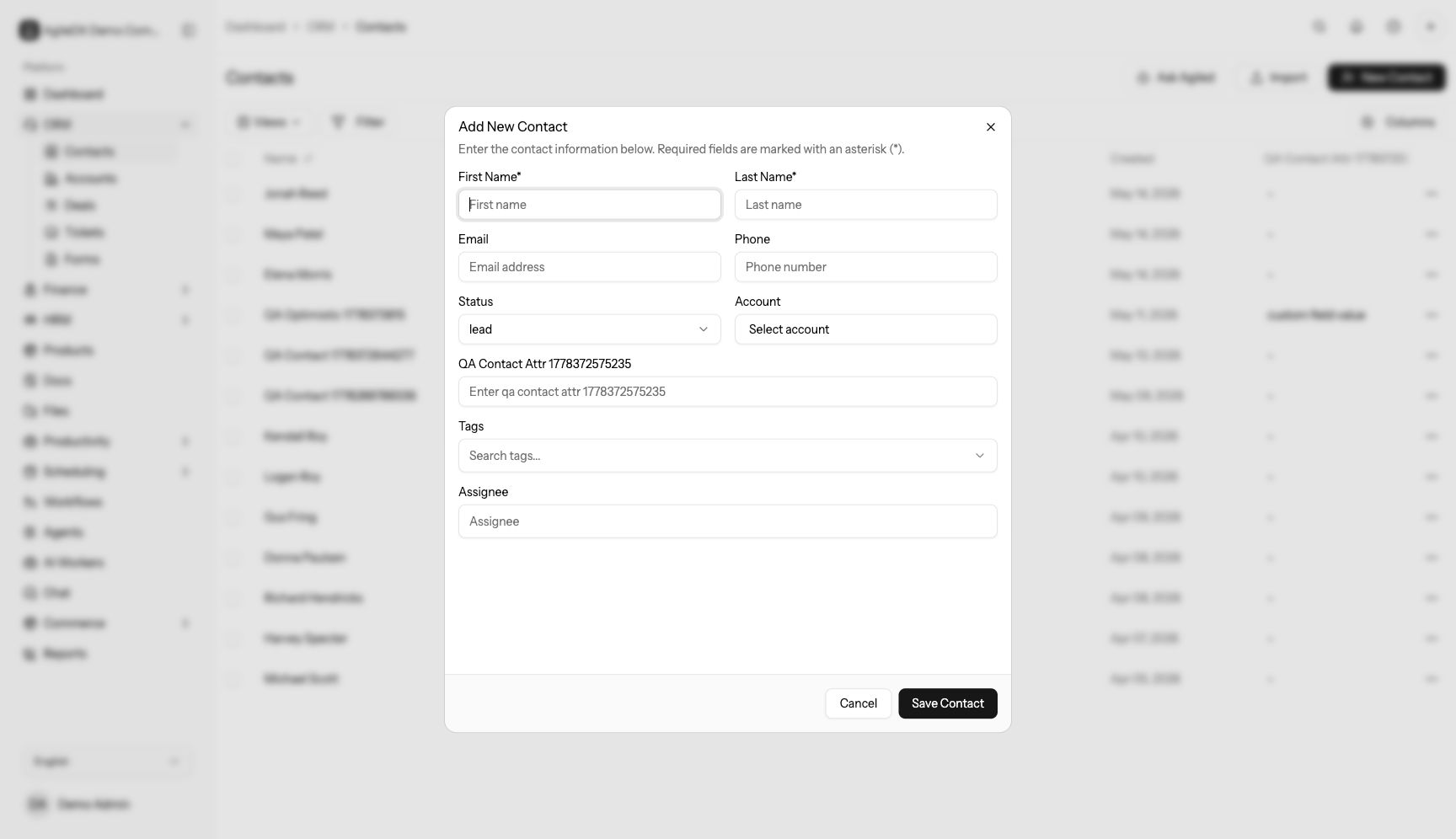
Create a Contact
- Open CRM > Contacts.
- Select New Contact.
- Enter the contact's first name and last name.
- Add optional details such as email, phone, status, account, assignees, tags, and custom fields.
- Save the contact.
The contact appears in the contacts table immediately after it is saved. Open the contact to review the profile and add more details.
Before You Create the Contact
Search the contacts table first. Check by name, email, phone, and account so you do not create a duplicate record for someone who is already in the workspace.
If the person works for a company that should be tracked separately, create or select the account before saving the contact. This keeps company activity, deals, invoices, tickets, and files grouped in the right place from the start.
What to Enter in Each Field
- First name and last name are required. Use the person's real name so the record is easy to recognize in lists, deals, tickets, and searches.
- Email is where you enter the main email address for the person. Add it if your team will email the contact, send documents, or match future messages to the contact record.
- Phone is for the main number your team should use for calls or follow-up.
- Status describes where the person sits in your relationship: lead, prospect, customer, or inactive.
- Account connects the person to a company or organization.
- Custom fields appear when your workspace has extra contact fields. Use them for details your team tracks, such as lead source, customer type, region, or onboarding stage.
- Tags are quick labels that help you group contacts.
- Assignee is the teammate responsible for follow-up.
Add an Account While Creating a Contact
If the account does not exist yet, create the account from the account field in the contact dialog. After it is created, Agiled selects it for the contact.
Use the account field for the company or organization the person belongs to. Do not put the company name only in a tag or note if the team will need account history, company-level files, deals, or billing later.
After Saving
Open the contact detail page and check:
- name, email, and phone are spelled correctly
- status matches the contact lifecycle
- the right account is linked
- tags and custom fields are present
- the assignee is the teammate who should follow up
- the next task exists if action is needed
If the contact came from a call, email, event, or public form, add a note or task while the context is fresh.
Recommended Setup
Use a consistent status model before adding many contacts. For example, use Lead for new people, Prospect for qualified opportunities, Customer for paying clients, and Inactive for old or paused relationships.
Common Mistakes
- Creating a new contact before searching for an existing one.
- Leaving email blank when the person will receive documents or invoices.
- Using tags instead of account links for company relationships.
- Assigning a contact to the wrong teammate.
- Adding follow-up details as a note but not creating a task.