Use Contact Context
Understand the contact detail tabs and decide where each kind of customer context belongs.
The contact detail page keeps person-level CRM context in one place. Use it before calling, emailing, assigning work, or changing a related deal or ticket.
Open the Contact Detail Page
Open CRM > Contacts, then select a contact name from the table. The detail page shows the main relationship workspace for that person.
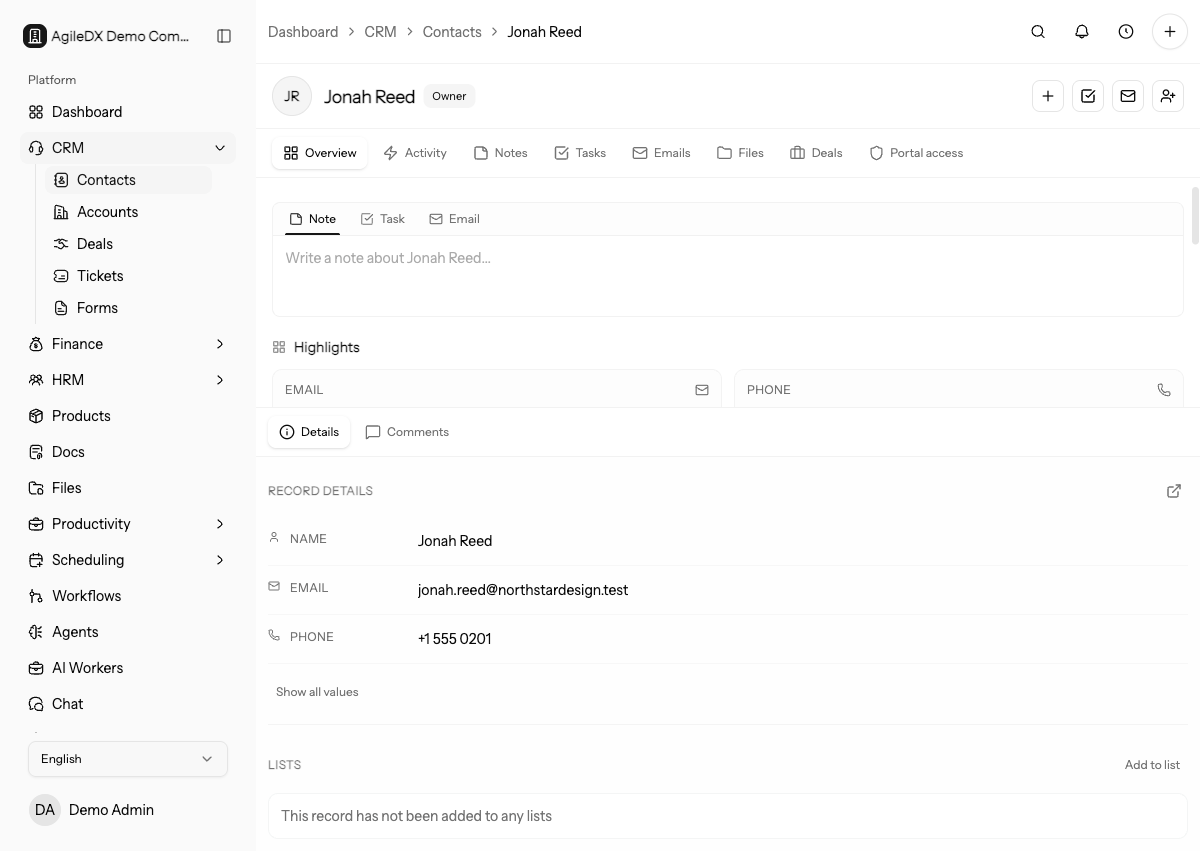
Use the table for quick scanning and inline edits. Use the detail page when you need the full history, related work, notes, tasks, files, or email context.
Create the contact first when the person is new to your workspace. After the record exists, add context from the detail page so each note, task, file, email, or deal is connected to the right person.
Main Context Tabs
The left side of the contact detail page is organized around work history and follow-up:
- Overview shows the most useful recent context in one place.
- Activity shows the timeline of recent CRM activity.
- Notes stores internal notes about the person.
- Tasks tracks follow-up work connected to the contact.
- Emails shows contact email history when a mailbox is connected.
- Files stores files attached to the contact.
- Deals lists opportunities connected to the contact.
Details and Comments
The right side keeps structured profile information and collaboration comments:
- Details is where you review and update fields such as name, email, phone, status, tags, assignees, and custom field values.
- Comments are for team discussion about the contact record.
Use details for facts that should be searchable or reportable. Use comments for team conversation that should stay with the contact.
Before adding new context, decide whether it should be a structured field, note, task, file, email, deal, or comment. Putting information in the right place makes search, reporting, and handoff easier.
What Goes Where
Use this rule when deciding where to place information:
- Put customer facts in Details.
- Put relationship history in Notes.
- Put future work in Tasks.
- Put email conversations in Emails.
- Put supporting documents in Files.
- Put sales opportunities in Deals.
- Put team discussion in Comments.
If the context affects future work, create a task with an owner and due date instead of leaving the next step only in a note or comment.
Review the detail page before important calls or replies. Check recent activity, notes, open tasks, linked deals, emails, and files so the customer does not have to repeat information they already gave the team.
Add Context After Creating A Contact
Use this order for a clean contact handoff:
- Confirm the contact's name, email, phone, account, owner, tags, and custom fields in Details.
- Add a short internal note with how the contact entered the pipeline and what they need.
- Create a follow-up task with an owner and due date.
- Link an account, deal, ticket, file, or email thread if the contact is tied to active work.
- Add a comment only when teammates need to discuss the record internally.
Avoid putting all context into one long note. Structured details, tasks, deals, and files are easier to search, report, assign, and review later.
Keep Context Current
Update the contact detail page after meaningful conversations, status changes, handoffs, or lost opportunities. CRM context is most useful when the next person can understand the relationship without asking the previous owner for a summary.