Bulk Select and Edit Contacts
Select multiple contacts and update assignees, status, custom fields, or delete records in bulk.
Bulk actions help you clean and organize many contact records without opening each contact one at a time.
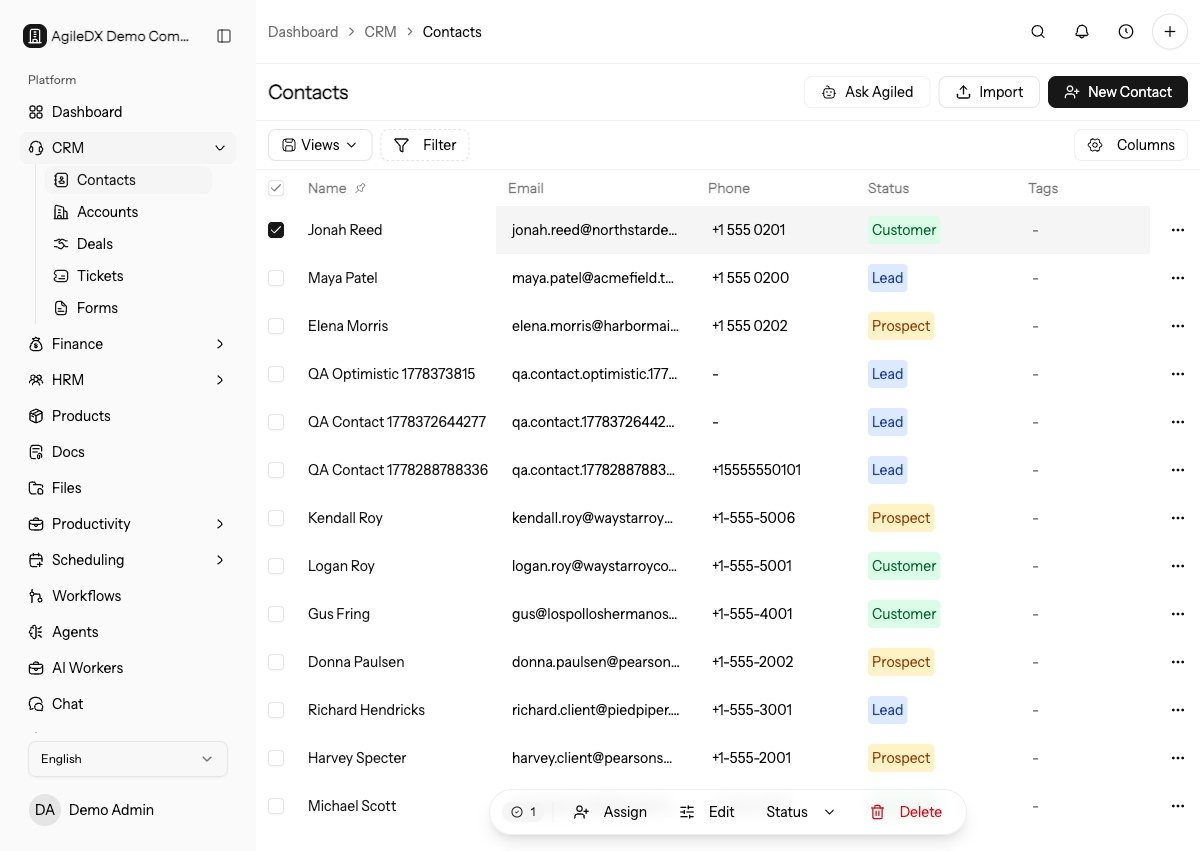
Select Contacts
- Open CRM > Contacts.
- Use filters, search, or saved views to narrow the list.
- Select individual rows with the checkbox in each row.
- Select all visible rows with the checkbox in the table header.
When at least one row is selected, Agiled shows the bulk action toolbar near the bottom of the screen.
Before applying a bulk action, read the selected count and sample the selected rows. Filters and saved views reduce risk, but the final selected set is what will be changed.
Available Bulk Actions
Contacts support these bulk actions:
- Assign adds one or more internal users to the selected contacts.
- Edit updates custom field values for the selected contacts.
- Status changes all selected contacts to lead, prospect, customer, or inactive.
- Delete removes selected contacts after confirmation.
Bulk Assign Contacts
Use bulk assignment when you are distributing a lead list, moving ownership after a team change, or assigning imported contacts to sales reps.
- Select the contacts.
- Choose Assign.
- Pick the user.
- Confirm that the selected contacts now show the expected assignee.
If the assignment changes follow-up responsibility, tell the new owner or create a task. Bulk assignment updates ownership, but it does not by itself explain the next action.
Work in Batches
For large changes, update a small filtered batch first and spot-check records before applying the same action to hundreds of contacts. This catches wrong filters, stale views, and unexpected workflow effects early.
Bulk Change Status
Bulk status updates are useful after import cleanup or campaign qualification.
For example, filter contacts tagged webinar, select the qualified rows, and
change them to Prospect.
Before changing status, check whether workflows, saved views, or reports depend on the current status. A bulk change can move many contacts into a different automation or pipeline review.
Bulk Edit Custom Fields
Use Edit to apply the same custom field value across selected contacts. This works well for fields like region, lead source, customer segment, renewal cohort, or onboarding stage.
Use bulk edit only when every selected contact should receive the same value. If some rows need different values, split the work into smaller filtered batches.
Bulk Delete Contacts
Delete only when you are sure the selected records are not needed. If contacts are connected to important records, review those relationships before deleting.
Prefer status changes or cleanup tags when contacts may still be needed for history. Delete imported test contacts, duplicates, or records created by mistake only after checking related accounts, deals, tickets, invoices, and activities.
After Bulk Actions
Refresh the list, clear filters, and reopen a few changed contacts. Confirm assignees, statuses, custom fields, and related activity look correct before moving to the next cleanup batch.
Bulk Action Checklist
Before confirming:
- use filters or search to narrow the list
- read the selected count
- spot-check several selected rows
- confirm related workflows or reports will not be surprised
- apply the change to a small batch first when risk is high
- document cleanup criteria for future reviewers