Storefronts
Create public pages for selling products or services.
Storefronts are public pages where customers can buy selected products or services.
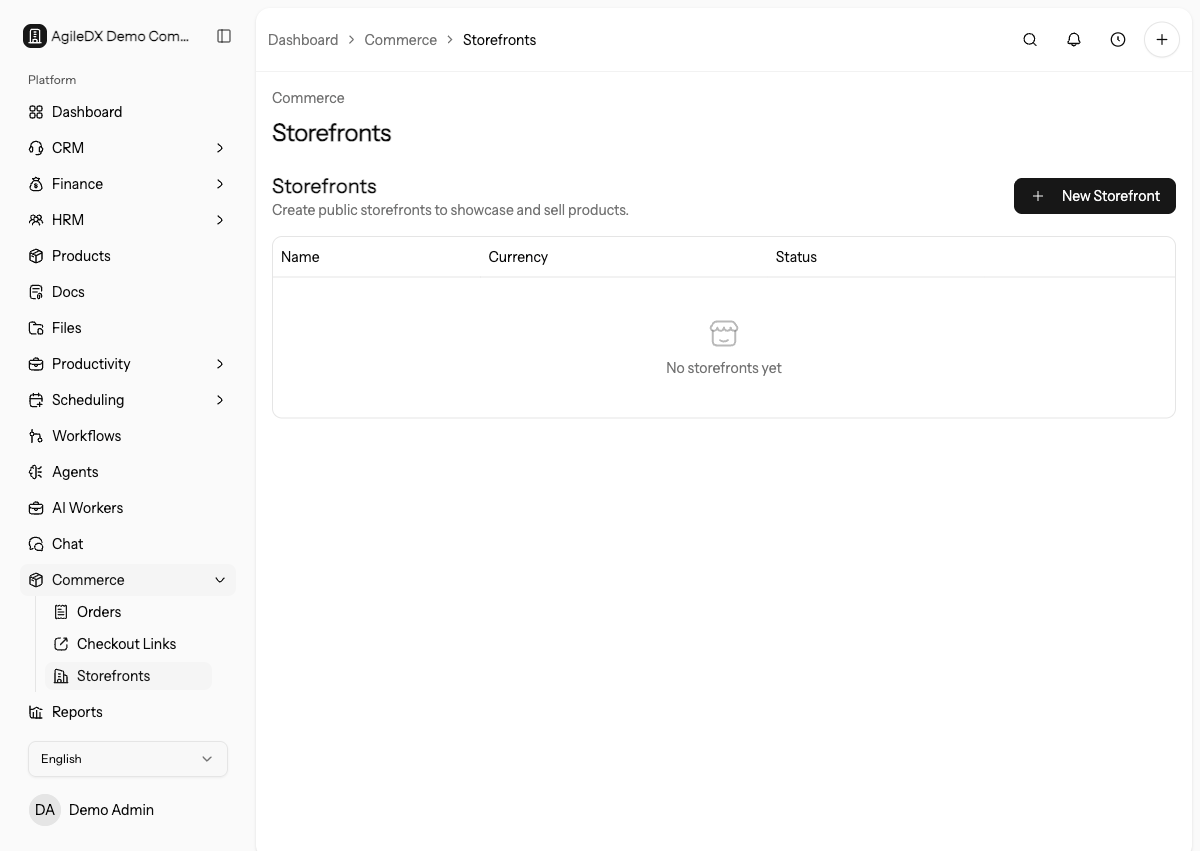
Open Storefronts
Open Commerce > Storefronts. The list shows each storefront name, public slug, currency, status, and actions to copy the link, open the public page, edit, or delete.
Select New Storefront to create a page.
Before Creating a Storefront
Confirm the products are ready, prices are correct, payment gateways are live, tax behavior is understood, and the success message or redirect is ready. A storefront should not be the first place you discover incomplete product data.
Also decide who owns order review after launch. Storefronts can create orders, payments, customer records, and invoices depending on configuration, so finance and operations should know what to check after the first purchase.
Configure the Storefront
The storefront form controls the public buying page:
- Name: internal name in the admin list.
- Store title: public page title. If blank, Agiled uses the name.
- Description: public copy shown above the products.
- Sort products by: newest, name, price low to high, price high to low, or manual.
- Currency: checkout currency for the storefront.
- Product filter: sell all active catalog items or only selected products.
- Success message: message shown after checkout.
- Redirect URL: optional destination after the purchase succeeds.
- Active: controls whether the public store can be used.
- Auto generate invoice: creates an invoice when payment is completed.
Choose Products
Use All products when the storefront should mirror the active catalog. Use Selected products when the page is for a focused offer, collection, seasonal campaign, or customer group.
If the selected-product list is empty, add active products in Products > Catalog first.
Review selected products in the public page order customers will see. If a product needs explanation before purchase, add that context to the product or storefront description before launch.
Public Copy and Slugs
Use customer-facing titles and descriptions. The slug may be shared in emails, ads, websites, or messages, so keep it readable and stable after launch.
If a storefront is campaign-specific, name it so your team can identify the campaign later from the storefront list.
Avoid changing the slug after a storefront is shared. If the offer changes substantially, create a new storefront or communicate the new link clearly.
Before Publishing
Confirm product prices, payment gateway setup, public copy, taxes, and checkout success behavior before sharing the storefront link.
Also test:
- the public
/store/{slug}link opens in a private browser - inactive products are not visible
- the correct payment methods appear
- the success message or redirect is correct
- auto-invoice behavior matches your finance process
Manage Existing Storefronts
From the storefront list:
- copy the public link when you are ready to share it
- open the link to test the buyer experience
- edit products, copy, status, success behavior, and invoice settings
- delete storefronts that should no longer be available
Deactivate a storefront instead of deleting it when you may need to reuse the page later or keep its setup for reference.
After Launch
Review the first real order from the storefront. Confirm the order, payment, customer details, custom fields, and auto-generated invoice match the storefront settings before sending more traffic to the page.
Check storefront performance during the first campaign. If customers abandon or ask the same question repeatedly, improve the product descriptions, success message, payment options, or follow-up workflow.