Create a Product or Service
Add reusable products and services to the catalog.
Products and services are reusable items you can add to invoices, estimates, documents, checkout links, and storefronts.
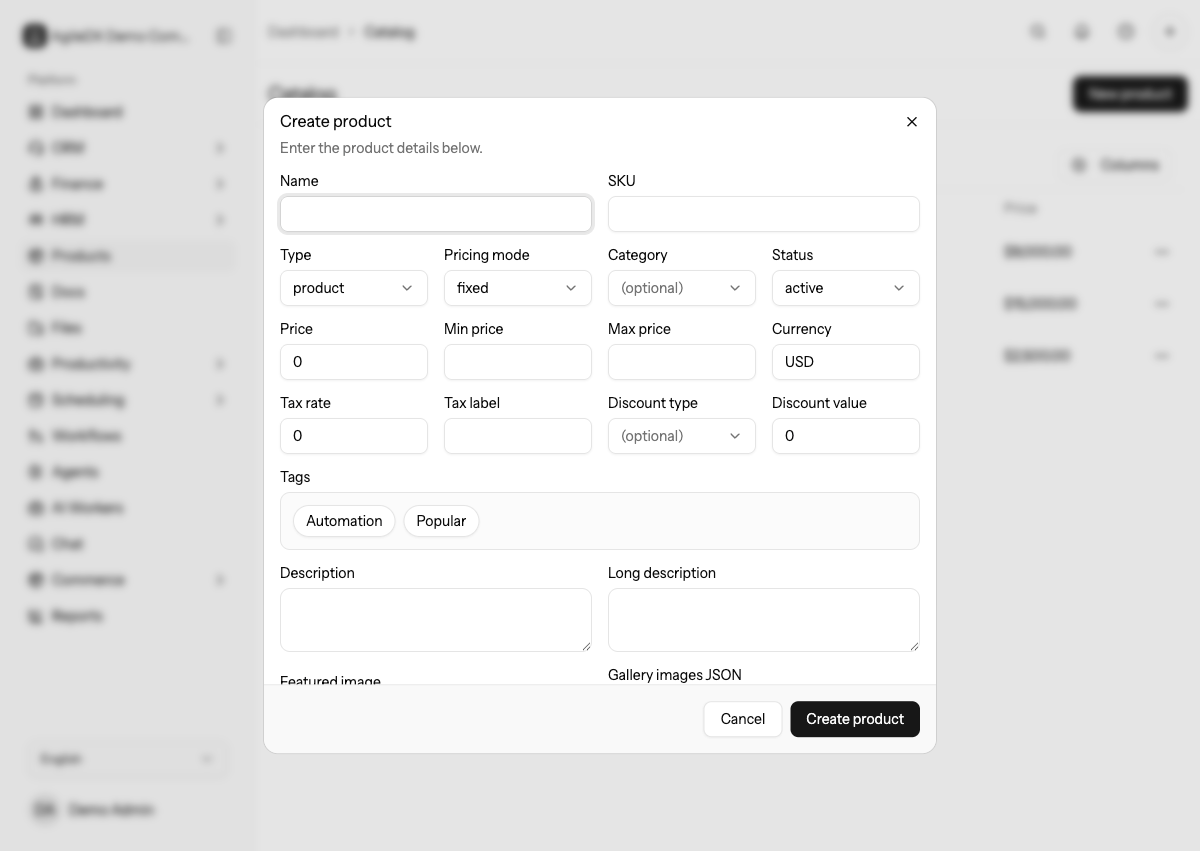
Create catalog items for offers that will be reused. For one-time invoice lines, use a custom line item instead of adding catalog clutter.
Create products carefully because catalog values can copy into invoices, estimates, documents, storefronts, checkout links, and reports.
Create a Catalog Item
- Open Products > Catalog.
- Select New product.
- Enter the Name. Use the customer-facing name when the item will appear on invoices, checkout pages, or storefronts.
- Add an optional SKU if your team uses internal item codes.
- Choose Product for a physical or countable item, or Service for work, retainers, subscriptions, consultations, or packages.
- Set the Status to Active when the item is ready to use.
- Add pricing, tax, category, tags, and descriptions.
- Select Create product.
Before Creating
Confirm the customer-facing name, SKU format, type, price, currency, tax label, category, tags, and whether the item should be active immediately. If the item will appear publicly, prepare a short description and image before launch.
Field Guide
- Name appears wherever the product is selected or sold.
- SKU is best for internal matching, fulfillment, and reporting.
- Type controls whether service-specific fields appear.
- Category gives the item one primary group.
- Status controls whether the item should be used going forward.
- Description is a short summary.
- Long description is better for detailed service scope, public sales copy, or internal context.
Create a Service
When Type is Service, the form also shows Billing cycle, Billing interval, and Unit. Use these fields when the service repeats or when the unit matters, such as month, hour, session, seat, project, or package.
Use service units consistently. Mixing hour, hours, and hr makes reports
and customer-facing descriptions harder to scan.
After Creating
The product appears in the catalog table and becomes available to supported finance, document, and commerce flows. If it should appear publicly, confirm the item is active and has the right price, currency, tax, and image details.
If the item is still being drafted, keep it inactive until the name, description, price, tax, image, and fulfillment notes are ready for sales or billing use.
Test Reuse
Add the new item to a draft invoice, estimate, or checkout link. Confirm the name, description, price, tax, and currency copy into the destination correctly.
Troubleshooting
If the item does not appear where expected, confirm it is active and that the flow supports that product or service type.
If the wrong tax or price appears, update the catalog item before creating more records, then review any draft records that already copied the old values.
Launch Checklist
Before using a new product or service publicly:
- Add it to a draft invoice or estimate.
- Add it to a checkout link or storefront if it will be sold online.
- Confirm price, currency, tax, and description.
- Confirm category and tags.
- Confirm fulfillment or delivery notes are clear.