Product Catalog
Create reusable products and services.
The product catalog stores products and services you reuse across finance and commerce.
Keep the catalog clean because it feeds invoices, estimates, checkout links, storefronts, documents, and reports.
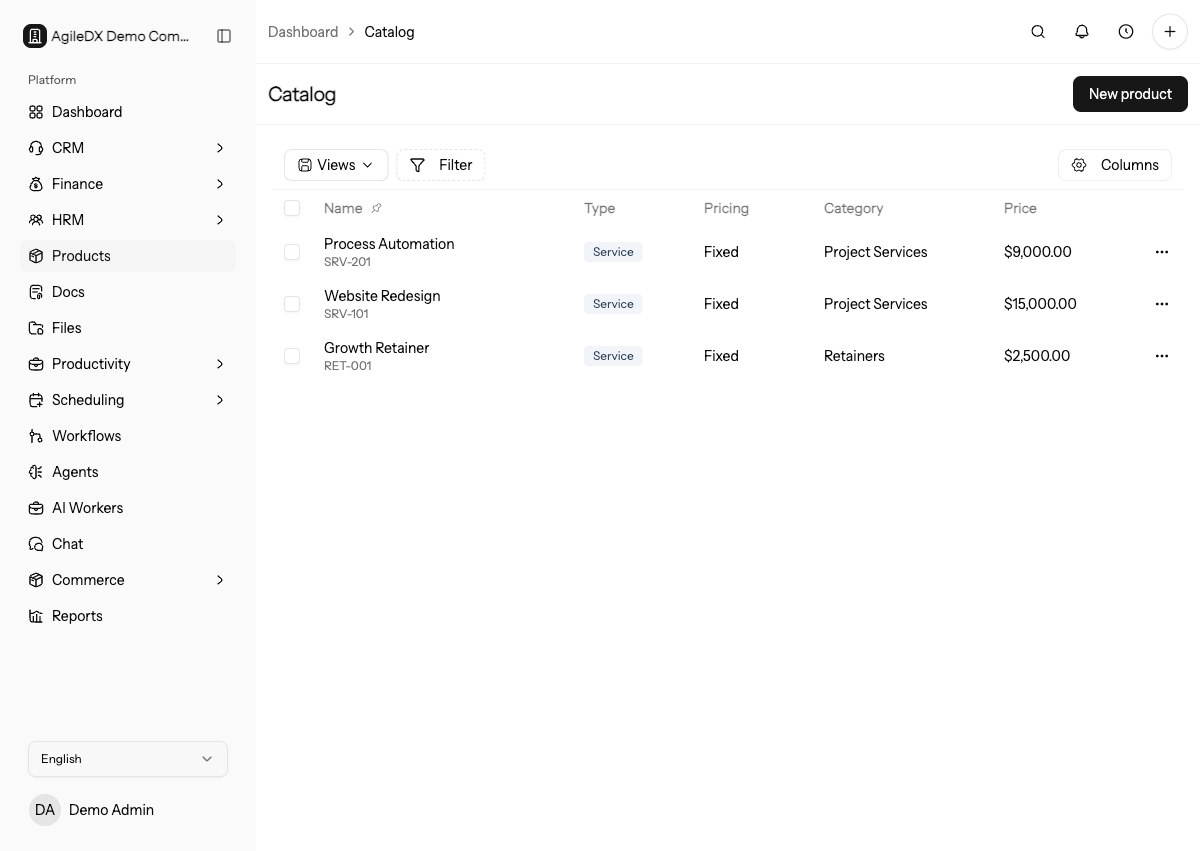
Open the Catalog
Open Products > Catalog. The table shows each item name, SKU or slug, type, pricing mode, category, price, status, updated date, and row actions.
Use the catalog for anything you sell more than once:
- physical products
- services
- packages
- retainers
- deposits
- subscriptions
- add-ons
Create a Product or Service
Select New product and fill the fields that match how the item is sold.
Required fields:
- Name: the customer-facing item name.
- Type: choose Product for goods or Service for work you deliver.
- Pricing mode: choose Fixed for one price or Variable when users can choose from a range or tier.
- Price and Currency: the default amount used on invoices, estimates, storefronts, and checkout links.
- Status: active items can be selected in selling flows; inactive items stay in the catalog but should not be offered publicly.
Optional fields:
- SKU: an internal stock or reference code.
- Category: the broad catalog group.
- Tags: flexible labels used for filtering and organization.
- Tax rate and Tax label: the tax applied when the item is used in a selling flow.
- Discount type and Discount value: a default discount for the item.
- Description and Long description: short table/list copy and longer public-page copy.
- Featured image and Gallery images JSON: media shown in commerce experiences.
- Pricing tiers JSON: structured tier data for plan-style pricing.
For services, the form also shows Billing cycle, Billing interval, and Unit. Use those fields for recurring services, hourly work, seats, sessions, or other measured service units.
Work with the Table
Use search, filters, sorting, column controls, and saved views from the table toolbar to keep the catalog manageable. Select rows with the checkboxes when you need bulk actions.
Open a row action menu to edit, duplicate when available, archive, or delete an item. Archive items when you want to stop selling them without losing their history. Delete only items that were created by mistake and are not needed for reporting.
Before Using Items in Commerce
Before adding a catalog item to a storefront or checkout link, confirm:
- the item is active
- the price and currency are correct
- the tax rate and label match the selling region
- public descriptions are clear
- images use reachable URLs
- variable pricing has a sensible min and max price
- the item belongs to the right category and tags
Catalog Maintenance
Review the catalog after price changes, tax changes, new service packages, imports, and storefront launches. Archive retired items instead of deleting history that reports or finance records may still need.
If a product value was wrong, update the catalog and then review draft invoices, estimates, checkout links, and storefronts that may already copied the old value.
Public Selling Check
Before adding a product to a storefront or checkout link, preview the product as a customer would see it. Confirm the name, description, image, price, tax, currency, and availability are clear. Internal shorthand that works in finance tables can confuse customers in public commerce flows.
For services, make the deliverable and billing unit obvious so orders do not need manual clarification.