Install and Connect an App
Connect an integration from the Agiled app catalog.
Use Settings > Apps to install provider integrations that are managed through the app catalog. Some providers connect with OAuth, and others ask for manual credentials.
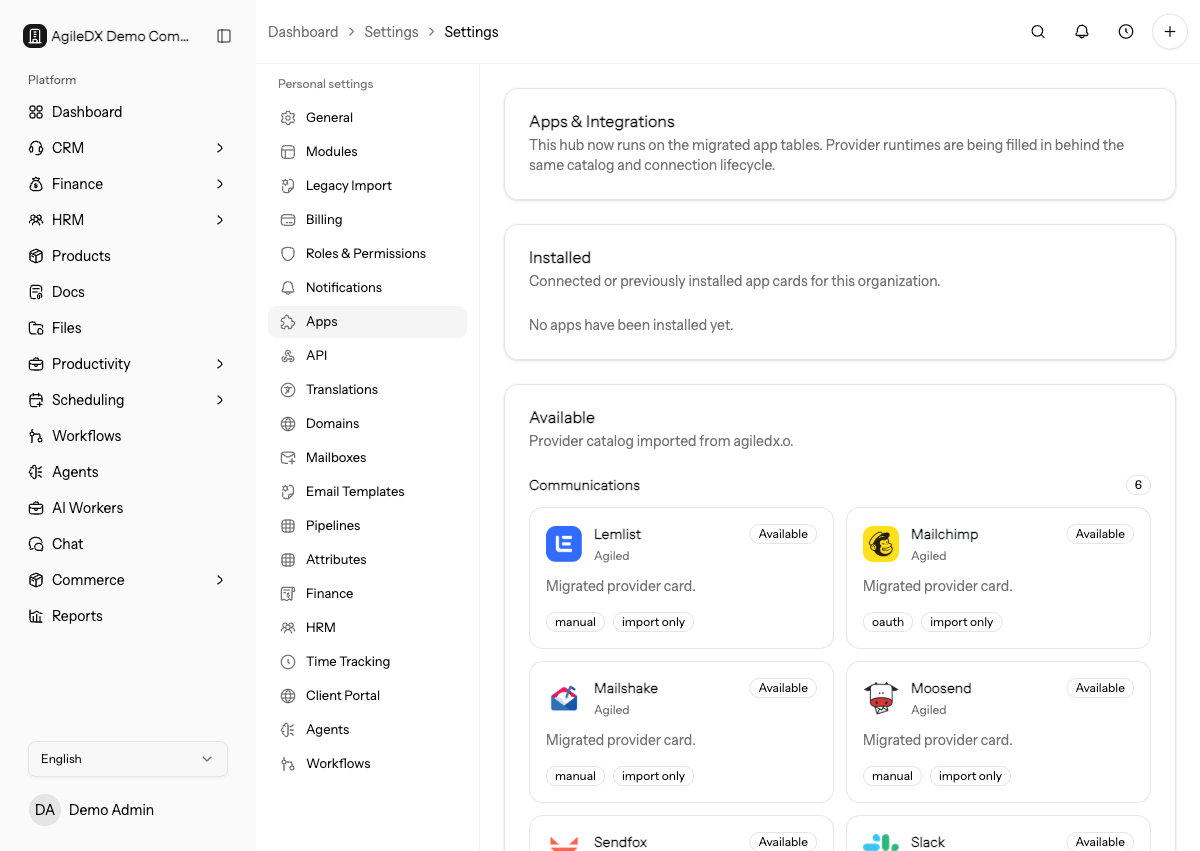
Connect an App
- Open Settings.
- Go to Apps.
- Find the provider you want to connect.
- Open the app detail panel.
- Review the category, install mode, sync mode, direction, supported actions, and object scope.
- Select the available install, connect, or configure action.
Before selecting connect, confirm you are signed into the provider account you intend to authorize. Browser sessions can silently use the wrong Google, Microsoft, Slack, or project-management account.
Understand the App Detail Panel
The app detail panel can show:
- Connection mode: OAuth or manual credentials.
- Sync mode: import, sync, configuration-only, or provider-specific support.
- Direction: import-only, bidirectional, or not applicable.
- Object scope: the record types Agiled can access, such as contacts, calendars, events, projects, tasks, invoices, or payments.
- Recent runs: latest import or sync activity.
- Last error: the provider or Agiled error that needs attention.
After Connecting
If the app supports imports or syncs, run the available action from the app detail panel. If the app is configuration-only, confirm the provider appears connected and then return to the feature that uses it.
Run a small test before depending on the integration. For example, book one test appointment after connecting a calendar, send one test email after connecting a mailbox, import one small project before a full migration, or create one low-risk payment flow before sharing checkout links.
Review the first sync or import run before running a larger import. Check record counts, owners, dates, statuses, currencies, and duplicate behavior depending on the provider.
Document which system is the source of truth before turning on a recurring sync. For finance, calendars, projects, and mailboxes, unclear ownership can create duplicates or overwrite changes in the wrong system.
Choose the Right Provider Account
Connect with an account that has the provider permissions Agiled needs and that the business can continue to manage. Avoid using a temporary personal account for shared workflows such as finance, mailboxes, calendars, or project imports.
If the provider asks for scopes or permissions, review them before approving. If the provider requires admin approval, finish that approval in the provider before retrying the Agiled connection.
For shared workflows, prefer a managed company account over a personal account. If the account owner leaves, disconnecting or rotating the integration should not break finance, calendar, mailbox, or project sync unexpectedly.
Keep provider recovery information in your internal admin notes. Agiled can show connection and run status, but password resets, admin consent, billing, and app approval usually happen inside the provider.
Troubleshooting
If the connection succeeds but no data appears, check whether the app requires a separate import or sync action after installation.
If the wrong provider account was connected, disconnect it before syncing data, then reconnect with the correct account.
If a sync fails after working previously, check whether the provider revoked access, changed permissions, expired a token, disabled an API, or removed the connected user from the provider workspace.
Connection Checklist
Before relying on a connected app:
- confirm the provider account or tenant is correct
- confirm the connected user has long-term ownership
- run one low-risk test action or sync
- review the first run result and error state
- confirm duplicate handling before larger imports
- record who owns future troubleshooting