Update Profile
Change your account name and review profile details.
Profile settings control your account name and show the email address connected to your login.
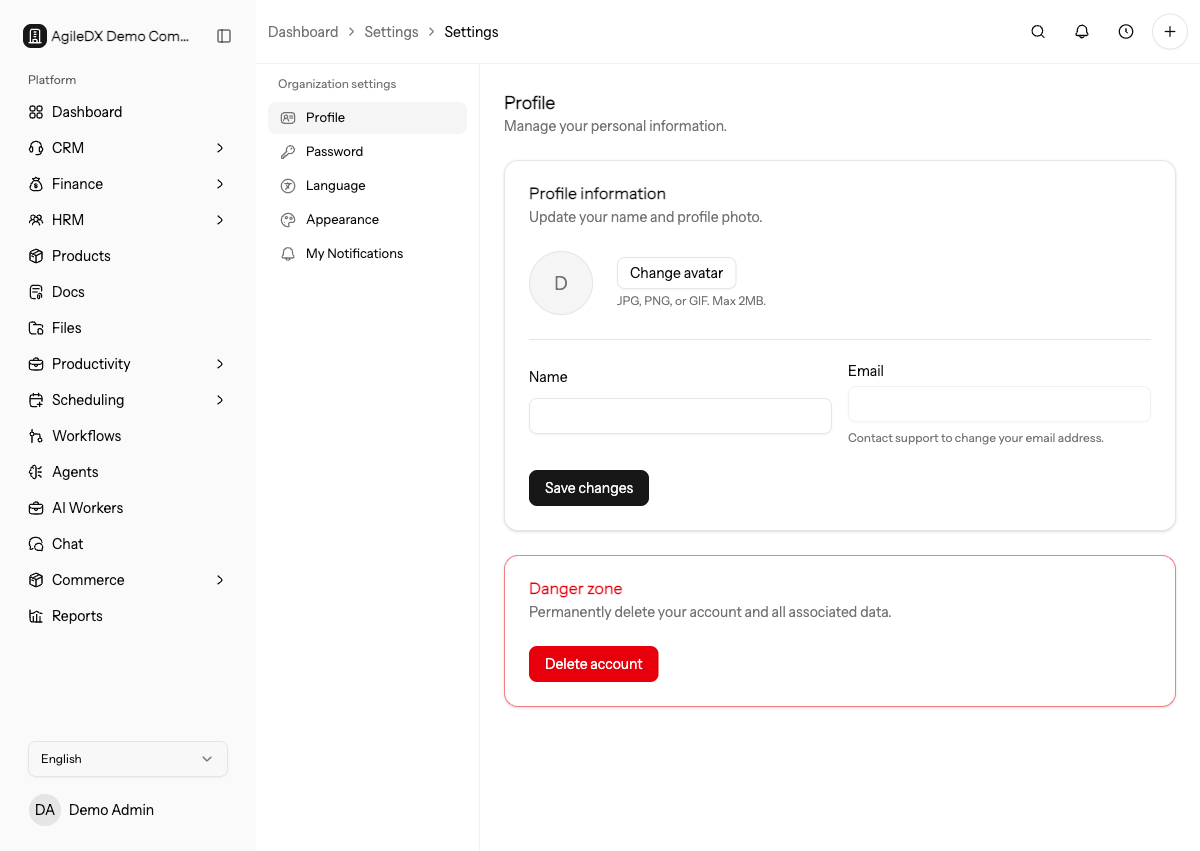
Update Your Name
- Open Settings.
- Go to Profile.
- Edit Name.
- Select Save changes.
Agiled refreshes the account session after the update so the new name appears in the workspace.
Your name can appear in team-facing places such as comments, activity, tasks, workflow ownership, HRM records, and notifications. Use the name teammates should recognize.
If the profile name is used for legal, HRM, compensation, or customer-facing work, confirm whether separate employee or billing records also need to be updated.
Profile name changes do not automatically correct every business record. If the change is legal, HR, compensation, or customer-facing, review those records separately.
If you own workflows, dashboards, booking pages, or connected apps, review those areas after a major profile update. Teammates may use the visible owner name to decide who maintains those assets.
Email Address
The profile page shows your email address as read-only. If the email address is wrong, ask an admin or support contact for the correct account recovery path.
Do not create a second account just to change an email address without checking with an owner first. A second account may not have the same workspace access, records, or invitations.
If you need an email change for security or employment reasons, ask an owner to confirm the safest path before changing invitations, HRM records, or connected provider accounts.
If the account signs in with Google or another provider, update the identity provider first when appropriate. Agiled profile settings do not control the external provider account.
Profile vs Workspace Records
Your account profile is not the same as an employee profile, contact record, billing contact, or integration account. Update the related record too when the change affects HRM, compensation, invoices, public documents, or connected apps.
For name changes that affect approvals or compensation, ask HR to review the employee profile. For customer-facing name changes, review booking pages, document senders, and email templates where the old name may still appear.
Avatar
The profile page shows your avatar and a Change avatar action. If avatar upload is not active in your workspace yet, keep using the current avatar.
Use a professional avatar when your workspace exposes profile context to clients or external collaborators.
After Updating
Refresh the workspace and check your name in the account menu. If another page still shows the old name, reload the browser tab or sign out and back in.
Ask a teammate to verify the new name appears in shared places such as task assignment, comments, approvals, and notifications when the change matters for handoffs.
If one module still shows old details after refresh, check whether it uses a separate employee, contact, customer, or billing profile instead of the account profile.
Profile Update Checklist
After a meaningful profile change:
- refresh the workspace
- check task and comment display
- check HRM employee profile if relevant
- check connected apps owned by the user
- ask a teammate to verify shared surfaces when the change affects handoffs
When To Update Profile
Update your profile after a legal name change, preferred-name change, role change, avatar update, or when teammates cannot recognize your activity in comments, tasks, or approvals.
If the update affects customer-facing work, ask a teammate to verify one recent email, document, or booking page where your name may appear.