Start a Conversation
Create a direct or group chat with workspace participants.
Start a new conversation when you need a focused thread with one or more people.
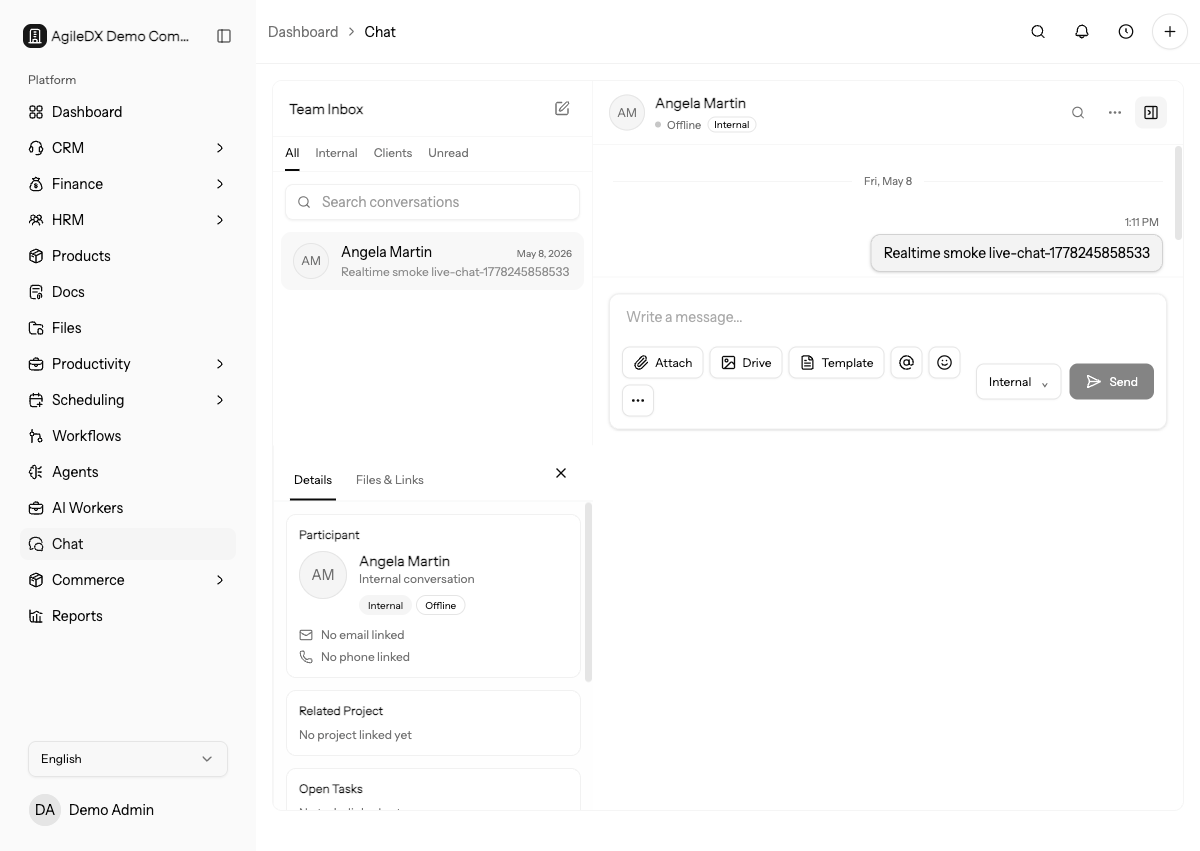
Before starting a new conversation, search for an existing thread so related context does not get split across multiple chats.
Use the related task, ticket, project, or contact thread when the discussion is already tied to active work. A new chat is best for a new decision or audience.
Create a Conversation
- Open Chat.
- Select New conversation.
- Search participants by name or email.
- Select at least one participant.
- Add a group title if you selected more than one participant.
- Select Create conversation.
Agiled opens the new conversation so you can send the first message.
Send the first message immediately after creating the conversation. Empty threads are harder to understand later and can look like accidental conversations in the inbox.
Available Participants
Conversation participants can include:
- Active workspace members.
- External contacts when your workspace has enabled customer conversations.
If someone is missing, confirm they are active in the workspace or configured as an available external conversation participant.
Do not add client contacts to internal-only conversations. Create a separate thread when the audience changes.
Check participant names before sending the first message, especially when a contact and teammate have similar names.
Direct and Group Conversations
A conversation with one other participant is a direct conversation. A conversation with more than two participants becomes a group conversation. Group conversations can have a title so the purpose is clear in the inbox.
Use a specific title for group conversations, such as the customer, project, or decision being discussed. This makes the thread easier to find later.
If the group includes an external contact, use a title that would make sense to that recipient. Avoid internal-only shorthand in externally visible threads.
Participant Review
Before sending the first message, review every participant. An external contact in the wrong group thread can expose internal pricing, project notes, or support context.
If you notice the wrong participant after creating the conversation, stop before sending sensitive content. Create the correct thread and leave a short note only if needed to explain the accidental empty thread.
First Message
Start with enough context for participants to act: what happened, what decision is needed, and where the related record lives.
Good first messages include:
- the customer, project, task, or ticket involved
- the decision or answer needed
- the deadline or urgency
- a link or mention for the source record
- any action already taken
Avoid starting a new thread with only quick question or please check this.
That forces every participant to ask for context before helping.
When Not To Start A New Conversation
Do not start a new conversation when an existing thread, task, ticket, account, or project already contains the active context. Add the update there so the history stays together.
If a new conversation creates a decision, link the final source record in the thread and update that record after the decision is made.
If the conversation produces work, create or update the source task, ticket, or project before the thread goes quiet.
Conversation Setup Checklist
Before sending:
- search for an existing thread
- confirm every participant
- choose a clear group title
- link or mention the source record
- state the decision or action needed
- create a task or ticket if the chat creates work