Navigate the Template Library
Understand where each template type lives and what it controls.
The template library groups repeatable starting points for documents, email, finance documents, forms, projects, and tasks.
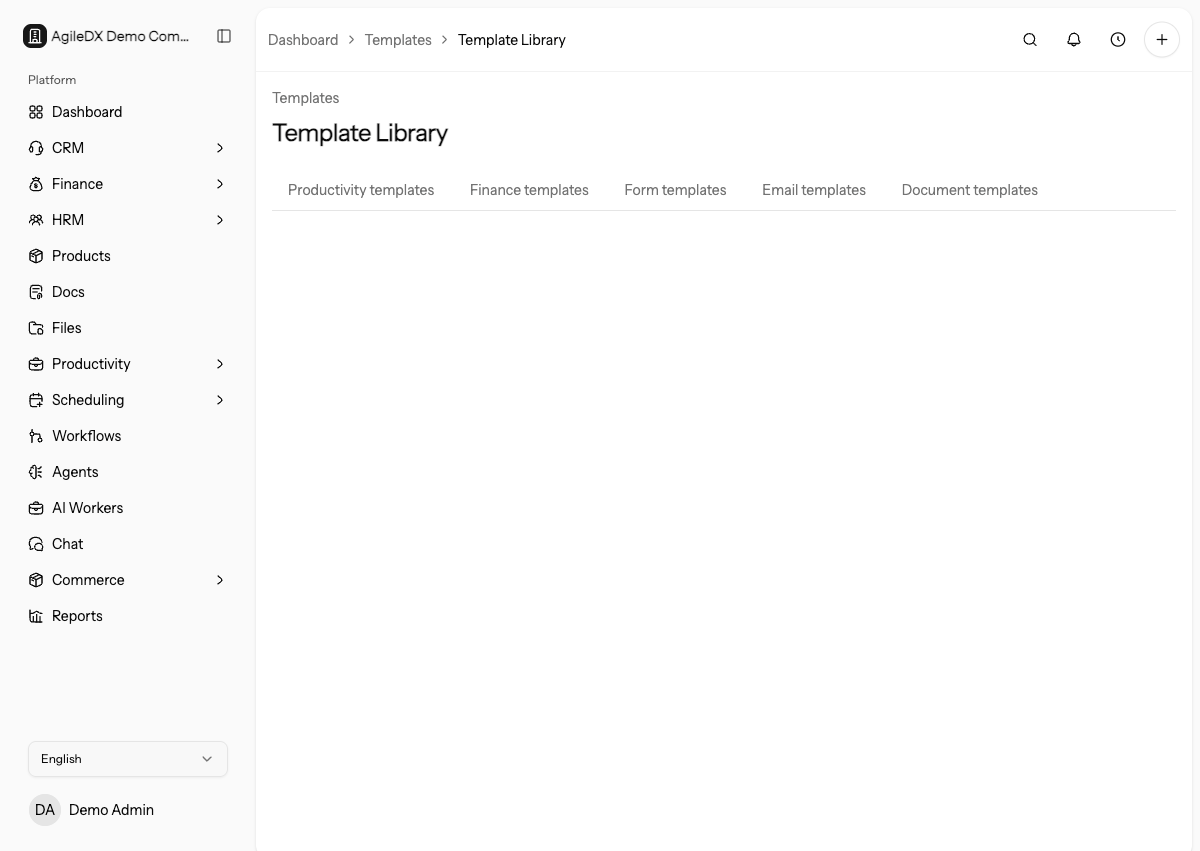
Use the library when you want to standardize repeated work instead of copying old records by hand.
Before creating a new template, search the relevant category. Duplicate templates make it harder for teammates to know which version is current.
Open Templates
- Open Templates from the workspace navigation.
- Choose a category tab: Productivity, Finance, Forms, Email, or Document.
- Select the template type you want to review or manage.
Template Areas
- Productivity templates are managed directly in the template library.
- Document templates are managed in Docs > Templates.
- Form templates can be created from the form builder and reused from CRM form creation.
- Email templates are configured in notification settings.
- Finance templates are configured in finance template settings.
Some template areas are managed outside the main Templates page because they belong to a deeper feature. Use the links from the template library to reach the right editor.
If a template cannot be edited from the library, open the feature that owns it. For example, document templates live in Docs and finance templates live in finance template settings.
When to Create a Template
Create a template when your team repeats the same structure more than once. Good templates reduce setup time, improve consistency, and make onboarding easier for new team members.
Good candidates include onboarding projects, recurring tasks, proposal documents, intake forms, invoice layouts, and customer notification emails.
Create the template from a clean, current example. Do not clone an old record that includes customer-specific notes, obsolete pricing, expired links, or temporary internal instructions.
When Not To Create One
Do not create a template for one-off work, outdated processes, customer-specific exceptions, or content that has no owner. Too many templates slow the team down because users must choose between near-duplicates.
Keep Templates Clean
Review templates regularly and archive or rename old versions. Template names should explain when to use them, not just who created them.
When you update a template, test a new record created from it. Existing records usually do not automatically change just because the template changed.
Assign owners for templates that affect customers, finance, legal, HRM, or delivery. Ownerless templates become stale quickly.
When a template is used by a workflow or public process, update that workflow or process note at the same time. A corrected template does not automatically fix the instructions around it.
Template Review Routine
Every quarter or after a process change:
- remove duplicate or unused templates
- rename vague templates
- confirm owners for important templates
- create one test record from each critical template
- update related wiki pages and team instructions
- archive old versions instead of leaving them beside current versions
Use templates for standardization, not as an archive of every old process.
When retiring a process, rename or archive the old template and update any wiki page, onboarding guide, or workflow that pointed to it.
Find The Right Template
If teammates cannot find the correct template, improve the name, category, and description before creating another near-duplicate. Search problems are usually metadata problems, not a reason to create more templates.