Create a Smart Flow Template
Build, preview, save, and publish a public client flow.
Open Automations > Smart Flows > Templates and select New template. Choose a starter for a prepared journey, or choose the blank public flow to build your own.
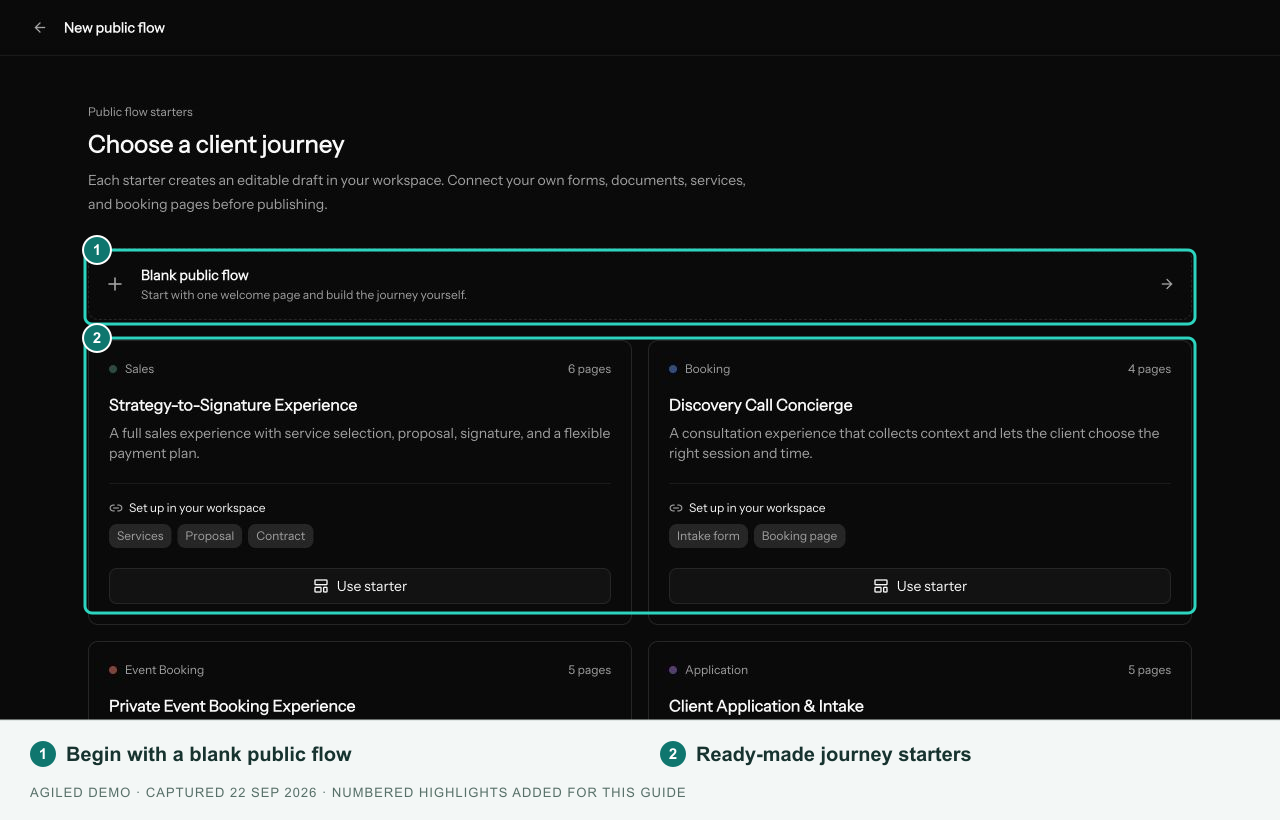
Selecting a prepared starter creates a draft and its supporting assets. Review the resulting forms, booking pages, and document content before using it with clients.
Build the steps
- Give the flow a clear name.
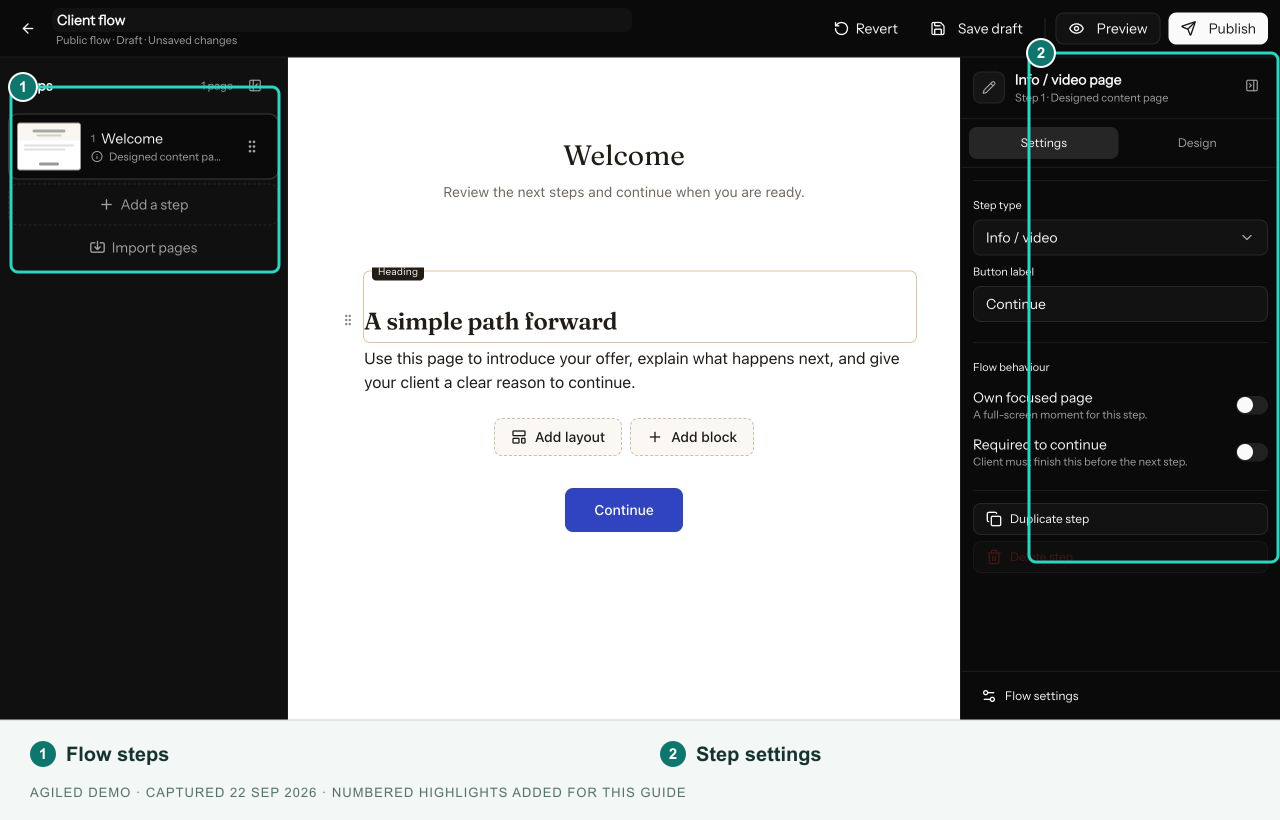
- Add steps in the order the recipient should complete them.
- Select each step to edit its title, content, button label, and settings.
- Connect the required form, booking page, document template, or invoice for linked steps.
- Use Required to continue when the client must finish a step before progressing.
- Save the draft.
Use the step list to reorder, duplicate, or remove steps. The builder keeps at least one step. On a narrow screen, switch between Steps, Page, and Settings to work on the same flow.
Configure the flow
Open flow settings to set the name, purpose tag, internal description, completion behavior, and branding. The purpose tag helps filter your template and run lists. The internal description is for your team.
Choose a completion page with a title and message, or a redirect with its destination URL. Branding controls include the page background, width, and optional header details. Keep links and contact information current.
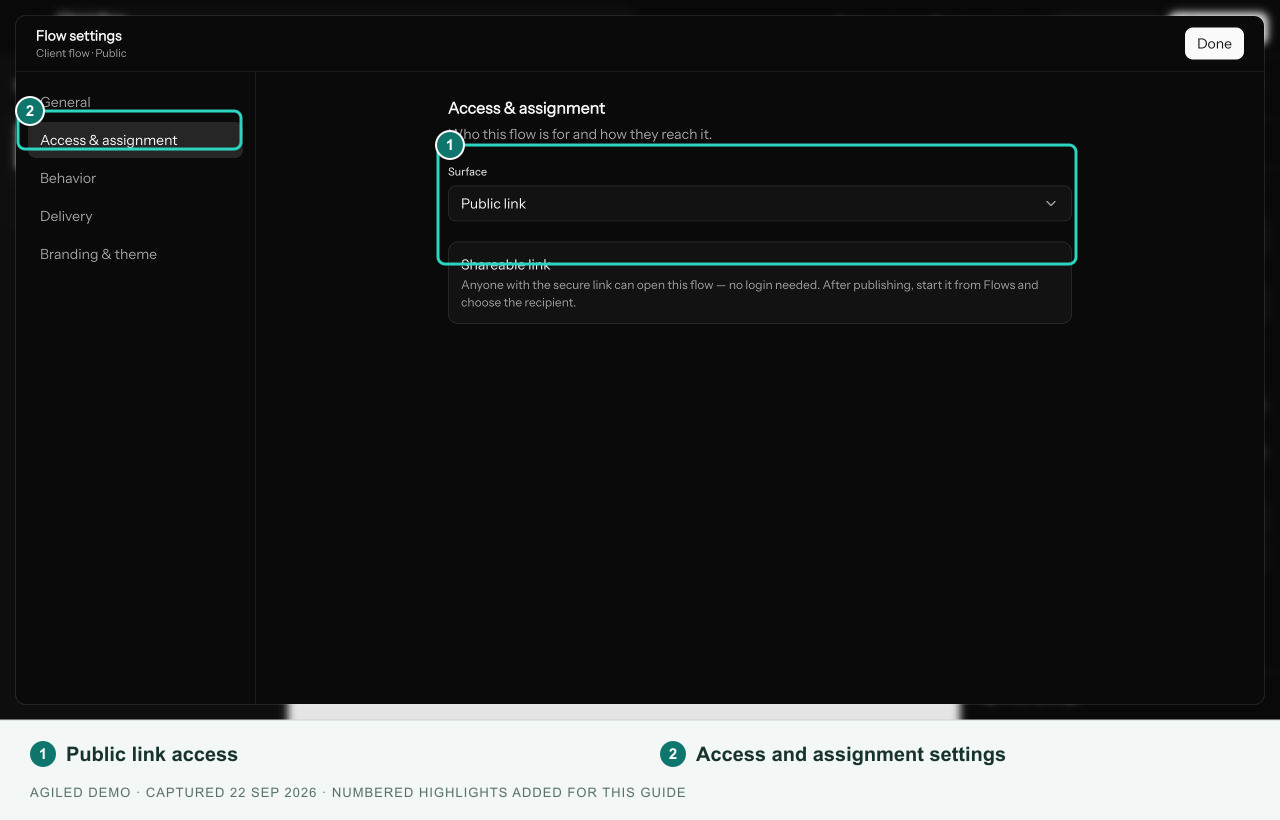
The Public link surface lets recipients open the flow without signing in. The surface cannot be changed after the template is saved. Create a separate Onboarding Flow when you need portal access.
Preview and publish
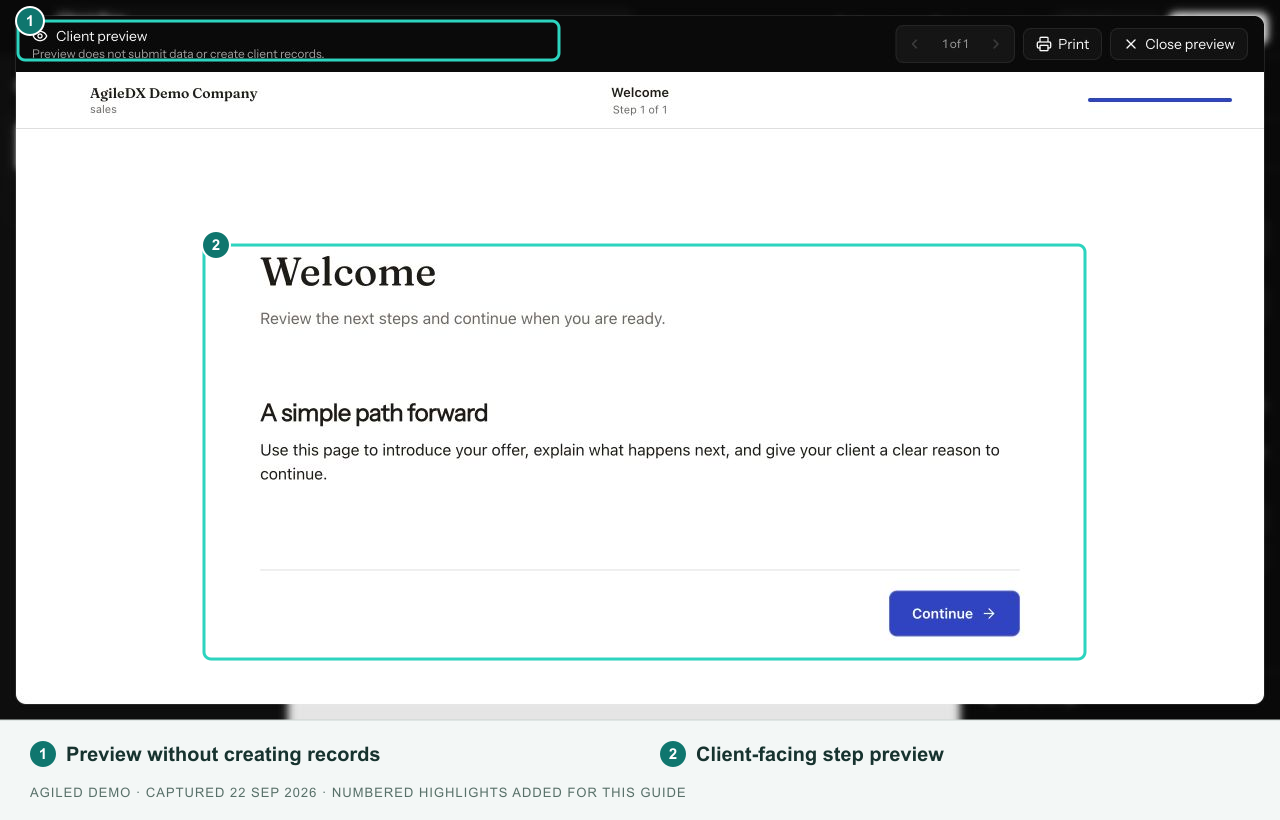
Use Preview to inspect the client layout. Previewing does not submit client steps. Check mobile layout, instructions, required fields, linked records, and the final completion page.
Select Save draft while preparing the flow. Select Publish when the required configuration is complete. If publication is blocked, correct each listed issue, including missing or unavailable linked assets.
After publishing, use Update flow to save template changes. Review a new run after significant changes; existing runs retain the template definition they started with.
Test delivery
For a saved public flow, the Delivery settings can send a test to a workspace member who can access the builder. Send test creates a test run and sends an actual invitation email. It is different from Preview. Save your edits before sending it.
For client use, continue to Share and deliver a Smart Flow.