Create an API Key
Create and revoke public API keys from Agiled settings.
API keys let trusted server-side systems call the Agiled public API for one workspace.
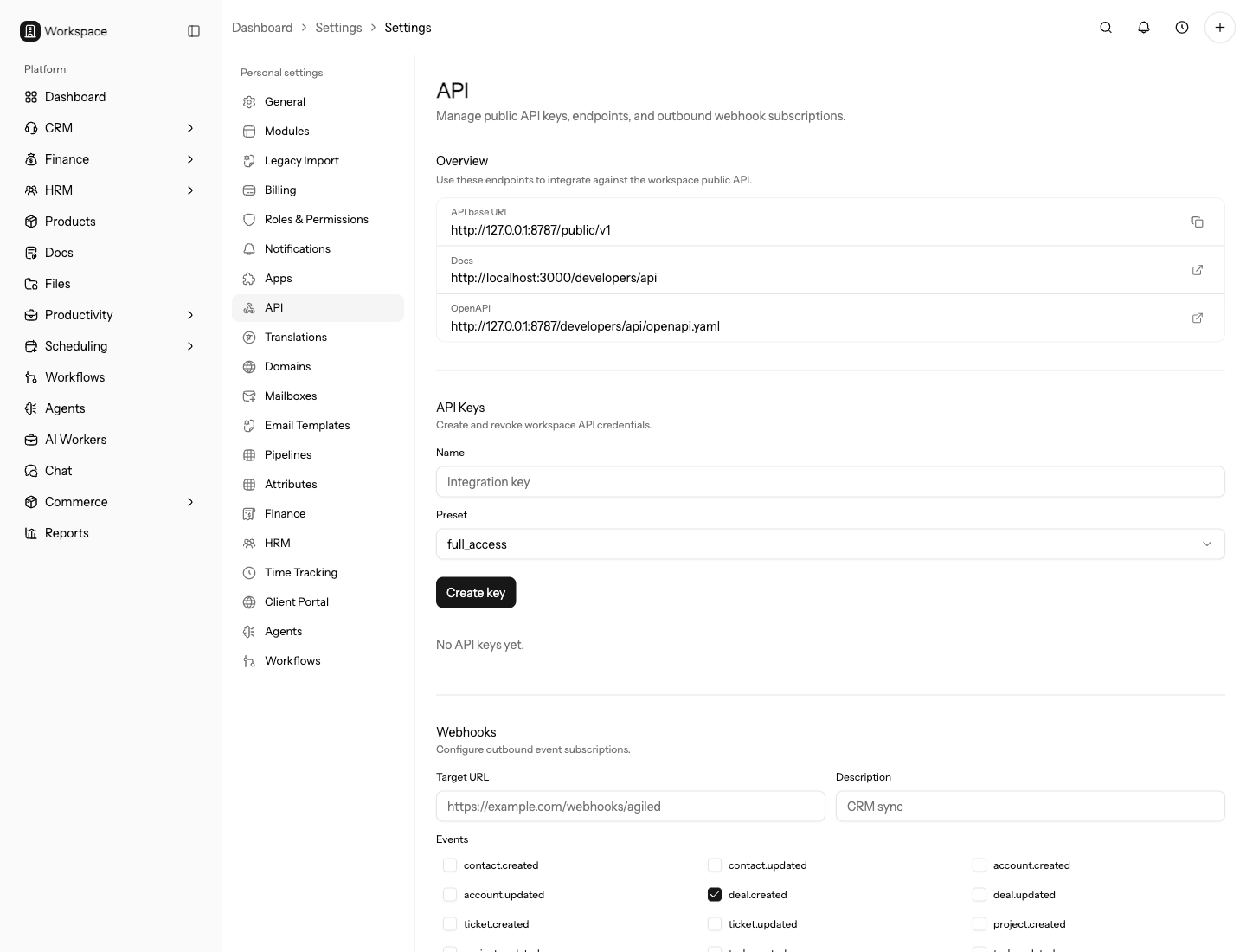
Create keys only for systems that need API access. For one-time manual exports, use reports or CSV exports instead of giving a script long-lived API access.
Create a Key
- Open Settings.
- Go to API.
- Enter a key name that identifies the external system.
- Choose a preset:
- Full access for systems that need read and write access.
- Read only for systems that only need to read records.
- Select Create key.
- Copy the token immediately.
The token is shown once. Store it in a secure secret manager.
After creating the key, test it against /public/v1/me before wiring it into a
larger integration. This confirms the token, base URL, and workspace scope.
Use the Key From a Server
API keys are for server-side integrations and automation jobs. Put the key in the external system's secret store or environment variables, then send it with requests according to the authentication docs.
Do not place an API key in frontend JavaScript, mobile apps, customer-facing forms, or browser extensions. Anyone who can inspect that code could reuse the token.
Match Access to the Job
Choose read-only access for reporting, dashboards, exports, and sync jobs that only need to inspect Agiled data. Choose full access only when the integration must create or update records.
If a system starts as read-only and later needs write access, create a new key with the correct access level. Do not reuse vague keys where the purpose is no longer clear.
Revoke a Key
- Open Settings > API.
- Find the key.
- Select Revoke.
- Confirm the action.
Revoked keys can no longer authenticate new API requests.
Key Expiration
Public API keys expire after 90 days. Create a replacement key before the old key expires, update the external system, then revoke the old key.
Keep a calendar reminder for important production integrations so keys are rotated before expiration causes a sync outage.
Rotation Workflow
- Create a replacement key with a clear name.
- Add the new key to the external system.
- Test a harmless request.
- Confirm scheduled jobs or webhooks still run.
- Revoke the old key.
Keep the old key active only long enough to complete the switchover.
Security Rules
- Create separate keys for separate systems.
- Use read-only keys unless the integration must create or update records.
- Never put API keys in browser code, mobile apps, public repositories, or screenshots.
- Revoke keys when a vendor, teammate, or automation job no longer needs access.
Naming Keys
Use names that identify the system and environment, such as Zapier production,
Warehouse staging, or Finance export job. Avoid vague names like test or
new key.
Troubleshooting
If a key stops working, check expiration, revocation status, base URL, and whether the external system is using the newest token.
If read requests work but writes fail, confirm the key is not read-only and that the endpoint supports writes for that resource.